
Introduction
This manual provides detailed instructions for the installation, operation, and maintenance of your Jerqry 9-inch Car Radio. Please read this manual thoroughly before using the product to ensure proper functionality and safety. This unit is designed to enhance your driving experience with advanced features such as Wireless CarPlay, Android Auto, GPS Navigation, Bluetooth, and a high-resolution touch screen.
Safety Information
- Ensure the vehicle is turned off and the battery is disconnected before beginning installation to prevent electrical shorts or damage.
- Professional installation is recommended for optimal performance and to avoid damage to your vehicle or the product.
- Do not operate the device in a way that distracts you from driving. Always prioritize road safety.
- Avoid exposing the unit to extreme temperatures, direct sunlight for prolonged periods, or excessive moisture.
- Use only the provided cables and accessories to prevent damage and ensure compatibility.
Package Contents
Verify that all items listed below are included in your package:
- Car Radio x1
- Power Cable x1
- Canbus x1
- GPS Module x1
- RCA Cable x1
- USB Cable x2
- Crowbar x1
- Reversing Control Cable x1
- Backup Camera x1
- MIC x1

All accessories included in the package, such as power cables, RCA cables, USB cables, GPS module, backup camera, and microphone.
Setup and Installation
Compatibility
This 9-inch 1280x800 HD touch screen car radio is compatible with Toyota Camry 4-door sedans manufactured between 2007 and 2011. It is not compatible with two-door or coupe models, nor with Camry Hybrid models that feature an energy recovery system. The included J-B-L wiring harness can be used for original J-B-L audio systems.

Compatibility chart for Toyota Camry 2007-2011 models, indicating compatible and incompatible dashboard configurations.
Wiring Diagram and Connections
Follow these steps to connect the car radio. Refer to the diagrams and video for visual guidance.
- Connect the main power cable harness to the corresponding port on the back of the car radio.
- If your vehicle has a CANBUS system, connect the CANBUS box to the power cable harness and then to the 8-pin connector on the radio.
- Connect the 20-pin RCA cable harness for audio and video inputs/outputs.
- Connect the 4-pin and 6-pin USB cables to their respective ports.
- Attach the GPS antenna to the GPS port.
- Connect the 10-pin rear camera signal wire and the microphone.
This video provides a step-by-step guide for wiring the car radio, including connections for power, speakers, and accessories.

Rear view of the car radio unit showing various ports for power, USB, RCA, GPS antenna, and camera inputs.

Wiring diagram for car radio installation in Toyota Camry models without a JBL audio system.

Wiring diagram for car radio installation in Toyota Camry models with a JBL audio system.
Retaining Original Car Functions
The car radio is designed to integrate with your vehicle's existing systems, retaining original functions such as steering wheel controls, JBL audio system, door opening information display, air conditioner information display, and original car reversing camera. Note that if your original car does not have these features, they will not be added by the new unit.

Diagram illustrating how the new car radio retains original vehicle functions like steering wheel controls, JBL audio, and air conditioning information display.
Operating Instructions
Power On/Off and Basic Controls
Press the power button on the unit or use the vehicle's ignition to turn the radio on or off. Use the touch screen interface for navigation and control. Volume can be adjusted via the on-screen controls or steering wheel controls (if configured).
Wireless CarPlay and Android Auto
The unit supports both wireless and wired CarPlay and Android Auto connections. This allows for seamless integration with your smartphone for navigation, music, calls, and messaging. Simply connect your phone via Bluetooth for wireless access or use a USB cable for a wired connection. Use voice commands like "Hey Siri" or "Hey Google" for hands-free operation.
Screenshot of the car radio display showing the Wireless CarPlay and Android Auto interface with various app icons.

Diagram illustrating wireless and wired connectivity options for CarPlay and Android Auto.
Demonstration of the car radio's features, including Bluetooth, CarPlay, and sound settings.
GPS Navigation
The Android 9-inch touch screen radio has built-in GPS navigation. It supports both offline maps (after download) and online maps when connected to mobile phone WiFi or hotspots. You can download required navigation apps from the app store. The system also supports online updates for maps and software.

Screenshot of the car radio display showing GPS navigation with a map and route information.

Visual representation of the GPS navigation feature with real-time online/offline map capabilities.
Bluetooth and FM Radio
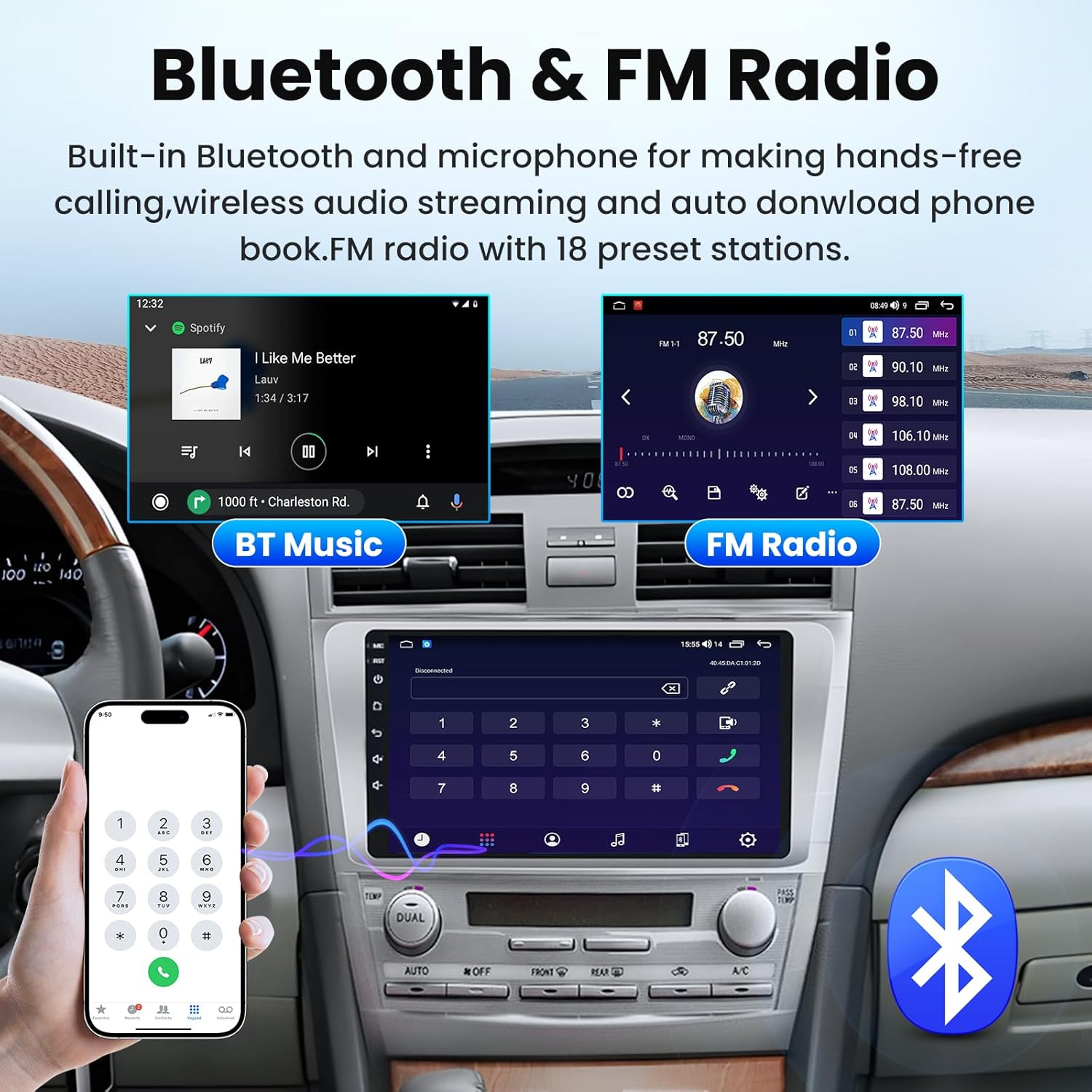
Equipped with Bluetooth 5.0, the unit allows for hands-free calls and wireless audio streaming. Pair your phone via Bluetooth settings. The built-in FM radio supports RDS and offers 18 preset stations, allowing you to listen to news, music, and traffic updates.

Screenshot of the car radio display showing Bluetooth music playback and FM radio interface with preset stations.

Illustration of hands-free Bluetooth calling and music streaming functionality.
Backup Camera
The included 1080P backup camera provides a 170° wide-angle view with night vision and waterproof functionality. When reversing, the screen automatically displays the rear view, making parking safer and more convenient. If using a factory rear-view camera, select the compatible mode on the CarPlay radio; a restart may be required for the screen to display correctly.
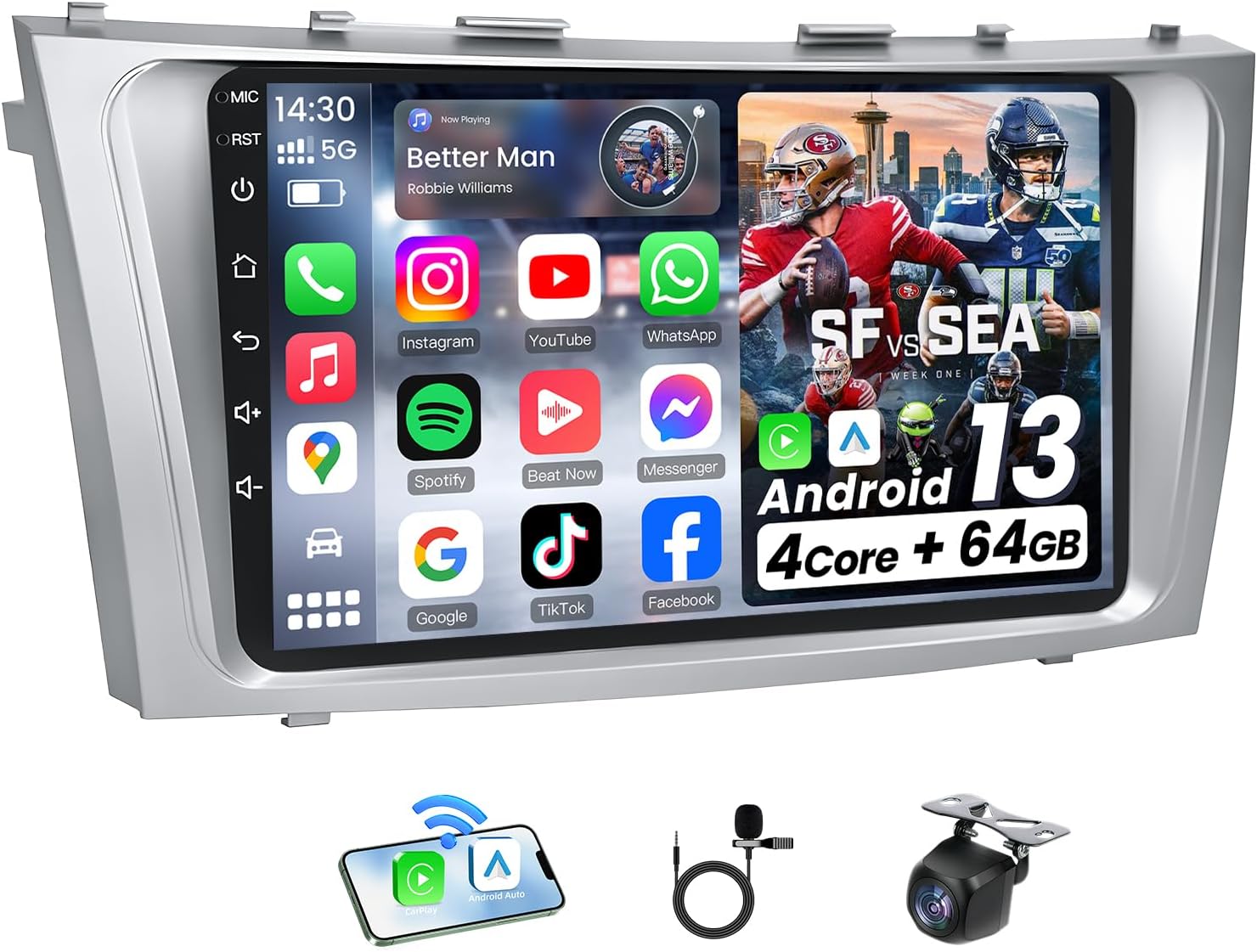
Image showing the car radio display with a backup camera view, including parking guidelines.

Diagram illustrating the backup camera's wide-angle view, night vision, and obstacle warning features.
Steering Wheel Control (SWC)
The unit supports factory steering wheel controls, allowing you to quickly switch music, control volume, and manage calls without taking your hands off the wheel. This enhances safety and convenience while driving.

Image showing a steering wheel with controls and the car radio display, highlighting the SWC functionality.
Sound Settings (EQ, DSP)
The car radio features a 15-band EQ with an upgraded chip, allowing you to customize your audio experience with HIFI stereo surround sound. Multiple stereo EQ sound effects such as jazz, rock, pop, and classic are available. Adjust bass, treble, and other audio parameters to your preference.

Screenshots of the car radio's equalizer settings, FM RDS display, and music playback interface.
Voice Control
Utilize voice control for hands-free operation of music, calls, and navigation. This feature enhances safety by allowing you to keep your focus on the road.

Illustration of voice control commands for music, calls, and navigation.
UI Replacement
The system offers various user interface (UI) themes that can be changed to personalize your experience. Refer to the device settings for available UI options.
Maintenance
To ensure the longevity and optimal performance of your car radio, follow these maintenance guidelines:
- Cleaning the Screen: Use a soft, lint-free cloth to gently wipe the touch screen. For stubborn smudges, slightly dampen the cloth with water or a screen-safe cleaner. Avoid harsh chemicals or abrasive materials.
- General Cleaning: Keep the unit and surrounding dashboard area free from dust and debris. Use a soft brush or compressed air to clean vents and crevices.
- Software Updates: Periodically check for system updates through the device settings or the manufacturer's website to ensure you have the latest features and bug fixes.
- Avoid Liquid Contact: Prevent any liquids from spilling onto the unit, as this can cause severe damage.
Troubleshooting
If you encounter issues with your car radio, refer to the following common problems and solutions:
| Problem | Possible Solution |
|---|---|
| No Power | Check all power connections. Ensure the vehicle's ignition is on. Verify fuses are intact. |
| No Sound | Check speaker connections. Ensure volume is not muted or set too low. Verify audio output settings. |
| Bluetooth Pairing Issues | Ensure Bluetooth is enabled on both the radio and your phone. Delete previous pairings and try again. Move closer to the unit. |
| GPS Not Working/Inaccurate | Ensure the GPS antenna is properly connected and has a clear view of the sky. Check navigation app settings. Connect to WiFi for online maps. |
| Backup Camera Not Displaying | Check the camera's power and signal connections. Ensure the vehicle is in reverse. If using a factory camera, verify compatibility mode is selected and restart the unit. |
| Screen Freezes/Unresponsive | Perform a soft reset by pressing the RST button (usually a small pinhole). If the issue persists, a factory reset may be necessary (note: this will erase all custom settings). |
Specifications
| Feature | Specification |
|---|---|
| Brand | Jerqry |
| Model Name | Jerqry |
| Screen Size | 9 Inches |
| Resolution | 1280 x 800 |
| Operating System | Android |
| Memory Storage Capacity | 64 GB |
| Connectivity Technology | Bluetooth, USB, Wi-Fi |
| Special Features | Bluetooth, 5G-WIFI, Voice Control, 1280*800 Resolution, Support SWC (Steering wheel Control), GPS Navigation, 1080P Backup Camera, FM Radio |
| Map Type | Central America, North America, South America |
| Audio Output Mode | Stereo |
| Mounting Type | Dashboard Mount |
| Human-Interface Input | Touchscreen |
| Compatible Devices | Android Phone, iPhone |
| Supported Satellite Navigation System | GPS |
| UPC | 745746790968 |
Warranty and Support
Your Jerqry car radio comes with a standard manufacturer's warranty. For specific warranty details, please refer to the product packaging or contact the seller directly. For technical support, installation assistance, or any product-related inquiries, please contact Jerqry-US through the Amazon platform.
How to Contact Support:
- Go to the product page on Amazon.
- Click on the seller's name, "Jerqry-US".
- Select "Ask a question" to send a message to the support team.

Image depicting customer support availability.


