1. Introduction
This manual provides comprehensive instructions for the setup, operation, and maintenance of your Wielio Projector. Please read this manual thoroughly before using the projector to ensure proper operation and to maximize its lifespan. Keep this manual for future reference.

Image 1.1: Wielio Projector with remote control. The screen shows two cartoon cats, indicating its use for entertainment. Key features like 4K Support, 18000 Lumens, 5G WiFi, and Bluetooth 5.2 are highlighted on the screen.
2. Safety Information
Observe the following safety precautions to prevent damage to the projector and ensure user safety:
- Do not block ventilation openings.
- Do not expose the projector to rain or moisture.
- Avoid looking directly into the projector lens when the lamp is on.
- Use only the power adapter supplied with the projector.
- Place the projector on a stable, level surface.
- Unplug the projector during lightning storms or when unused for long periods.
3. Package Contents
Please check that all items are present upon unpacking:
- Wielio Projector
- Remote Control
- Power Cable
- HDMI Cable (may vary by region/package)
- AV Cable (may vary by region/package)
- User Manual (this document)
4. Product Overview
4.1. Projector Features
- Native 1080P Full HD Resolution
- WIFI Connectivity (5G supported)
- Bluetooth 5.2 for audio output
- Up to 300-inch maximum display size
- Multiple input ports (HDMI, USB, AV, TF Card)

Image 4.1: Visual comparison demonstrating the clarity of 1080P native resolution (Wielio) against a 720P projector. The Wielio projector displays sharper images of animals.
4.2. Projector Components
Refer to the diagram below for an overview of the projector's physical components (diagram not available, general description provided):
- Front: Projection Lens
- Top: Control Panel (Power, Navigation, OK, Back buttons), Focus Ring (manual adjustment)
- Rear: Power Input, HDMI Ports, USB Ports, AV Input, Audio Output, TF Card Slot
- Sides: Ventilation Grilles
- Bottom: Mounting Holes, Adjustable Foot
5. Setup
5.1. Placement
The projector can be placed in various positions:
- Table Placement: Position the projector on a flat, stable surface in front of the screen.
- Ceiling Mount: Attach the projector to a ceiling mount (sold separately). Ensure it is securely fastened.
- Tripod Installation: Mount the projector onto a compatible tripod (sold separately) using the threaded hole on the bottom.
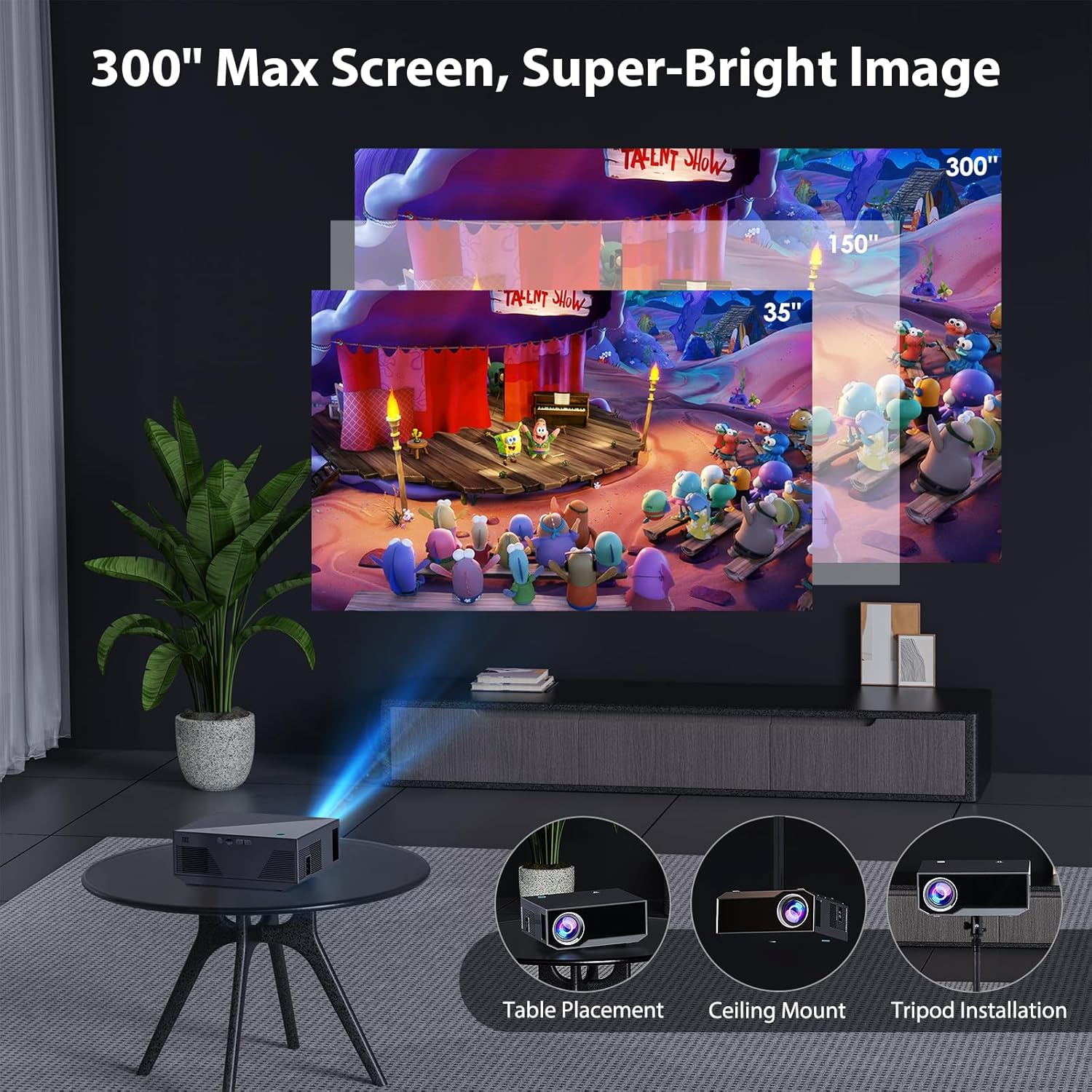
Image 5.1: The Wielio Projector demonstrating flexible installation options, including placement on a table, ceiling mounting, and tripod installation. The image also illustrates different screen sizes from 35 to 300 inches.
5.2. Power Connection
- Connect the power cable to the projector's power input port.
- Plug the other end of the power cable into a power outlet.
5.3. Initial Power On and Focus Adjustment
- Press the Power button on the projector or remote control to turn it on.
- Adjust the focus ring on the top of the projector until the projected image is clear and sharp.
6. Operating
6.1. Connecting Devices
The projector supports various input sources:
- HDMI: Connect a laptop, TV stick, game console, or DVD player via an HDMI cable.
- USB: Insert a USB drive to play media files directly.
- AV: Use the AV cable to connect older devices.
- TF Card: Insert a TF (Micro SD) card to play media files.

Image 6.1: The Wielio Projector demonstrating compatibility with a wide range of devices, including HDMI cable, USB drives, TF cards, headsets, Bluetooth speakers, laptops, DVD players, TV sticks, game consoles, Miracast, smartphones, and tablet PCs.
6.2. WIFI Screen Mirroring
Mirror your Android, iOS, or Windows device screen wirelessly:
- Ensure the projector and your device are connected to the same WIFI network.
- Select the "Screen Mirroring" or "WIFI Display" option on the projector's menu.
- On your device, enable screen mirroring (e.g., "Smart View" on Android, "Screen Mirroring" on iOS, "Connect" on Windows) and select the projector from the list of available devices.
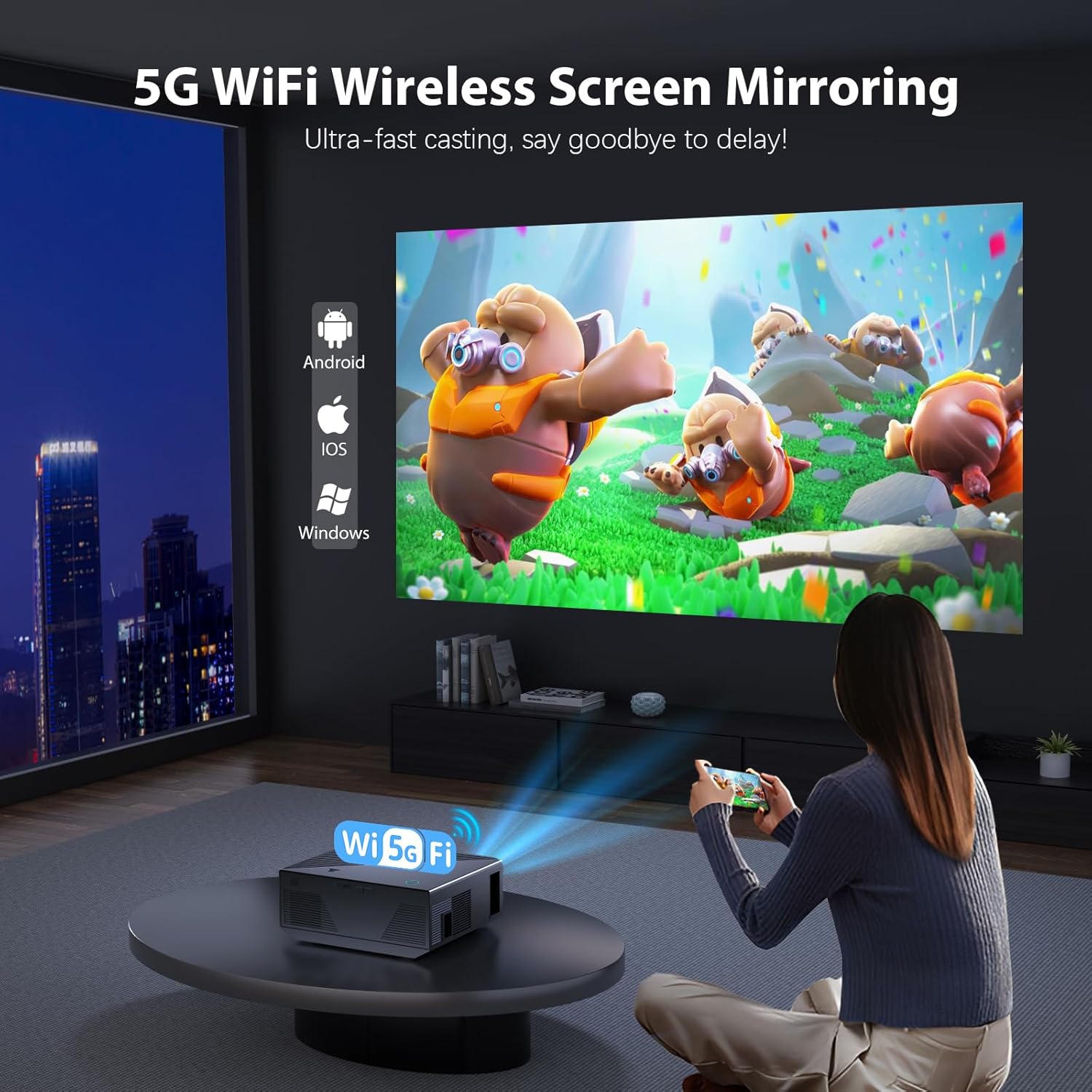
Image 6.2: A user wirelessly mirroring content from a smartphone to the Wielio Projector using 5G WiFi. The projected image shows animated characters, indicating seamless casting.
6.3. Bluetooth Audio Connection
Connect external Bluetooth speakers or headphones for enhanced audio:
- Go to the Bluetooth settings in the projector's menu.
- Enable Bluetooth and put your external audio device into pairing mode.
- Select your device from the list of available Bluetooth devices on the projector to pair.
Note: The Bluetooth function on the projector is designed to send audio to Bluetooth speakers or headphones. It cannot pair with smartphones or PCs as an audio input source.

Image 6.3: The Wielio Projector illustrating its Bluetooth 5.2 connectivity for outputting audio to various devices such as AirPods, Bluetooth headphones, and external Bluetooth speakers, enhancing the sound experience.
6.4. Menu Navigation
Use the remote control or the buttons on the projector to navigate the on-screen menu. The main menu typically includes options for input source selection, picture settings, sound settings, and network settings.
7. Maintenance
7.1. Cleaning the Lens
Gently wipe the projector lens with a soft, lint-free cloth specifically designed for optical lenses. Do not use abrasive cleaners or excessive force.
7.2. Cleaning the Projector Body
Use a soft, dry cloth to clean the exterior of the projector. For stubborn dirt, a slightly damp cloth can be used, followed by a dry cloth.
7.3. Storage
When not in use for extended periods, store the projector in a cool, dry place, away from direct sunlight and extreme temperatures. Cover the lens to protect it from dust.
8. Troubleshooting
- No Power:
- Ensure the power cable is securely connected to both the projector and the power outlet.
- Check if the power outlet is functioning correctly.
- No Image:
- Verify the input source is correctly selected (e.g., HDMI 1, USB).
- Check the connection cable (HDMI, AV) for damage or loose connections.
- Adjust the focus ring to ensure the image is not just out of focus.
- No Sound:
- Increase the volume on both the projector and the connected source device.
- If using Bluetooth, ensure the external speaker/headphone is paired and its volume is up.
- Check if the audio output is muted on the projector or source device.
- Screen Mirroring Issues:
- Ensure both devices are on the same WIFI network.
- Restart both the projector and the source device.
- Check for any software updates for your device or projector.
9. Specifications
| Feature | Specification |
|---|---|
| Brand | Wielio |
| Model Number | Wielio |
| Native Resolution | 1080P Full HD |
| Brightness | 15000 Lumen |
| Maximum Screen Size | 300 inches |
| Connectivity | WIFI (5G), Bluetooth 5.2 |
| Input Ports | HDMI, USB, AV, TF Card |
| Item Weight | 4.02 pounds |
| Product Dimensions | 7 x 2 x 3 inches |
| Controller Type | Button Control |
| Wattage | 5 watts |
10. Warranty and Support
For warranty information or technical support, please refer to the warranty card included with your product or contact Wielio customer service directly. Contact details can typically be found on the official Wielio website or on your purchase receipt.
Please have your product model number (Wielio) and purchase date ready when contacting support.
