
thinkcar ThinkCar BD6
ThinkCar BD6 Bluetooth OBD2 Adapter User Manual
Model: ThinkCar BD6 | Brand: thinkcar
1. Introduction and Overview
The ThinkCar BD6 is a compact and powerful Bluetooth OBD2 adapter designed for comprehensive vehicle diagnostics. It connects wirelessly to your smartphone or tablet via the exclusive ThinkDiag app, providing users with professional-grade diagnostic capabilities directly from their mobile device. This manual will guide you through the setup, operation, and maintenance of your ThinkCar BD6 adapter.

Figure 1: ThinkCar BD6 adapter connected to a smartphone displaying the ThinkDiag app interface.
Key Features:
- Full System Diagnostics: Perform intelligent scans of all vehicle systems, read vehicle information, read/clear diagnostic trouble codes (DTCs), and turn off warning lights.
- Live Data Stream: Analyze performance changes in real-time, presented in both text and graphical formats.
- 5 Service Reset Functions: Includes Oil Lamp Reset, Bleed Reset, Brake Reset, IMMO (Immobilizer) Reset, and Electronic Throttle (ETS) Reset.
- Plug and Play Connectivity: Lightweight and portable, connecting instantly to the vehicle's OBD2 interface via Bluetooth.
- Wide Vehicle Compatibility: Supports over 126 different vehicle brands and more than 200,000 vehicles worldwide, including 12V cars, SUVs, vans, pickups, and MPVs from the USA (since 1996), Europe (since 2000), and Asia (since 2008).
- Multi-language Support: Designed with 15 language options.
- Exclusive ThinkDiag App: Provides access to all functions and receives annual updates with the latest vehicle data.
2. Setup and Installation
Follow these steps to set up your ThinkCar BD6 adapter and begin diagnostics:
- Download the ThinkDiag App: Search for "ThinkDiag" in your device's app store (available for iOS and Android).
- Connect the Adapter: Locate your vehicle's OBD2 port (usually under the dashboard on the driver's side) and plug in the ThinkCar BD6 adapter.
- Turn On Vehicle Ignition: Ensure your vehicle's ignition is in the ON position (engine can be off).
- Pair via Bluetooth: Open the ThinkDiag app on your smartphone or tablet. The app will automatically detect and connect to the BD6 adapter via Bluetooth.
- Activate Device: Follow the in-app instructions to activate your ThinkCar BD6 device. You may need to enter a serial number found on the device or packaging.
- Download Vehicle Software: Once activated, the app will prompt you to download the necessary vehicle diagnostic software for your specific car model.

Figure 2: Step-by-step guide for connecting the ThinkCar BD6 adapter to the app and initiating diagnostics.
3. Operating Instructions
3.1. Full System Diagnostics
The ThinkCar BD6 allows for a comprehensive scan of all electronic control units (ECUs) in your vehicle. This includes systems such as Engine, Transmission, ABS, SRS (Airbag), BMS, TPMS, AC, IC, IMMO, and more.
- From the main menu of the ThinkDiag app, select "All Systems Diagnostic".
- The tool will automatically identify your vehicle and scan all available systems.
- View detailed diagnostic reports, including DTCs, live data, and vehicle information.

Figure 3: Illustration of the comprehensive OE-level system diagnostics capabilities.
3.2. 5 Service Reset Functions
The BD6 offers five commonly used maintenance reset functions to help keep your vehicle's system in good condition:
- Oil Lamp Reset: Resets the oil service light after an oil change.
- Bleed Reset: Performs ABS bleeding procedures.
- Brake Reset: Resets the electronic parking brake (EPB) after brake pad replacement.
- IMMO Reset: Performs immobilizer matching (for basic key programming or replacement).
- ETS (Electronic Throttle) Reset: Clears adaptive values and resets the throttle body to its default state.
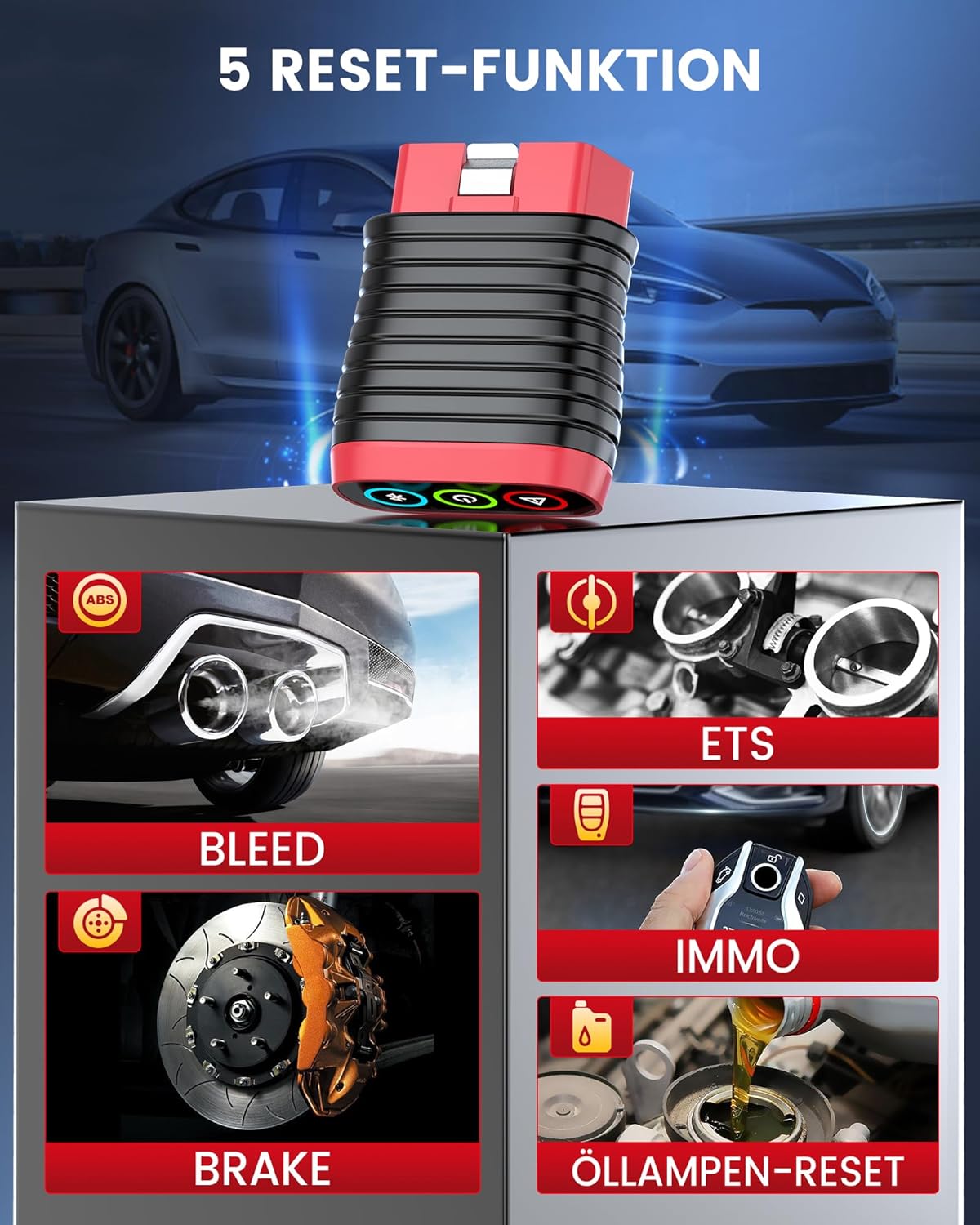
Figure 4: Overview of the five available service reset functions.
3.3. Full OBDII Functionality
The BD6 supports all 10 modes of OBDII testing, allowing for quick analysis and resolution of engine-related issues:
- Read Codes: Displays Diagnostic Trouble Codes (DTCs) and their descriptions.
- Erase Codes: Clears DTCs from the vehicle's computer and turns off the Malfunction Indicator Light (MIL).
- Live Data Stream: Shows real-time data from various sensors in text or graph format.
- DTC Lookup: Provides detailed explanations for generic and manufacturer-specific codes.
- Freeze Frame Data: Records a snapshot of operating conditions at the time a fault code was set.
- I/M Readiness: Checks the readiness of emission-related monitors.
- O2 Sensor Test: Retrieves O2 sensor monitor test results.
- On-Board Monitor Test: Retrieves test results for emission-related powertrain components and systems.
- EVAP System Test: Initiates a test of the evaporative emission control system.
- Vehicle Information: Retrieves vehicle identification number (VIN), calibration ID (CALID), and calibration verification number (CVN).

Figure 5: Overview of the comprehensive OBDII functionalities.
4. Maintenance
To ensure the longevity and optimal performance of your ThinkCar BD6 adapter:
- Keep the device clean and free from dust and moisture. Use a soft, dry cloth for cleaning.
- Store the adapter in a cool, dry place when not in use.
- Regularly update the ThinkDiag app and vehicle software to ensure compatibility with the latest vehicle models and diagnostic protocols. Updates are provided annually.
- Avoid exposing the device to extreme temperatures or direct sunlight for prolonged periods.
5. Troubleshooting
Common Issues and Solutions:
| Problem | Possible Cause | Solution |
|---|---|---|
| Device not connecting via Bluetooth. | Bluetooth is off on the mobile device; adapter not properly plugged in; vehicle ignition is off. | Ensure Bluetooth is enabled on your phone/tablet. Check that the adapter is securely plugged into the OBD2 port. Turn the vehicle ignition to the ON position. Restart the ThinkDiag app. |
| Cannot clear fault codes. | The fault is due to a hardware defect in the vehicle; the underlying issue has not been resolved. | Note: If a fault code cannot be cleared, it indicates a persistent hardware defect in the car. The OBD2 scanner will not remove the error code until the corresponding hardware defect in the vehicle is repaired. Address the physical issue first. |
| App crashes or freezes. | Outdated app version; insufficient device memory; software conflict. | Ensure the ThinkDiag app is updated to the latest version. Close other background applications on your mobile device. Restart your mobile device. |
| Inaccurate readings or incomplete scans. | Incorrect vehicle profile selected; outdated vehicle software. | Verify that the correct vehicle make, model, and year are selected in the app. Download and install the latest vehicle-specific software updates. |
6. Specifications
| Feature | Detail |
|---|---|
| Manufacturer | THINKCAR |
| Brand | thinkcar |
| Model | ThinkCar BD6 (TCDE-BD6) |
| Item Weight | 90 g |
| Package Dimensions | 11.9 x 7.7 x 3.7 cm |
| Connectivity | Bluetooth |
| Supported OS | iOS, Android |
| Supported Protocols | KWP2000, CAN, ISO9141-2, USD, VPW&PWM (SAEJ1850) |
| Languages | 15+ languages supported |

Figure 6: Comprehensive vehicle coverage and multi-language support details.
7. Warranty and Support
ThinkCar is committed to providing excellent customer support and ensuring user satisfaction. For any technical assistance, warranty inquiries, or operational questions, please refer to the following:
- Official Website: Visit the official ThinkCar website for FAQs, software downloads, and additional resources.
- In-App Support: The ThinkDiag app often includes a support section or direct contact options.
- Email Support: Contact ThinkCar customer service via email for detailed inquiries.

Figure 7: ThinkCar provides professional technical support for its products.
Related documentsThinkCar BD6


Ask a question about this manual
Ask about setup, troubleshooting, compatibility, parts, safety, or missing instructions. Manuals+ will review the question and use this page’s manual context to help answer it.