
wansview W7
wansview W7-4G LTE Cellular Security Camera Instruction Manual
Model: W7-4G | Brand: wansview
Introduction
The wansview W7-4G LTE Cellular Security Camera is designed to provide robust surveillance in outdoor environments, especially where Wi-Fi connectivity is unavailable. Featuring 2K resolution, pan-tilt-zoom capabilities, two-way audio, and cellular connectivity, this camera offers comprehensive monitoring and security. This manual provides detailed instructions for setup, operation, and maintenance to ensure optimal performance.

Figure 1: wansview W7-4G LTE Cellular Security Camera and companion app.
What's in the Box
- Camera (x1)
- 12V DC Power Cable (x1)
- Plug (x1)
- Installation Guide (x1)
- Packs of Mounting Screws (x2)
Setup
1. Power Connection & SIM Card Activation
The wansview W7-4G camera operates via a corded electric connection and does not require Wi-Fi. It comes with a built-in 4G LTE SIM card with 100MB of trial data. Ensure the camera is connected to a power source to activate the trial data. Data plans can be renewed via the companion app after the trial period.
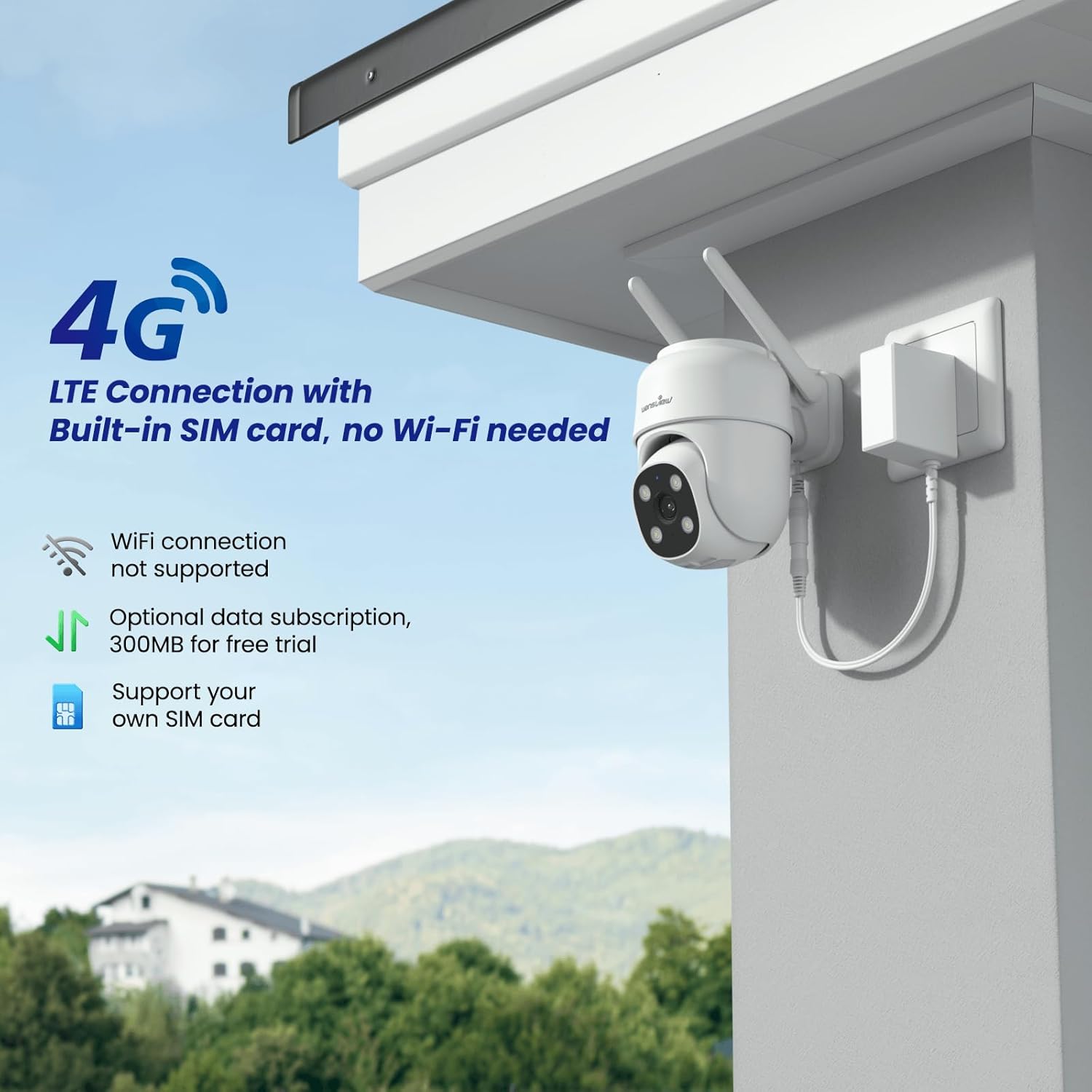
Figure 2: Camera connected via 4G LTE with built-in SIM card.
2. App Download & Pairing
Download the Wansview Cloud APP from your preferred app store (available for Android and iOS). Follow the in-app instructions to quickly connect and pair your camera by scanning the QR code located on the device. Ensure the camera's indicator is flashing blue and red alternatively during pairing.

Figure 3: Quick installation guide steps.
3. Mounting
The camera is designed for wall mounting. Use the provided mounting screws and the self-sticking template to drill the necessary holes. Ensure the mounting position has a strong cellular signal for optimal performance.
Operating
1. Live View & PTZ Control
Access the live camera feed through the Wansview Cloud APP. The camera supports 350° pan and 55° tilt for complete coverage of your surveillance area. Use the console in the app to control the camera's movement and set favorite positions for quick access.
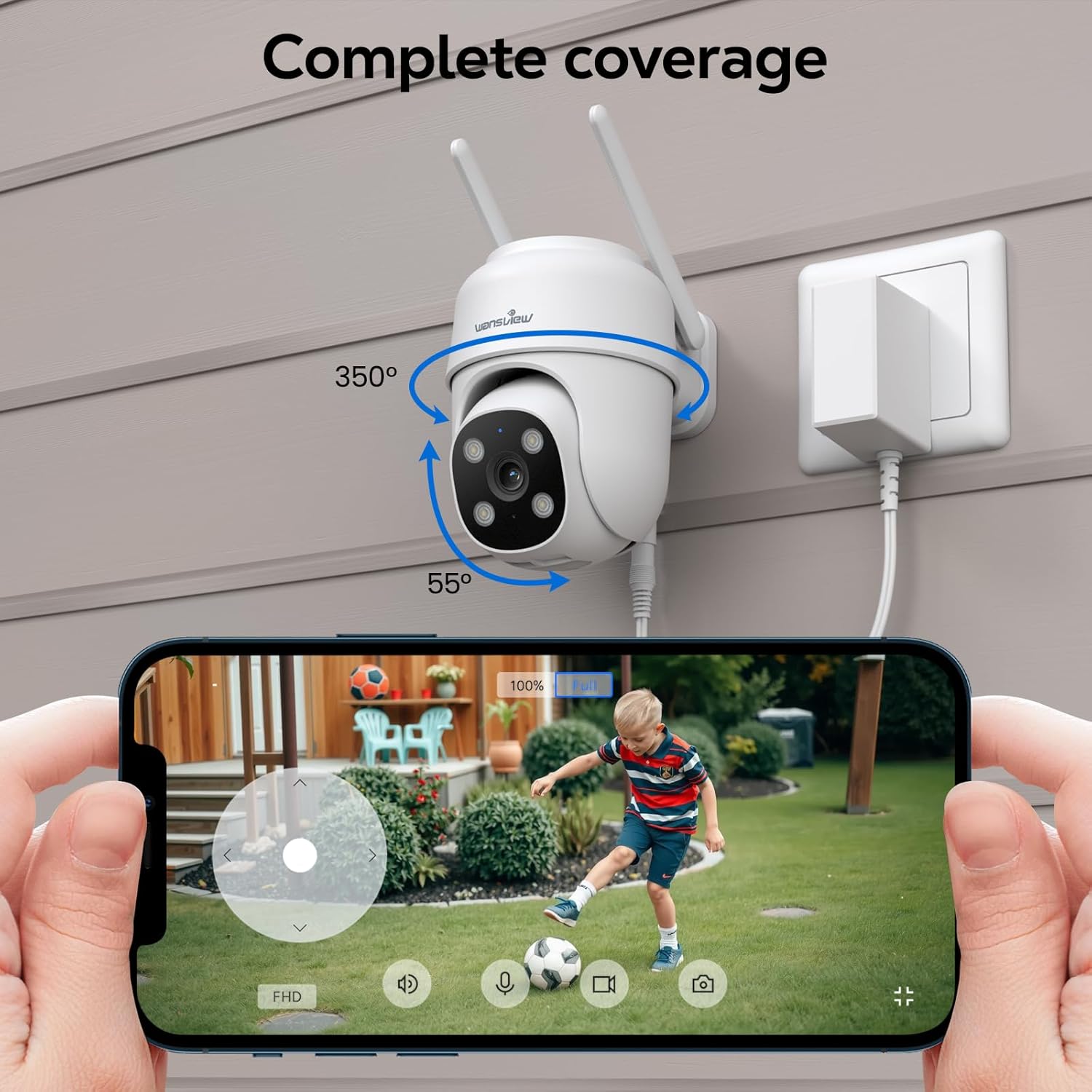
Figure 4: Pan-Tilt-Zoom functionality for comprehensive coverage.
2. 2K Resolution & Night Vision
The camera provides crystal clear 2K resolution (2304x1296p). It features multiple night vision modes, including Full Color Night Vision, Intelligent Light, and Auto Infrared Mode, ensuring clear images even in extremely dark environments.
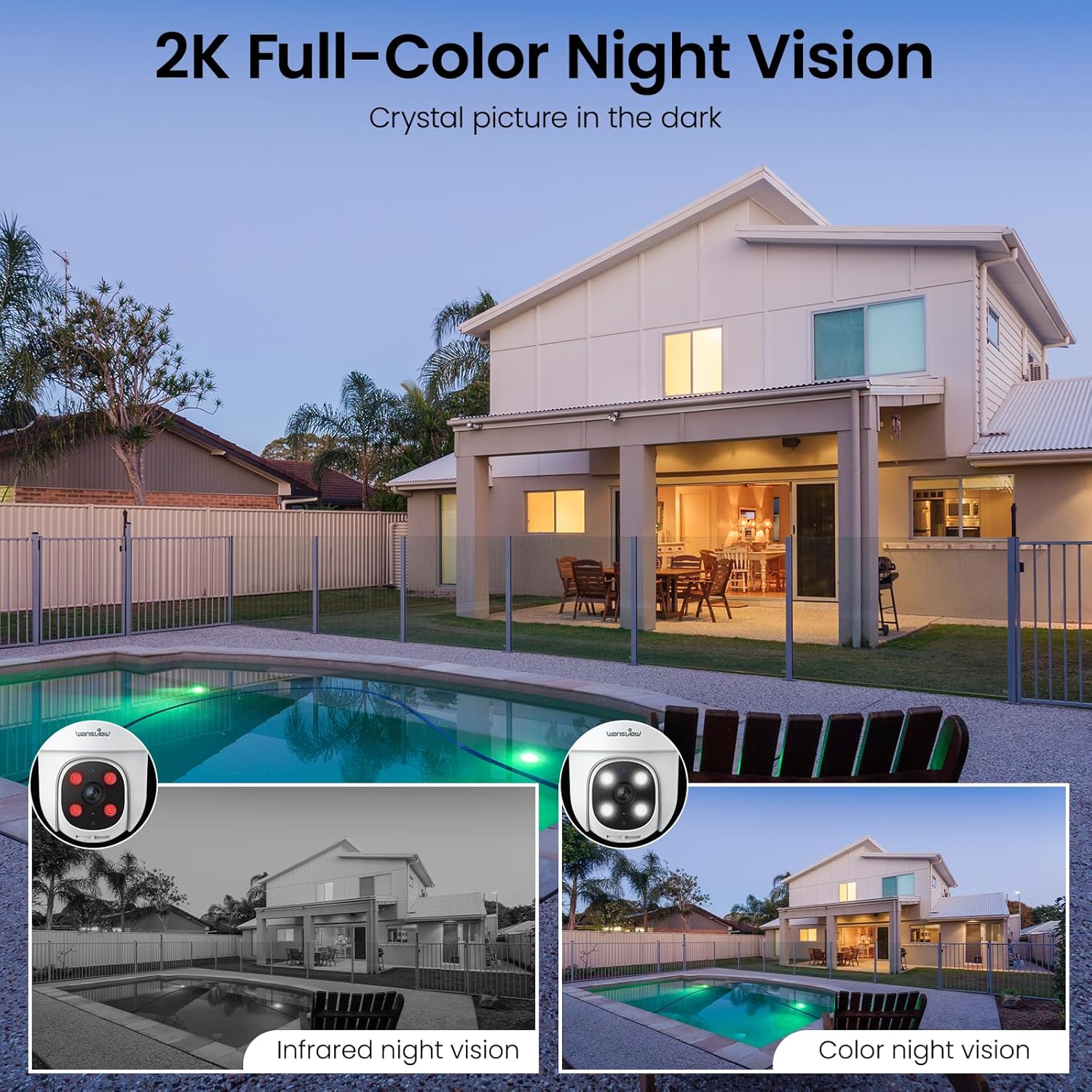
Figure 5: 2K Full-Color Night Vision capability.
3. Two-Way Audio & AI Human Detection
Communicate with individuals on the camera's end using the built-in microphone and speaker for two-way audio. The camera also supports AI Human Detection, which triggers real-time motion alerts to your phone, reducing false alarms.
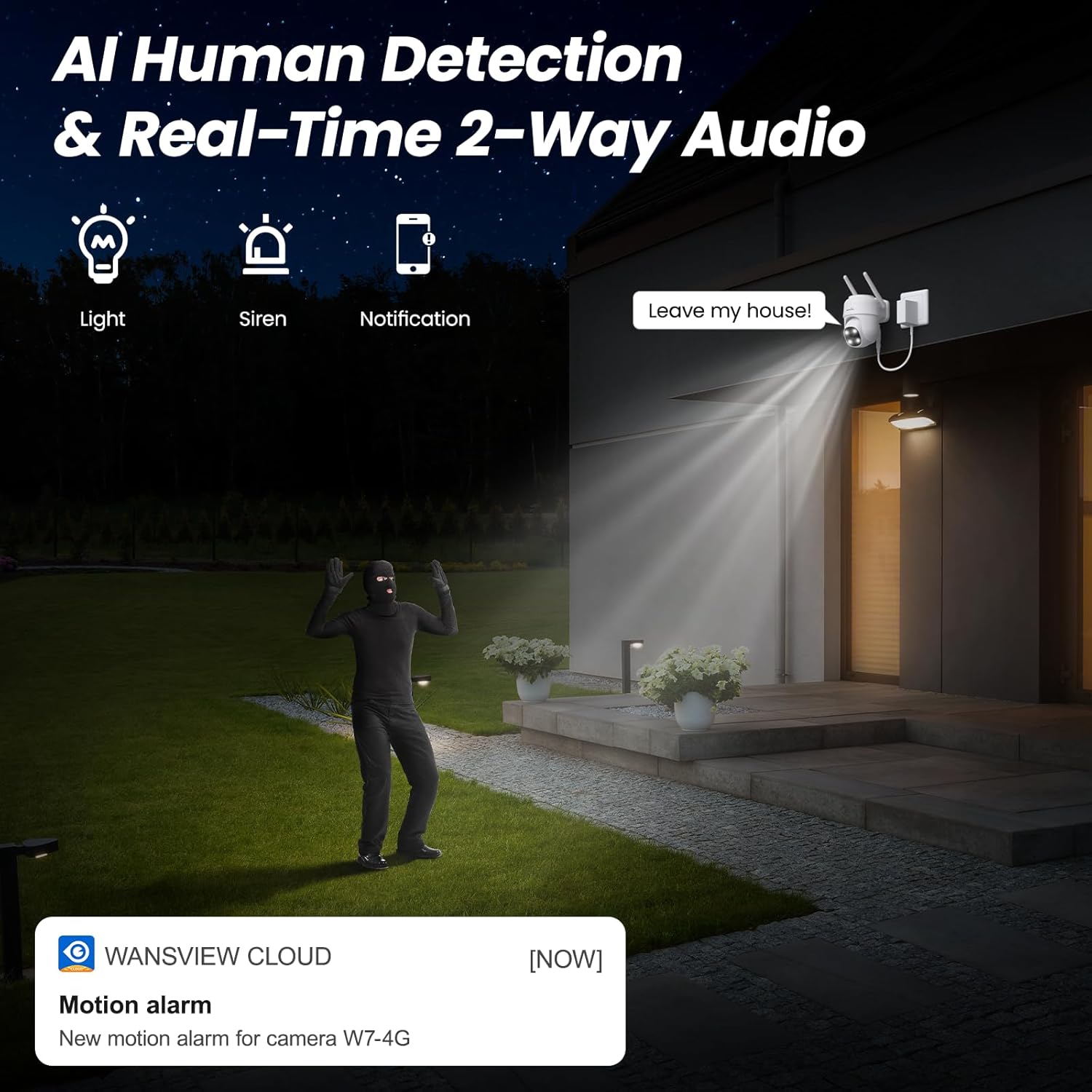
Figure 6: AI Human Detection and Two-Way Audio in action.
4. Storage & Playback
The camera supports 24/7 continuous recording to an SD card (up to 128GB, not included). You can easily play back video recordings through the app's timeline feature. Cloud storage options are also available for enhanced security and accessibility.
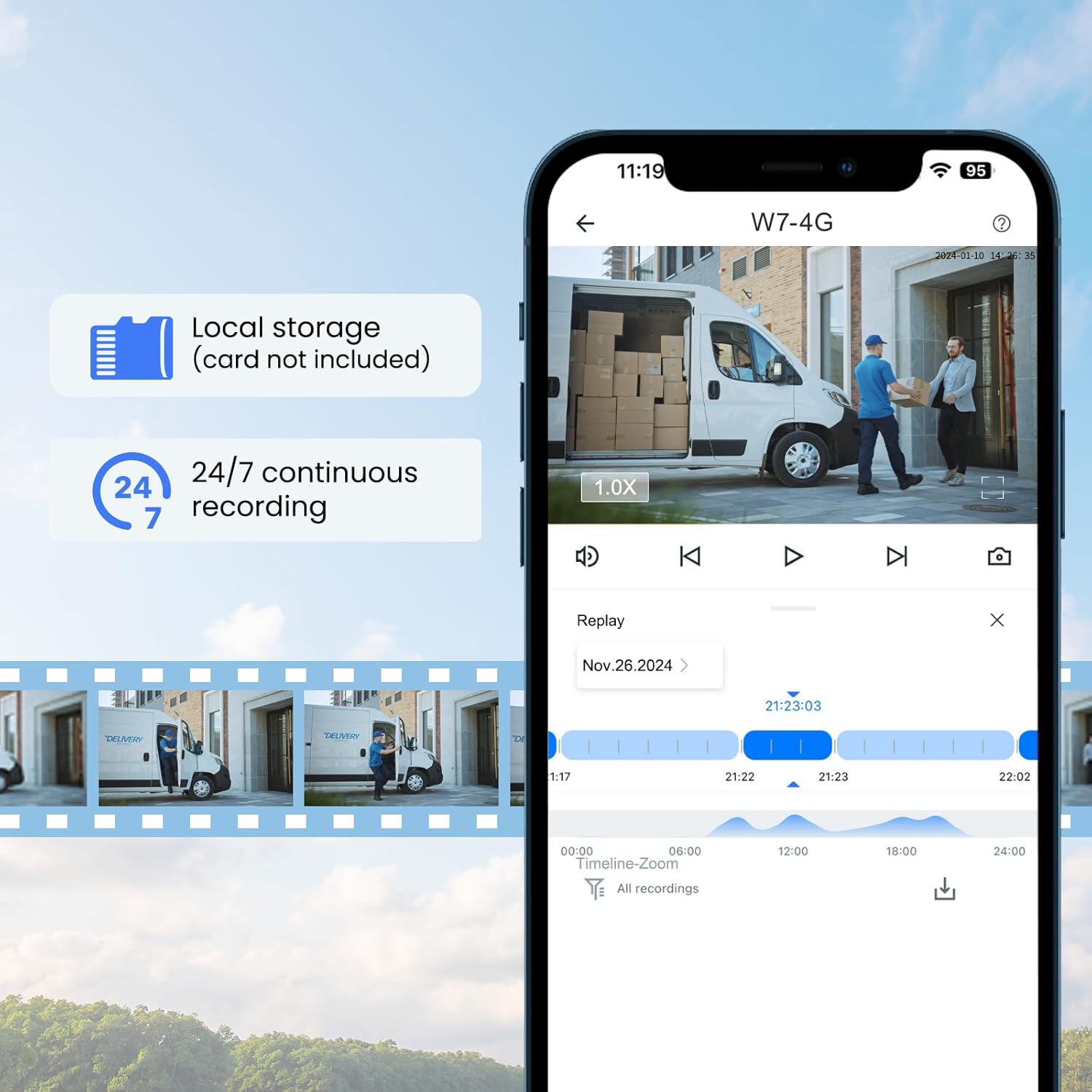
Figure 7: Local storage and continuous recording features.
5. Smart Home Integration & Sharing
The wansview W7-4G is compatible with Alexa and Google Assistant, allowing voice control for live camera feeds. You can also share camera access with up to 3 family members or friends through the app, providing shared security and convenience.
Maintenance
1. Weather Resistance
The camera boasts IP65 weather resistance, making it suitable for various outdoor conditions, including sunlight, rain, and snow, within a temperature range of -10°C to 50°C.
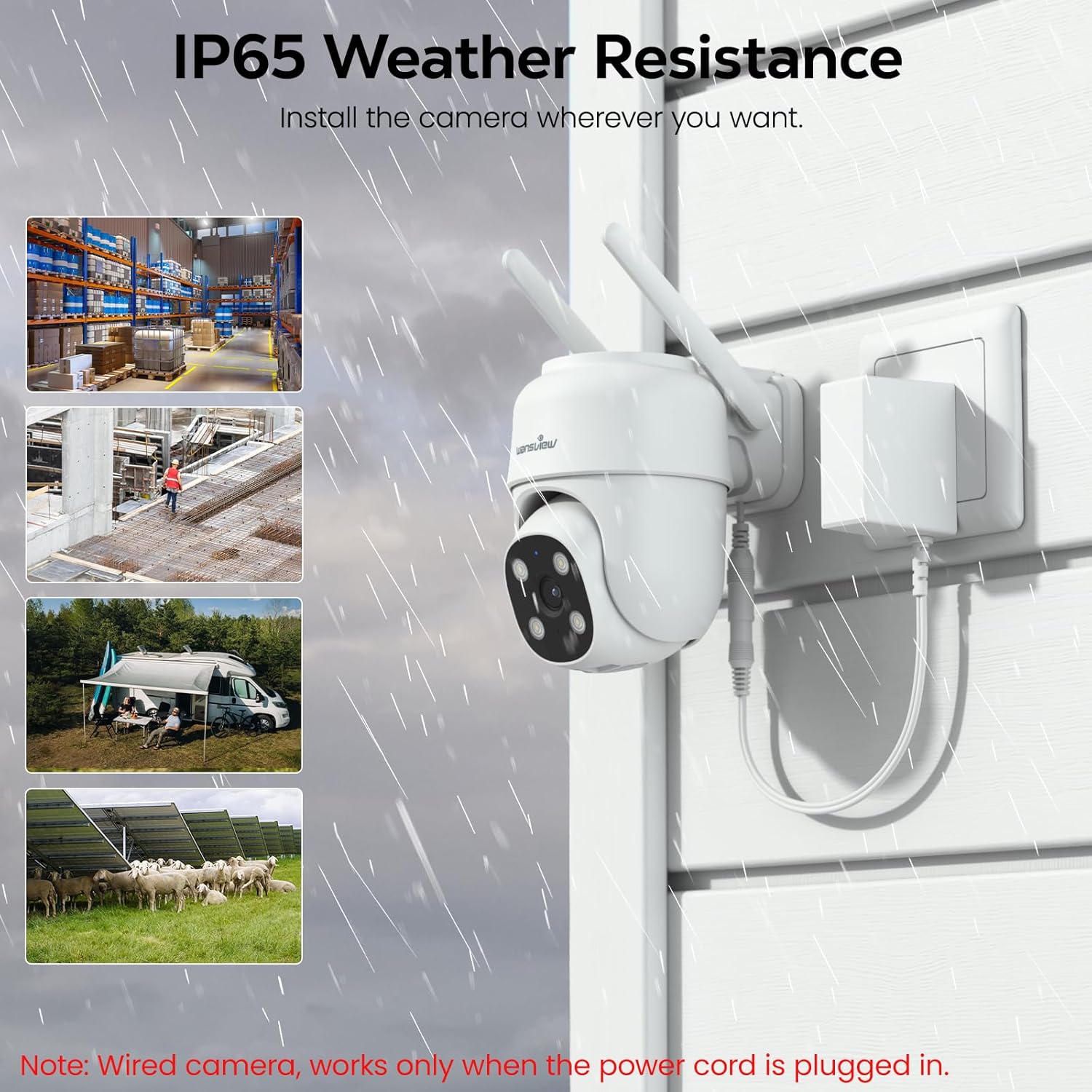
Figure 8: IP65 Weather Resistance for outdoor durability.
2. Cleaning
To maintain optimal performance, periodically clean the camera lens and housing with a soft, damp cloth. Avoid using harsh chemicals or abrasive materials that could damage the camera's surface or lens.
Troubleshooting
1. No Connection / Offline
- Ensure the camera is properly powered on and the power cable is securely connected.
- Verify that the cellular signal strength at the camera's location is adequate.
- Check the SIM card data plan status in the app; renew if data has run out.
- Perform a camera reset if necessary (refer to the quick installation guide for reset button location).
2. Motion Alerts Not Working / Too Many Alerts
- Check motion detection settings in the app to ensure it's enabled and configured correctly.
- Adjust motion sensitivity settings to reduce false alarms from environmental factors (e.g., trees swaying, small animals).
- Define specific monitoring areas within the app to exclude irrelevant zones.
3. Poor Image Quality
- Ensure the camera lens is clean and free from dust or smudges.
- Verify that the camera is receiving sufficient power.
- Check the cellular signal strength, as poor signal can affect streaming quality.
Specifications
| Feature | Detail |
|---|---|
| Model Name | W7 |
| Indoor/Outdoor Usage | Outdoor, Indoor |
| Power Source | Corded Electric |
| Connectivity Technology | Wired (4G LTE Cellular) |
| Wireless Communication Technology | 4G |
| Video Capture Resolution | 1296p (2K) |
| Special Features | HD Resolution, 2-Way Audio, Night Vision, PTZ Technology |
| Storage | Supports up to 128GB SD card (not included) |
| Material | Aluminum |
| Item Dimensions L x W x H | 4.5 x 3.44 x 4.8 inches |
| Item Weight | 1.26 pounds |
Warranty and Support
Information regarding product warranty and customer support is not available in the provided data. Please refer to the product packaging or the official wansview website for details.
Related documentsW7


Ask a question about this manual
Ask about setup, troubleshooting, compatibility, parts, safety, or missing instructions. Manuals+ will review the question and use this page’s manual context to help answer it.