
1. Introduction
The SHARGEEK 140 Power Bank (Model X1i) is a high-capacity portable charger designed to provide efficient power to a wide range of devices, including laptops, smartphones, and tablets. Featuring a 140W maximum output and a 20000mAh battery, it is equipped with both USB-C and USB-A ports, alongside a smart display for real-time charging information. Its transparent design showcases the internal components, combining functionality with a unique aesthetic.
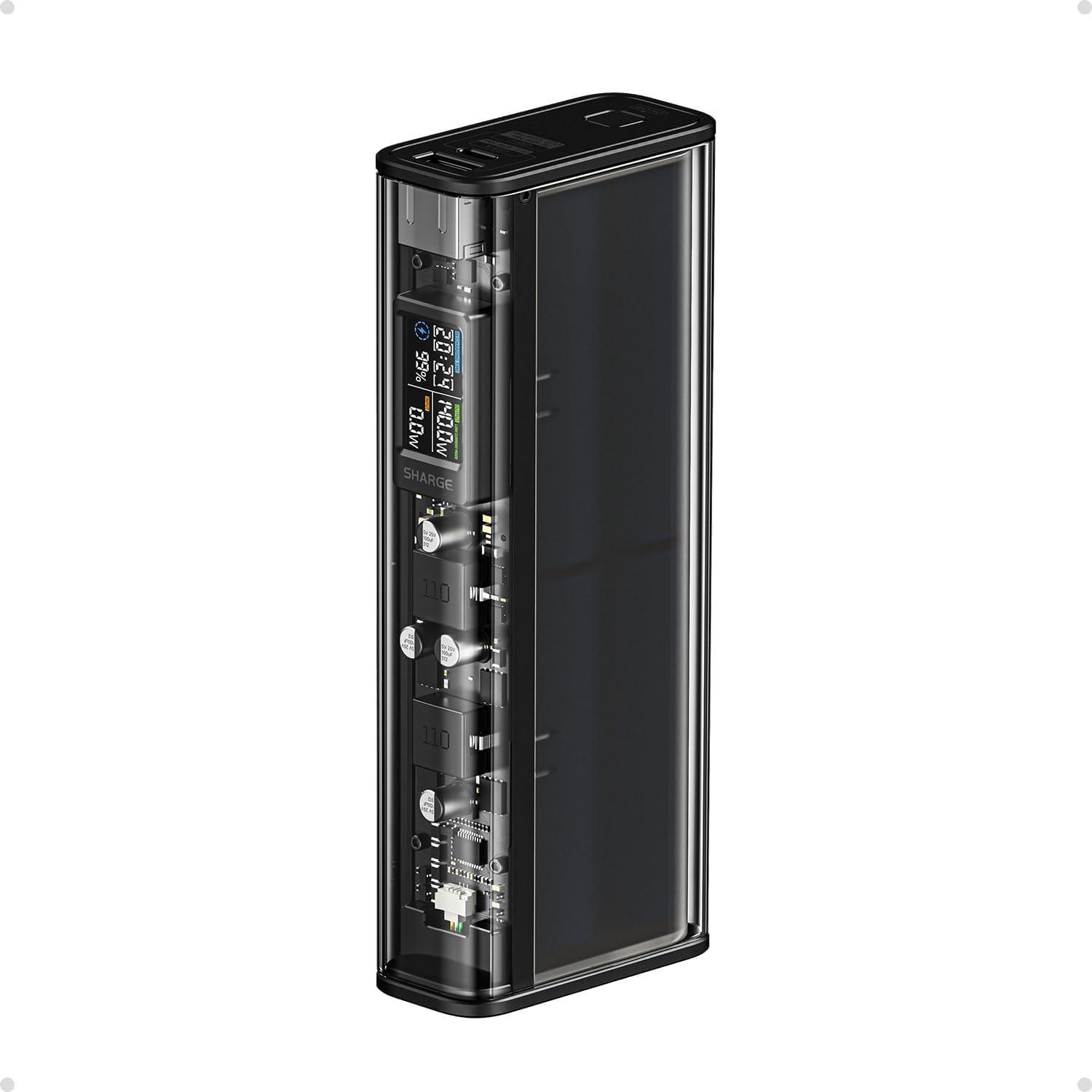
Image: The SHARGEEK 140 Power Bank, showcasing its transparent design and integrated display.
2. Package Contents and Setup
2.1 Package Contents
Verify that all items are present in the package:
- SHARGEEK 140 Power Bank
- 100W USB-C Cable
- Travel Pouch
- User Guide

Image: Contents of the SHARGEEK 140 Power Bank package, including the power bank, USB-C cable, and travel pouch.
2.2 Initial Charging
Before first use, fully charge the SHARGEEK 140 Power Bank. Connect the provided USB-C cable to the power bank's USB-C port and to a compatible USB-C power adapter (not included). The smart display will show the input power and charging status.

Image: The SHARGEEK 140 Power Bank connected to a wall charger for recharging, simultaneously charging a smartphone.
3. Operating Instructions
3.1 Charging Devices
The power bank features one USB-C port and one USB-A port for charging devices.
- USB-C Port: Provides up to 100W output. Use a USB-C to USB-C cable to charge compatible laptops, tablets, and smartphones.
- USB-A Port: Provides up to 40W output. Use a USB-A to compatible cable for other devices.
- Simultaneous Charging: The power bank can deliver a combined maximum output of 140W (100W from USB-C and 40W from USB-A) when charging two devices concurrently.

Image: The SHARGEEK 140 Power Bank connected to and charging both a laptop and a smartphone.

Image: A diagram illustrating the USB-C and USB-A ports on the power bank, indicating their maximum output capabilities.
3.2 Smart Display Functionality
The integrated LCD smart display provides real-time information:
- Remaining Battery: Displays the current battery percentage.
- Output Power: Shows the wattage being delivered to connected devices.
- Input Power: Indicates the wattage received when the power bank is recharging.
- Time to Recharge: Estimates the time required to fully recharge the power bank.
- Abnormal Temperature Alarm: Alerts if the device's temperature exceeds safe operating limits.
- Overload Indicator: Notifies if the power bank is experiencing an overload condition.

Image: A detailed view of the smart display, highlighting indicators for remaining battery, output power, input power, and potential warnings.
3.3 Low-Current Mode
For charging low-power devices such as smartwatches, Bluetooth earbuds, or fitness trackers, activate Low-Current Mode. After powering on the device, double-click the power button to enter this mode. This ensures optimal and safe charging for sensitive electronics.

Image: The power bank in low-current mode, charging a smartwatch and wireless earbuds.
3.4 Safety Features
The SHARGEEK 140 Power Bank incorporates multiple protection mechanisms to ensure safe operation:
- Overvoltage Protection
- Overcurrent Protection
- Overload Protection
- Overheat Protection
- Short-circuit Protection
- Undervoltage Protection

Image: Visual representation of the multi-layer protection system, including overvoltage, overcurrent, and overheat safeguards.
The power bank is also designed to be airline-safe, complying with regulations for portable electronic devices.

Image: The SHARGEEK 140 Power Bank positioned on an airplane tray table, signifying its airline-safe design.
4. Maintenance
4.1 Battery Care
To maximize the lifespan and performance of your power bank:
- Avoid fully discharging the battery frequently.
- Store the power bank in a cool, dry place, ideally with a charge level between 50% and 80% if not used for extended periods.
- Avoid exposing the device to extreme temperatures (hot or cold).
- The high-quality batteries are designed for longevity, maintaining over 80% battery life after 1000+ charge cycles.

Image: An internal view of the power bank's battery cells, illustrating its durability with over 1000 charge cycles while retaining 80%+ battery capacity.
4.2 Cleaning and Storage
- Wipe the exterior with a soft, dry cloth. Do not use harsh chemicals or abrasive materials.
- Ensure the ports are free of dust and debris.
- When not in use, store the power bank in its travel pouch to protect it from scratches and impacts.
5. Troubleshooting
- Device not charging:
- Ensure the power bank has sufficient charge.
- Verify that the charging cable is securely connected to both the power bank and the device.
- Try a different cable or port.
- Check if the device requires Low-Current Mode.
- Power bank not recharging:
- Ensure the charging cable is properly connected to a working power adapter and the power bank.
- Try a different USB-C cable or power adapter.
- Display not working:
- Press the power button to activate the display.
- If the issue persists, contact customer support.
- Overheat alarm:
- Disconnect all devices and allow the power bank to cool down in a well-ventilated area.
- Avoid charging in direct sunlight or enclosed spaces.
6. Specifications
| Model Number | X1i |
| Battery Capacity | 20000mAh / 72Wh |
| Rated Capacity | 11,200mAh (5V=3A) |
| Ports | 1x USB-C, 1x USB-A |
| Input (USB-C) | 5V/9V/12V/15V=3A, 20V=3.25A (65W Max) |
| Output (USB-C) | 5V/9V/12V/15V=3A, 20V=5A (100W Max) |
| Output (USB-A) | 5V/9V/12V=3A, 20V=2A (40W Max) |
| Combined Output | USB-C + USB-A: 100W + 40W Max (140W Total) |
| Supported Protocols | QC3.0, QC4.0, PD2.0, PD3.0, Apple5V/2.4A, BC1.2, AFC, FCP |
| Product Dimensions | 158 x 65 x 30.5mm / 6.2 x 2.5 x 1.2 inches |
| Item Weight | 1.5 pounds (approx. 470g) |
| Special Features | 140W Fast Charging, Smart Display, Transparent design, Airline Safe |

Image: A size comparison of the SHARGEEK 140 Power Bank with a standard soda can, illustrating its compact form factor.

Image: An illustration of the integrated circuit board (PCB) design, highlighting key components for efficient and safe operation.
7. Warranty and Support
7.1 Warranty Information
The SHARGEEK 140 Power Bank comes with a 12-month hassle-free warranty from the date of purchase. This warranty covers manufacturing defects and ensures product reliability. Please retain your proof of purchase for warranty claims.
7.2 Customer Support
For any questions, technical assistance, or warranty claims, please contact SHARGEEK customer support. SHARGEEK is committed to providing lifetime customer support for its products.
- Online Support: Visit the official SHARGEEK website for FAQs and support resources.
- Email Support: Refer to your product packaging or the official website for contact email.

Image: Information on the 12-month warranty, lifetime customer support, and safety certifications for the product.


