
AOCHUAN M2PRO
AOCHUAN M2PRO Smartphone Gimbal Stabilizer
User Manual
1. Product Overview
The AOCHUAN M2PRO is a versatile 4-in-1 device functioning as a smartphone gimbal stabilizer, selfie stick, and tripod with smart face tracking capabilities. It is designed to enhance your mobile videography and photography experience, offering stability and intelligent features without the need for a dedicated application.

Figure 1.1: The AOCHUAN M2PRO in its various forms, highlighting its multi-functional design including the remote and RGB light.
2. What's in the Box
- AOCHUAN SMART M2pro Gimbal
- RGB Full light
- USB-C Charging Cable x1
- Tripod x1
- User Manual
3. Setup Guide
3.1 Unfolding and Initial Setup
To begin, carefully unfold the M2PRO. Ensure the device is fully extended so that the arm and handle are in contact. This proper extension helps the phone holder maintain a horizontal state, crucial for stable operation.
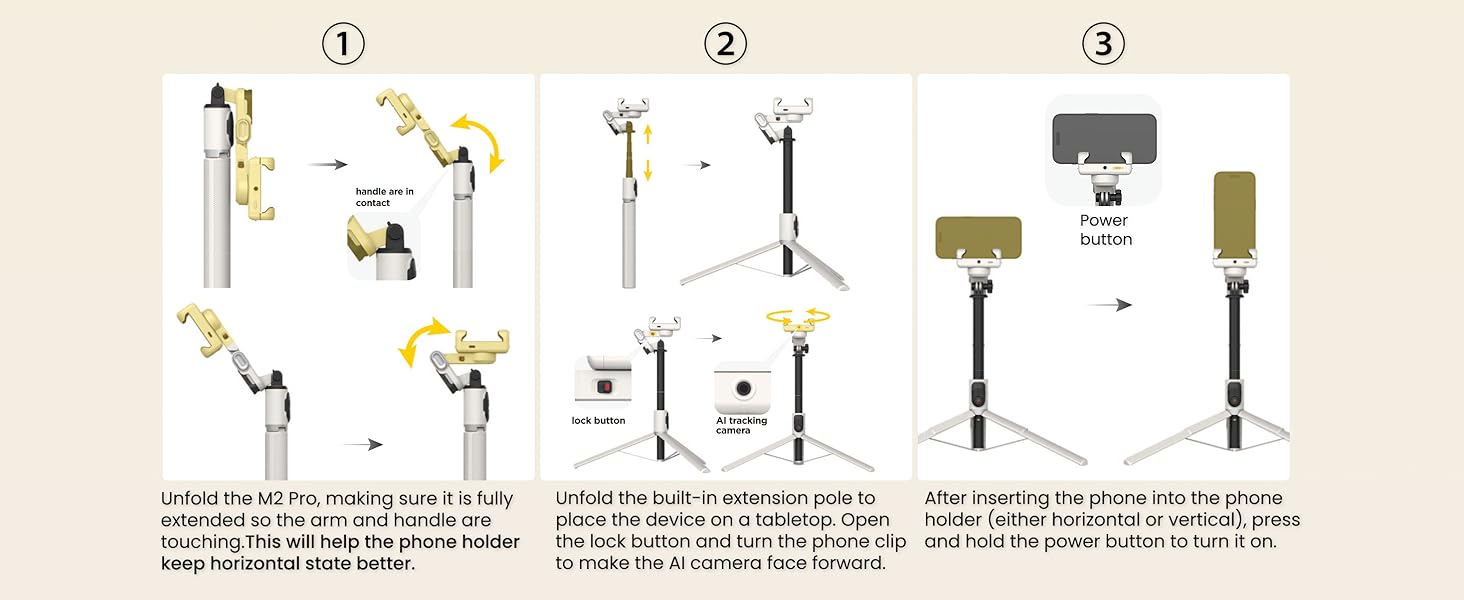
Figure 3.1: Step-by-step illustration of unfolding the gimbal stabilizer.
3.2 Phone Installation and Power On
Unfold the built-in extension pole to position the device on a flat surface. Locate the lock button and open it, then rotate the phone clip so the AI camera faces forward. After inserting your smartphone into the phone holder, ensuring it is securely clamped (either horizontally or vertically), press and hold the power button to turn on the device.
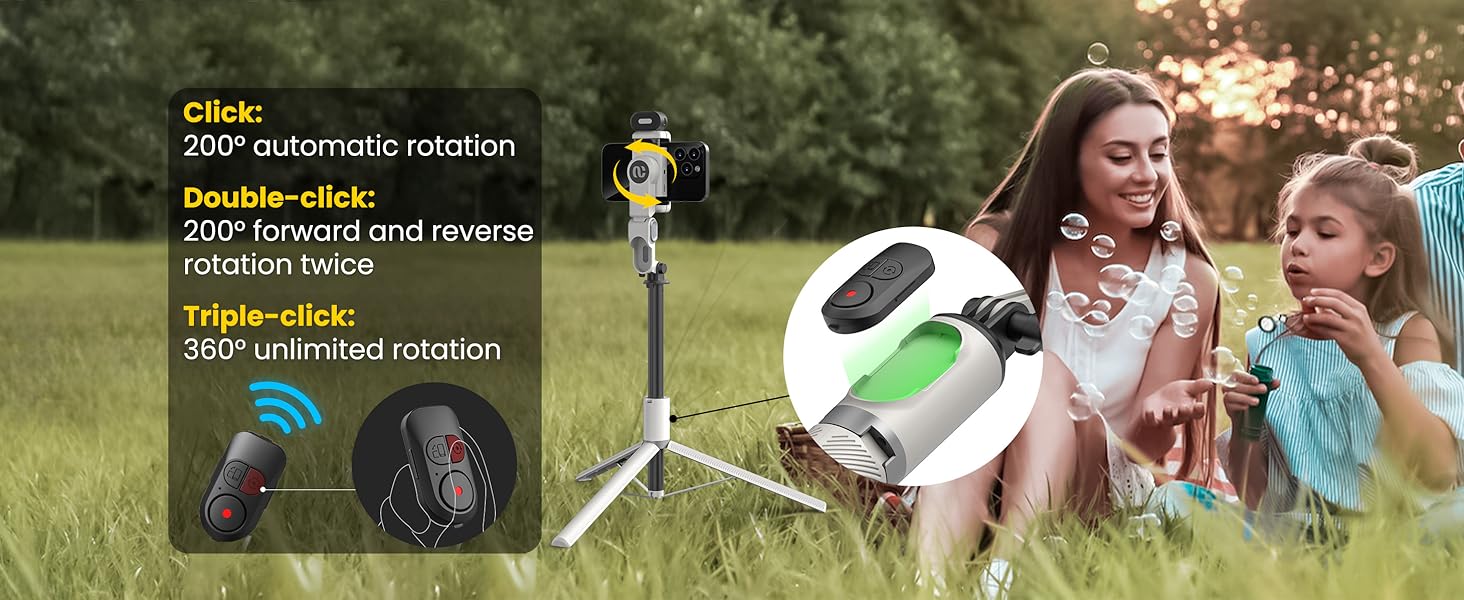
Figure 3.2: Illustration of extending the pole and orienting the AI camera.
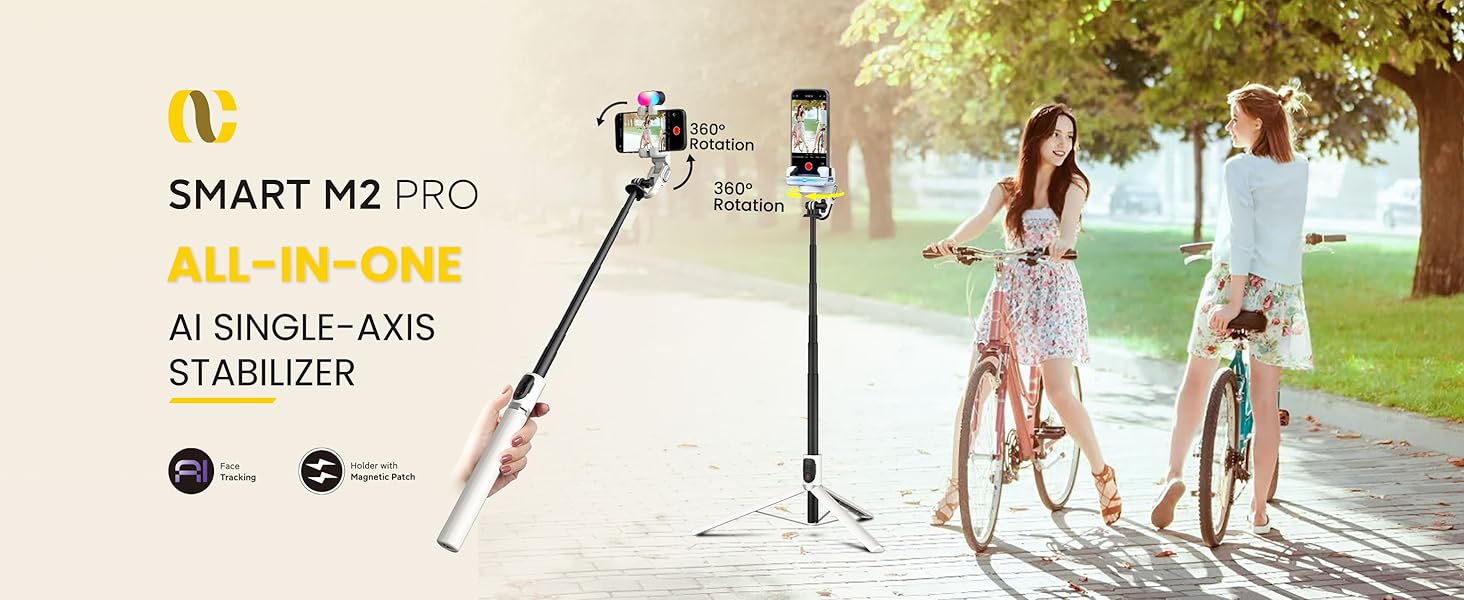
Figure 3.3: Illustration of inserting the phone and powering on the gimbal.
Video 3.1: This video provides detailed instructions on operating the M2Pro in handheld mode, demonstrating proper grip and movement for stable footage.
4. Operating Instructions
4.1 AI Tracking Function (No App Required)
The M2PRO features an integrated AI camera for facial tracking, eliminating the need for a separate application. You can initiate and pause tracking using simple hand gestures. An 'OK' gesture (thumb and forefinger forming a circle) will start tracking, while a 'palm' gesture (open hand facing the camera) will pause it. The device's AI will automatically follow your face, making it ideal for vlogging, live streaming, and self-recording.
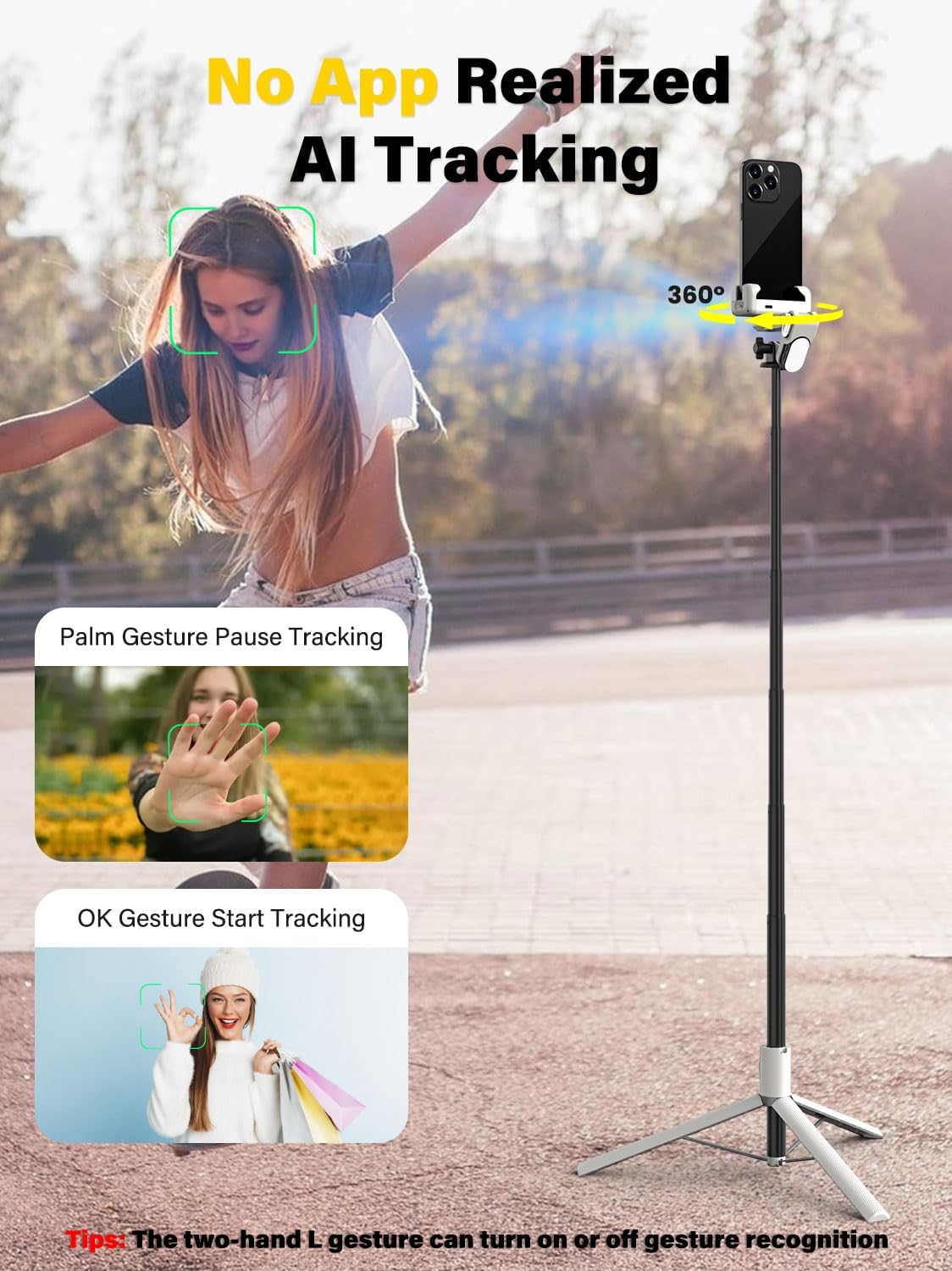
Figure 4.1: Visual guide to AI tracking and gesture controls.
Video 4.1: This video describes the operation of the M2Pro's AI following mode, detailing how to activate and utilize its intelligent tracking capabilities.
4.2 Multiple Shooting Modes
The 1-axis gimbal offers four primary shooting modes to cater to various creative needs:
- AI Tracking Mode: Utilizes the built-in AI camera for automatic facial tracking.
- Handheld Camera Mode: For stable, freehand shooting.
- POV Mode: Captures a first-person perspective.
- Inception Mode: Creates dynamic, rotating shots.
These modes, combined with the high-precision 360° rotating gimbal and anti-shake technology, ensure smooth and professional-looking footage.
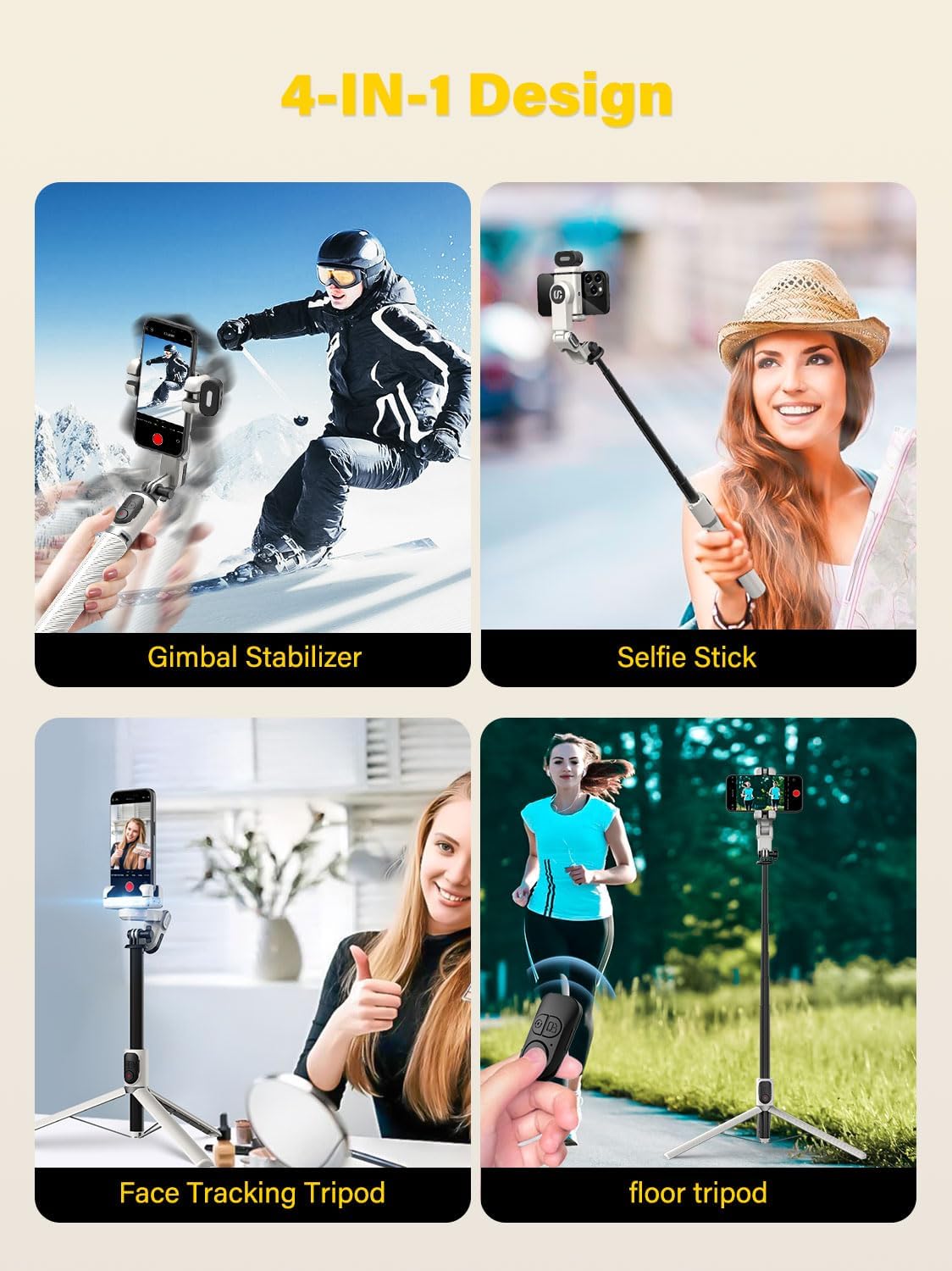
Figure 4.2: The M2PRO's versatile 4-in-1 design for various shooting scenarios.
4.3 Wireless Remote Control
A wireless remote control is included, allowing you to operate the gimbal from a distance of up to 10 meters. This is particularly useful for group photos, long-distance shots, or when you need to change shooting modes without touching the device.

Figure 4.3: The wireless remote control enables convenient remote shooting.
4.4 RGB Fill Light
The integrated RGB fill light provides adjustable illumination for your shots. It features 7 color temperatures and 3 levels of brightness, allowing you to optimize lighting conditions for various environments and creative effects.

Figure 4.4: The RGB fill light offers versatile lighting options.
4.5 Anti-shake Technology
The M2PRO incorporates advanced anti-shake technology and a powerful automatic balancing function. This minimizes image shaking and ensures smooth, stable video recording and sharp photos, even during movement.
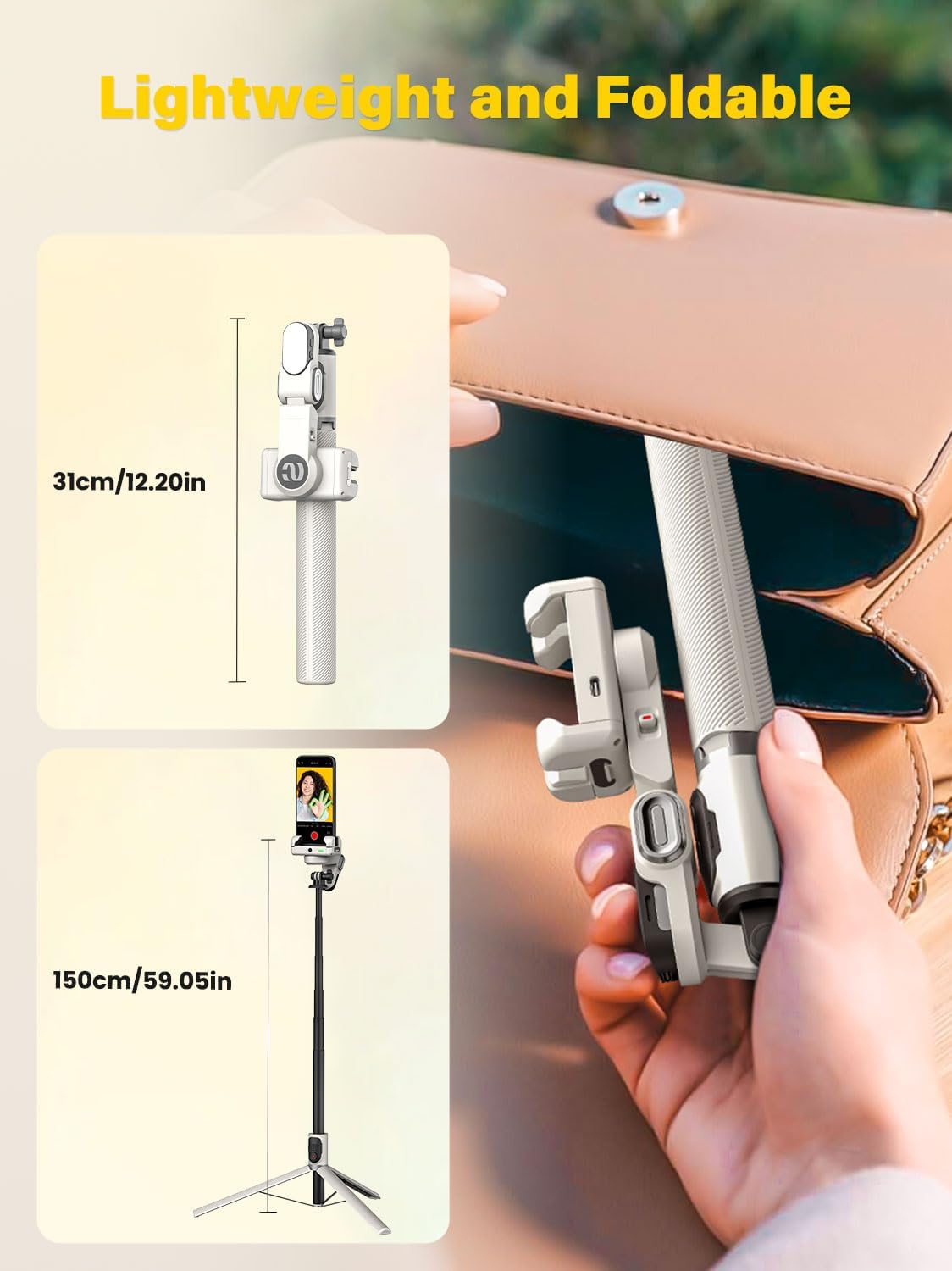
Figure 4.5: The anti-shake feature ensures smooth and stable footage.
Video 4.2: This official video provides an overview of the AOCHUAN M2Pro AI Tracking 2-axis Gimbal Stabilizer, showcasing its key features and benefits.
5. Maintenance
Proper maintenance ensures the longevity and optimal performance of your AOCHUAN M2PRO.
- Cleaning: Use a soft, dry cloth to wipe the device. Avoid using harsh chemicals or abrasive materials that could damage the surface or internal components.
- Storage: When not in use, fold the gimbal stabilizer to its compact size and store it in a cool, dry place away from direct sunlight and extreme temperatures.
- Battery Care: To maintain battery health, charge the device regularly, even if not in frequent use. Avoid fully discharging the battery for extended periods.
6. Troubleshooting
If you encounter issues with your AOCHUAN M2PRO, refer to the following common problems and their solutions:
6.1 AI Tracking Not Responding
- Ensure the AI camera is facing forward and unobstructed.
- Verify that the device is powered on and fully charged.
- Confirm that your hand gestures (OK to start, palm to pause) are clear and performed within the camera's view.
6.2 Stiff Tripod Legs
- The tripod legs are designed to be firm. To open them, gently pull each leg outwards from the top until they click into place. Avoid forcing them.
6.3 Unstable or Unbalanced Footage
- Ensure your smartphone is securely clamped in the holder and centered.
- Verify that the gimbal arm is fully extended and locked into position as per the setup instructions.
- Check for any physical obstructions preventing smooth movement of the gimbal.
7. Specifications
| Feature | Detail |
|---|---|
| Model Number | SmartM2Pro |
| Brand | AOCHUAN |
| Color | White |
| Item Weight | 14.7 ounces (417 Grams) |
| Package Dimensions | 13.07 x 5.2 x 2.48 inches |
| Folded Size | 31 x 10 x 5 centimeters (12.2 inches) |
| Maximum Extension Rod Length | 43 inches (108cm) |
| Compatible Devices | 4.0-6.2-inch Smartphones |
| Battery Life | 4-7 hours (standby) |
| Batteries | 1 Lithium Ion battery (included) |
8. Warranty and Support
The AOCHUAN M2PRO comes with a standard manufacturer's warranty. For specific warranty details and duration, please refer to the documentation included with your purchase or visit the official AOCHUAN website. If you require technical assistance, have questions about product operation, or need to report an issue, please contact AOCHUAN customer support through their official channels. The user manual included in the package provides additional contact information and detailed instructions.
You can also visit the AOCHUAN Store on Amazon for more product information and support resources.
Ask a question about this manual
Ask about setup, troubleshooting, compatibility, parts, safety, or missing instructions. Manuals+ will review the question and use this page’s manual context to help answer it.