
1. Introduction
This manual provides detailed instructions for the installation, operation, and maintenance of your MAXTO M6S Motorcycle Bluetooth Headset. Please read this manual thoroughly before using the device to ensure proper function and safety.
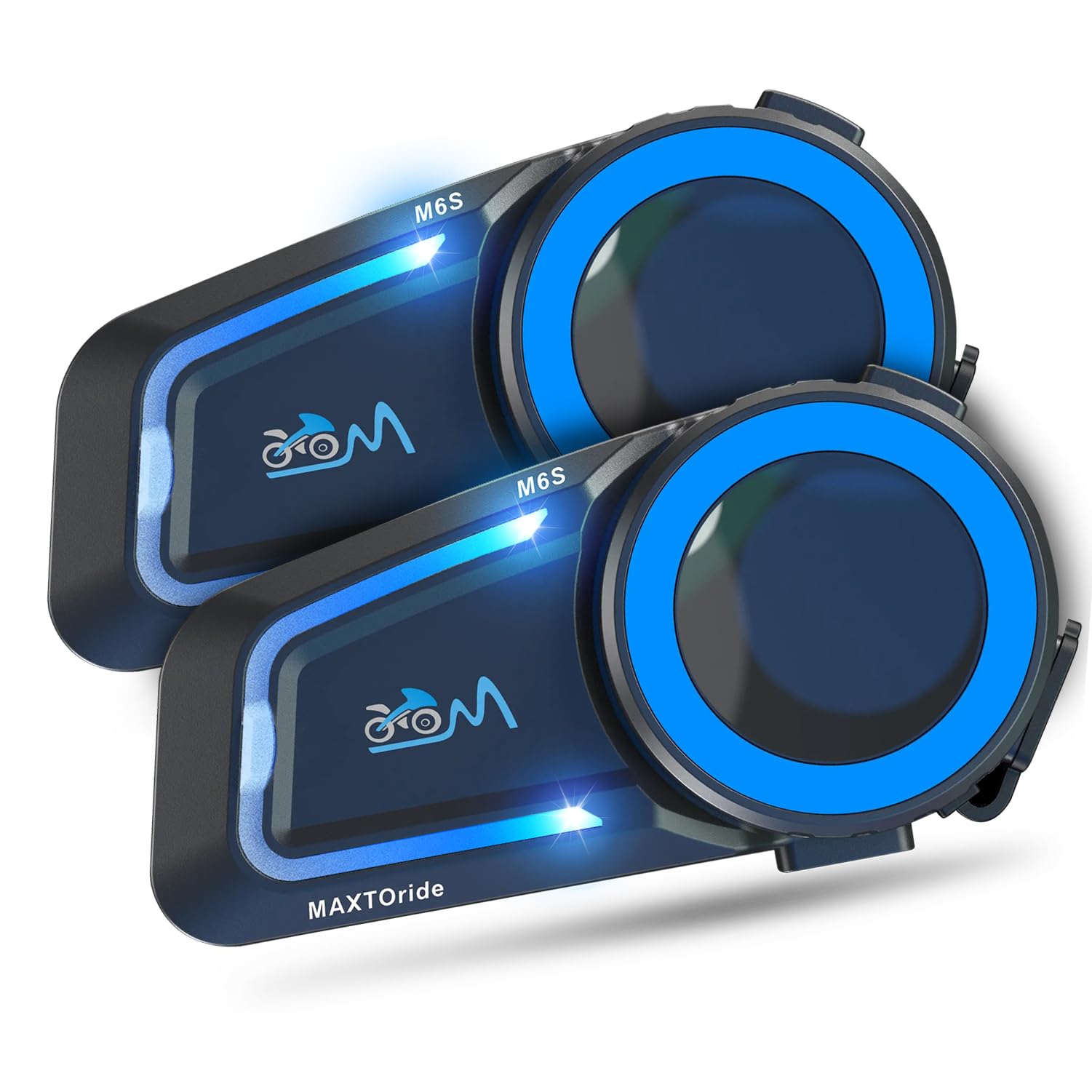
Figure 1: MAXTO M6S Bluetooth Headset main unit.
Product Features
- Dual Bluetooth Chip Design: Allows simultaneous intercom communication and music listening.
- DSP/CVC Noise Reduction: Provides clear audio quality by reducing environmental and wind noise.
- Mesh Intercom: Supports up to 8 riders within a 1000m range with automatic reconnection.
- One-Touch Connection: Simplifies pairing for multi-person networks.
- Bluetooth 5.0: Ensures stable and fast connections to phones and other devices.
- Automatic Call Answering: Hands-free communication for safety.
- Voice Control: Access digital assistants for convenient operation.
- Music Sharing: Share audio with another M6S intercom user.
- IP67 Waterproof: Designed for use in various weather conditions.
2. Package Contents
Verify that all items listed below are included in your package. If any items are missing or damaged, please contact customer support.
- MAXTO M6S Main Unit(s)
- Headset with Speakers and Microphones (Boom and Soft Wire Microphones)
- USB Charging Cable
- Helmet Mounting Clips (Adhesive and Clamp types)
- Velcro Pads for Speakers and Microphones
- Screwdriver (for clamp mount installation)
- User Manual
Video 1: This video demonstrates the unboxing and contents of the Motorcycle Bluetooth Headset package, showing the main unit, speakers, microphones, charging cable, and mounting accessories.
3. Setup
3.1 Charging the Device
Before first use, fully charge the MAXTO M6S unit. The device has a 10-hour battery life for active use.
- Connect the provided USB charging cable to the charging port on the MAXTO M6S unit.
- Connect the other end of the USB cable to a compatible USB power source (e.g., computer USB port, USB wall adapter).
- The indicator light will show charging status (refer to the user manual for specific light indicators).
- Charging time is approximately 10 hours for a full charge.
3.2 Helmet Installation
The MAXTO M6S can be installed using either the adhesive mount or the clamp mount, depending on your helmet type and preference.
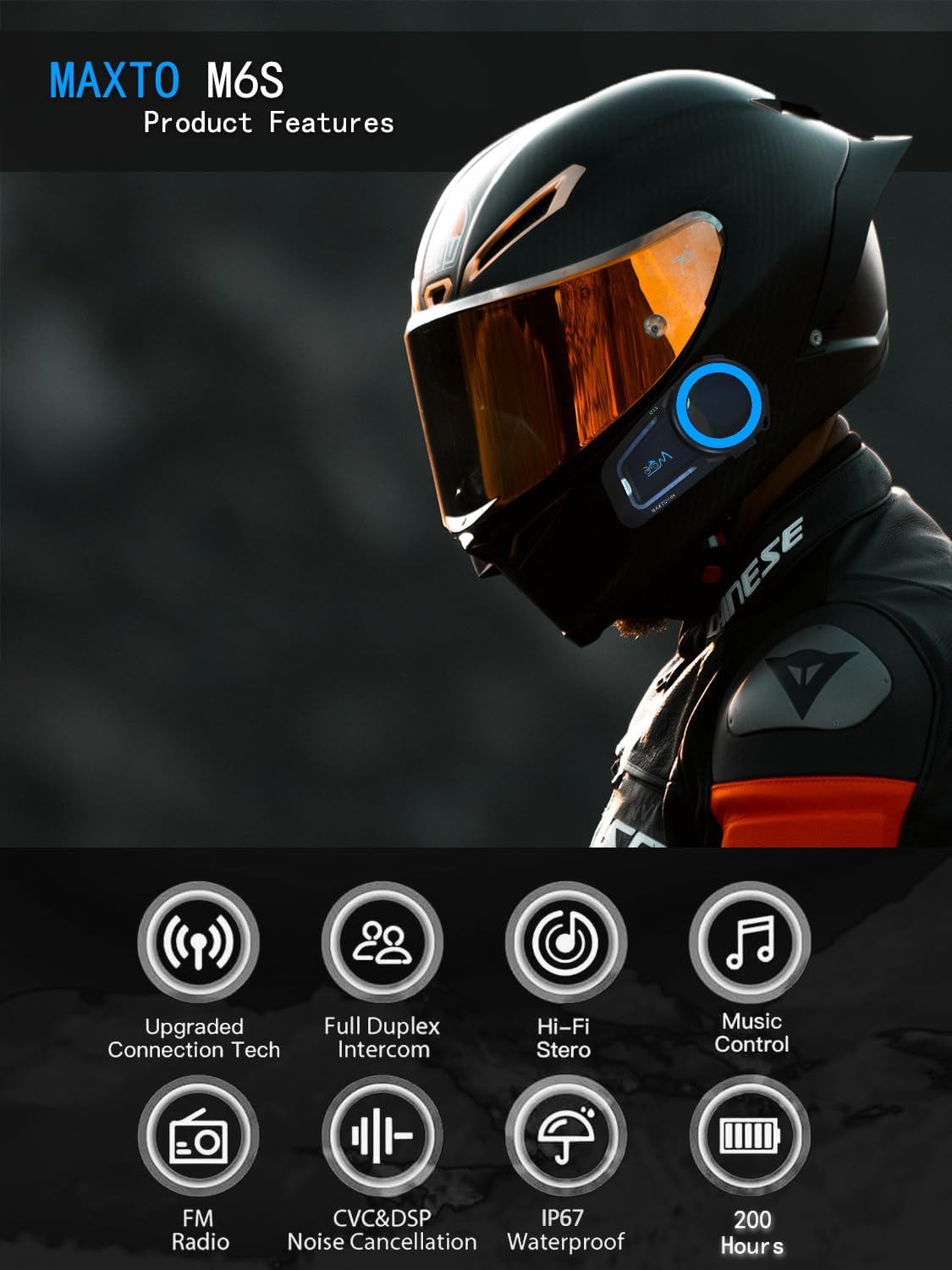
Figure 2: Diagram illustrating various product features and components of the MAXTO M6S.
Speaker and Microphone Placement:
- Remove the helmet's inner padding to access the speaker pockets.
- Attach the Velcro pads to the back of the speakers and inside the helmet's speaker pockets.
- Place the speakers firmly into the pockets.
- Choose either the boom microphone (for open-face helmets) or the soft wire microphone (for full-face helmets).
- Attach the microphone's Velcro pad to a suitable location inside the helmet, ensuring it is close to your mouth for clear audio.
- Route all wires neatly under the helmet padding to avoid discomfort and ensure a secure fit.
Main Unit Mounting:
- Adhesive Mount: Clean the desired mounting area on the side of your helmet. Peel off the protective film from the adhesive mount and firmly press it onto the helmet for at least 30 seconds. Allow sufficient time for the adhesive to bond before attaching the main unit.
- Clamp Mount: Loosen the screws on the clamp mount. Slide the clamp between the helmet shell and the inner padding. Tighten the screws using the provided screwdriver to secure the mount.
- Slide the MAXTO M6S main unit onto the installed mount until it clicks securely into place.
Video 2: This video provides a detailed overview of the 2024 MaxTo M6S Motorcycle Bluetooth Headset, highlighting its design and features.
3.3 Pairing with Your Phone (Bluetooth)
The MAXTO M6S uses Bluetooth 5.0 for stable connection to your smartphone.
- Ensure your MAXTO M6S unit is powered off.
- On your smartphone, go to Bluetooth settings and enable Bluetooth.
- Press and hold the multi-function button on the M6S unit until the indicator light flashes red and blue, indicating pairing mode.
- On your smartphone, search for available devices and select "M6S" from the list.
- Once connected, the indicator light on the M6S will turn solid blue or flash blue slowly.
3.4 Mesh Intercom Pairing (Multi-Person Communication)
The M6S supports mesh networking for up to 8 riders, allowing for easy group communication.
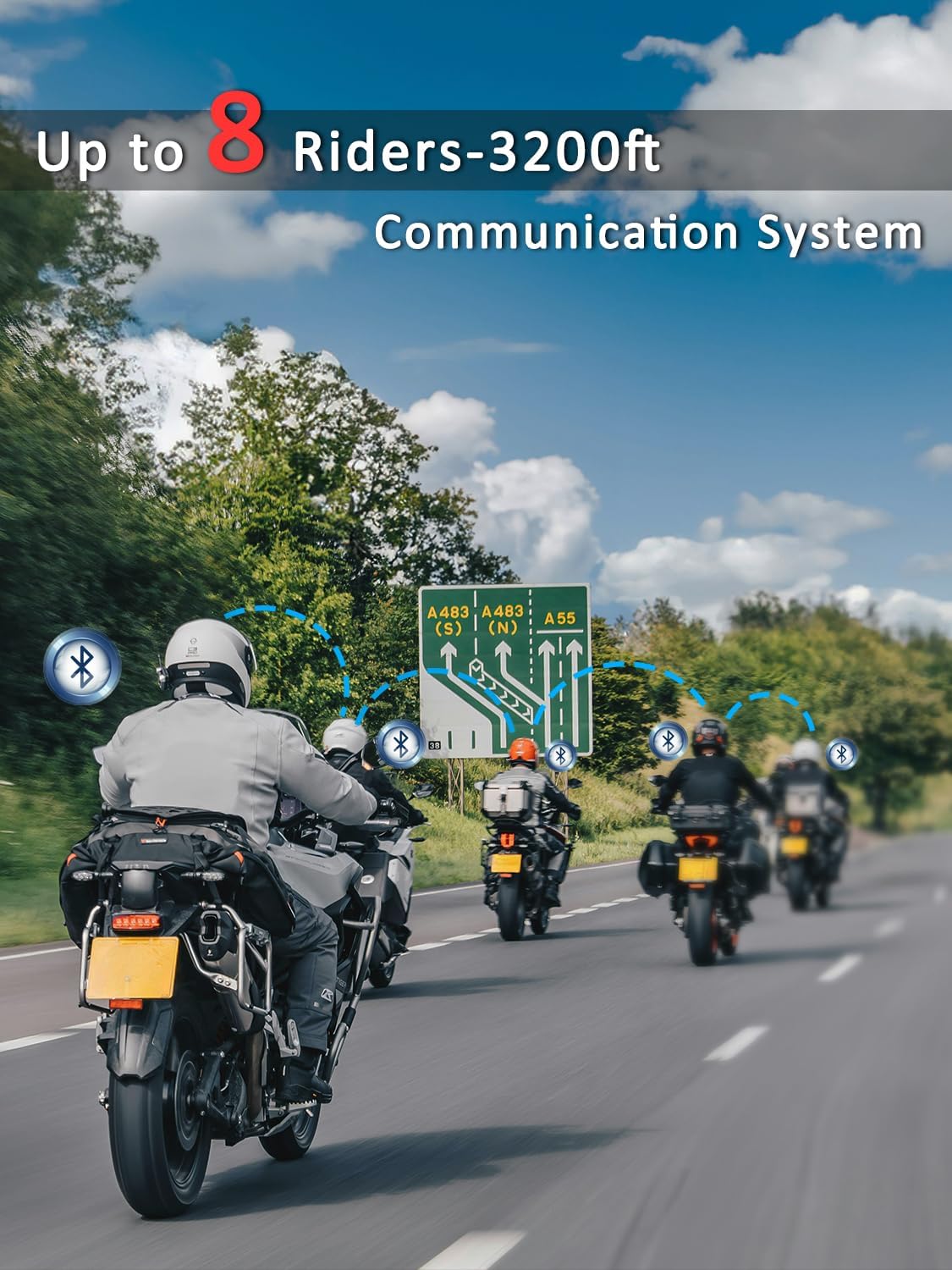
Figure 3: Illustration of multiple riders connected via the MAXTO M6S mesh intercom system.
- Ensure all M6S units are in standby mode.
- On all units, press and hold the intercom button for 3 seconds until the red and blue lights flash simultaneously.
- Press the intercom button on any one unit. All M6S units will automatically pair with each other.
- The system features an "automatic communication return" function, allowing units to reconnect automatically if they re-enter the communication range after a temporary disconnection.
Video 3: This video demonstrates the connection method for the Maxto Helmet Bluetooth Mesh Communication system.
4. Operating Instructions
4.1 Basic Controls
The MAXTO M6S features intuitive controls for easy operation while riding.
- Power On/Off: Long press the power button.
- Volume Up/Down: Use the dedicated volume buttons (+/-).
- Play/Pause Music: Short press the multi-function button.
- Next/Previous Track: Long press the volume up/down buttons (refer to manual for exact mapping).
4.2 Music Playback and Sharing
Enjoy your favorite music and share it with a fellow rider.
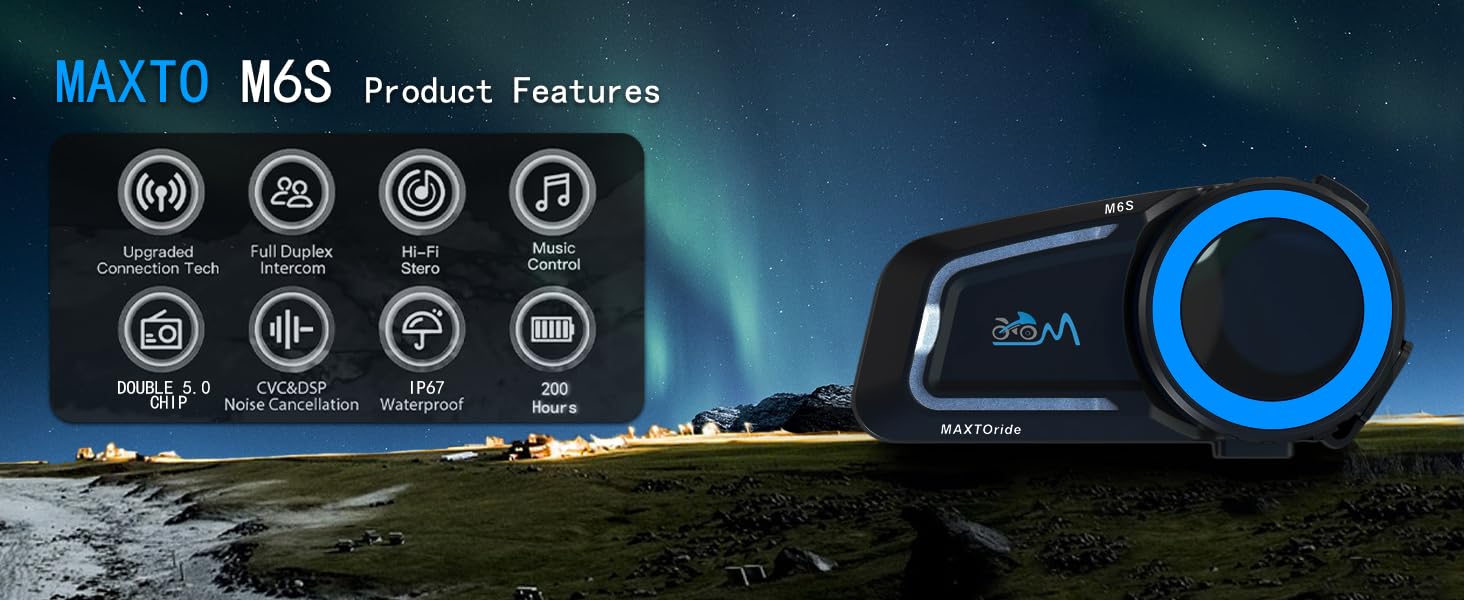
Figure 4: The MAXTO M6S features a dual-core dual system for seamless switching between intercom, music, and calls.
- Ensure your M6S is paired with your smartphone.
- Start music playback on your smartphone.
- To share music with another M6S unit, initiate an intercom connection and then activate the music sharing function (refer to the user manual for specific button presses).
Video 4: This video explains how to use the music sharing feature on the Maxto Helmet Bluetooth Mesh Communication system.
4.3 Intercom Communication
Engage in clear conversations with your riding group using the mesh intercom system.
- After successful mesh pairing, short press the intercom button to initiate or end an intercom conversation.
- The dual Bluetooth chip allows you to maintain intercom calls while listening to music.
4.4 Phone Calls and Voice Control
Manage calls and access your phone's voice assistant hands-free.
- Answer/End Call: The headset will automatically answer incoming calls after 10 seconds. You can also short press the multi-function button to answer or end a call.
- Reject Call: Long press the multi-function button to reject an incoming call.
- Voice Assistant: Activate your smartphone's voice assistant (e.g., Siri, Google Assistant) by a specific button press (refer to manual for details) to make calls, get directions, or control music.
4.5 Noise Cancellation
The M6S features advanced DSP/CVC noise reduction technology.

Figure 5: The MAXTO M6S utilizes dual Qualcomm DSP chips for independent audio processing, enhancing sound quality and noise reduction.
- The system intelligently recognizes and filters environmental noise, including wind noise, to ensure clear communication and music enjoyment.
5. Maintenance
5.1 Water Resistance
The MAXTO M6S is rated IP67 waterproof, providing protection against dust and water immersion up to 1 meter for 30 minutes.

Figure 6: The MAXTO M6S is IP67 waterproof, designed to withstand rain and splashes.
- Ensure all ports (e.g., charging port) are securely closed with their protective covers when not in use to maintain water resistance.
- Avoid prolonged submersion or exposure to high-pressure water jets.
5.2 General Care
- Clean the unit with a soft, damp cloth. Do not use harsh chemicals or abrasive cleaners.
- Store the device in a cool, dry place when not in use.
- Avoid extreme temperatures.
6. Troubleshooting
6.1 Pairing Issues
- Ensure the device is fully charged.
- Verify that the device is in pairing mode (red and blue flashing lights).
- Turn off and restart both the M6S unit and your smartphone/other intercom units.
- Clear previous Bluetooth connections on your smartphone and attempt pairing again.
6.2 Sound Quality Issues
- Check speaker placement within the helmet to ensure they are directly over your ears.
- Adjust volume levels on both the M6S and your connected device.
- Ensure the microphone is positioned correctly and not obstructed.
- Noise cancellation performance may vary with extreme wind conditions or very high speeds.
6.3 Intercom Disconnection
- Ensure all units are within the 1000m mesh network range.
- Obstacles like buildings can affect connection stability. The automatic communication return feature should re-establish connection when back in range.
- Re-initiate mesh pairing if disconnections are frequent.
7. Specifications
| Model Name | M6S |
| Brand | MAXTO |
| Connectivity Technology | Wireless (Bluetooth 5.0) |
| Wireless Communication Technology | Bluetooth |
| Battery Life | 10 Hours |
| Charging Time | 10 Hours |
| Water Resistance Level | IP67 Waterproof |
| Noise Control | Active Noise Cancellation (CVC+DSP) |
| Control Method | Touch, Media Control |
| Item Weight | 0.72 Kilograms (1.58 pounds) |
| Recommended Uses | Cycling, Skiing |
| Compatible Devices | Motorcycles, Cellphones |
8. Warranty and Support
8.1 Warranty Information
For specific warranty details and coverage, please refer to the documentation provided with your purchase or contact the seller directly. Protection plans may be available for extended coverage.
8.2 Customer Support
If you encounter any issues or have questions regarding your MAXTO M6S headset, please contact the seller, USHuiDa, for assistance. For software updates or app-related queries, you may search for "RICAM apk" in Google to download the latest version.


