
Introduction

Image: The Spracht Blunote Turbo Portable Bluetooth Speaker, featuring a black cylindrical design with a mesh grille and an orange illuminated Spracht logo on one end.
The Spracht Blunote Turbo is a portable Bluetooth speaker designed for versatile audio playback. It features Bluetooth connectivity, an FM radio, an SD card slot, and a built-in microphone for hands-free calls. With an IPX5 water resistance rating, it is suitable for various indoor and outdoor environments. This manual provides instructions for proper setup, operation, and maintenance of your speaker.
Package Contents
Please check the package for the following items:
- Blunote Turbo Portable Bluetooth Speaker
- Charging Cord (USB-C)
- User Manual (this document)
Product Overview
Familiarize yourself with the speaker's components and controls.
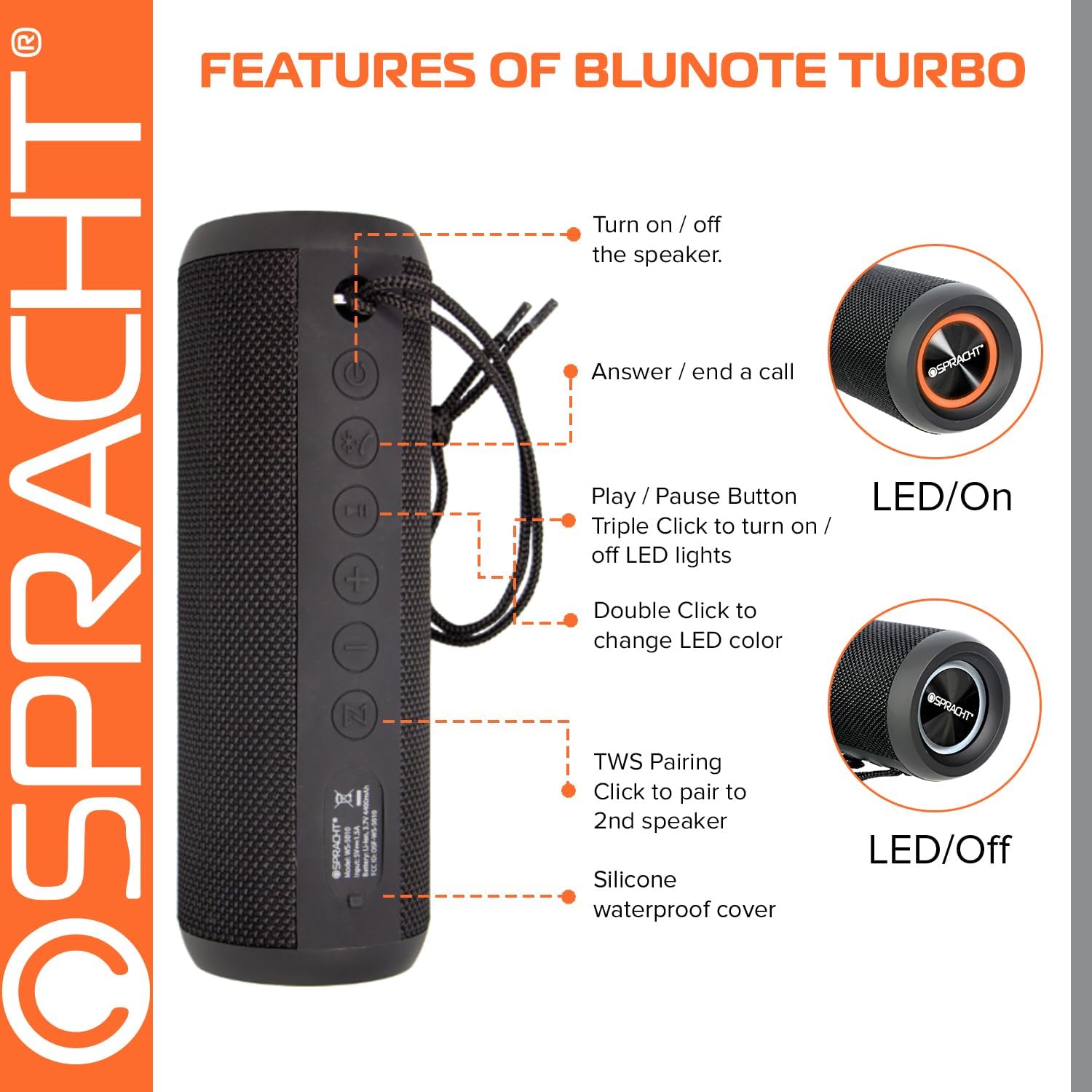
Image: Diagram illustrating the control buttons and features of the Blunote Turbo speaker, including power, call, play/pause, volume, and TWS pairing. The image shows the speaker vertically with labels pointing to each button and feature.
- Power Button: Press and hold to turn the speaker on or off.
- Call Button: Press to answer or end a phone call.
- Play/Pause Button: Press to play or pause audio. Triple click to turn LED lights on/off. Double click to change LED color.
- Volume Up Button: Press to increase volume.
- Volume Down Button: Press to decrease volume.
- TWS Pairing Button: Press to initiate True Wireless Stereo pairing with a second Blunote Turbo speaker.
- Silicone Waterproof Cover: Protects charging port, SD card slot, and AUX input.
Setup
1. Charging the Speaker
Before first use, fully charge the speaker. Connect the provided USB-C charging cord to the speaker's charging port (located under the silicone cover) and to a USB power adapter (not included). A full charge takes approximately 4 hours. The LED indicator will show charging status.
2. Power On/Off
- To power on: Press and hold the Power Button until the LED indicator lights up.
- To power off: Press and hold the Power Button until the LED indicator turns off.
3. Bluetooth Pairing
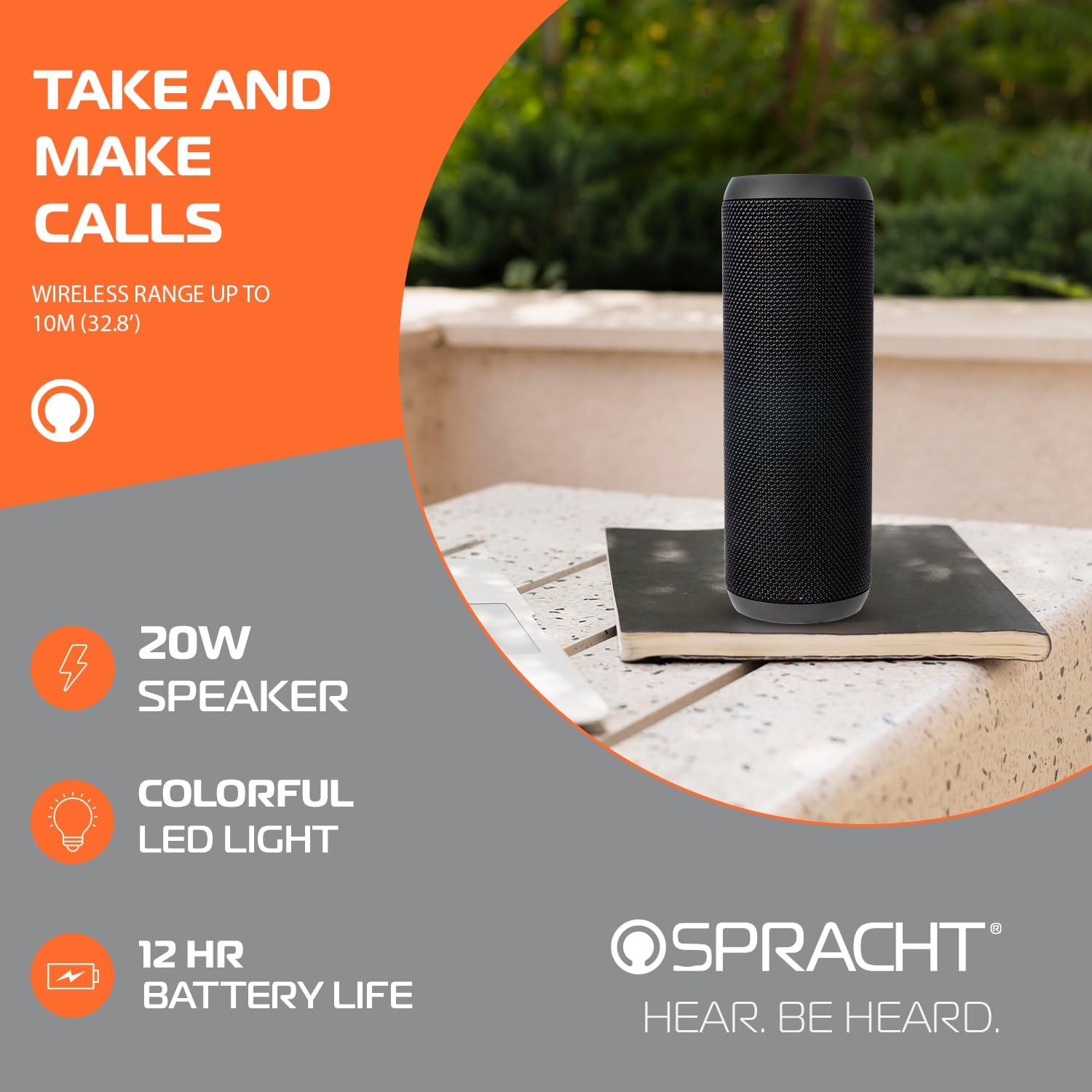
Image: The Blunote Turbo speaker standing upright, highlighting its built-in microphone for calls and other features.
- Ensure the speaker is powered on and in Bluetooth pairing mode (the LED indicator will flash).
- On your device (smartphone, tablet, laptop), enable Bluetooth and search for available devices.
- Select "Blunote Turbo" from the list of devices.
- Once paired, the speaker will emit a confirmation sound, and the LED indicator will stop flashing.
- The Bluetooth range is approximately 10 meters (32.8 feet).
4. Wireless Stereo Pairing (TWS)
You can pair two Blunote Turbo speakers for a true wireless stereo sound experience.

Image: Two Blunote Turbo speakers paired wirelessly for a true stereo audio experience, shown next to a smartphone.
- Ensure both Blunote Turbo speakers are powered on and not connected to any other Bluetooth device.
- On one speaker (this will be the primary speaker), press the TWS Pairing Button. The speaker will enter TWS pairing mode.
- The primary speaker will automatically search for and connect to the second speaker.
- Once successfully paired, both speakers will emit a confirmation sound.
- Now, connect your device to the primary speaker via Bluetooth as described in the "Bluetooth Pairing" section. Audio will play through both speakers in stereo.
5. SD Card Playback
Insert a microSD card (not included) with your audio files into the SD card slot (under the silicone cover). The speaker will automatically switch to SD card mode and begin playing music.
6. Auxiliary Input
Connect an audio device using a 3.5mm auxiliary cable (not included) to the AUX input port (under the silicone cover). The speaker will automatically switch to AUX mode.
Operating Instructions
1. Basic Audio Controls
- Play/Pause: Press the Play/Pause Button.
- Volume Up: Press the Volume Up Button.
- Volume Down: Press the Volume Down Button.
2. Call Management
- Answer Call: Press the Call Button when an incoming call is received.
- End Call: Press the Call Button during a call.
3. LED Light Control
- Turn On/Off LED Lights: Triple click the Play/Pause Button.
- Change LED Color: Double click the Play/Pause Button.
Maintenance
1. Cleaning
Wipe the speaker with a soft, damp cloth. Do not use abrasive cleaners or solvents. Ensure the silicone cover for the ports is securely closed before cleaning with moisture.
2. Water Resistance (IPX5)

Image: The Blunote Turbo speaker placed near a swimming pool, demonstrating its IPX5 water-resistant design suitable for outdoor use.
The Blunote Turbo speaker has an IPX5 water resistance rating, meaning it is protected against low-pressure water jets from any direction. It is suitable for use in environments where it might be exposed to splashes or light rain. Do not submerge the speaker in water. Always ensure the silicone cover for the ports is firmly closed to maintain water resistance.
Troubleshooting
| Problem | Solution |
|---|---|
| Speaker does not power on. | Ensure the speaker is fully charged. Press and hold the Power Button for several seconds. |
| Cannot pair via Bluetooth. |
|
| No sound from speaker. |
|
| TWS pairing fails. |
|
Specifications
| Feature | Detail |
|---|---|
| Model Name | Blunote Turbo™ Bluetooth® (SPT-WS-5010) |
| Connectivity Technology | Bluetooth, Auxiliary, TWS |
| Wireless Communication | Bluetooth |
| Bluetooth Range | Up to 10 meters (32.8 feet) |
| Speaker Output Power | 20 Watts |
| Audio Output Mode | Stereo |
| Water Resistance Rating | IPX5 |
| Battery Capacity | 4400 mAh |
| Charging Time | Approximately 4 Hours |
| Item Weight | 1.23 pounds (0.56 kg) |
| Product Dimensions (LxWxH) | 7.88"D x 2.75"W x 2.75"H (approx. 20cm x 7cm x 7cm) |
| Included Components | Charging Cord |
| UPC | 800807330276 |
Warranty and Support
The Spracht Blunote Turbo speaker comes with a Limited Warranty. For detailed warranty information, please refer to the warranty card included with your product or visit the official Spracht website. For technical support or customer service inquiries, please contact Spracht customer support.
You can find more information and support resources on the Spracht Store on Amazon.