
GetD GG14
GetD Smart Glasses User Manual
Model: GG14
Introduction
Welcome to the world of smart audio with your new GetD Smart Glasses. These innovative glasses combine stylish polarized lenses with advanced Bluetooth 5.4 technology, open-ear audio, and an integrated microphone for calls and voice assistance. Designed for comfort and versatility, they also offer UV protection and smart features like wearing detection and AI translation via the companion app. This manual will guide you through the setup, operation, and maintenance of your device.
What's in the Box
Please check the package contents to ensure all items are present:
- GetD Smart Glasses
- Charging Cable
- User Guide (this manual)
- Cleaning Cloth
- Protective Case

Image: All items included in the GetD Smart Glasses package.
Setup
Charging the Glasses
Before first use, fully charge your GetD Smart Glasses. The glasses feature a 260mAh high-quality battery with multiple chip-level charging protections. A full charge supports up to 10 hours of continuous use (at 60% volume) or 15 days of standby time.
- Connect the magnetic charging cable to the charging port on the glasses.
- Connect the other end of the cable to a USB power adapter (not included) or a computer's USB port.
- The charging indicator light will illuminate. A full charge typically takes about two hours.

Image: Magnetic charging connection for the smart glasses.
Bluetooth Pairing
Your GetD Smart Glasses use the latest Bluetooth 5.4 technology for a stable connection.
- Ensure the glasses are charged and powered on.
- On your smartphone or other Bluetooth-enabled device, go to the Bluetooth settings.
- Search for available devices. The glasses should appear as 'GetD Smart Glasses' or a similar name.
- Select the glasses to pair. Once paired, you will hear an audio confirmation.
Downloading the GetD Smart App
For enhanced features like AI translation, health tracking, and equalizer settings, download the GetD Smart App.
- Open your device's app store (Apple App Store for iOS or Google Play Store for Android).
- Search for 'GetD' or 'GetD smart'.
- Download and install the application.
- Follow the in-app instructions for account registration and login. It is recommended to use your Apple or Google account for quick login.

Image: Instructions for downloading the GetD Smart App.
Operating Instructions
Audio Playback
The GetD Smart Glasses feature open-ear audio with two upper and lower sound outlets on each temple, providing a stereo sound effect. GetD audio gain technology ensures better sound quality for music listening.
- Play/Pause: Tap the touch control area on the temple.
- Next Track: Swipe forward on the touch control area.
- Previous Track: Swipe backward on the touch control area.
- Volume Control: Adjust volume via your connected device or through the GetD Smart App.
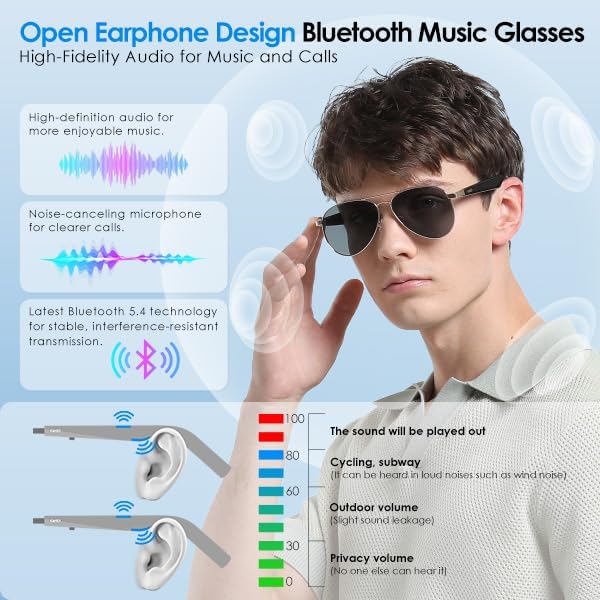
Image: Open earphone design and sound projection of the smart glasses.

Image: Illustration of 360-degree surround sound from the glasses.
Call Handling
The glasses feature an ENC noise reduction microphone for crystal clear calls, filtering out environmental noise.
- Answer Call: Tap the touch control area when a call comes in.
- End Call: Tap the touch control area during a call.
- Reject Call: Press and hold the touch control area for 2 seconds.
Video: Demonstration of open-ear audio and crystal clear call functionality with the GetD Smart Glasses.
AI Translation and Voice Assistance
Utilize the GetD Smart App for advanced AI translation features and voice assistance.
- AI Dialogue: Access ChatGPT for intelligent conversations.
- Multi-language AI Translation: Supports accurate translation in 17 languages.
- Voice-to-Text: Convert spoken words into text.
- Face-to-Face Translation: Facilitate real-time conversations across languages.
- Voice Assistant: Activate your device's voice assistant (e.g., Siri, Google Assistant) by a specific touch gesture (refer to app for details).

Image: GetD AI App interface for translation and smart features.

Image: Voice assistance and touch operation in action.
Wearing Detection
The built-in sensor automatically detects when the glasses are worn. Music playback will pause when you take them off and resume when you put them back on. If not worn for three minutes, the glasses will automatically enter standby mode to conserve power.

Image: Smart detection function for automatic play/pause.
Maintenance
Cleaning
To maintain the clarity and longevity of your lenses and frame:
- Use the provided cleaning cloth to gently wipe the lenses and frame.
- For stubborn smudges, use a lens cleaning spray specifically designed for eyewear.
- Avoid using abrasive materials or harsh chemicals, as these can damage the oil-resistant, wear-resistant, and scratch-resistant coating.

Image: Detailed view of the multi-layered lens construction.
Battery Care
To maximize battery life and performance:
- Avoid fully discharging the battery frequently.
- Store the glasses in a cool, dry place when not in use for extended periods.
- Charge the glasses regularly, even if not used daily, to prevent deep discharge.
Water Resistance
The GetD Smart Glasses are IP54 water resistant, meaning they are protected against dust ingress and splashing water from any direction. They are not designed for submersion in water. Avoid exposing them to heavy rain or direct water jets.
Troubleshooting
If you encounter any issues with your GetD Smart Glasses, please refer to the following common solutions:
- No Power: Ensure the glasses are fully charged. Connect them to the charging cable and a power source.
- Cannot Pair Bluetooth:
- Ensure Bluetooth is enabled on your device.
- Make sure the glasses are in pairing mode (usually indicated by a flashing light).
- Forget the device from your phone's Bluetooth settings and try pairing again.
- Move the glasses closer to your device.
- No Sound/Poor Sound Quality:
- Check the volume level on both the glasses and your connected device.
- Ensure the glasses are properly positioned on your head for optimal open-ear audio.
- Reconnect the Bluetooth connection.
- Call Quality Issues:
- Ensure the microphone is not obstructed.
- Check for excessive background noise.
- Ensure a stable Bluetooth connection.
- Touch Controls Not Responding:
- Ensure your fingers are clean and dry.
- Restart the glasses by powering them off and on again.
If the issue persists, please contact GetD customer support for further assistance.
Specifications
| Feature | Detail |
|---|---|
| Model Number | GG14 |
| Connectivity Technology | Bluetooth 5.4 |
| Battery Capacity | 260mAh (approx. 230 Amp Hours listed in specs) |
| Charging Time | Approx. 2 hours (fast charging) |
| Usage Time | Up to 10 hours (60% volume) |
| Standby Time | Up to 15 days |
| Water Resistance | IP54 |
| Lens Type | Polarized Nylon Lenses (UV400, Anti-blue light) |
| Frame Material | ABS with spray paint coating |
| Microphone | ENC Noise Reduction |
| Operating System Compatibility | iOS & Android |
| Item Weight | 0.3 Kilograms (approx. 10.5 ounces) |
| Screen Size (Visible Diagonal) | 2 Inches / 6 cm |
| Memory Storage Capacity | 8 MB |
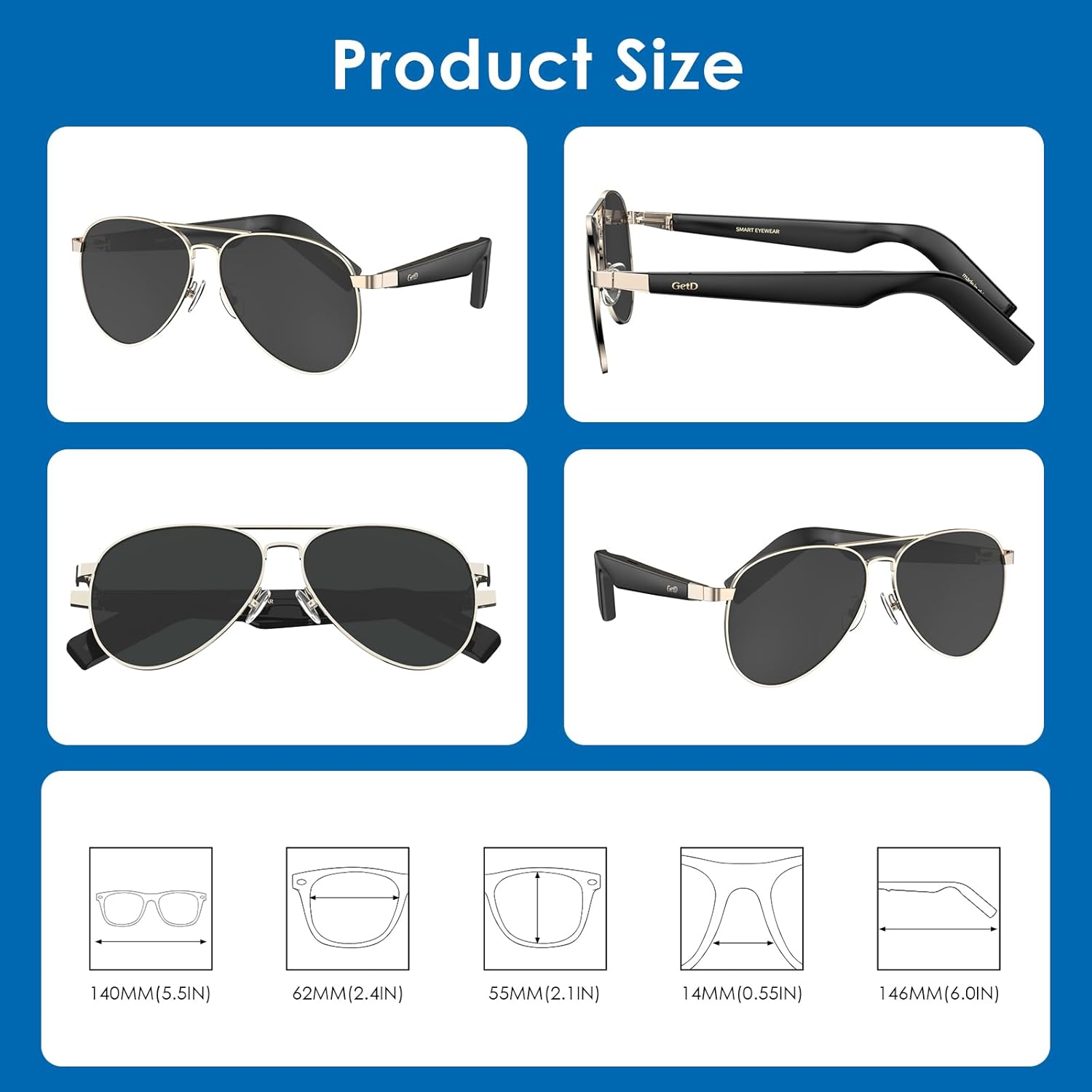
Image: Product dimensions.
Warranty and Support
GetD provides quality products and customer support. For any warranty claims, technical assistance, or product inquiries, please contact the seller or refer to the official GetD website.
- Seller: FUTURE 3D GROUP INC
- GetD Store: Visit the GetD Store on Amazon
Related documentsGG14


Ask a question about this manual
Ask about setup, troubleshooting, compatibility, parts, safety, or missing instructions. Manuals+ will review the question and use this page’s manual context to help answer it.