
UMIDIGI G9A
Contents
UMIDIGI G9A Cell Phone Instruction Manual
Model: G9A
Brand: UMIDIGI
1. Introduction
Welcome to the instruction manual for your UMIDIGI G9A Cell Phone. This device is designed to provide a reliable and efficient mobile experience, featuring the Android 14 Go system, a large HD+ display, and robust battery life. This manual will guide you through the setup, operation, and maintenance of your new smartphone.
2. Package Contents
Your UMIDIGI G9A package includes the following items:
- UMIDIGI G9A Cell Phone (with pre-applied protective film)
- Transparent Protective Case
- Type-C USB Cable
- Power Adapter
- SIM Tray Ejector Tool
- Quick Start Guide

Image: All items included in the UMIDIGI G9A retail box.
3. Key Features
- Android 14 Go System: Provides reliable security, system stability, higher application adaptability, smaller space occupation, and efficient operation.
- 6.75" HD+ Display and Slim Design: Features a large 6.75-inch screen with 1600x700 resolution for ample operating space and visual experience. The 7.9mm slim design with a 20:9 aspect ratio ensures a comfortable hand feel.
- Massive 5000mAh Battery: High-capacity battery with OTG (On-The-Go) and GPS functions. Equipped with a Type-C port and a 3.5mm headphone jack for FM radio listening.
- Enhanced Performance & Storage: 8GB RAM (4GB physical + 4GB extended) guarantees smooth system operation. 64GB ROM meets daily needs and supports up to 1TB expandable memory via TF card.
- Advanced Camera System: 13MP + 2MP rear camera for sharp, clear, and detailed photos, enhanced by a secondary lens. An 8MP front camera ensures clearer and more natural selfies.

Image: Front and back view of the UMIDIGI G9A highlighting 8GB RAM and 64GB ROM.
4. Setup Guide
4.1. SIM Card and MicroSD Card Installation
- Locate the SIM card tray on the left side of the phone.
- Insert the provided SIM tray ejector tool into the small hole next to the tray and push gently until the tray pops out.
- Place your Nano-SIM card(s) and/or microSD card into the tray with the gold contacts facing down, ensuring correct orientation as indicated on the tray. The phone supports either two Nano-SIM cards or one Nano-SIM and one microSD card (up to 1TB).
- Carefully push the tray back into the slot until it is flush with the phone's side.
4.2. Powering On Your Device
Press and hold the power button located on the right side of the phone until the UMIDIGI logo appears on the screen. The phone will then boot up.
4.3. Initial Configuration
Upon first boot-up, follow the on-screen prompts to set up your device:
- Select your preferred language and region.
- Connect to a Wi-Fi network to proceed with setup and download necessary updates.
- Sign in with your Google account. This will allow you to access the Google Play Store, Gmail, and sync your data.
- Set up security features such as AI Face Unlock for convenient and secure access to your device.

Image: Steps for setting up AI Face Unlock on the UMIDIGI G9A.
5. Operating Your UMIDIGI G9A
5.1. Display and Navigation
The UMIDIGI G9A features a large 6.75-inch HD+ display with a resolution of 1600x720 pixels and a 20:9 aspect ratio. The screen is highly responsive to touch, ensuring smooth scrolling and interaction with applications.
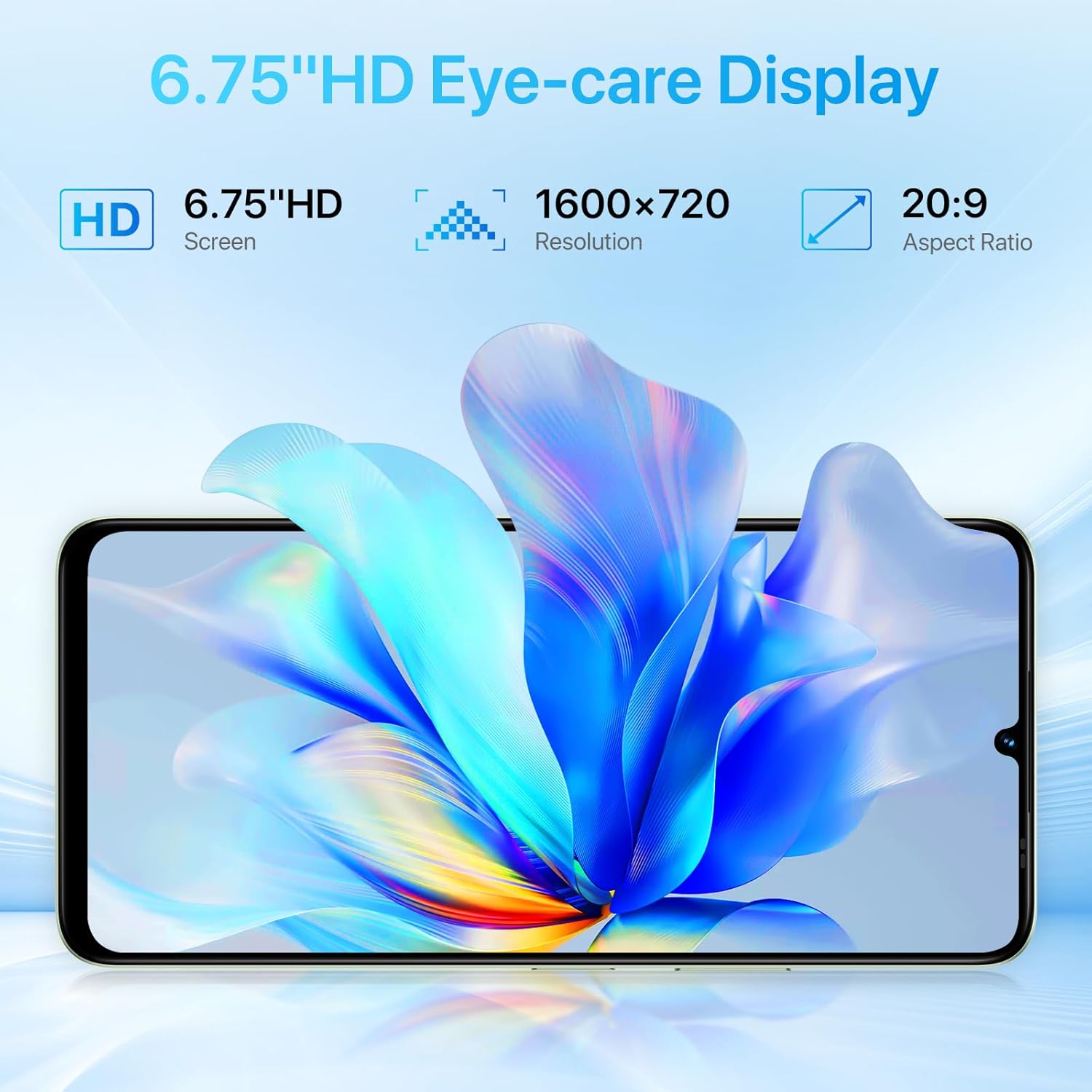
Image: Visual representation of the 6.75-inch HD+ display with resolution and aspect ratio details.
5.2. Camera Functions
Capture your moments with the versatile camera system:
- Rear Cameras: A 13MP Ultra-Clear AI Camera for main shots and a 2MP Depth Camera for enhanced effects.
- Front Camera: An 8MP camera perfect for high-quality selfies and video calls.
- Camera Modes: Switch between various modes such as Capture (standard photo), Video, Portrait, Night, Panorama, and Pro mode for advanced settings.
- Video Recording: Record videos up to 1080p resolution at 30 frames per second.

Image: Overview of the UMIDIGI G9A's camera setup, including front and rear lenses.
5.3. Battery and Power Management
The 5000mAh massive battery provides long-lasting power for your daily activities. The device supports OTG (On-The-Go) functionality, allowing you to connect USB devices directly to your phone. Charging is done via the Type-C port.

Image: Features related to battery life and connectivity options like OTG and 3.5mm jack.
5.4. Connectivity and Multimedia
Your UMIDIGI G9A supports 4G dual SIM cards for flexible network usage. It includes a 3.5mm headphone jack, which also functions as an antenna for the built-in FM radio. GPS, AGPS, Glonass, and BeiDou are supported for accurate navigation.
Video: An official overview of the UMIDIGI G9A Cell Phone, showcasing its design, features, and performance. (Source: UMIDIGI Store)
6. Maintenance
6.1. Software Updates
Regularly check for system updates to ensure your phone runs optimally and has the latest security patches. Go to Settings > System > System update to check for and install available updates.
6.2. Cleaning Your Device
Use a soft, lint-free cloth to clean the screen and body of your phone. Avoid using abrasive materials or harsh chemical cleaners, as they may damage the device's surface.
6.3. Battery Care
To prolong the lifespan of your battery, avoid exposing the phone to extreme temperatures (hot or cold). It is also recommended to avoid fully discharging the battery frequently.
7. Troubleshooting
7.1. Phone Not Turning On
Ensure the battery is sufficiently charged. Connect the phone to its charger and wait a few minutes before attempting to power it on again. If it still doesn't turn on, press and hold the power button for 10-15 seconds to force a restart.
7.2. Apps Crashing or Freezing
If an app crashes or freezes, try closing it and reopening. If the issue persists, go to Settings > Apps > [App Name] > Storage > Clear cache. If clearing the cache doesn't help, try Clear data (this will delete app data) or uninstall and reinstall the app.
7.3. Network Connectivity Issues
If you experience problems with mobile data or calls, ensure your SIM card is correctly inserted. Verify that mobile data is enabled in your phone's settings. Try restarting your phone or toggling Airplane Mode on and off.
7.4. Slow Performance
If your phone is running slowly, try closing unnecessary background applications. Regularly clear your phone's cache and temporary files. If performance issues persist, consider backing up your data and performing a factory reset (Settings > System > Reset options > Erase all data (factory reset)).
8. Specifications
| Feature | Specification |
|---|---|
| Product Dimensions | 6.57 x 3.03 x 0.31 inches |
| Item Weight | 6.7 ounces (189 Grams) |
| Item Model Number | G9A |
| Operating System | Android 14 Go |
| Display Size | 6.75 Inches |
| Resolution | 1600 x 720 (HD+) |
| RAM | 8GB (4GB physical + 4GB extended) |
| Internal Storage | 64 GB (Expandable up to 1TB via TF card) |
| Rear Camera | 13MP + 2MP |
| Front Camera | 8MP |
| Battery Capacity | 5000mAh |
| Charging Port | Type-C |
| Headphone Jack | 3.5 mm |
| Cellular Technology | 4G Dual SIM |
| Wireless Communication | Cellular, Wireless |
| GPS | True (GPS, AGPS, Glonass, BeiDou) |
| Manufacturer | UMIDIGI |
| Date First Available | October 24, 2024 |
9. Warranty and Support
For detailed warranty information, technical support, and service inquiries, please refer to the official UMIDIGI website or contact their customer service directly. It is recommended to keep your purchase receipt as proof of purchase for any warranty claims.
Ask a question about this manual
Ask about setup, troubleshooting, compatibility, parts, safety, or missing instructions. Manuals+ will review the question and use this page’s manual context to help answer it.