
1. Introduction
Welcome to the user manual for your Gvyugke Wireless Gaming Headset (Model CT300). This headset is designed to provide a versatile and immersive audio experience across multiple gaming platforms and devices. Please read this manual carefully to ensure proper setup and optimal performance of your new headset.
2. Product Overview & Key Features
The Gvyugke Wireless Gaming Headset offers triple-mode connectivity and advanced features for an enhanced gaming and audio experience.
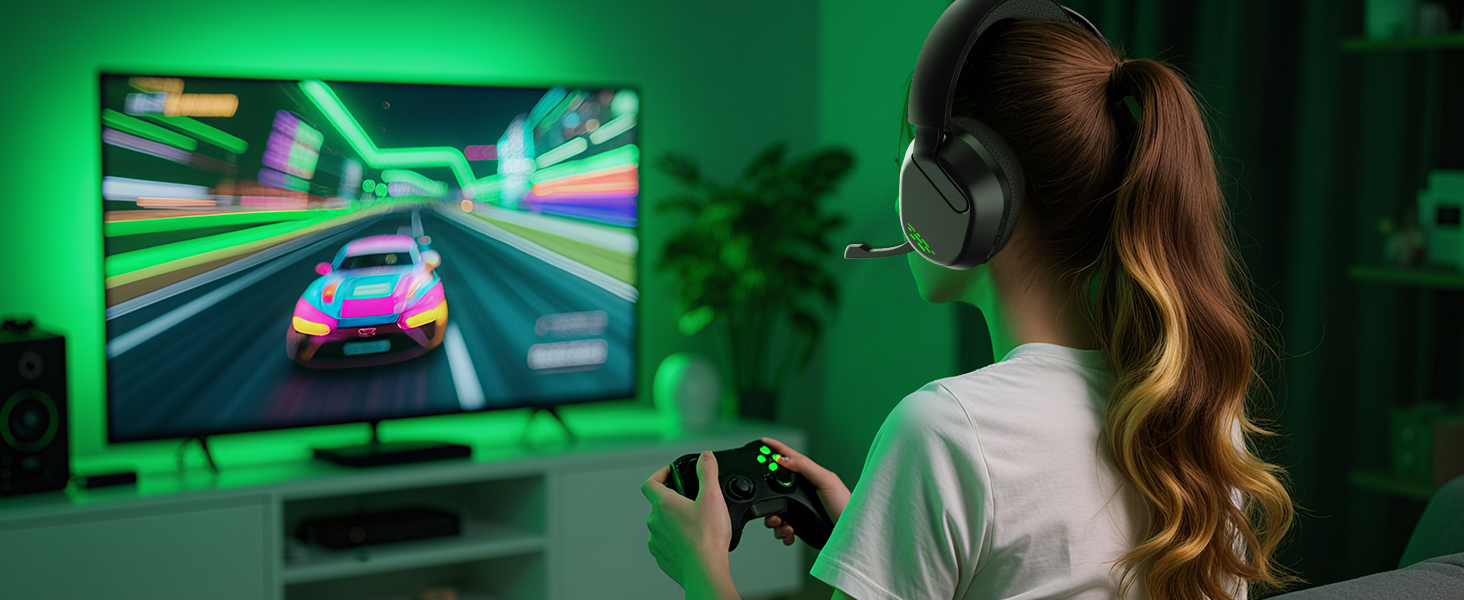
- Wireless Gaming on Xbox and More: Compatible with Xbox Series X/S, Xbox One, PS5, PS4, Switch, PC, Mac, and mobile devices. Enjoy seamless 20ms low-latency gaming on Xbox controllers.
- Stable 2.4GHz Transmitter for Xbox: Features a dual-lock design for secure attachment to Xbox controllers, preventing disconnections during gameplay.
- Integrated Flip-to-Mute Microphone: The integrated microphone offers greater stability than detachable mics. Advanced noise reduction ensures clear voice communication. Flip the mic up to mute.
- Immersive 3D Sound: Equipped with powerful 50mm dynamic drivers and advanced diaphragm technology for crystal-clear audio and 3D surround sound.
- Extended Battery Life: A rechargeable battery provides up to 45 hours of wireless playtime with full lighting, or over 70 hours with lighting off and volume at half. Supports charging while gaming.
- Triple-Mode Connectivity: Seamlessly switch between 2.4GHz wireless for console play, Bluetooth 6.0 for mobile convenience, or 3.5mm wired for universal compatibility.
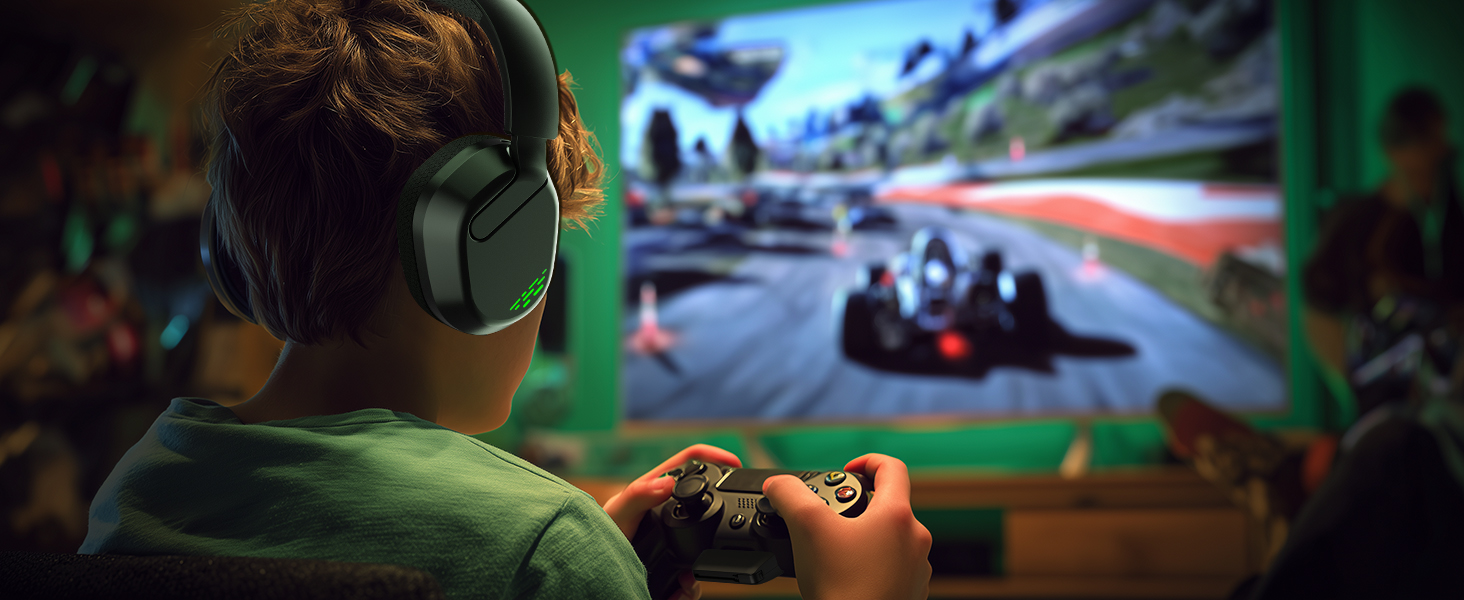
- Seamless Controls, Lasting Comfort: Intuitive on-ear buttons and a quick-switch slider manage volume, lighting, and connections. Breathable fabric cushions with memory foam provide comfort, rich bass, and noise isolation. Foldable design for easy storage and portability.
Product Highlights

Powerful 50mm drivers providing 3D surround sound for cinematic movie watching and gaming.

Experience 20ms low-latency audio, allowing you to feel every in-game detail in real time.
Intuitive controls at your fingertips for easy volume, lighting, and connection management.
Comfortable, breathable fabric cushions with memory foam for extended gaming sessions.
Product Video Overview
Video: Immersive Sound, Unforgettable Experience. This video provides a general overview of the headset's features and design, highlighting its sound quality and comfort.
3. Package Contents
Please check the box for the following items:
- Gvyugke Wireless Gaming Headset (Model CT300)
- 2.4GHz Wireless Transmitter
- Detachable Boom Microphone
- 3.5mm Audio Cable
- USB-C Charging Cable
- User Manual (this document)
4. Setup Instructions
4.1. Charging the Headset
Before first use, fully charge the headset using the provided USB-C charging cable. Connect the USB-C end to the headset's charging port and the USB-A end to a power source (e.g., computer USB port, USB wall adapter). The indicator light will show charging status.

Image: Headset highlighting its 1050mAh battery capacity and up to 45 hours of playtime.
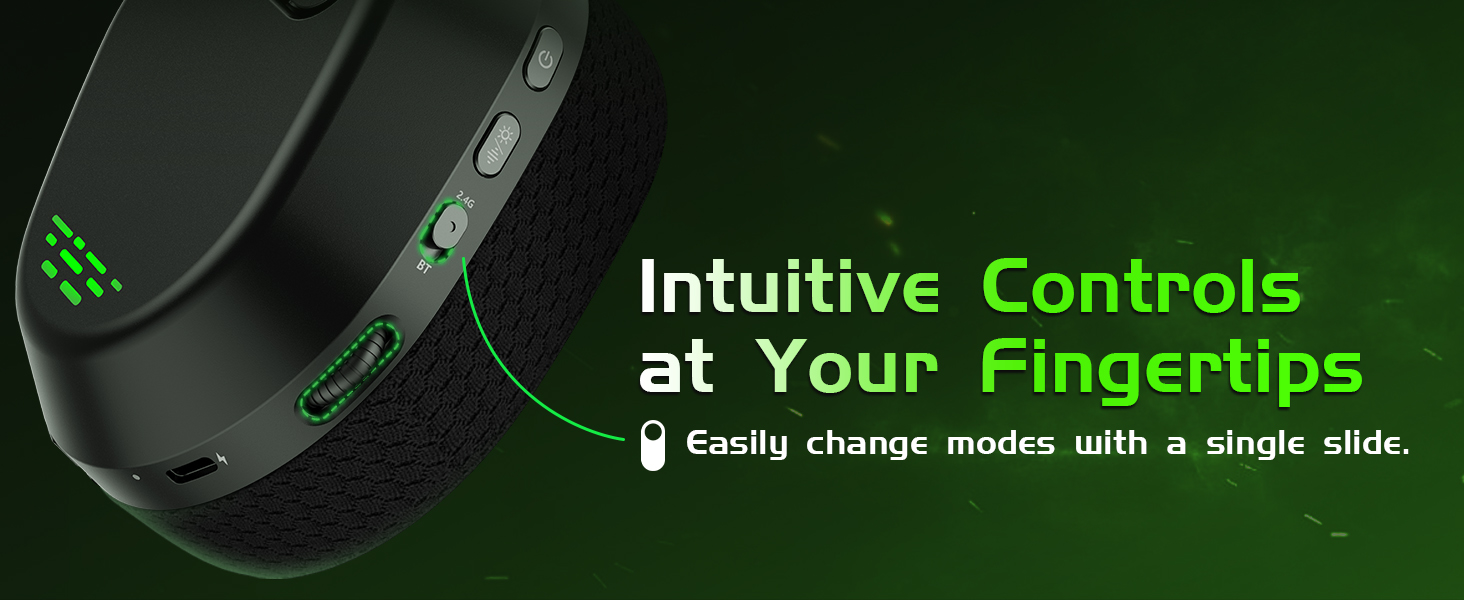
Image: Headset connected via USB-C for charging, indicating extended battery life.
4.2. Attaching the Microphone
Insert the detachable boom microphone into the 3.5mm microphone port located on the left earcup. Ensure it is fully inserted for proper function. You can then adjust its position for optimal voice pickup.

Image: Close-up of the headset showing the integrated flip-to-mute microphone.
4.3. Powering On/Off
To power on the headset, press and hold the power button (usually located on one of the earcups) for approximately 3 seconds until you hear a "Power On" voice alert and the indicator light flashes blue and green.
To power off, press and hold the power button again until the headset powers down.
4.4. 2.4GHz Wireless Connection (for Xbox, PS5, PC, Switch)
This mode provides low-latency wireless audio for gaming consoles and PCs.
- Plug the 2.4GHz wireless transmitter into an available USB port on your console (Xbox, PS5, Switch dock) or PC. The transmitter's indicator light will flash blue when pending for pairing.
- Power on your headset (as described in 4.3).
- The headset and transmitter will automatically pair. Once successfully paired, the transmitter's indicator light will remain solid blue.

Image: Xbox controller with the 2.4GHz dongle securely attached for wireless gaming.

Image: Visual representation of the headset's 3-in-1 connection options, including 2.4GHz wireless.
Video: How to Connect to PS5 with Captain 500 Gaming Headset? This video demonstrates the steps for connecting the headset to a PlayStation 5 console using the 2.4GHz transmitter.
Video: How to Connect the Headset to Switch via the 2.4GHz Dongle? This video illustrates the connection process for the headset with a Nintendo Switch console using the 2.4GHz dongle.
Video: Guidance for Connecting PC Devices. This video provides instructions on how to connect the headset to a PC using the 2.4GHz transmitter.
4.5. Bluetooth 6.0 Connection (for Mobile, Mac, PC)
This mode is ideal for mobile devices and computers with Bluetooth capability.
- With the headset powered on, slide the mode switch (located on the earcup) to the "BT" (Bluetooth) position. The indicator light will flash blue, indicating pairing mode.
- On your device (phone, tablet, Mac, PC), go to Bluetooth settings and select "Gvyugke CT300" from the list of available devices.
- Once connected, the indicator light on the headset will turn solid blue.

Image: Visual representation of the headset's 3-in-1 connection options, including Bluetooth mode for mobile devices.
4.6. 3.5mm Wired Connection (for Universal Compatibility)
For devices that do not support wireless or Bluetooth, or when battery is low, use the 3.5mm audio cable.
- Ensure the headset is powered off for wired mode.
- Connect one end of the 3.5mm audio cable to the headset's 3.5mm audio port.
- Connect the other end to the 3.5mm audio jack of your device (e.g., Xbox controller, PS4 controller, Switch, PC).
Video: ONLY Wired Mode Support Xbox Series. This video demonstrates how to connect the headset to an Xbox controller using the 3.5mm audio cable for wired mode.
Note: Wired mode requires the headset to be turned off. For Xbox One, a headset adapter (not included) may be required for older controllers.
5. Operating Instructions
5.1. Controls Overview

Image: Close-up of the headset's earcup displaying the intuitive on-ear controls.
5.2. Volume Adjustment
Adjust the audio volume using the scroll wheel located on the earcup. Scroll up to increase volume and down to decrease it.
5.3. Microphone Mute/Unmute
The headset features a convenient flip-to-mute microphone. To mute the microphone, simply flip the boom mic upwards. To unmute, flip it back down to your desired position.
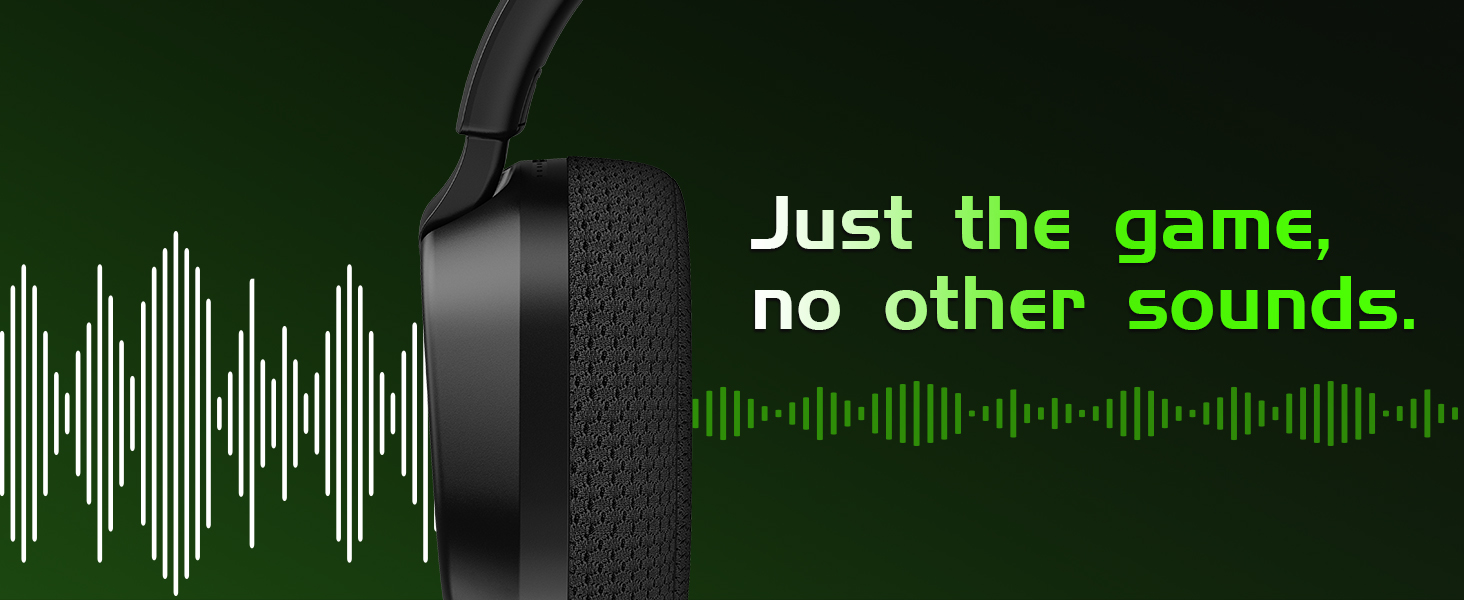
Image: The flip-to-mute microphone in the muted (upward) position.
Note: The flip-to-mute function is not available in wired mode.
5.4. RGB Lighting Control
The headset features customizable RGB lighting. Use the dedicated "G" button (often labeled with a light icon) on the earcup to cycle through different lighting modes or turn the lighting off.
6. Maintenance
6.1. Cleaning
Wipe the headset with a soft, dry cloth. Do not use harsh chemicals or abrasive materials. For ear cushions, gently wipe with a damp cloth and allow to air dry completely.
6.2. Storage
When not in use, store the headset in a cool, dry place. The foldable design allows for compact storage, protecting it from damage.

Image: The headset being folded for compact storage, demonstrating its portable design.
7. Troubleshooting
- No Sound/Microphone Not Working:
- Ensure the headset is powered on and correctly paired/connected to your device.
- Check volume levels on both the headset and your device.
- For 2.4GHz wireless, ensure the transmitter is firmly plugged into a USB port.
- For wired connection, ensure the 3.5mm cable is fully inserted and the headset is powered off.
- Note: Microphone is not supported with Nintendo Switch.
- Note: Bluetooth works with mobile devices only and is not available for Xbox, PS5, or PS4, etc.
- Connection Issues:
- If using 2.4GHz wireless, try unplugging and re-plugging the transmitter.
- For Bluetooth, try unpairing and re-pairing the headset with your device.
- Ensure no other wireless devices are causing interference.
- Note: The 2.4GHz transmitter is compatible with official Xbox controllers; third-party Xbox controllers may not be supported.
- Poor Sound Quality:
- Check the audio source quality.
- Ensure the headset is within range of the 2.4GHz transmitter or Bluetooth device.
- Adjust equalizer settings on your device if available.
- Battery Not Charging:
- Ensure the USB-C cable is securely connected to both the headset and the power source.
- Try a different USB port or charging adapter.
8. Specifications
| Feature | Specification |
|---|---|
| Brand | Gvyugke |
| Model Number | CT300 |
| Connectivity | 2.4GHz Wireless, Bluetooth 6.0, 3.5mm Wired |
| Driver Size | 50mm Dynamic Drivers |
| Frequency Range | 20 Hz - 20,000 Hz |
| Battery Life | Up to 45 hours (with lighting), Over 70 hours (lighting off, half volume) |
| Microphone | Integrated Flip-to-Mute, Noise-Canceling |
| Control Method | Touch (on-ear buttons, scroll wheel) |
| Color | Violet |
| UPC | 850060631399 |
9. Warranty and Support
For warranty information or technical support, please refer to the product packaging or contact Gvyugke customer service through the retailer where the product was purchased. Keep your proof of purchase for warranty claims.
