
1. Introduction
Thank you for choosing the HORLAT 28000 Lumens 4K Android TV Projector. This projector is designed to provide a superior home cinema experience with its advanced features, including 4K support, WiFi 6, Bluetooth 5.2, and automatic keystone correction. This manual will guide you through the setup, operation, maintenance, and troubleshooting of your new device to ensure optimal performance and longevity.
2. Setup Guide
2.1 Unboxing
Carefully remove all components from the packaging. Please ensure the following items are present:
- HORLAT 28000 Lumens 4K Android TV Projector
- Remote Control
- HDMI Cable
- Power Adapter
- User Manual (this document)
2.2 Initial Placement
Place the projector on a stable, flat surface. Ensure there is adequate ventilation around the device. For optimal viewing, position the projector perpendicular to the projection surface (screen or wall). The projector supports front, rear, and ceiling mounting, with 360° flip functionality for flexible installation.
2.3 Power Connection
Connect the power adapter to the projector's power input port, then plug the adapter into a power outlet. The power indicator light will illuminate.
2.4 First Time Setup
Upon first power-on, the projector will guide you through the initial Android TV setup process. Follow the on-screen prompts to select your language, connect to a Wi-Fi network, and log in to your Google account (optional, but recommended for full Android TV features). Ensure a stable internet connection for software updates and app downloads.
3. Operating Instructions
3.1 Basic Operation
The projector can be operated using the included remote control or the intelligent touchpad located on the top of the unit. The touchpad allows for intuitive navigation and selection.

This image shows the top-down view of the HORLAT projector, highlighting its intelligent touchpad with illuminated controls for navigation and selection.
3.2 Image Adjustment (Keystone & Zoom)
The projector features automatic keystone correction and supports digital ±50° 4D/4P correction. This allows you to achieve a perfectly rectangular image even if the projector is not perfectly aligned with the screen. Use the remote control to access these settings. The zoom function enables you to adjust the screen size from 100% down to 50% without physically moving the projector.
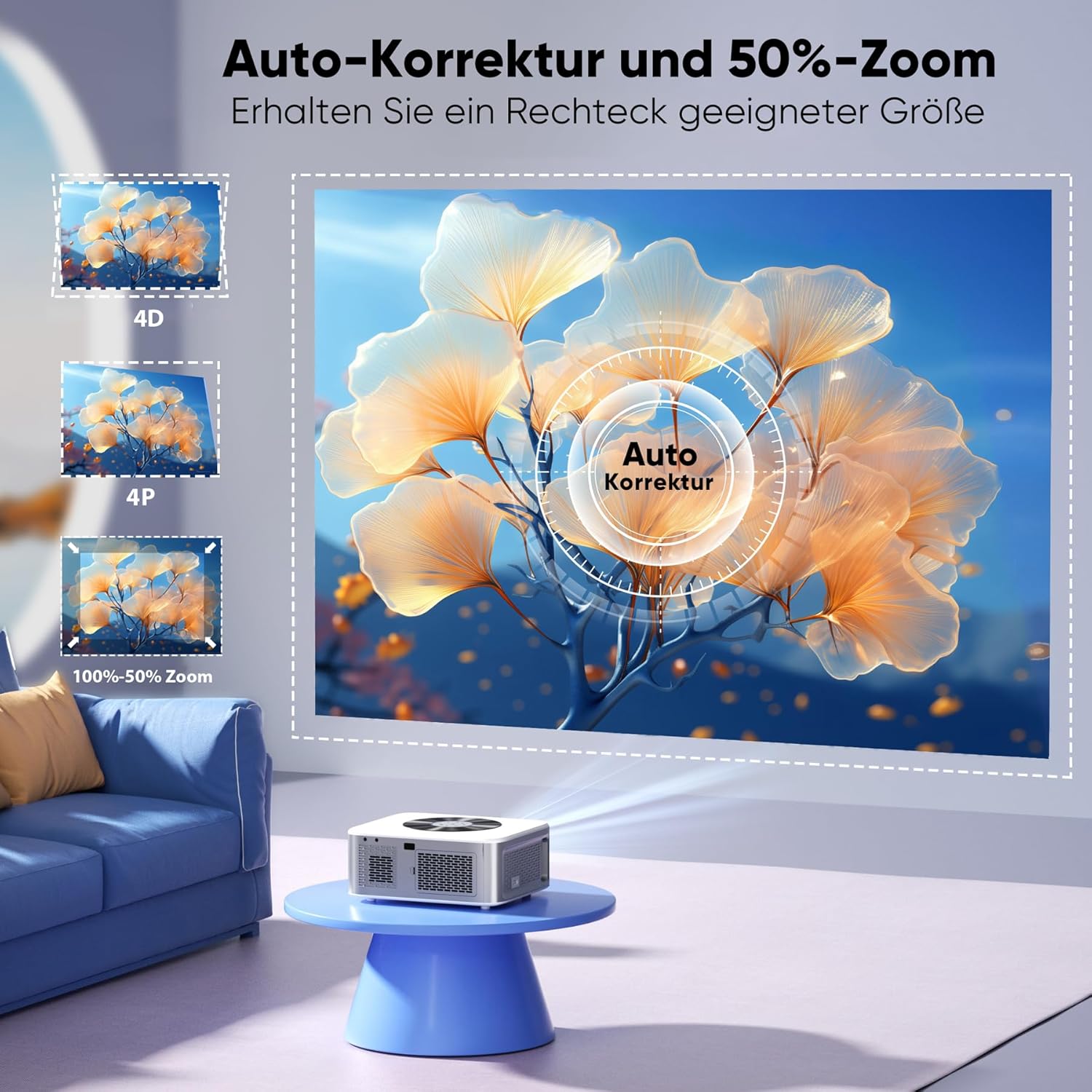
This image illustrates the projector's auto-correction and 50% zoom capabilities, showing how it can adjust a distorted image into a perfect rectangle from various angles.
3.3 Connectivity (WiFi 6 & Bluetooth 5.2)
The projector supports dual-band 5G/2.4G WiFi 6 for faster and more stable wireless connections. It includes built-in Eshare software for easy screen mirroring from iOS and Android devices. Simply connect your smartphone to the same WiFi network as the projector.

This image highlights the projector's WiFi 6 capabilities, showing a smartphone mirroring content to the projector screen, emphasizing lower latency and a smoother experience.
The bidirectional Bluetooth 5.2 allows the projector to connect wirelessly to external Bluetooth speakers for enhanced audio. Additionally, its built-in 2x5W Hi-Fi stereo speakers can function as a standalone Bluetooth speaker when connected to your mobile phone.

This image demonstrates the projector's bidirectional Bluetooth connectivity, showing it paired with headphones and a smartphone, and also lists various compatible devices like iPads, PCs, TV sticks, gaming consoles, and external speakers.
3.4 Media Playback
The projector supports various input sources including HDMI and USB. You can connect devices such as laptops, gaming consoles (PS5, Switch), TV sticks, and USB drives. Please note that streaming services like Netflix and Disney+ with copyright protection may require connection via a TV stick or HDMI cable for proper viewing, as direct mirroring might be restricted.
3.5 Office Use
The HORLAT projector comes with a built-in Office suite, allowing you to open and present PPT, Excel, and Word documents directly from the device. This feature makes it suitable for small meetings and presentations.
4. Maintenance
Proper maintenance ensures the longevity and optimal performance of your projector.
- Cleaning the Lens: Use a soft, lint-free cloth specifically designed for optical lenses. Do not use abrasive cleaners or excessive force.
- Cleaning the Casing: Wipe the projector's exterior with a soft, dry cloth. For stubborn marks, a slightly damp cloth can be used, but ensure no moisture enters the vents or ports.
- Ventilation: Ensure the projector's ventilation openings are clear and not obstructed. The dual-fan cooling system requires proper airflow to dissipate heat efficiently.
- Storage: When not in use for extended periods, store the projector in a cool, dry place, away from direct sunlight and extreme temperatures. Use the original packaging or a protective case to prevent dust accumulation.
- Lamp Life: The projector's light source has a long lifespan. If you notice a significant decrease in brightness over time, consult the troubleshooting section or contact customer support.
5. Troubleshooting
This section addresses common issues you might encounter with your projector.
| Problem | Possible Cause | Solution |
|---|---|---|
| No image displayed | Power cable loose; Incorrect input source; Device not powered on | Check power connections; Select correct input source (HDMI, USB); Ensure connected device is on |
| Image is blurry or distorted | Focus not adjusted; Keystone not corrected; Projector not perpendicular to screen | Adjust focus ring; Use auto or manual keystone correction; Reposition projector if necessary |
| No sound | Volume too low; Muted; External audio device not connected/selected | Increase volume; Unmute; Check external speaker connection or select internal speakers |
| Cannot connect to Wi-Fi | Incorrect password; Router issue; Projector too far from router | Verify Wi-Fi password; Restart router; Move projector closer to router or use a Wi-Fi extender |
| Remote control not working | Batteries low/dead; Obstruction between remote and projector; Remote not paired | Replace batteries; Remove obstructions; Re-pair remote if required (refer to specific pairing instructions if applicable) |
| Overheating / Fan noise excessive | Vents blocked; Prolonged use in hot environment | Ensure vents are clear; Operate in a well-ventilated area; Allow projector to cool down |
6. Technical Specifications
Below are the detailed technical specifications for the HORLAT 28000 Lumens 4K Android TV Projector:
| Feature | Specification |
|---|---|
| Brand | HORLAT |
| Color | Pearly white |
| Product Type | Portable Projector |
| Brightness | 28000 Lumens |
| Native Display Resolution | 1920 x 1080 Pixels (Full HD 1080P) |
| Maximum Display Resolution | Supports 4K input |
| Display Type | DLP |
| Connectivity Technology | Wi-Fi (Dual-band 5G/2.4G, Wi-Fi 6), Bluetooth 5.2 |
| Special Features | Digital Keystone Correction (±50° 4D/4P, Auto), Built-in Speaker, Portable, Integrated Cooling System, Eshare, Built-in Office Suite |
| Compatible Devices | Smartphone, PC, TV Stick, Gaming Consoles (PS5, Switch), USB devices |
| Recommended Uses | Home Cinema, Outdoor Projection, Office Presentations |
| Mounting Type | Ceiling Mount, Front, Rear |
| Included Components | HDMI Cable |
| Manufacturer | Shenzhen Aixin Precision Electronic Technology Co., Ltd. |
7. Warranty and Support
For information regarding warranty coverage, technical support, or service inquiries, please refer to the warranty card included with your product or visit the official HORLAT website. Please retain your proof of purchase for warranty claims.


