1. Introduction
Thank you for choosing the SOLAKAKA SK961 60% Wireless Gaming Keyboard. This compact and versatile keyboard offers triple-mode connectivity (Bluetooth 5.0, 2.4GHz Wireless, and USB-C Wired), vibrant RGB backlighting, and hot-swappable mechanical switches, providing an exceptional typing and gaming experience. This manual will guide you through the setup, operation, and maintenance of your new keyboard.
2. Package Contents
Please check the package for the following items:
- SK961 60% Wireless Gaming Keyboard
- USB-C to USB-A Cable
- 2.4GHz USB Receiver
- Keycap Puller / Switch Puller
- User Manual
3. Product Overview

The SK961 keyboard, showcasing its compact 60% layout, RGB backlighting, and the included USB wireless receiver and ergonomic wrist rest.

An overview of the SK961's main features, including its compact design, macro capabilities, multi-device connectivity, and customizable RGB lighting.
4. Setup and Connection

The SK961 supports three connection modes for versatile use across multiple devices.
4.1 Wired Connection (USB-C)
- Connect the USB-C end of the cable to the keyboard's port.
- Connect the USB-A end of the cable to an available USB port on your computer.
- The keyboard will automatically be recognized and ready for use. The keyboard will also charge in this mode.
4.2 2.4GHz Wireless Connection
- Locate the 2.4GHz USB receiver in the package.
- Plug the USB receiver into an available USB port on your computer.
- Turn on the keyboard. The keyboard should automatically connect to the receiver. If not, press Fn + R to activate 2.4GHz mode.
4.3 Bluetooth 5.0 Connection
The keyboard can save up to 3 Bluetooth devices (BT1, BT2, BT3).
- Turn on the keyboard.
- Press and hold Fn + E (for BT1), Fn + T (for BT2), or Fn + Y (for BT3) for 3-5 seconds until the indicator light flashes rapidly, indicating pairing mode.
- On your device (PC, laptop, tablet, phone), enable Bluetooth and search for new devices.
- Select "SK961" from the list of available devices to connect.
- Once connected, the indicator light will stop flashing.
- To switch between paired Bluetooth devices, simply press Fn + E/T/Y (short press).
5. Operating Instructions
5.1 RGB Backlight and Side Light Control

The SK961 features 19 RGB backlighting effects and 10 RGB side light effects for extensive customization.
- Press Fn + \| to cycle through different backlight modes.
- Press Fn + [ { to decrease backlight brightness.
- Press Fn + ] } to increase backlight brightness.
- Press Fn + ; : to decrease backlight speed.
- Press Fn + ' " to increase backlight speed.
- Specific key combinations may control side lights; refer to the quick guide included with your keyboard for detailed functions.
5.2 Hot-Swappable Switches
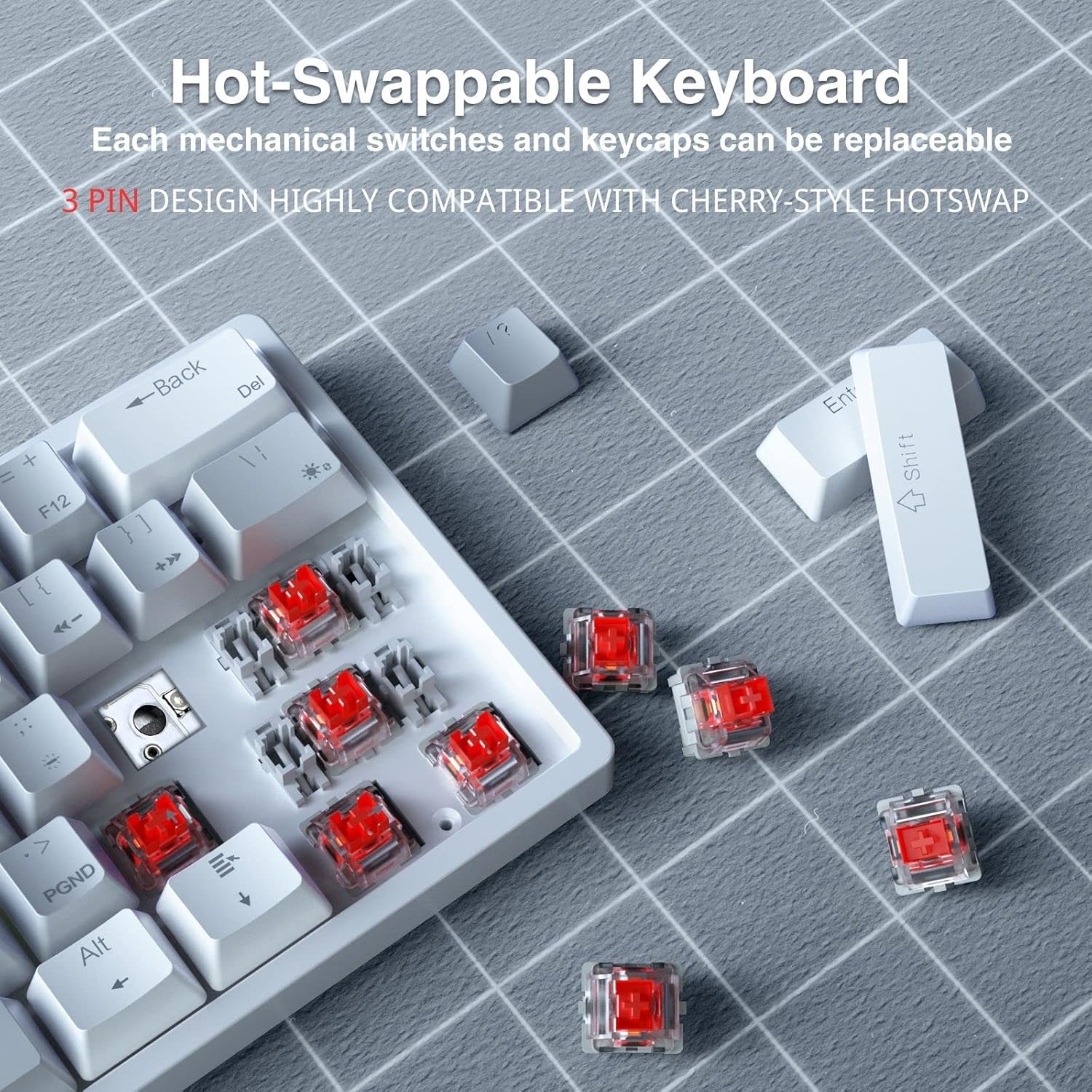
The SK961 supports 3-pin hot-swappable switches, allowing for easy customization and replacement.
The SK961 keyboard features hot-swappable sockets, allowing you to change mechanical switches without soldering. This feature is compatible with most 3-pin mechanical switches (e.g., Cherry MX style).
- Use the included keycap puller to gently remove the desired keycap.
- Use the included switch puller to carefully grip the top and bottom clips of the switch and pull it straight up.
- Align the pins of the new switch with the holes on the PCB. Ensure the pins are straight.
- Gently push the new switch into place until it clicks securely. Do not force it.
- Replace the keycap.
5.3 Macro Definition
The SK961 keyboard supports macro definition software to customize key functions and create complex macros. Please visit the official SOLAKAKA website or refer to the included software guide for detailed instructions on downloading and using the macro software.
5.4 Compact Design and Portability

The 60% compact layout of the SK961 saves significant desk space while retaining essential functionality.
The 60% compact design of the SK961 makes it ideal for saving desk space and for portability. Despite its small size, it retains full functionality through the use of the Fn key combinations.
6. Maintenance
- Cleaning: Use a soft, dry cloth to wipe the keyboard surface. For deeper cleaning, remove keycaps and use compressed air to clear debris. Avoid using harsh chemicals or abrasive materials.
- Battery Care: To prolong battery life, avoid fully discharging the keyboard frequently. Charge it regularly, especially if not used for extended periods.
- Storage: Store the keyboard in a cool, dry place away from direct sunlight and extreme temperatures.
- Spills: In case of liquid spills, immediately disconnect the keyboard, power it off, and allow it to dry completely before attempting to use it again.
7. Troubleshooting
| Issue | Possible Solution |
|---|---|
| Keyboard not responding (Wired) | Ensure the USB-C cable is securely connected to both the keyboard and the computer. Try a different USB port or cable. |
| Keyboard not responding (2.4GHz Wireless) | Ensure the 2.4GHz receiver is plugged in. Check keyboard battery level. Press Fn + R to ensure it's in 2.4GHz mode. Re-pair if necessary. |
| Keyboard not connecting (Bluetooth) | Ensure Bluetooth is enabled on your device. Check keyboard battery. Press and hold Fn + E/T/Y to enter pairing mode. Forget the device on your computer and re-pair. |
| RGB backlight not working/stuck | Ensure keyboard is powered on. Try cycling through modes with Fn + \|. Adjust brightness with Fn + [ { / ] }. Recharge the keyboard. |
| Keys not registering | Check if the switch is properly seated. If hot-swappable, try reseating or replacing the switch. Clean under the keycap. |
| Short battery life | Reduce backlight brightness or turn off RGB when not needed. Ensure the keyboard is fully charged. |
8. Specifications
- Model: SK961
- Connectivity: Bluetooth 5.0, 2.4GHz Wireless, USB-C Wired
- Number of Keys: 61
- Switch Type: Mechanical (Hot-swappable 3-pin)
- Backlight: RGB (20 adjustable modes, 10 RGB side lights)
- Battery: 2000 mAh Rechargeable
- Layout: 60% Compact QWERTY
- Compatible Devices: PC, Laptop, MacBook, Mobile Phones
- Special Features: Backlit, Ergonomic, Rechargeable
9. Warranty and Support
SOLAKAKA products are designed for reliability and performance. For warranty information and technical support, please refer to the warranty card included with your product or visit the official SOLAKAKA website. If you encounter any issues not covered in this manual, please contact our customer service team for assistance.
Contact Information: Please refer to the product packaging or the official SOLAKAKA website for the most up-to-date contact details for customer support.


