
Introduction
This manual provides detailed instructions for the installation, operation, maintenance, and troubleshooting of your Inefala 7012B 7-inch 2 DIN Car Stereo. This unit features a 7-inch touchscreen, integrated CarPlay and Android Auto, Bluetooth 5.1, Mirror Link functionality, FM radio, USB/AUX/TF inputs, steering wheel control support, and includes a backup camera for enhanced safety.
Package Contents
Verify that all items are present in the package:
- 1 x Inefala 7-inch 2 DIN Car Stereo with CarPlay
- 1 x Power Cord
- 1 x Speaker Cable
- 1 x Remote Control
- 1 x External Microphone
- 1 x Rear View Camera
- 1 x User Manual
Setup and Installation
Professional installation is recommended for car audio systems. Ensure the vehicle's power is disconnected before beginning installation.
1. Wiring Connections
Connect the power cord, speaker cable, external microphone, and rear view camera according to the wiring diagram provided in the separate wiring guide (if applicable) or the included manual. The unit uses a standard DIN connector. Pay close attention to the polarity of the ignition (ACC) and constant power (B+) wires to ensure proper operation and memory retention.
2. Mounting the Unit
Install the 2 DIN unit into your vehicle's dashboard opening. Secure it using the provided mounting brackets and screws.
3. Steering Wheel Control Configuration
After installation, access the steering wheel control settings in the unit's menu. Follow the on-screen prompts to program your vehicle's steering wheel buttons to control the car stereo functions.

Image: The car stereo display showing the steering wheel control learning interface, with a hand interacting with a car's steering wheel buttons. This illustrates how to configure the steering wheel controls for the unit.
Operating Instructions
1. Touchscreen Interface
The unit features a responsive 7-inch touchscreen with a resolution of 1024x600. Navigate through menus and control functions by tapping or swiping on the screen.
2. CarPlay and Android Auto
Connect your smartphone to the car stereo using your phone's original USB cable to activate CarPlay (for iPhone) or Android Auto (for Android phones). This allows access to navigation, calls, messages, music, and voice assistants (Siri/Google Voice) directly from the car stereo display.

Image: The car stereo screen showing various app icons, indicating active CarPlay or Android Auto. Two smartphones are depicted below, one connected for CarPlay and the other for Android Auto via USB cables.
3. Mirror Link Function
To use Mirror Link, connect your smartphone via its original USB cable. The car stereo will display your phone's screen content synchronously. This feature is useful for displaying navigation apps or sharing videos from your phone.

Image: A visual representation of the Mirror Link function, where a smartphone's display is duplicated onto the car stereo's HD screen, showing a snowboarder. USB cables illustrate the connection method.
4. Bluetooth 5.1 Connectivity
The unit features Bluetooth 5.1 for wireless audio streaming and hands-free calling. Pair your phone with the car stereo to make and receive calls, download your phonebook, and play music wirelessly. An external microphone is included for clear call quality.

Image: The car stereo display showing Bluetooth call interface and music playback interface, with a large Bluetooth 5.1 logo in the foreground, indicating wireless connectivity for calls and audio.
5. FM Radio
Access the FM radio function to listen to your favorite stations. The unit supports a frequency range of 87.5-108.0 MHz and allows for 18 preset stations. Use the scan function to find available stations.

Image: The car stereo screen showing the FM radio interface, tuned to 87.50 MHz, with options for band selection, scanning, stereo/mono, and local/DX tuning.
6. USB, AUX, and TF Card Playback
The unit supports media playback from USB drives, AUX input, and TF (microSD) cards. Insert your storage device or connect an audio source to enjoy local video or music.
7. Backup Camera Operation
When the vehicle is shifted into reverse gear, the car stereo will automatically display the rear view camera feed on the screen. The included camera is waterproof and features night vision, providing a clear view with reversing reference lines for safer parking.
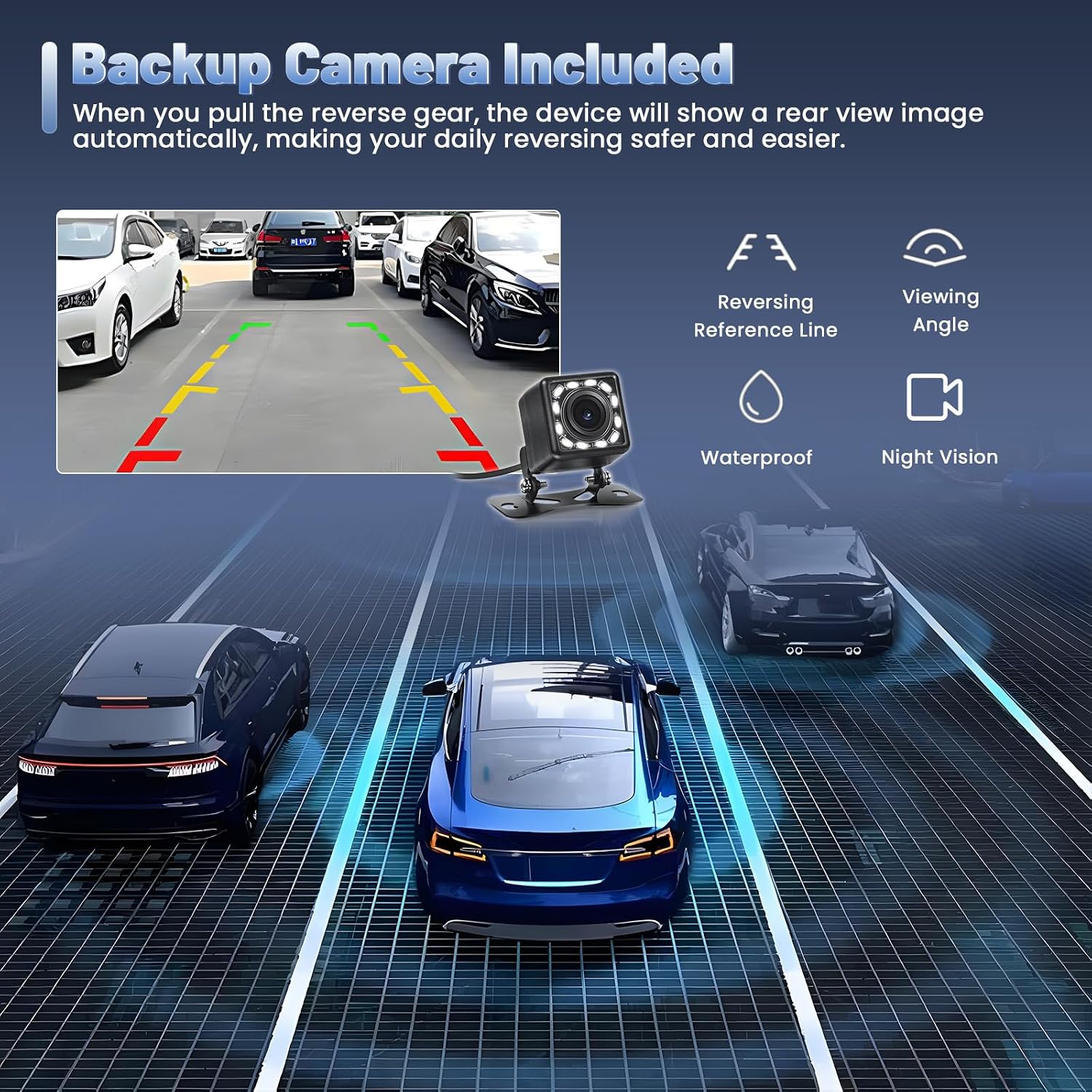
Image: The car stereo display showing a rear view camera feed with green, yellow, and red parking guidelines. Icons indicate features like reversing reference lines, wide viewing angle, waterproof design, and night vision capability.
Maintenance
To ensure the longevity and optimal performance of your car stereo, follow these maintenance guidelines:
- Cleaning the Screen: Use a soft, lint-free cloth to gently wipe the touchscreen. For stubborn smudges, slightly dampen the cloth with water or a screen-safe cleaner. Avoid abrasive materials or harsh chemical cleaners.
- General Cleaning: Keep the unit free from dust and debris. Use a soft brush or compressed air to clean around buttons and ports.
- Temperature: Avoid exposing the unit to extreme temperatures, both hot and cold, for extended periods.
Troubleshooting
If you encounter issues with your Inefala 7012B car stereo, refer to the following common problems and solutions:
| Problem | Possible Cause / Solution |
|---|---|
| No Sound Output |
|
| CarPlay/Android Auto Not Connecting |
|
| Bluetooth Connection Issues |
|
| Distorted or "Piping" Sound |
|
| Unit Not Powering On |
|
Specifications
| Feature | Detail |
|---|---|
| Model Number | 7012B |
| Screen Size | 7 inches |
| Screen Resolution | 1024 x 600 |
| Connectivity Technology | Auxiliary, Bluetooth 5.1, USB |
| Special Features | CarPlay, Android Auto, Mirror Link, FM Radio, USB, AUX, TF, Steering Wheel Control, Backup Camera Support |
| Compatible Devices | Smartphone |
| Audio Output Mode | Stereo, Surround |
| Surround Sound Channel Configuration | 4.0 |
| Video Encoding | H.264, MPEG-4 |
| Power Output | 45 Watts x 4 Channels |
| Control Method | Touchscreen, Manual Control |
| Item Dimensions (L x W x H) | 18 x 6.3 x 10.3 centimeters |
| Country of Origin | China |
Warranty and Support
Your Inefala 7012B Car Stereo comes with a comprehensive warranty and dedicated customer support.
- Warranty Period: 24 months from the date of purchase.
- Technical Support: Lifetime online assistance is available for all inquiries. Expect a response within 47 hours.
Contacting Support
For warranty claims, technical assistance, or any questions regarding your product, please contact Inefala customer service through the platform where you purchased the item. Typically, this involves navigating to your order details and selecting the "Ask a question" option for the seller.

Image: A diagram illustrating the steps to contact customer support, showing a hand pointing to an "Ask a question" button on an online retail page.


