
Introduction
This manual provides detailed instructions for setting up, operating, and maintaining your Ajazz AK820MAX 75% Mechanical Keyboard. Please read this manual thoroughly before using the product to ensure optimal performance and longevity.
Product Features
- TFT Smart Display & Knob: Features a high-definition TFT color screen displaying time, connectivity modes, battery status, and custom GIF animations. The integrated knob allows for quick adjustments.
- Gasket Structure & PCB Single Key Slotting: Designed with a gasket structure and 1.2mm thick PCB single key slotting for enhanced resilience, stability, and a softer, more elastic typing feel. Multiple internal fillings reduce noise for a pure and pleasant sound.
- Tri-Mode Connectivity: Supports wireless connectivity via Bluetooth 5.1, 2.4GHz, or a wired Type-C USB cable. Easily switch between modes for efficient multitasking across various devices.
- Long-lasting Battery: Equipped with an 8000mAh battery for extended use without frequent recharging.
- RGB Backlighting with Music Rhythm: Offers 20 customizable backlighting effects, including a mode that synchronizes with music playback.
- 75% Hot-Swappable Layout: A compact 75% layout saves desktop space. The 3/5-pin PCB mounting design allows for easy hot-swapping of mechanical switches, enabling customization of typing preferences.
Package Contents
Upon unboxing, please ensure all the following items are present:
- Ajazz AK820MAX Mechanical Keyboard
- USB Type-C Cable
- User Manual

Image: The Ajazz AK820MAX keyboard, USB-C cable, and user manual as they appear when unboxed.
Setup
- Charging the Keyboard: Connect the provided USB Type-C cable to the keyboard's Type-C port and the other end to a USB power source (e.g., computer, wall adapter). The TFT display will indicate charging status.
- Adjusting Keyboard Angle: Flip the keyboard over and extend the adjustable feet on the underside to achieve your preferred typing angle.
- Selecting Connectivity Mode:
- Wired Mode: Connect the USB Type-C cable to your computer. The keyboard will automatically switch to wired mode.
- 2.4GHz Wireless Mode: Locate the 2.4GHz receiver (usually stored in a slot on the keyboard's underside). Plug the receiver into an available USB port on your computer. Switch the mode selector on the keyboard to 2.4G.
- Bluetooth Mode: Switch the mode selector on the keyboard to BT. On your device (PC, laptop, tablet), search for Bluetooth devices and select "AK820MAX" to pair.

Image: Side view of the keyboard highlighting the USB-C port and switches for selecting wired, 2.4G, or Bluetooth connectivity modes.

Image: The keyboard displaying battery life information on its TFT screen, indicating approximate usage times for wireless with lights off and wireless streamer light life, along with charging time.
Operating Instructions
TFT Smart Display and Knob Functions
The integrated TFT color screen and multi-function knob provide quick access to various settings:
- Knob Rotation: Rotate the knob to navigate through menu options or adjust values (e.g., brightness, speed).
- Knob Press: Press the knob to confirm a selection or enter a menu.
- Display Information: The screen shows current time, active connectivity mode (wired, 2.4G, BT), and battery level.
- Custom GIF Animations: The display supports custom colorful GIF animations. Refer to the software for customization options.

Image: A close-up of the keyboard's 0.85-inch TFT color screen, illustrating its capability to display settings such as backlight brightness, speed, color, and effect modes.
RGB Backlighting Control
The keyboard features 20 backlighting effects. Use the knob or dedicated function keys (refer to the keyboard's keycap legends or software) to:
- Change lighting effects.
- Adjust brightness levels.
- Modify animation speed.
- Select specific colors.
- Activate music rhythm mode, where lighting fluctuates with audio.
Hot-Swapping Switches
The AK820MAX supports hot-swappable mechanical switches, allowing you to change switches without soldering.
- Carefully remove the keycap using a keycap puller.
- Use a switch puller to gently remove the switch from the PCB.
- Align the pins of the new switch with the holes on the PCB and press firmly until it clicks into place. Ensure pins are not bent.
- Replace the keycap.
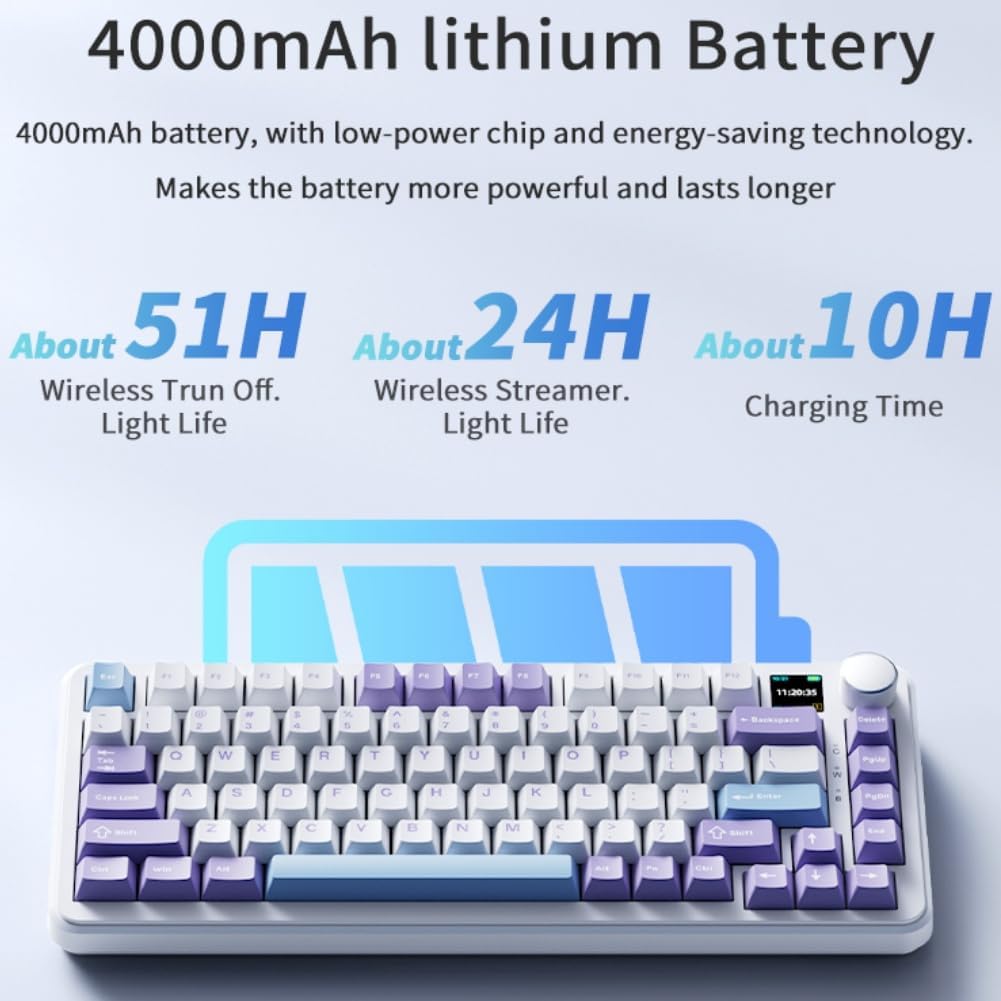
Image: A close-up view of the keyboard's hot-swappable key switches, demonstrating the ease with which switches can be changed to customize typing preferences.

Image: A detailed view of the keyboard's PCB, showcasing the 1.2mm thick single key slot design for improved switch stability and feel.

Image: A diagram illustrating the internal gasket structure of the keyboard, which contributes to a softer and more elastic typing experience.

Image: A cross-section diagram detailing the five-layer internal filling, including silicone bottom pad, IXPE switch pad, and PET voice actor pad, designed to reduce noise and produce a pure sound.
Maintenance
- Cleaning: Use a soft, dry cloth to wipe the keyboard surface. For deeper cleaning, remove keycaps and use compressed air to clear debris.
- Switch Care: Avoid spilling liquids on the keyboard. If a switch feels inconsistent, it may need to be replaced or lubricated.
- Storage: Store the keyboard in a cool, dry place away from direct sunlight and extreme temperatures.
Troubleshooting
- Keyboard Not Responding:
- Ensure the keyboard is charged.
- Check the connectivity mode switch (wired, 2.4G, BT) matches your connection type.
- For 2.4GHz, ensure the receiver is properly plugged in.
- For Bluetooth, ensure the keyboard is paired and within range. Try re-pairing.
- Try connecting via USB-C cable to rule out wireless issues.
- RGB Lights Not Working/Incorrect:
- Check brightness settings using the knob or software.
- Ensure the keyboard software is up to date.
- Reset lighting effects to default via software or keyboard shortcuts (refer to specific key combinations if available).
- Keys Not Registering:
- If a specific key is not working, try hot-swapping the switch with a known working one to determine if the switch or PCB socket is faulty.
- Ensure the keycap is properly seated.
Specifications
| Feature | Detail |
|---|---|
| Model Number | AK820MAX |
| Layout | 75% (81 Keys) |
| Connectivity | Bluetooth 5.1, 2.4GHz Wireless, USB Type-C Wired |
| Switch Type | Hot-swappable Mechanical (Avocado Switch) |
| Backlighting | RGB (20 effects, music rhythm) |
| Display | 0.85-inch TFT Color Smart Display |
| Battery Capacity | 8000mAh Lithium Polymer (rechargeable) |
| Compatible Devices | PC, Laptop, Tablet |
| Dimensions | 15.75 x 6.89 x 2.71 inches |
| Item Weight | 2.75 pounds |
| Manufacturer | Odpaltoy |
Warranty and Support
For warranty information and technical support, please refer to the warranty card included with your product or contact the manufacturer directly. You can also visit the official Ajazz website for FAQs and additional resources.
Manufacturer: Odpaltoy
Contact: Please refer to the contact information provided in the product packaging or on the manufacturer's official website for support inquiries.


