
1. Introduction
The Vgate vLinker FS is an advanced OBD2 interface designed for vehicle diagnostics and programming. It offers both Bluetooth and USB connectivity options, providing a reliable and fast connection to your vehicle's On-Board Diagnostics system. This device is specifically optimized and recommended for use with FORScan software, enabling access to various vehicle modules and advanced functions, including configuration and programming capabilities.
The vLinker FS supports both High-Speed CAN (HS-CAN) and Medium-Speed CAN (MS-CAN) networks simultaneously, eliminating the need for manual toggle switches found in older adapters. It is compatible with both 12V and 24V automotive systems.
2. Setup
2.1 Connecting the vLinker FS to Your Vehicle
- Locate your vehicle's OBD2 port, typically found under the dashboard on the driver's side.
- Plug the Vgate vLinker FS adapter firmly into the OBD2 port. The adapter's indicator lights should illuminate, indicating power.
2.2 Software Installation and Configuration (FORScan)
For optimal performance, it is recommended to use the vLinker FS with FORScan software. Ensure you have the latest version of FORScan installed on your Windows PC (for USB connection) or compatible mobile device (for Bluetooth connection).
After installing FORScan, specific settings are required for proper communication:
- Open FORScan and navigate to the 'Settings' or 'Connection' tab.
- Set 'Connection type' to 'FTDI' for USB connection or 'Bluetooth Adapter' for Bluetooth.
- Set 'Baud rate' to '115.2 Kbps'.
- Ensure 'Auto-increase' is ticked.

Image: FORScan software connection settings, highlighting FTDI connection type, 115.2 Kbps baud rate, and auto-increase option.
2.3 Bluetooth Pairing (for Bluetooth model)
- Ensure the vLinker FS is plugged into the vehicle's OBD2 port and powered on.
- On your mobile device or PC, go to Bluetooth settings and search for available devices.
- Select 'vLinker FS' from the list and pair. The default PIN is usually '1234' or '0000' if prompted.
- In FORScan (or other compatible app), select the paired Bluetooth device for connection.
3. Operation
3.1 Basic Diagnostics with FORScan
Once connected, FORScan will automatically detect your vehicle's modules. You can then perform various diagnostic functions:
- Read Diagnostic Trouble Codes (DTCs): Identify and understand fault codes from different vehicle modules.
- Clear DTCs: Erase fault codes after repairs have been made.
- View Live Data: Monitor real-time sensor data, such as engine RPM, coolant temperature, and fuel pressure.
- Run Tests: Perform specific tests on vehicle components.
3.2 Advanced Functions and Programming
The vLinker FS is designed to support advanced FORScan functions, including configuration and programming. It features automatic electronic switching, allowing simultaneous access to HS-CAN and MS-CAN buses without manual intervention.
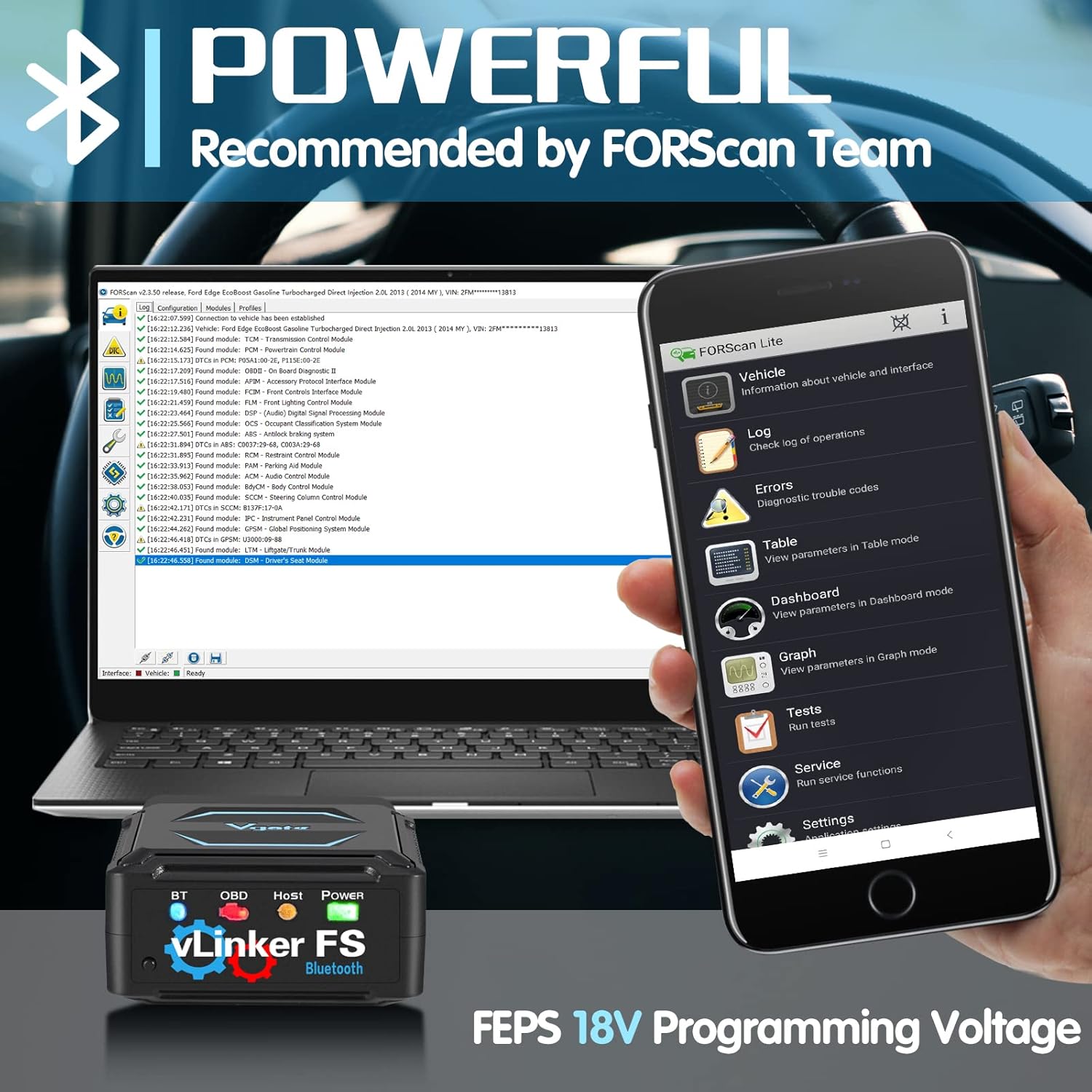
Image: The Vgate vLinker FS connected to a vehicle, displaying its use with FORScan on both a laptop and a smartphone, highlighting its powerful diagnostic capabilities and FEPS 18V programming voltage support.
Key advanced capabilities include:
- FEPS 18V Programming Voltage Output: Supports specific programming functions within FORScan that require 18V.
- Simultaneous CAN Bus Access: Accesses all CAN buses at the same time, enabling comprehensive diagnostics and programming. This eliminates the limitations of older adapters that require manual switching between HS-CAN and MS-CAN.
Image: Diagram illustrating the automatic electronic switching feature of the vLinker FS, allowing simultaneous access to HS-CAN (High-Speed CAN) and MS-CAN (Medium-Speed CAN) without a physical toggle switch.
3.3 Compatibility with Other OBD2 Apps
Beyond FORScan, the vLinker FS is compatible with a range of third-party OBD2 diagnostic applications for various platforms (iOS, Android, Windows). Refer to the specific app's documentation for connection instructions.
4. Maintenance
4.1 Firmware Upgrade
The vLinker FS supports firmware upgrades to ensure compatibility with new vehicles and software features. Firmware updates are typically performed via a dedicated application or through the Vgate website.

Image: The Vgate vLinker FS device shown with a smartphone displaying a firmware update screen and a QR code for accessing update information. Note: Pirated products cannot be upgraded.
Scan the QR code provided in the image or visit the official Vgate website for the latest firmware and instructions. It is important to only use official firmware to avoid damaging the device.
4.2 General Care
- Keep the device clean and free from dust and moisture.
- Avoid dropping the device or subjecting it to strong impacts.
- Store the device in a cool, dry place when not in use.
5. Troubleshooting
- Device Not Powering On: Ensure the vLinker FS is securely plugged into the vehicle's OBD2 port. Check the vehicle's battery voltage.
- Connection Issues (Bluetooth/USB):
- For Bluetooth: Ensure Bluetooth is enabled on your device, the vLinker FS is paired, and selected in the app.
- For USB: Ensure the correct drivers are installed (FTDI drivers are often required for USB serial communication). Verify the 'Connection type' and 'Baud rate' settings in FORScan as described in Section 2.2.
- FORScan Not Detecting Vehicle Modules: Verify that the vLinker FS is properly connected and configured in FORScan settings. Ensure the vehicle's ignition is on (or engine running, depending on the diagnostic task).
- Slow Data Transfer: Ensure you are using a stable connection (USB is generally more stable than Bluetooth for high data rates). Check for any background applications that might interfere with communication.
6. Specifications
- Model: Vgate vLinker FS
- Connectivity: Bluetooth, USB
- Vehicle Compatibility: 12V and 24V automotive systems, OBD2 compliant vehicles.
- CAN Bus Support: HS-CAN, MS-CAN (automatic electronic switching)
- Programming Voltage: Supports FEPS 18V output for FORScan programming.
- Operating System Support: Windows 2000/Vista/7/8/8.1/10 (for USB), compatible with various mobile OS for Bluetooth.

Image: The Vgate vLinker FS adapter highlighting its wide coverage, including support for various operating systems (Windows 2000/Vista/7/8/8.1/10) and compatibility with 12V/24V OBD2 cars.
7. Warranty and Support
The Vgate vLinker FS comes with a standard manufacturer's warranty. For specific warranty terms and conditions, please refer to the product packaging or the official Vgate website.
For technical support, firmware upgrades, or any inquiries regarding your Vgate vLinker FS device, please contact the Vgatemall team. Contact information can typically be found on the official Vgate website or through your purchase platform.


