
1. Introduction
The KLIM K2 Mobile Film Scanner is designed to help you digitize your 35mm film and slides using your smartphone. This manual provides detailed instructions for setting up, operating, maintaining, and troubleshooting your device to ensure optimal performance and preservation of your memories.
The scanner is compatible with 35mm black and white film, color negatives, and color slides. It offers a straightforward method to convert physical film into digital images.
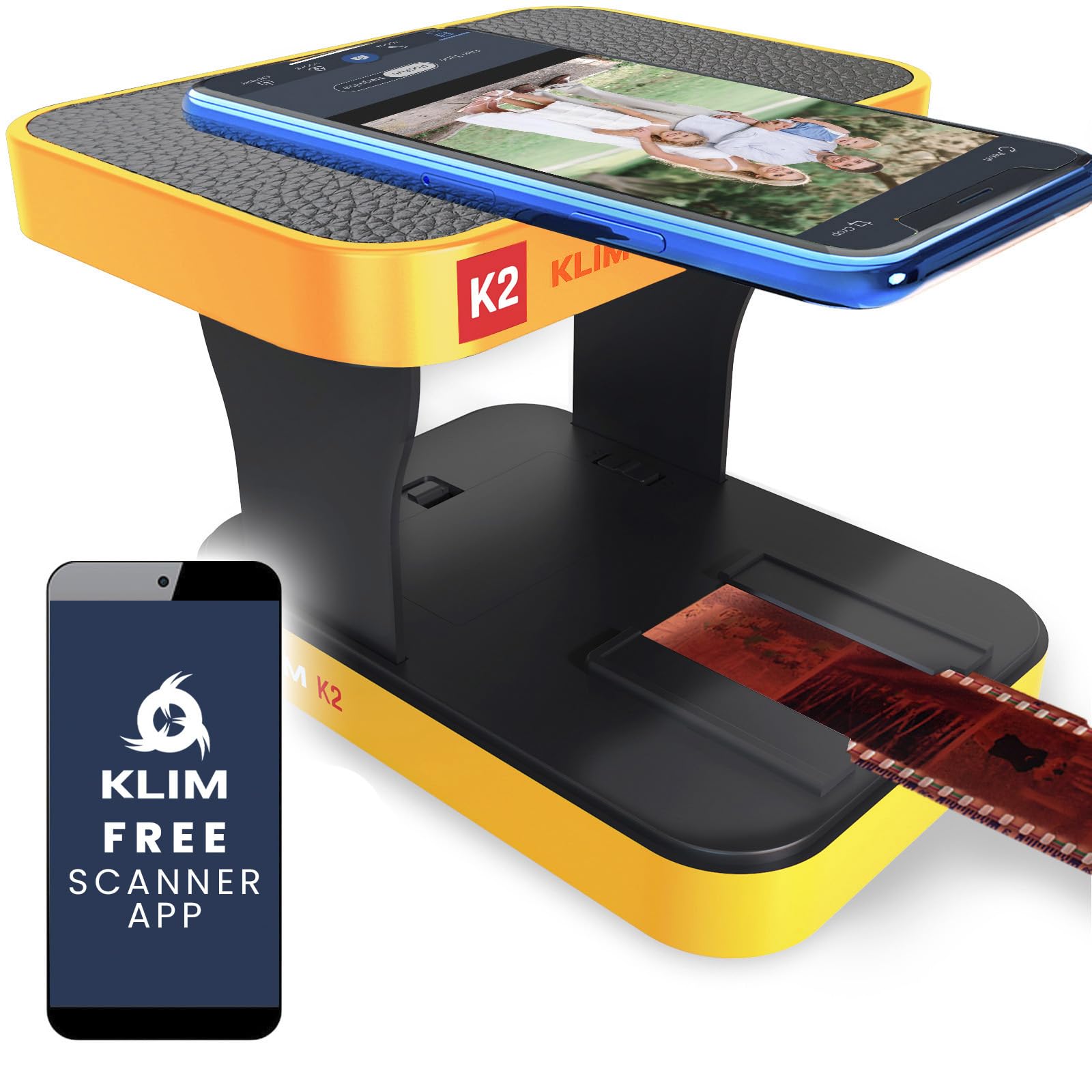
Image: The KLIM K2 Mobile Film Scanner in operation, demonstrating how film is placed and scanned using a smartphone.
2. Setup
Follow these steps to set up your KLIM K2 Mobile Film Scanner:
- Unfold the Scanner: Gently unfold the KLIM K2 Film Scanner from its compact form. Ensure all parts are securely in place.

Image: The scanner in its folded and unfolded states, illustrating the unfolding process.
- Install Batteries: Open the battery compartment and insert the two AA batteries provided. Close the compartment securely.

Image: A close-up view of the battery compartment, showing the insertion of two AA batteries.
- Turn on LED Light: Locate the ON/OFF switch and slide it to the 'ON' position to activate the LED backlight.

Image: A detailed view of the ON/OFF switch for the LED light, indicating its position.
- Download the KLIM Film Scanner App: Search for 'KLIM Film Scanner' in your smartphone's app store (Google Play Store or Apple App Store) and install the free application.
For a visual guide on quick assembly, please refer to the video below:
Video: An official product video demonstrating the quick assembly and basic usage of the KLIM K2 Mobile Film Scanner.
3. Operating Instructions
Once the scanner is set up and the app is installed, you can begin digitizing your films and slides:
- Insert Film or Slide: Carefully slide your 35mm film strip or mounted slide into the designated slot on the scanner. Ensure it is centered over the LED backlight.

Image: A 35mm film strip being inserted into the scanner's film holder.
- Place Your Smartphone: Position your smartphone on the top platform of the scanner, ensuring the camera lens is directly above the film/slide. The scanner includes a magnet for larger phones to help secure placement.
- Launch the App: Open the KLIM Film Scanner app on your smartphone.
- Scan and Adjust: Within the app, use the camera function to capture the image of your film or slide. The app provides tools for cropping, rotating, and adjusting colors (e.g., converting negatives to positives). Follow the on-screen instructions for best results.

Image: A smartphone screen showing a digitized image after scanning, with options for editing.
- Save and Share: Once satisfied with the scan, save the digital image to your phone's gallery. You can then share it or transfer it to other devices.
4. Maintenance
To ensure the longevity and optimal performance of your KLIM K2 Mobile Film Scanner, follow these maintenance guidelines:
- Cleaning: Use the provided cleaning cloth to gently wipe the scanner's surfaces, especially the film/slide slot and the LED light area, to remove dust and fingerprints. Avoid using abrasive cleaners or solvents.
- Battery Replacement: When the LED light dims or fails to turn on, replace the two AA batteries. Ensure correct polarity when inserting new batteries.
- Storage: When not in use, fold the scanner into its compact form and store it in a dry, dust-free environment away from direct sunlight and extreme temperatures.
5. Troubleshooting
If you encounter issues with your KLIM K2 Mobile Film Scanner, refer to the following common problems and solutions:
| Problem | Possible Cause | Solution |
|---|---|---|
| LED light does not turn on. | Dead batteries or incorrect battery insertion. | Replace batteries with new AA batteries, ensuring correct polarity. Check the ON/OFF switch position. |
| Scanned images are blurry or out of focus. | Smartphone camera not properly aligned or film/slide not flat. | Ensure your smartphone camera is centered and flat on the scanner's platform. Make sure the film or slide is inserted correctly and lies flat. Clean your phone's camera lens. |
| Colors in scanned images appear incorrect (e.g., too blue). | Smartphone camera white balance settings or film type. | Adjust the white balance settings in your smartphone camera app or within the KLIM Film Scanner app. The app provides tools to correct color balance for different film types (negatives, slides). |
| App crashes or freezes during scanning. | App software issue or insufficient phone resources. | Restart the app and your smartphone. Ensure your app is updated to the latest version. Close other background applications on your phone. |
| Cannot fit larger phone on the scanner. | Phone size exceeds standard platform. | The scanner includes a magnet for larger phones to assist with placement. Ensure your phone is positioned correctly to utilize this feature. |
6. Specifications
- Product Dimensions: 6.1 x 4.33 x 1.46 inches
- Item Weight: 8.4 ounces (0.24 Kilograms)
- Scanner Type: Film
- Supported Film Types: 35mm film (black and white, color negatives), 35mm slides
- Connectivity Technology: USB (for power, not data transfer)
- Resolution: Approximately 2400-5760 dpi (dependent on smartphone camera resolution)
- Color Depth: 48 bits
- Power Source: 2 x AA Batteries (included)
- Minimum System Requirements: Smartphone with camera and compatible app (iOS/Android)
7. Warranty and Support
KLIM stands by the quality of its products. The KLIM K2 Mobile Film Scanner comes with a 5-year product protection. This warranty covers manufacturing defects and ensures long-term reliability.
Additionally, if you are not satisfied with the product, you may return it within 30 days of purchase for a full refund, at no additional cost.
For further assistance, technical support, or warranty claims, please refer to the contact information provided with your product packaging or visit the official KLIM website.