
Fantovpha for Harmontec Vios
User Manual: Remote Control for Atvio Harmontec Vios Smart TV
Model: for Harmontec Vios
Introduction
This manual provides comprehensive instructions for the setup, operation, and maintenance of your new Fantovpha Remote Control, designed specifically for Atvio and Harmontec Vios Smart TVs. Please read this manual carefully before use to ensure optimal performance and longevity of your device.
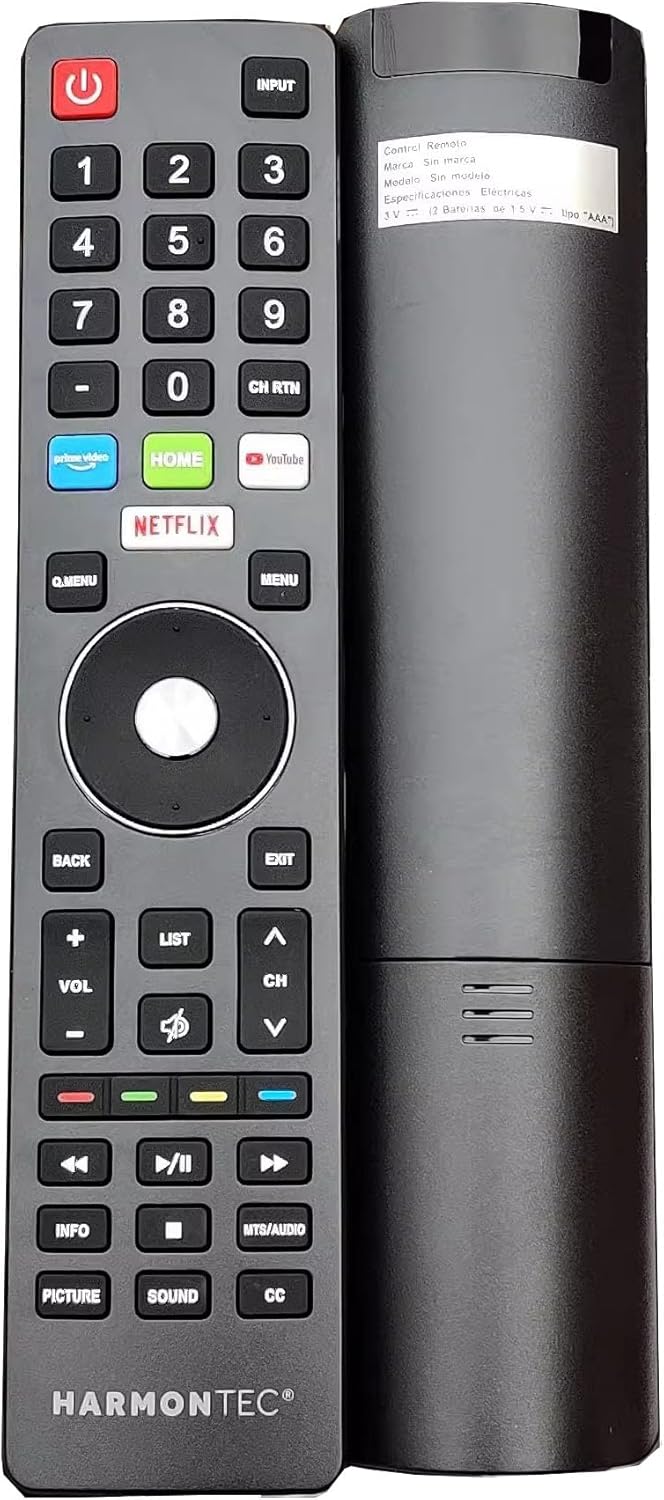
Figure 1: Fantovpha Remote Control for Atvio Harmontec Vios Smart TV. This image displays the front face of the remote with all its buttons, and a partial view of its side, highlighting its ergonomic design.
Setup
Battery Installation
The remote control requires two AAA batteries (not included). Follow these steps to install them:
- Locate the battery compartment on the back of the remote control.
- Slide the battery cover downwards or in the direction indicated by an arrow to open it.
- Insert two AAA batteries, ensuring the positive (+) and negative (-) terminals align correctly with the markings inside the compartment.
- Slide the battery cover back into place until it clicks securely.
Initial Use
This remote control is designed as a direct replacement and typically does not require complex pairing. Once batteries are installed, point the remote towards your Atvio or Harmontec Vios Smart TV and test its functions. If it does not respond, ensure there are no obstructions between the remote and the TV's infrared receiver.
Operating Instructions
Familiarize yourself with the buttons on your remote control:
| Button | Function |
|---|---|
| Power (⏻) | Turns the TV on or off. |
| Input | Selects the input source (HDMI, AV, etc.). |
| Number Buttons (0-9) | Direct channel selection or numerical input. |
| CH RTN | Returns to the previously viewed channel. |
| Prime Video, Netflix, YouTube | Direct access buttons for popular streaming services. |
| Q.MENU | Accesses the Quick Menu for common settings. |
| MENU | Opens the main TV menu. |
| Navigation (Up, Down, Left, Right, OK) | Navigates through menus and confirms selections. |
| BACK | Returns to the previous screen or menu. |
| EXIT | Exits the current menu or application. |
| VOL (+/-) | Adjusts the volume level. |
| CH (^ / _) | Changes the channel up or down. |
| Mute (🔇) | Mutes or unmutes the TV sound. |
| LIST | Displays the channel list. |
| Colored Buttons (Red, Green, Yellow, Blue) | Context-sensitive functions within menus or applications. |
| Playback Controls (Rewind, Play/Pause, Fast Forward, Stop) | Controls media playback. |
| INFO | Displays information about the current program or input. |
| MTB/AUDIO | Switches audio tracks or modes. |
| PICTURE | Accesses picture settings. |
| SOUND | Accesses sound settings. |
| CC | Toggles Closed Captions on or off. |
Maintenance
Cleaning
To clean your remote control, gently wipe it with a soft, dry cloth. For stubborn dirt, slightly dampen the cloth with water or a mild, non-abrasive cleaner. Avoid using harsh chemicals or abrasive materials, as these can damage the remote's surface or internal components.
Battery Replacement
Replace batteries when the remote's response becomes sluggish or stops working. Always replace both batteries at the same time with new ones of the same type (AAA). Do not mix old and new batteries, or different types of batteries.
Storage
When not in use for extended periods, it is recommended to remove the batteries to prevent leakage, which can damage the remote. Store the remote in a cool, dry place away from direct sunlight and extreme temperatures.
Troubleshooting
| Problem | Possible Cause | Solution |
|---|---|---|
| Remote not responding. | Dead or incorrectly installed batteries. Obstruction between remote and TV. Remote out of range. | Replace batteries, ensuring correct polarity. Remove any objects blocking the signal path. Move closer to the TV. |
| Specific buttons not working. | Dirt or debris under the button. Internal malfunction. | Clean the remote surface. If problem persists, consider replacing the remote. |
| TV not turning on/off. | TV power issue. Remote signal not reaching TV. | Check if the TV is plugged in and powered. Ensure direct line of sight to the TV's IR sensor. |
Specifications
- Brand: Fantovpha
- Model Number: for Harmontec Vios
- Compatible Devices: Television (Atvio, Harmontec Vios Smart TVs)
- Connectivity Technology: Bluetooth (Note: While listed as Bluetooth, most TV remotes primarily use Infrared (IR). This remote is likely IR-based for direct compatibility.)
- Max Number of Supported Devices: 1
- Special Feature: Lightweight
- Item Weight: 0.8 ounces
- Package Dimensions: 2 x 1 x 0.5 inches
- Power Source: 2 x AAA Batteries (not included)
Warranty and Support
This Fantovpha remote control is designed for durability and reliable performance. For specific warranty details, please refer to the product packaging or contact your retailer. In case of issues not covered by this manual, or for further assistance, please reach out to the seller or manufacturer through the platform where the product was purchased.
For more information, you may visit the Fantovpha brand store on Amazon.
Ask a question about this manual
Ask about setup, troubleshooting, compatibility, parts, safety, or missing instructions. Manuals+ will review the question and use this page’s manual context to help answer it.