
1. Product Overview
This manual provides detailed instructions for the installation, operation, and maintenance of your aoonav 12.1 Inch Android 13 Snapdragon 665 Car Stereo Radio. This multimedia head unit is designed as an upgrade for Dodge Ram 1500/2500/3500 (New Body Style) models from 2019 to 2023, offering advanced features such as GPS navigation, a 1080P touch screen, wireless CarPlay, WiFi, 4G connectivity, and Bluetooth.

Image 1.1: The aoonav 12.1 Inch Android 13 Car Stereo unit, showcasing its large vertical display and integrated physical controls.
2. Compatibility and Package Contents
2.1 Vehicle Compatibility
- Compatible Models: 2019, 2020, 2021, 2022, 2023 Dodge RAM Truck 1500/2500/3500 (New Body Style).
- Important Note: This product is not compatible with vehicles that have an original 12-inch car radio screen or a factory 360 camera system.
2.2 Package Contents
Verify that all components are present in the package before beginning installation.
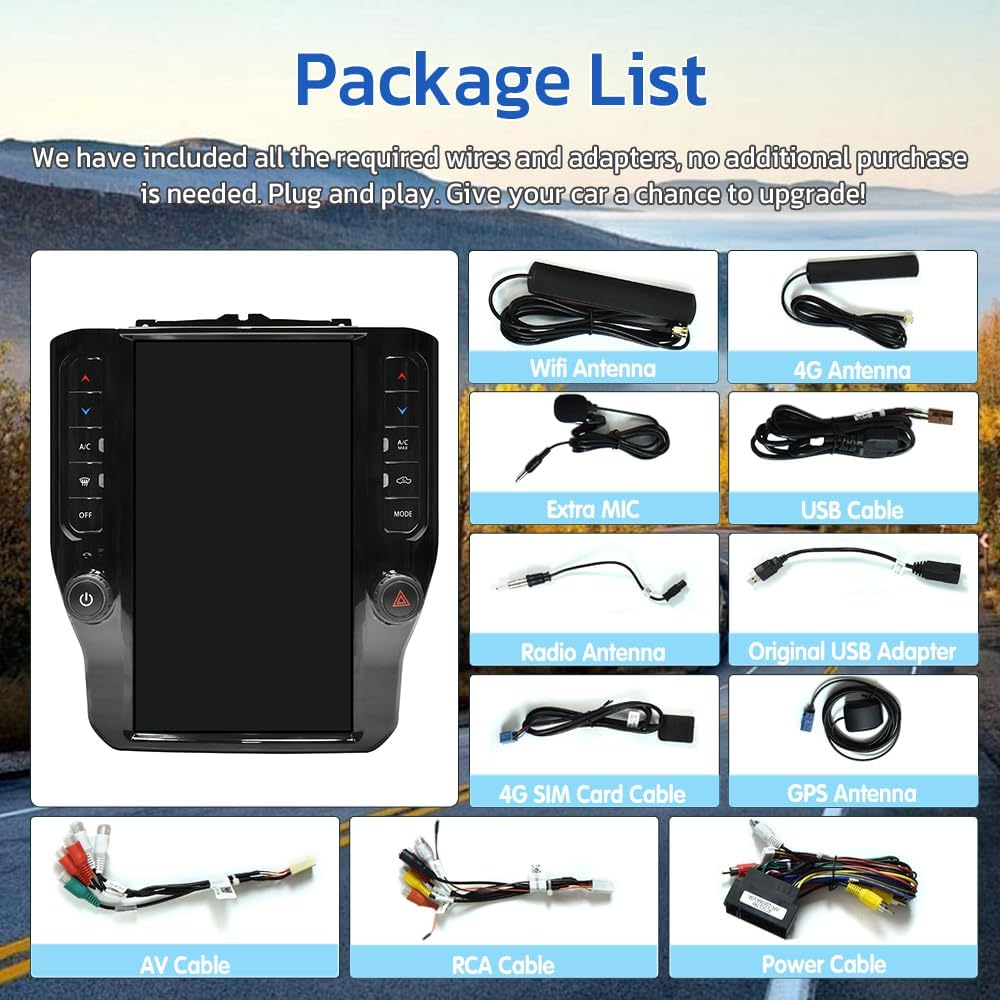
Image 2.1: Overview of the package contents, including the main unit and various cables and adapters.
- Main Head Unit (12.1 Inch Screen)
- Power Adapter
- Wifi Antenna
- 4G Antenna
- External Microphone (Extra MIC)
- USB Cable
- Radio Antenna
- Original USB Adapter
- 4G SIM Card Cable
- GPS Antenna
- AV Cable
- RCA Cable
- Power Cable
- Installation Manual (this document)
3. Installation Guide
Installation of this car stereo system requires technical knowledge and experience with automotive electronics. It is highly recommended to seek professional installation to ensure proper functionality and avoid damage to your vehicle or the product.
3.1 Pre-Installation Checks
- Disconnect the vehicle's battery to prevent electrical shorts.
- Ensure all package contents are present and undamaged.
- Review your vehicle's specific dashboard disassembly procedures.
3.2 General Installation Steps
- Carefully remove the factory radio and dashboard trim.
- Connect the provided power cable and other necessary adapters to the vehicle's wiring harness.
- Connect the GPS antenna, WiFi antenna, 4G antenna, and external microphone to the new head unit. Position antennas for optimal signal reception.
- Integrate the rear view camera input if applicable.
- Mount the aoonav head unit into the dashboard opening, ensuring a secure fit.
- Reconnect the vehicle's battery and test all functions before fully reassembling the dashboard.
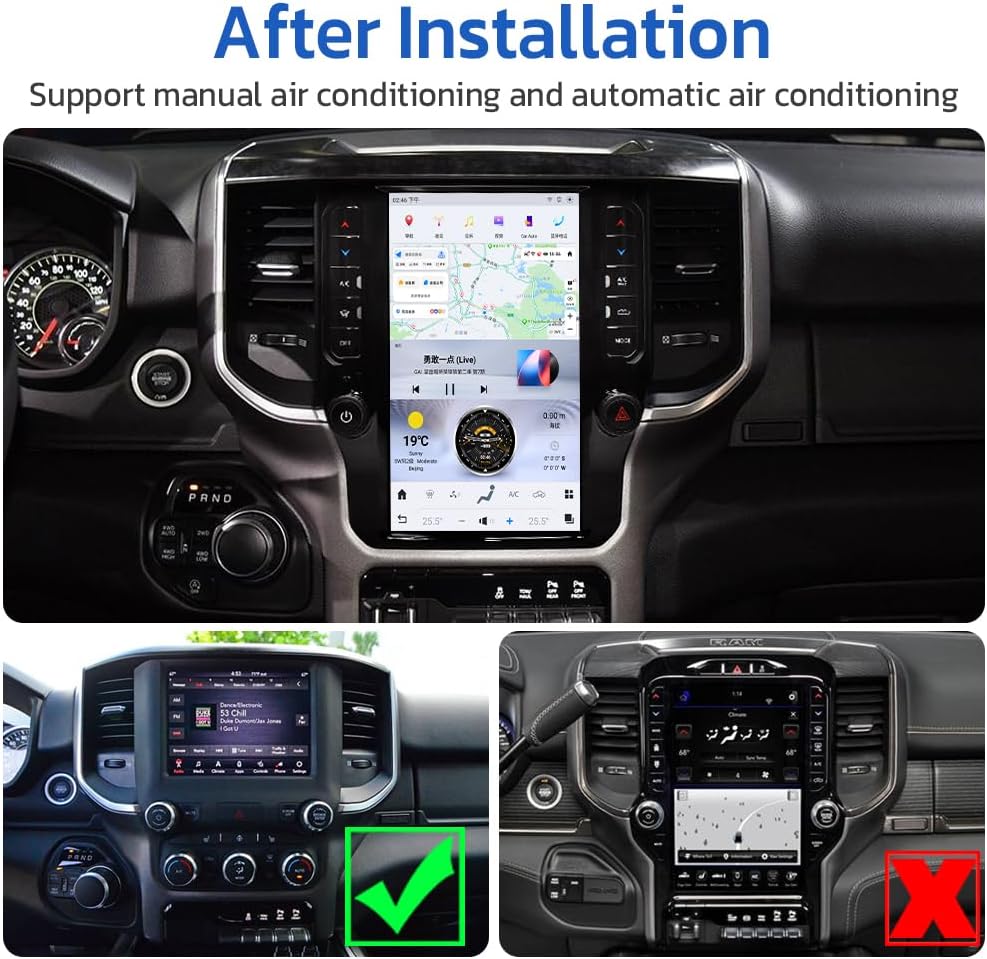
Image 3.1: Visual comparison of the dashboard before and after installing the aoonav 12.1 Inch Android 13 Car Stereo, demonstrating the integrated appearance.
4. Operating Instructions
4.1 Basic Operation
- Power On/Off: Press and hold the power button located on the unit's bezel. A short press typically mutes or activates standby mode.
- Touch Screen: The 12.1-inch IPS capacitive touch screen responds to finger gestures for navigation and control.
- Volume Control: Use the physical volume buttons on the bezel or the on-screen controls.
- Climate Control: The unit integrates on-screen climate controls, replacing the factory physical controls. Access these through the dedicated section on the display.
4.2 Advanced Features
4.2.1 Wireless CarPlay and Android Auto
Connect your iPhone or Android smartphone to the head unit via Bluetooth or a data cable to utilize Wireless CarPlay or Android Auto. This allows access to phone features such as navigation, music, and messaging directly on the stereo display.

Image 4.1: The unit displaying the CarPlay interface, demonstrating smartphone integration.
4.2.2 GPS Navigation
The built-in GPS navigation supports both online and offline maps. Connect to a network via WiFi or 4G for real-time traffic information. Download offline maps for navigation without an internet connection.

Image 4.2: GPS navigation displayed on the unit, showing map data and route information.
4.2.3 Bluetooth 5.0 Connectivity
Pair your mobile phone via Bluetooth 5.0 for hands-free calling, audio streaming, and phonebook synchronization.

Image 4.3: The Bluetooth interface, ready for device pairing.
4.2.4 Rear View Camera Support
The system supports a rear view camera, which automatically activates when the vehicle is shifted into reverse. This feature assists in eliminating blind spots and improving parking safety.

Image 4.4: Rear view camera display, showing parking assistance lines.
4.2.5 Multimedia Playback
Utilize the USB and AUX ports for connecting external devices. The unit supports various music and video formats, providing a comprehensive entertainment experience. The 1920x1080 resolution IPS display ensures clear visuals.

Image 4.5: High-resolution LCD display showing video playback.
4.2.6 Steering Wheel Control
The unit supports integration with your vehicle's existing steering wheel controls, allowing for convenient operation of audio and other functions without taking your hands off the wheel.
5. Maintenance
- Screen Cleaning: Use a soft, lint-free cloth slightly dampened with water or a screen-specific cleaner. Avoid abrasive materials or harsh chemicals.
- Software Updates: Periodically check for available software updates through the system settings to ensure optimal performance and access to new features. Follow on-screen instructions for any update procedures.
- General Care: Avoid exposing the unit to extreme temperatures, direct sunlight for prolonged periods, or excessive moisture.
6. Troubleshooting
If you encounter issues with your aoonav car stereo, refer to the following common troubleshooting steps.
| Problem | Possible Cause | Solution |
|---|---|---|
| Unit does not power on. | Loose power connection, blown fuse, vehicle battery issue. | Check all power connections. Verify vehicle battery is charged. Consult a professional for fuse inspection. |
| No sound from speakers. | Volume muted, incorrect audio source selected, speaker wiring issue. | Increase volume. Select correct audio source. Check speaker connections. |
| CarPlay/Android Auto not connecting or no sound. | Incorrect phone settings, Bluetooth/WiFi interference, software glitch. | Ensure phone's Bluetooth/WiFi is on. Restart phone and head unit. Check for system updates. Verify audio output settings within CarPlay/Android Auto. |
| GPS signal weak or inaccurate. | GPS antenna obstruction or improper placement. | Ensure GPS antenna has a clear view of the sky. Check antenna connection. |
| Rear view camera not displaying. | Camera connection issue, incorrect settings. | Verify camera wiring. Check system settings for camera input activation. |
For issues not covered here, or if problems persist, please contact customer support.
7. Specifications
| Feature | Detail |
|---|---|
| Display Size | 12.1 Inches |
| Operating System | Android 13 |
| Processor | Qualcomm QCM6125 (Snapdragon 665) |
| RAM | 4GB |
| ROM (Internal Storage) | 64GB |
| Resolution | 1920 x 1080 |
| Connectivity | Bluetooth 5.0, Dual-band WiFi (2.4Ghz & 5Ghz), 4G (SIM card reader), USB, Ethernet |
| Special Features | Wireless CarPlay, Android Auto, GPS Navigation, Touchscreen, On-Screen Climate Control, Rear View Camera Support, Steering Wheel Control |
| Audio Output Mode | AUX |
| Item Weight | 7.73 pounds |
| Package Dimensions | 17.3 x 14.6 x 7.3 inches |
8. Warranty and Customer Support
8.1 Warranty Information
- Money-Back Guarantee: 30-day period from purchase date.
- Replacement Policy: 12-month replacement for manufacturing defects.
- Product Warranty: One-year warranty period.
8.2 Technical Support
aoonav provides lifetime technical support for this product. If you have any questions, require assistance with installation, or encounter any issues, please contact our support team.
Contact Email: autostereo@163.com