
1. Introduction
This manual provides instructions for the ECONTROLLY RC833-GUB1 Voice Remote Control. This remote is designed as a replacement and compatible control for various TCL Smart TV models, including 50C645, 55C645, 65C645, 75C645, 85C645, 55C745, 65C745, 75C745, 85C745, 43P745, 50P745, 55P745, 65P745, 75P745, and 85P745 series. It features voice control capabilities and dedicated shortcut buttons for enhanced user experience.
2. Safety Information
- Do not mix old and new batteries.
- Do not mix alkaline, standard (carbon-zinc), or rechargeable (nickel-cadmium) batteries.
- Always remove exhausted batteries promptly to prevent leakage.
- Keep the remote control away from moisture and direct sunlight.
- Avoid dropping or subjecting the remote to strong impacts.
3. Package Contents
- 1 x ECONTROLLY RC833-GUB1 Voice Remote Control
- 1 x User Manual (this document)
4. Setup
4.1. Installing Batteries
To begin using your remote control, you must first install two AAA batteries (not included).
- Locate the battery compartment cover on the back of the remote control.
- Slide the cover downwards to open the compartment.
- Insert two AAA batteries, ensuring the positive (+) and negative (-) terminals match the diagrams inside the compartment.
- Slide the battery compartment cover back into place until it clicks securely.
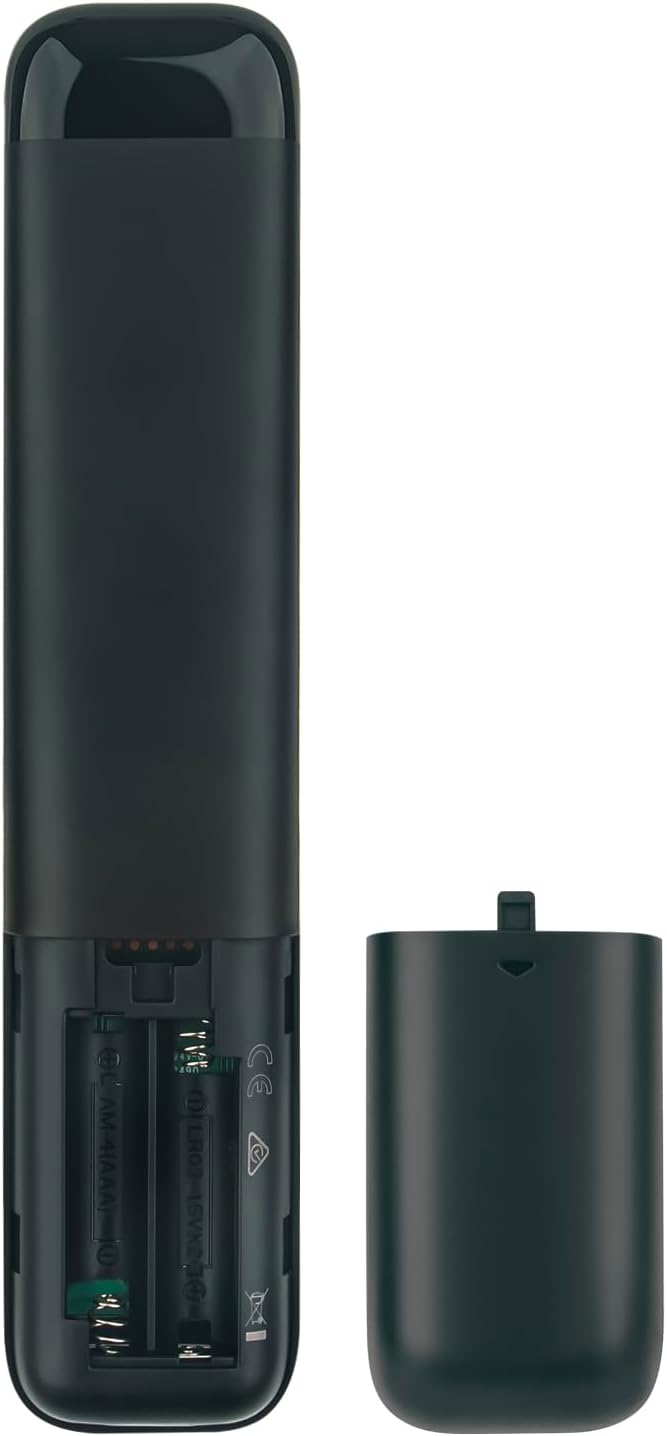
Image: Rear view of the remote control with the battery cover removed, illustrating the correct orientation for AAA battery installation.
4.2. Pairing the Remote Control (for Voice Functionality)
For the voice control feature to function, the remote must be paired with your TCL Smart TV. The pairing process may vary slightly depending on your specific TV model. Refer to your TV's user manual for detailed pairing instructions if these steps do not work.
- Ensure your TV is powered on.
- Press and hold the OK button and the Home button simultaneously for a few seconds.
- A pairing message should appear on your TV screen, indicating that the remote is attempting to pair.
- Once paired, a confirmation message will display on the TV screen.
Note: If your TV itself does not support the voice function, the voice function of this remote control cannot be used, even if successfully paired.
5. Operating the Remote Control
5.1. Button Layout Overview

Image: Front view of the ECONTROLLY RC833-GUB1 Voice Remote Control, displaying all functional buttons.
5.2. Basic Functions
| Button | Function |
|---|---|
| Power | Turns the TV on or off. |
| Mute | Mutes or unmutes the TV audio. |
| Number Pad (0-9) | Direct channel selection or input. |
| Volume Up/Down (VOL +/-) | Adjusts the TV volume. |
| Channel Up/Down (CH +/-) | Changes TV channels. |
| Navigation Pad (Up, Down, Left, Right, OK) | Navigates menus and confirms selections. |
| Home | Returns to the TV's home screen. |
| Back | Goes back to the previous screen or menu. |
| List | Accesses the channel list or other relevant lists. |
| Settings (Gear icon) | Opens the TV's settings menu. |
6. Voice Control Functionality
The RC833-GUB1 remote control features an intelligent voice function, allowing you to control your TV using voice commands.
- Press the Voice button (microphone icon) on the remote control.
- Speak clearly into the microphone located on the remote control.
- Examples of commands include: "Open Netflix," "Search for action movies," "Switch to HDMI 1," or "What's the weather?"

Image: Remote control highlighting the voice control button (microphone icon).
Important: The voice control feature relies on your TCL Smart TV's built-in voice recognition capabilities. If your TV model does not support voice commands, this function on the remote will not operate.
7. Shortcut Buttons
The remote control includes dedicated shortcut buttons for quick access to popular streaming services and TV functions:
- NETFLIX: Launches the Netflix application.
- Prime Video: Launches the Amazon Prime Video application.
- YouTube: Launches the YouTube application.
- TCL Channel: Accesses the TCL Channel.
- TCL Home: Navigates to the TCL Home interface.
- Web: Opens the TV's web browser.
8. Maintenance
- Clean the remote control regularly with a soft, dry cloth. Do not use liquid cleaners or abrasive materials.
- If the remote control will not be used for an extended period, remove the batteries to prevent leakage.
- Store the remote in a cool, dry place, away from extreme temperatures.
9. Troubleshooting
- Remote not responding: Check if the batteries are correctly installed and have sufficient charge. Replace batteries if necessary. Ensure there are no obstructions between the remote and the TV's IR receiver.
- Voice control not working: Verify that your TCL Smart TV model supports voice functionality. Ensure the remote is properly paired with the TV (refer to Section 4.2). Speak clearly and directly into the microphone.
- Buttons are sticky or unresponsive: Clean the remote control as described in the Maintenance section. If the issue persists, the remote may require replacement.
10. Specifications
- Model Number: RC833-GUB1
- Product Dimensions: 7 x 2 x 0.65 inches (approximately 17.8 x 5.1 x 1.65 cm)
- Item Weight: 2.3 ounces (approximately 65 grams)
- Power Source: 2 x AAA Batteries (not included)
- Special Feature: Voice Search
- Compatible Devices: TCL Smart Televisions (specific models listed in Introduction)

Image: Dimensions of the remote control, showing its length and width.
11. Warranty and Support
For warranty information or technical support, please refer to the documentation provided with your purchase or contact the ECONTROLLY customer service department. Contact details are typically available on the product packaging or the manufacturer's official website.