
1. Introduction and Overview
The Calonny JC151 is a portable and powerful Mobile WiFi Hotspot designed to provide high-speed 4G LTE internet access on the go. It allows you to enjoy download speeds of up to 150 Mbps and upload speeds of up to 50 Mbps. With its long-lasting 3000 mAh rechargeable battery, you can stay connected for extended periods. This device creates a secure Wi-Fi hotspot, supporting connections for up to 10 Wi-Fi compatible devices, including smartphones, tablets, and laptops. It supports 4G FDD/TDD-LTE standards and is compatible with SIM cards from major network operators worldwide. The JC151 is ideal for travel, work, office, studio, RVs, shops, and conferences.

Image 1: The Calonny JC151 Mobile WiFi Hotspot is versatile for various environments, including travel, retail, home, and remote locations.
2. Product Overview
The Calonny JC151 features a compact and elegant design, making it easy to carry in your pocket. It includes essential indicators for signal strength, Wi-Fi status, and battery level. The device is equipped with a Nano SIM card slot and a Type-C port for charging and data transfer.

Image 2: Front view of the Calonny JC151, highlighting its minimalist design and status indicators.

Image 3: The Calonny JC151 can provide a reliable Wi-Fi hotspot for multiple devices simultaneously.
3. Setup Guide
3.1. SIM Card Installation
- Ensure the device is powered off.
- Locate the SIM card slot on the device.
- Insert a Nano SIM card into the slot with the gold contacts facing down and the notched corner aligned correctly. Push gently until it clicks into place. If needed, use a small tool to fully insert the SIM card.
- Close the SIM card slot cover securely.
3.2. Charging the Device
- Connect the provided USB Type-C cable to the device's Type-C port.
- Connect the other end of the cable to a USB power adapter (5V/1A recommended) or a computer's USB port.
- The battery indicator light will show charging status. A full charge typically takes a few hours.
3.3. Powering On/Off
- To Power On: Press and hold the power button for a few seconds until the indicator lights illuminate.
- To Power Off: Press and hold the power button for a few seconds until the indicator lights turn off.
3.4. Initial Wi-Fi Connection
- Power on the Calonny JC151.
- On your Wi-Fi enabled device (smartphone, tablet, laptop), search for available Wi-Fi networks.
- Select the network name (SSID) displayed on the device's screen or packaging.
- Enter the default Wi-Fi password (Key) found on the device's screen or packaging.
- Your device should now be connected to the internet.
3.5. APN Configuration (Important)
If you are unable to access the internet after connecting to the Wi-Fi hotspot, you may need to configure the Access Point Name (APN) settings. This is common when using SIM cards from different network operators.
- Connect your computer or smartphone to the Calonny JC151's Wi-Fi network.
- Open a web browser and enter the device's default IP address (usually 192.168.0.1 or 192.168.1.1) into the address bar. Refer to the device's manual or packaging for the exact IP address.
- Log in to the web management interface using the default username and password (often 'admin' for both).
- Navigate to the 'Network Settings' or 'APN Settings' section.
- Create a new APN profile or modify an existing one with the correct APN details provided by your mobile network operator. These details typically include APN name, username, and password.
- Save the changes and restart the device if prompted.
4. Operating Instructions
4.1. Connecting Multiple Devices
The Calonny JC151 supports up to 10 simultaneous Wi-Fi connections. Simply follow the initial Wi-Fi connection steps (Section 3.4) for each device you wish to connect.
4.2. Managing Wi-Fi Settings
You can manage advanced Wi-Fi settings, such as changing the SSID, password, or security type, through the web management interface (refer to Section 3.5 for access instructions). It is recommended to change the default Wi-Fi password for security purposes.
4.3. Understanding Indicator Lights
- Signal Indicator: Displays the strength of the 4G LTE signal. More bars indicate a stronger signal.
- Wi-Fi Indicator: Lit when Wi-Fi is active and broadcasting. Blinks when data is being transmitted.
- Battery Indicator: Shows the current battery level. May change color or blink to indicate low battery or charging status.
4.4. Battery Life and Usage
The 3000 mAh battery provides approximately 10 hours of operating time and up to 350 hours in standby mode. Actual battery life may vary depending on network conditions, number of connected devices, and usage patterns. To conserve battery, power off the device when not in use.
5. Maintenance
5.1. Cleaning
Wipe the device with a soft, dry cloth. Do not use liquid cleaners or abrasive materials, as they may damage the device.
5.2. Battery Care
- Avoid exposing the device to extreme temperatures.
- Do not puncture, disassemble, or modify the battery.
- If the device will not be used for an extended period, charge it to about 50% before storing.
5.3. Software Updates
Periodically check the device's web management interface for available firmware updates. Keeping the firmware updated ensures optimal performance and security.
6. Troubleshooting
6.1. No Internet Access After Connecting to Wi-Fi
- Check SIM Card: Ensure the SIM card is correctly inserted and active with a data plan.
- APN Settings: Verify and configure the APN settings as described in Section 3.5. This is a common issue.
- Signal Strength: Check the signal indicator on the device. If the signal is weak or absent, move to an area with better network coverage.
- Restart Device: Power off and then power on the Calonny JC151.
6.2. Device Not Powering On
- Charge Battery: Connect the device to a power source and ensure it is charging. The battery might be completely depleted.
- Check Cable/Adapter: Ensure the charging cable and adapter are working correctly. Try a different cable or adapter if available.
6.3. Slow Internet Speed
- Signal Strength: A weak 4G signal will result in slower speeds.
- Network Congestion: Performance can be affected by network congestion, especially in crowded areas.
- Number of Devices: Too many devices connected simultaneously can reduce individual speeds.
- Data Plan Limits: Check if your data plan has speed restrictions after a certain usage threshold.
6.4. Cannot Connect to Wi-Fi Network
- Incorrect Password: Double-check the Wi-Fi password.
- Device Range: Ensure your connecting device is within the Wi-Fi range of the hotspot.
- Restart Hotspot: Restart the Calonny JC151.
7. Specifications
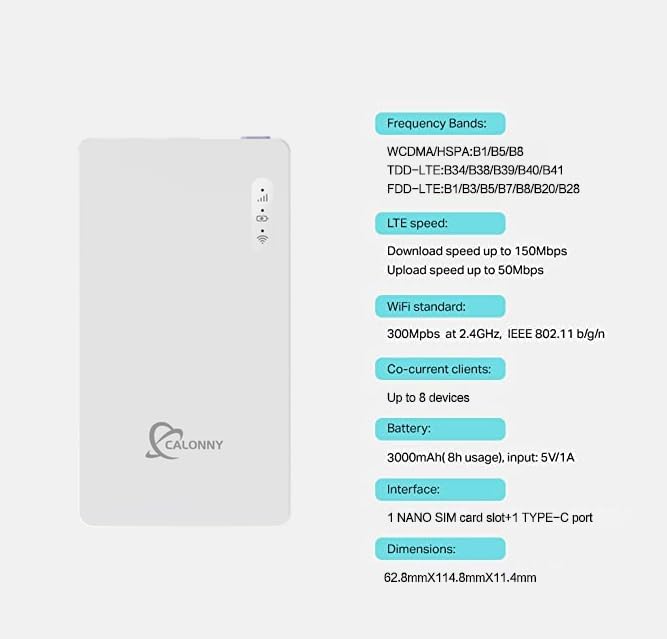
Image 4: Key technical specifications of the Calonny JC151.
| Feature | Detail |
|---|---|
| Brand | Calonny |
| Model Name | JC151 |
| Operating System | RouterOS |
| Connectivity Technology | Wi-Fi |
| Compatible Devices | Wi-Fi compatible devices, Personal Computer, Smartphone, Tablet |
| Wireless Communication Standard | 802.11n |
| Data Transfer Rate (Download) | Up to 150 Mbps |
| Max Upstream Data Transfer Rate (Upload) | Up to 50 Mbps |
| Battery Capacity | 3000 mAh Lithium-ion |
| Battery Life (Usage) | Approx. 10 hours |
| Battery Life (Standby) | Approx. 350 hours |
| Interface | 1 Nano SIM card slot, 1 Type-C port |
| Dimensions | 62.8mm x 114.8mm x 11.4mm |
| Co-current Clients | Up to 10 devices |
8. Warranty Information
Specific warranty information for the Calonny JC151 Mobile WiFi Hotspot is not provided in the product details. Please refer to your purchase documentation or contact your retailer for details regarding warranty coverage.
9. Customer Support
For further assistance, technical support, or inquiries regarding your Calonny JC151 Mobile WiFi Hotspot, please contact your retailer or visit the manufacturer's official website. Ensure you have your product model number (JC151) and purchase details available when seeking support.