
calonny D200
Calonny D200 4G LTE USB Modem User Manual
Model: D200
Introduction
This manual provides comprehensive instructions for the setup, operation, maintenance, and troubleshooting of your Calonny D200 4G LTE USB Modem. This device offers wireless internet connectivity via a SIM card, functioning as an alternative to traditional ADSL modems, suitable for various environments including homes, commercial spaces, and outdoor activities.
Safety Information
- Keep the device away from water and moisture.
- Do not expose the device to extreme temperatures or direct sunlight.
- Avoid dropping or subjecting the device to strong impacts.
- Do not attempt to disassemble or repair the device yourself. Contact qualified personnel for service.
- Use only compatible SIM cards and power sources.
Package Contents
- 1 x Calonny D200 4G LTE USB Modem
- User Manual (this document)
Product Overview
The Calonny D200 is a compact and portable 4G LTE USB modem designed for easy internet access. It features a USB interface for power and connectivity, and a micro SIM card slot for cellular data.

Image: The Calonny D200 4G LTE USB Modem, a white, sleek device with the Calonny logo and "4G LTE" text, featuring a USB connector and ventilation holes.
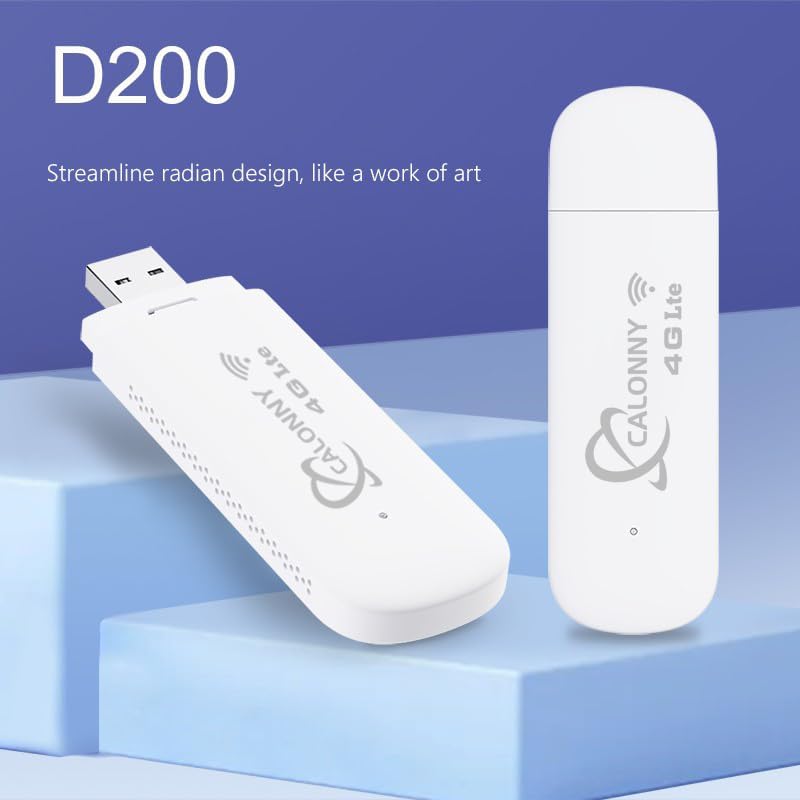
Image: Two Calonny D200 modems, one upright and one angled, showcasing the streamlined radian design of the device.
Setup
- Insert SIM Card: Locate the micro SIM card slot on the modem. Carefully insert your activated micro SIM card into the slot until it clicks into place. Ensure the SIM card is inserted correctly according to the diagram on the device or in the manual.
- Connect to Power/USB Port: Plug the USB modem into an available USB port on a computer, laptop, USB wall adapter, power bank, or car charger. The device will power on automatically.

Image: A collage showing the Calonny D200 modem being used in various scenarios: connected to a laptop for a video call, plugged into a car charger, connected to a power bank, and inserted into a wall adapter.
- Driver Installation (if necessary): For some operating systems, drivers may install automatically. If prompted, follow the on-screen instructions to install any necessary drivers.
- Connect to Wi-Fi: On your computer or mobile device, search for available Wi-Fi networks. The modem will broadcast a Wi-Fi network name (SSID) which can typically be found on a label on the device itself or in the packaging. Select the network and enter the default Wi-Fi password (also found on the device label).
- Access Web Interface (Optional): For advanced settings, you can access the modem's web interface by typing the default IP address (e.g., 192.168.X.X) into your web browser. The IP address and default login credentials are usually provided on the device label or in the manual.
Operating Instructions
Once connected, the Calonny D200 modem provides internet access to connected devices.
Internet Speed
The device supports CAT4 LTE speeds, with download speeds up to 150Mbps and upload speeds up to 50Mbps. Actual speeds may vary based on network conditions and service provider.
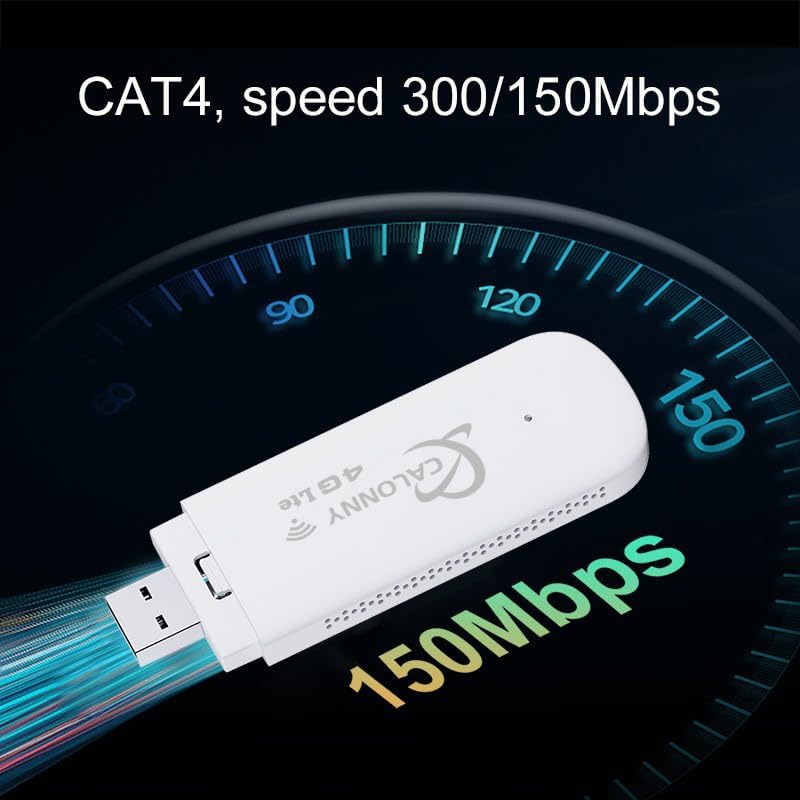
Image: A graphic illustrating the CAT4 speed capability of the modem, showing a speedometer-like dial with "150Mbps" highlighted, indicating high-speed internet.
Connecting Multiple Devices
The modem can support up to 10 co-current Wi-Fi clients, allowing multiple devices to share the internet connection simultaneously.
Usage Environments
The portable design makes it ideal for various applications:
- Home Use: Provides internet for smart devices, streaming, and general browsing.
- Commercial Stores: Reliable internet for POS systems, inventory management, and customer Wi-Fi.
- Travel/Camping: Ensures connectivity on the go, in RVs, or during outdoor activities.
- Rural Villas: Offers internet access in areas where wired connections are unavailable or unreliable.

Image: A collage depicting various environments where the Calonny D200 modem can be used, including a limousine (RV/camper), a shop, a home setting with a family, and a rural villa.
Maintenance
- Cleaning: Use a soft, dry cloth to clean the device. Do not use liquid cleaners or aerosols.
- Storage: When not in use, store the device in a cool, dry place away from direct sunlight and extreme temperatures.
- Firmware Updates: Periodically check the manufacturer's website for firmware updates to ensure optimal performance and security.
Troubleshooting
| Problem | Possible Cause | Solution |
|---|---|---|
| No internet connection | SIM card not activated or incorrectly inserted; Incorrect APN settings; No network signal. | Ensure SIM card is active and correctly inserted. The device is designed not to require APN modification, but if issues persist, check your service provider's APN settings via the web interface. Move to an area with better signal. |
| Wi-Fi network not visible | Device not powered on; Wi-Fi disabled. | Ensure the modem is properly plugged into a powered USB port. Check the device's indicator lights. |
| Slow internet speed | Weak signal; Network congestion; Too many connected devices. | Move the modem to a location with stronger signal. Reduce the number of connected devices. Contact your service provider for network status. |
| Device gets warm | Normal operation; Prolonged use. | It is normal for the device to warm up during operation. If it becomes excessively hot, disconnect it and allow it to cool down. Ensure adequate ventilation. |
Specifications
| Feature | Detail |
|---|---|
| Model Name | D200 |
| Wireless Standard | 802.11.be (Wi-Fi) |
| Frequency Band | 2.4 GHz (Single Band) |
| LTE Speed (CAT4) | Download: Up to 150 Mbps, Upload: Up to 50 Mbps |
| Co-current Clients | Up to 10 devices |
| Interface | 1 x Micro SIM card slot, 1 x USB port |
| Compatible Devices | Personal Computer |
| Operating System | RouterOS (internal firmware) |
| Dimensions | 14 x 8 x 1.9 cm; 40 grams (Shipping dimensions) |
| Recommended Use | Home |

Image: A visual representation of the Calonny D200 modem alongside its key specifications, including frequency bands, LTE speed, Wi-Fi standard, co-current clients, interface, and dimensions.
Warranty and Support
For warranty information and technical support, please refer to the documentation provided with your purchase or visit the official Calonny website. Specific warranty terms may vary by region and retailer.
Online Resources: For additional support, FAQs, and driver downloads, please visit the manufacturer's official support page.
Contact Support: If you encounter issues not covered in this manual, please contact Calonny customer service through their official channels.
Official Product Videos
No official seller videos are available for this product at this time.
Related documentsD200


Ask a question about this manual
Ask about setup, troubleshooting, compatibility, parts, safety, or missing instructions. Manuals+ will review the question and use this page’s manual context to help answer it.