Introduction
This manual provides essential information for setting up, operating, maintaining, and troubleshooting your HP Omen 45L GT22 Gaming Desktop. Please read this guide thoroughly to ensure optimal performance and longevity of your system.
1. Setup
1.1 Unboxing
Carefully remove all components from the packaging. Ensure all accessories, including the Thunderobot KG3089R Gaming Keyboard, are present.
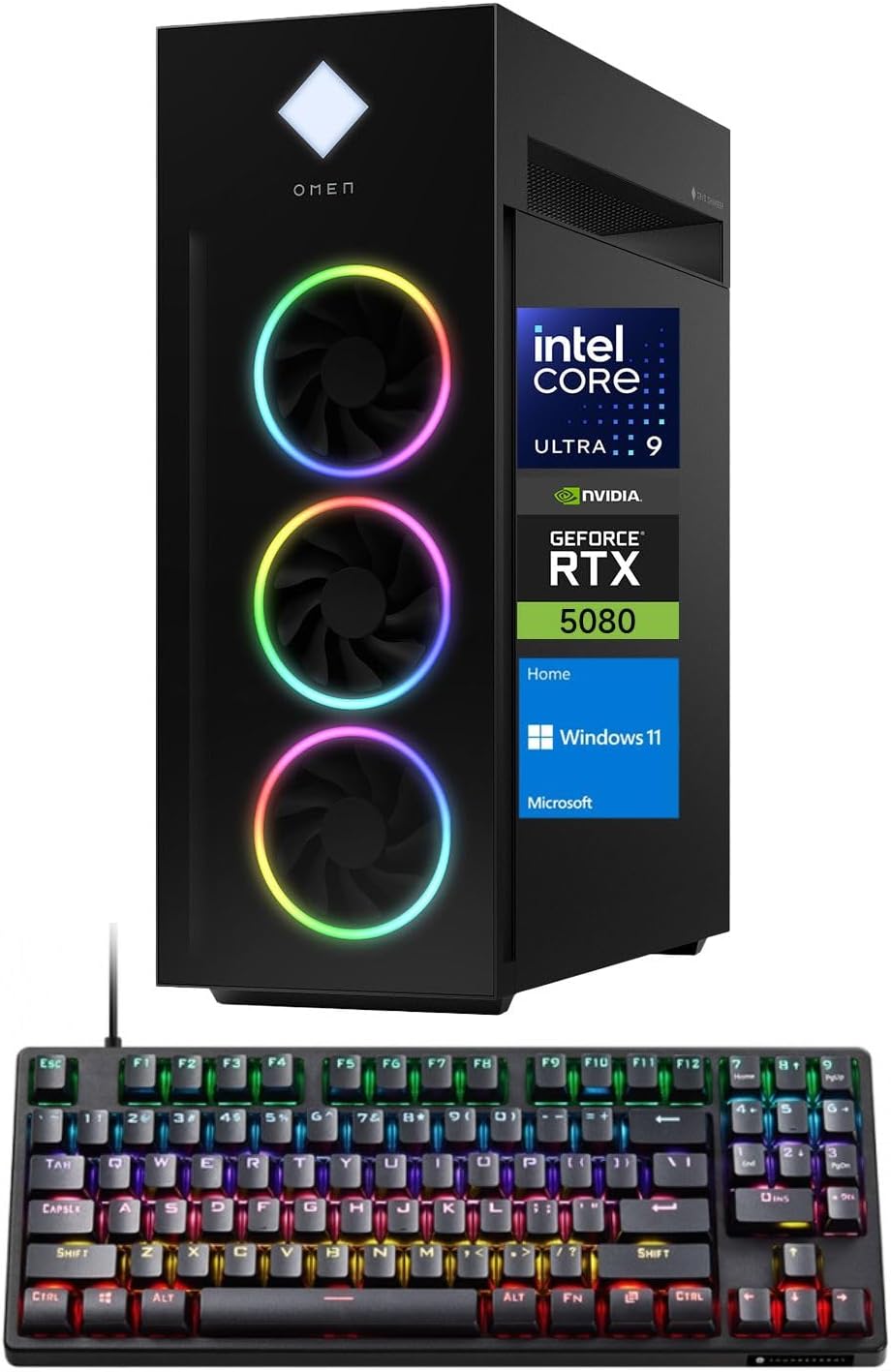
Image: The HP Omen 45L Gaming Desktop tower shown alongside the bundled Thunderobot KG3089R Gaming Keyboard.
1.2 Connecting Peripherals
- Connect your monitor(s) to the NVIDIA GeForce RTX 5080 graphics card using DisplayPort or HDMI cables.
- Connect the Thunderobot KG3089R Gaming Keyboard and any other USB devices to the available USB ports.
- Connect the power cable to the desktop and a power outlet.
- For internet access, connect an Ethernet cable to the RJ-45 port or ensure Wi-Fi 6 is configured after initial setup.

Image: A detailed view of the rear I/O panel of the HP Omen 45L, highlighting the various ports for connectivity.
1.3 First Boot
Press the power button located on the top of the desktop. Follow the on-screen instructions to complete the Windows 11 Home setup process.
2. Operating Your Desktop
2.1 Windows 11 Home
Your HP Omen 45L GT22 comes pre-installed with Windows 11 Home, offering a modern interface, enhanced performance features, and compatibility with a wide range of applications and games.
2.2 Gaming Performance
Leverage the Intel Core Ultra 9 285K processor and NVIDIA GeForce RTX 5080 graphics for an immersive gaming experience. Adjust in-game settings for optimal frame rates and visual quality.

Image: A gaming setup featuring the HP Omen 45L desktop, a monitor displaying a game, and gaming peripherals, illustrating its intended use.
3. Maintenance
3.1 Cleaning
Regularly clean the exterior of your desktop with a soft, dry cloth. Use compressed air to clear dust from vents and fans to maintain optimal airflow and cooling.
3.2 Software Updates
Keep your Windows operating system, graphics drivers, and other software up to date to ensure security, stability, and performance. Check for updates regularly through Windows Update and NVIDIA GeForce Experience.
4. Troubleshooting
4.1 No Display
- Ensure monitor cables are securely connected to both the desktop and the monitor.
- Verify the monitor is powered on and set to the correct input source.
- Try connecting to a different display port or monitor if available.
4.2 Performance Issues
- Close unnecessary background applications.
- Ensure drivers are up to date.
- Check system temperatures to prevent thermal throttling.
5. Specifications
| Component | Detail |
|---|---|
| Processor | Intel Core Ultra 9 285K (24 Cores, 24 Threads, 36MB L3 Cache, up to 5.70GHz) |
| Graphics Card | NVIDIA GeForce RTX 5080 (16GB GDDR7) |
| RAM | 64GB DDR5 RAM (4800 MHz) |
| Storage | 4TB PCIe NVMe M.2 SSD |
| Operating System | Windows 11 Home |
| Wireless Connectivity | Wi-Fi 6, Bluetooth |
| Ports (Front) | 2x SuperSpeed USB Type-A, 1x Headphone/Microphone Combo, 1x Microphone |
| Ports (Rear) | 4x SuperSpeed USB Type-A, 2x SuperSpeed USB Type-C, 6x USB Type-A 2.0, 1x HDMI, 1x RJ-45, 3x DisplayPort, 5x Audio Port |
| Dimensions (LxWxH) | 21.85" x 8.03" x 18.5" |
| Weight | 49.82 lbs |
6. Warranty and Support
Your HP Omen 45L GT22 Gaming Desktop is covered by a manufacturer's warranty. For specific warranty terms and conditions, please refer to the documentation included with your product or visit the official HP support website. Technical support is available through HP's customer service channels.
For additional assistance, you may visit the HP Store on Amazon.
7. Official Product Videos
Alienware Aurora Gaming Desktop Overview
Video: A brief overview of the Alienware Aurora Gaming Desktop, showcasing its design and features. Note: This video is a general overview of a similar product and not specific to the HP Omen 45L GT22.
MSI Aegis Series Gaming Desktops Overview
Video: A short promotional video for MSI Aegis Series Gaming Desktops, highlighting key features. Note: This video is a general overview of a similar product and not specific to the HP Omen 45L GT22.