
1. Introduction
The AVer VC520 Pro3 is an advanced conferencing system designed for mid-to-large room meetings. It features a 36X total zoom Pan-Tilt-Zoom (PTZ) camera, enhanced AVer SmartFrame technology, Preset Framing, and a Sony Wide Dynamic Range (WDR) sensor. The system offers 3-way outputs, including HDMI connectivity, for versatile streaming options and a superior video and audio experience. A key feature is Smart Composition, an embedded AI function that swiftly captures high-quality close-up images of meeting participants. Coupled with an extended speakerphone solution, the VC520 Pro3 delivers a comprehensive video conferencing experience.
2. What's in the Box
Verify that all components are present in the package:
- VC520 Pro3 Camera
- USB 2.0 Type-B to Type-A Cable
- VC520 Pro3 Speakerphone
- Camera to Speakerphone Cable (33ft/10m)
- Remote Control
- Power Adapter and Power Cord (6ft/1.8m)
- Wall-Mount Bracket
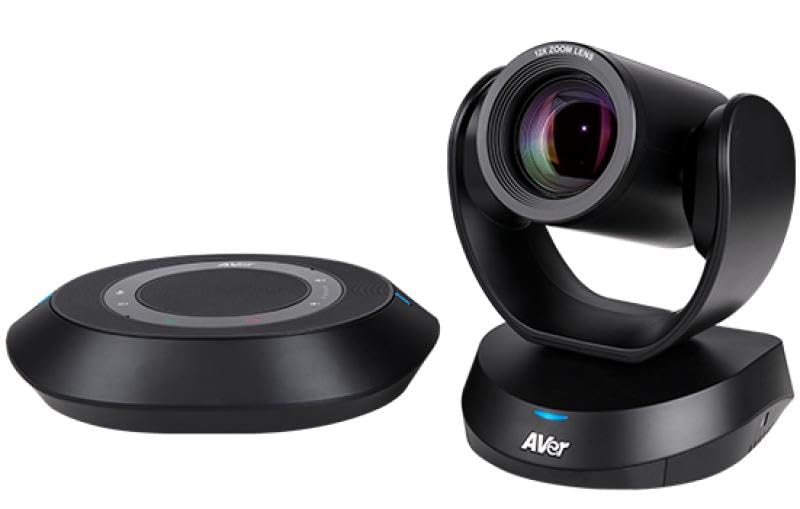
Image: The AVer VC520 Pro3 Conference Camera and Speakerphone components.
3. Setup Instructions
- Position the Camera: Place the VC520 Pro3 Camera on a stable surface or mount it to a wall using the provided wall-mount bracket. Ensure it has a clear view of the meeting area.
- Connect the Speakerphone: Connect the VC520 Pro3 Speakerphone to the camera using the Camera to Speakerphone Cable. This cable is 33 feet (10 meters) long, allowing flexible placement.
- Connect Power: Plug the power adapter into the camera and then into an electrical outlet.
- Connect to Computer: Connect the camera to your computer using the supplied USB 2.0 Type-B to Type-A Cable. The system is designed for simplified connectivity with a single USB cable.
- Verify Connections: Ensure all cables are securely connected. The system should power on automatically.
4. Operating Instructions
4.1 Camera Operation
- Pan-Tilt-Zoom (PTZ): Use the remote control to adjust the camera's pan, tilt, and 36X total zoom (12x optical zoom).
- SmartFrame: The integrated AVer SmartFrame technology automatically frames participants, ensuring everyone is visible.
- Preset Framing: Configure and recall specific camera positions for quick adjustments during meetings.
- Smart Composition: This AI-enhanced feature automatically adjusts the camera to focus on participants, providing high-quality close-up images.
4.2 Speakerphone Operation
- Audio Clarity: The speakerphone is engineered with echo cancellation and noise suppression technologies for clear audio.
- Volume Control: Adjust the speakerphone volume using the controls on the unit or the remote control.
- Mute Function: Use the mute button on the speakerphone or remote control to mute the microphone.
4.3 Software Compatibility
The AVer VC520 Pro3 is compatible with a wide range of video conferencing applications, including:
- Zoom
- Microsoft Teams
- Skype for Business, Skype
- Google Meet
- Intel Unite
- RingCentral
- V-Cube, LiveOn
- CyberLink U Meeting
- TrueConf
- Adobe Connect
- Cisco WebEx
- Fuze
- GoToMeeting
- Vidyo
- vMix
- WebRTC
- Wirecast
- XSplit
5. Maintenance
To ensure the longevity and optimal performance of your AVer VC520 Pro3, follow these maintenance guidelines:
- Cleaning: Gently wipe the camera lens and exterior surfaces with a soft, dry, lint-free cloth. Avoid using abrasive cleaners, solvents, or harsh chemicals, as these can damage the finish or optical components.
- Storage: When not in use for extended periods, store the device in a cool, dry place away from direct sunlight and extreme temperatures.
- Cable Management: Ensure all cables are neatly routed and not under tension to prevent damage.
6. Troubleshooting
If you encounter issues with your VC520 Pro3, refer to the following common troubleshooting steps:
- No Video Output:
- Check all cable connections, especially the USB cable to your computer and the power cable to the camera.
- Ensure the camera is powered on (check indicator lights).
- Verify that the correct camera is selected in your video conferencing software settings.
- Try connecting the camera to a different USB port on your computer.
- No Audio from Speakerphone:
- Ensure the speakerphone is properly connected to the camera.
- Check the volume level on the speakerphone and in your computer's audio settings.
- Verify that the speakerphone is not muted.
- Confirm that the VC520 Pro3 speakerphone is selected as the audio output device in your conferencing software.
- Camera Not Recognized by Computer:
- Restart your computer.
- Try a different USB cable.
- Ensure your operating system and conferencing software are up to date.
For further assistance, please refer to the official AVer support website or contact their customer service.
7. Specifications
| Brand | AVer |
| Model Number | COMVCPRO3 (VC520 Pro3) |
| Video Capture Resolution | 1080p Full HD |
| Optical Zoom | 12x (36x Total Zoom) |
| Connectivity Technology | USB |
| Lens Type | Wide Angle |
| Focus Type | Auto Focus |
| Features | Bundled Camera, Speakerphone and Remote; Enterprise Grade PTZ Camera with SmartFrame; Tabletop Speakerphone; Certified for Zoom; Certified for Microsoft Teams |
| Supported Audio Format | MP2, AAC |
| Color | Black |
| UPC | 848090009653 |
8. Warranty and Support
Warranty: The AVer VC520 Pro3 Conference Camera comes with a 3-Year Warranty from the date of purchase. Please retain your proof of purchase for warranty claims.
Technical Support: For technical assistance, product inquiries, or warranty service, please visit the official AVer website or contact their customer support department. Detailed contact information and support resources can typically be found on the AVer website.


