1. Introduction
This manual provides detailed instructions for the installation, operation, and maintenance of your Mars Gaming MC-3TCORE Custom ATX Gaming Case. Please read this manual thoroughly before beginning assembly to ensure proper setup and optimal performance.
2. Product Features
- Custom Design with Triple Tempered Glass: Allows for extensive customization and offers a panoramic view of internal components through three removable tempered glass panels with a screwless anchoring system.
- Double Side Chamber Structure: Maximizes internal space for optimized component distribution and cooling. Includes 7 expansion slots, support for graphics cards up to 410mm, and space for 2 x 3.5" HDDs and up to 3 x 2.5" SSDs.
- Optimized Cooling Capacity: Features side and top mesh panels, accommodating up to 10 x 120mm fans, up to 360mm liquid cooling systems on the top panel, and CPU coolers up to 161mm high.
- Compatibility with Reverse Connector Motherboards: Supports back-pluggable ATX motherboards, enhancing airflow, cooling, and cable management.
- Connectivity and Functionality: Front panel includes USB 3.0, USB 2.0, USB-C, microphone, and HD audio connections. Features top and bottom magnetic dust filters and an internal cable management system.
3. Package Contents
Verify that all components are present before proceeding with installation:
- Mars Gaming MC-3TCORE PC Case
- Accessory Box (screws, standoffs, cable ties)
- User Manual (this document)
Note: Fans and other PC components are sold separately and are not included with the case.
4. Setup and Component Installation
4.1. Preparing the Case
- Unpack the Case: Carefully remove the MC-3TCORE case from its packaging.
- Remove Tempered Glass Panels: The three tempered glass panels are secured with a screwless anchoring system. Gently lift and remove them to access the interior. Store them safely to prevent damage.
- Accessory Box: Locate the accessory box inside the case, which contains all necessary screws and mounting hardware.
4.2. Motherboard Installation
The MC-3TCORE supports ATX motherboards, including those with reverse connectors.
- Install Standoffs: Ensure the correct standoffs are installed for your motherboard's form factor.
- Position Motherboard: Carefully place the motherboard onto the standoffs, aligning the screw holes.
- Secure Motherboard: Use the provided screws to secure the motherboard to the case.

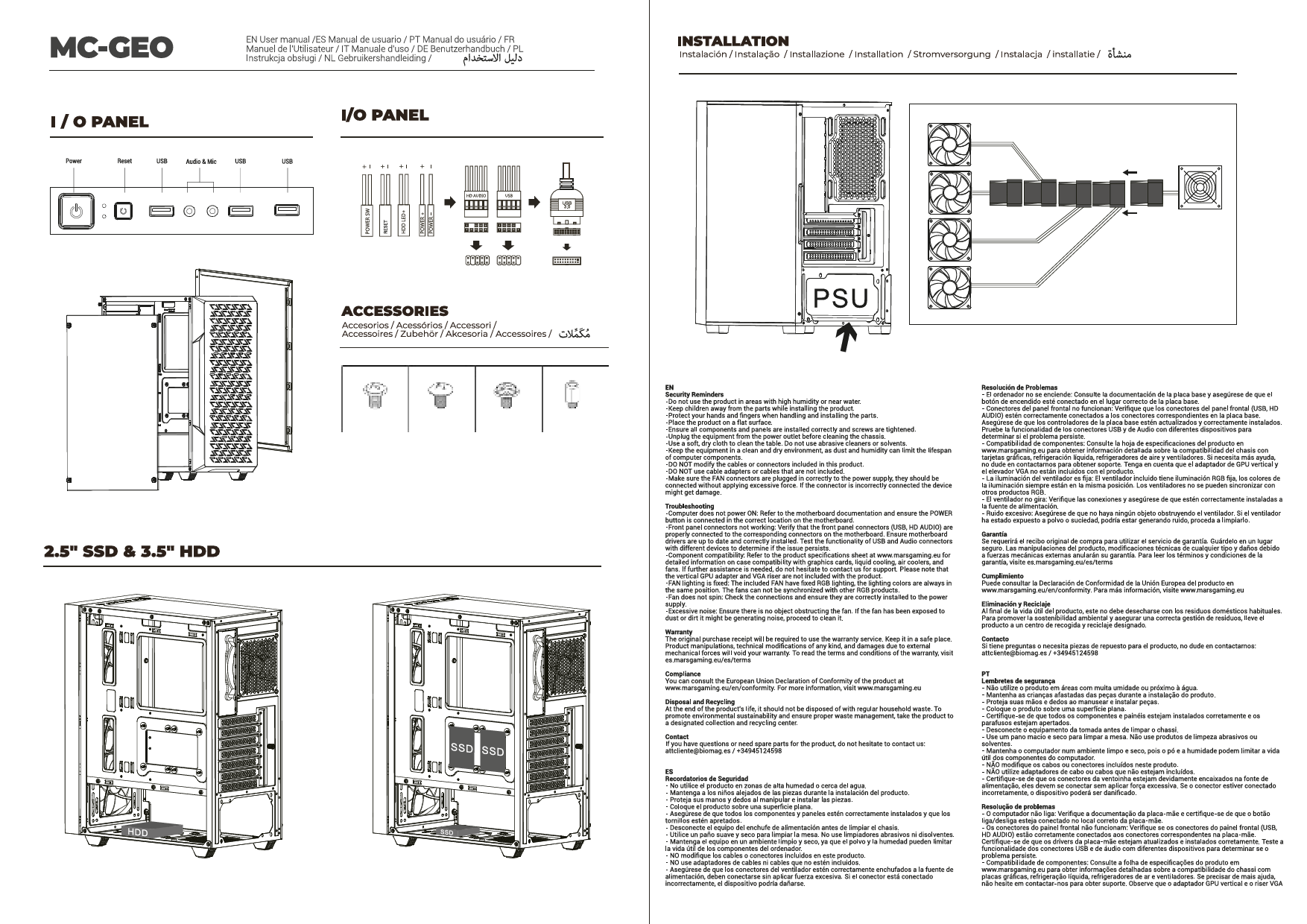
Image: Internal view of the Mars Gaming MC-3TCORE case, highlighting the spacious interior for motherboard and other components.
4.3. Storage Device Installation (HDDs/SSDs)
The case supports 2 x 3.5" hard drives and up to 3 x 2.5" SSDs.
- Locate Drive Bays: Identify the dedicated mounting locations for 3.5" HDDs and 2.5" SSDs within the double side chamber.
- Mount Drives: Secure your storage devices using the appropriate screws.

Image: Internal layout diagram indicating dimensions and placement for 2.5" SSDs and 3.5" HDDs.
4.4. Graphics Card Installation
The case supports graphics cards up to 410mm in length.
- Remove Expansion Slot Covers: Remove the necessary expansion slot covers at the rear of the case.
- Insert Graphics Card: Carefully insert the graphics card into the PCIe slot on the motherboard.
- Secure Graphics Card: Fasten the graphics card with screws to the case.
4.5. Cooling System Installation (Fans/Liquid Cooling)
The MC-3TCORE offers extensive cooling options.
- Fan Installation: The case can accommodate up to 10 x 120mm fans. Refer to the diagram for optimal placement (top, side, rear, bottom).
- Liquid Cooling Radiator: Up to 360mm liquid cooling systems can be installed on the top panel. Ensure proper clearance for other components.
- CPU Cooler: Supports CPU coolers up to 161mm in height.

Image: Cooling configuration diagram showing fan and radiator support locations and sizes.

Image: Internal view showcasing the potential for up to 10 fans for maximum cooling.
4.6. Power Supply Installation
The power supply mounts at the rear of the case.
- Position PSU: Slide the power supply into its designated bay.
- Secure PSU: Fasten the power supply with screws from the rear of the case.
4.7. Cable Management
Utilize the internal cable management system, especially for reverse connector motherboards, to ensure clean routing and optimal airflow.

Image: Detail of the case's rear chamber, illustrating cable management options and compatibility with reverse connector motherboards.
4.8. Front Panel Connections
Connect the front panel cables (USB 3.0, USB 2.0, USB-C, HD Audio, Power, Reset, LED) to the corresponding headers on your motherboard.

Image: Top panel view displaying the integrated USB 3.0, USB 2.0, USB-C, and audio ports.
5. Operation and Usage
Once all components are installed and connected, replace the tempered glass panels. Ensure they are securely seated. Power on your system. The case design promotes optimal airflow when properly configured with fans.
6. Maintenance
- Dust Filters: The MC-3TCORE features magnetic dust filters on the top and bottom panels. Regularly remove and clean these filters to maintain optimal airflow and prevent dust buildup inside the case.
- Tempered Glass: Clean tempered glass panels with a soft, lint-free cloth and a non-abrasive glass cleaner. Avoid harsh chemicals.
- Interior Cleaning: Periodically use compressed air to remove dust from internal components and fan blades. Ensure the system is powered off and unplugged before cleaning.
7. Troubleshooting
- No Power:
- Ensure the power supply is properly connected and switched on.
- Verify all front panel power switch cables are correctly connected to the motherboard.
- Check all internal power connections (24-pin ATX, 8-pin CPU, PCIe power).
- Overheating:
- Confirm all fans are spinning and correctly oriented for airflow.
- Clean dust filters and internal components.
- Ensure CPU cooler and GPU fans are functioning.
- Component Fit Issues:
- Refer to the specifications for maximum component dimensions (VGA length, CPU cooler height, radiator size).
- Double-check motherboard standoff alignment.
8. Specifications
| Feature | Detail |
|---|---|
| Brand | Mars Gaming |
| Model Name | MC3TCORE |
| Case Type | Mid Tower |
| Material | Tempered Glass |
| Color | Black |
| Product Dimensions | 44 x 28.6 x 40.1 cm |
| Item Weight | 6.3 kg |
| Motherboard Compatibility | ATX (including reverse connector), Micro-ATX, Mini-ITX |
| Expansion Slots | 7 |
| Max VGA Length | 410 mm |
| Max CPU Cooler Height | 161 mm |
| Fan Support | Up to 10 x 120mm |
| Liquid Cooling Support | Top: Up to 360mm |
| Drive Bays | 2 x 3.5" HDD, 3 x 2.5" SSD |
| Front I/O Ports | 1 x USB 3.0, 2 x USB 2.0, 1 x USB-C, HD Audio, Mic |
| Dust Filters | Top and Bottom (Magnetic) |
9. Warranty and Support
Mars Gaming products are designed for durability and performance. For warranty information, please refer to the specific terms and conditions provided at the point of purchase or visit the official Mars Gaming website. For technical support or inquiries, please contact Mars Gaming customer service.
Note: This product does not include batteries.