1. Introduction
This manual provides essential information for setting up, operating, and maintaining your Plimpton P70 Android 14 Tablet. Please read this guide thoroughly to ensure optimal performance and longevity of your device. Keep this manual for future reference.
2. What's in the Box
Verify that all items listed below are present in your product packaging.
- Plimpton P70 Tablet
- USB-C Cable
- Power Adapter
- User Manual (this document)
- Quick Start Guide

3. Device Overview
Familiarize yourself with the physical components of your Plimpton P70 tablet.
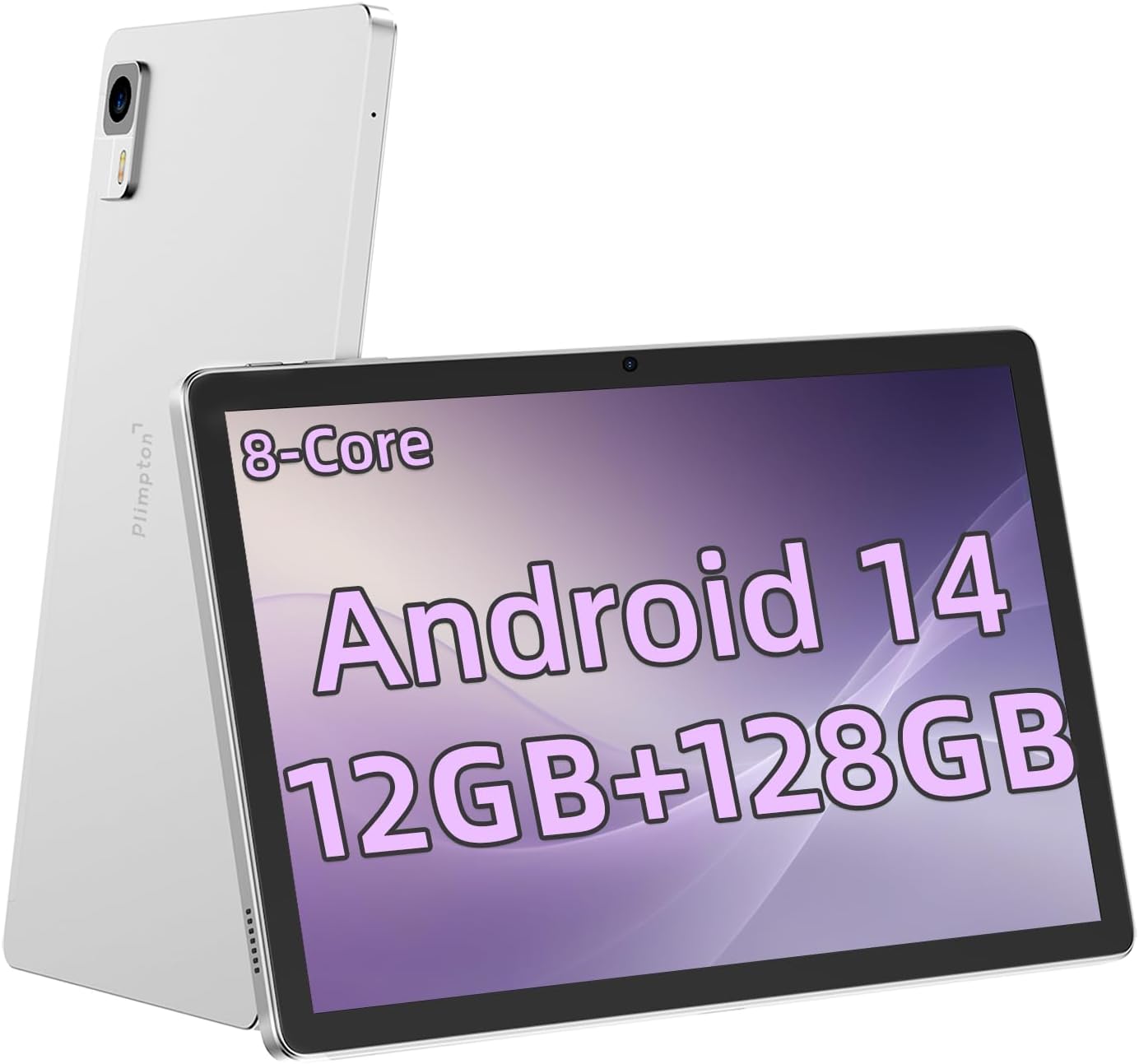

3.1 Physical Features
- 10.1-inch Incell Display: High-definition screen for clear visuals.
- Front Camera: Located on the top bezel for video calls and selfies.
- Rear Camera: Main camera for capturing photos and videos.
- Power Button: Located on the side, used to power on/off and wake/sleep the device.
- Volume Buttons: Located on the side, used to adjust audio volume.
- USB-C Port: For charging and data transfer.
- Speaker Grilles: For audio output.
- Microphone: For audio input during calls or recordings.
4. Setup
4.1 Charging the Tablet
Before first use, fully charge the tablet using the provided USB-C cable and power adapter. Connect the USB-C cable to the tablet's USB-C port and the adapter to a power outlet. The battery indicator on the screen will show charging status.
4.2 Powering On/Off
- To Power On: Press and hold the Power button until the Plimpton logo appears.
- To Power Off: Press and hold the Power button until the power options menu appears, then select 'Power off'.
- To Restart: Press and hold the Power button until the power options menu appears, then select 'Restart'.
4.3 Initial Setup
Upon first power-on, the tablet will guide you through the initial setup process:
- Select your preferred language.
- Connect to a Wi-Fi network.
- Review and accept the terms and conditions.
- Sign in with your Google account or create a new one. This is necessary to download apps from the Google Play Store.
- Set up screen lock (PIN, pattern, or password) for security.
- Configure other settings as prompted.
4.4 Memory Extension
The Plimpton P70 tablet features 12GB RAM (4GB physical + 8GB expandable virtual memory). The default RAM is set to 4GB. To extend the RAM:
- Navigate to Settings.
- Select System.
- Choose Memory Extension.
- Adjust the RAM Extend setting as desired.
5. Operating System (Android 14)
Your Plimpton P70 tablet runs on the GMS certified Android 14 operating system, offering enhanced performance and security features.

5.1 Basic Navigation
- Home Screen: Swipe left or right to access different home screens.
- App Drawer: Swipe up from the bottom of the screen to view all installed applications.
- Notifications Panel: Swipe down from the top of the screen to access notifications and quick settings.
- Back Button: Navigates to the previous screen.
- Home Button: Returns to the home screen.
- Recent Apps Button: Displays recently used applications for quick switching.
5.2 Split Screen Functionality
Android 14 supports split-screen mode, allowing you to use two applications simultaneously.
- Open the first app you wish to use.
- Tap the Recent Apps button.
- Tap the app icon at the top of the app's card, then select 'Split top'.
- Choose the second app from the recent apps list or app drawer to fill the other half of the screen.

5.3 Connectivity (Wi-Fi & Bluetooth)
The tablet supports 2.4G/5G Wi-Fi and Bluetooth 5.3 for seamless wireless connections.
- Wi-Fi: Go to Settings > Network & internet > Wi-Fi to connect to available networks.
- Bluetooth: Go to Settings > Connected devices > Bluetooth to pair with Bluetooth accessories.

6. Storage and Performance
The Plimpton P70 is equipped with an 8-core processor, 12GB RAM (4GB physical + 8GB virtual), and 128GB internal storage, ensuring smooth multitasking and ample space for your files.

6.1 Expanding Storage
The tablet supports expandable storage via a microSD card (not included), allowing you to further increase your storage capacity for photos, videos, and documents.
7. Display and Multimedia
7.1 Incell Screen Technology
The 10.1-inch Incell screen integrates touch and display layers, resulting in enhanced clarity, faster response times, and improved color saturation. This technology contributes to a thinner and lighter device while maintaining durability and energy efficiency.

7.2 Widevine L1 Support
With Widevine L1 certification, the Plimpton P70 ensures secure access to high-definition streaming content, supporting clear HD and higher resolutions from popular streaming services.
7.3 Camera Usage
The tablet features a front camera and a rear camera (2MP+5MP). Open the Camera app to capture photos and videos. You can switch between front and rear cameras, adjust settings, and apply various modes.
8. Battery Management
The Plimpton P70 is equipped with a 6000mAh battery, designed for extended use.

8.1 Tips for Extending Battery Life
- Reduce screen brightness.
- Turn off Wi-Fi and Bluetooth when not in use.
- Close background applications.
- Enable battery saver mode in Settings > Battery.
- Limit location services and push notifications.
9. Maintenance
9.1 Cleaning the Tablet
Use a soft, lint-free cloth to clean the screen and body of the tablet. Avoid using harsh chemicals or abrasive materials that could damage the surface.
9.2 Software Updates
Regularly check for and install software updates to ensure your tablet has the latest features, security patches, and performance improvements. Go to Settings > System > System update.
9.3 Data Backup
It is recommended to regularly back up your important data to a cloud service or an external storage device to prevent data loss.
10. Troubleshooting
This section addresses common issues you might encounter with your Plimpton P70 tablet.
10.1 Tablet Not Powering On
- Ensure the battery is charged. Connect the tablet to the charger for at least 30 minutes.
- Press and hold the Power button for 10-15 seconds to force a restart.
10.2 Wi-Fi Connection Issues
- Restart your Wi-Fi router.
- Forget the network in Settings > Network & internet > Wi-Fi and reconnect.
- Ensure the tablet is within range of the Wi-Fi signal.
10.3 Slow Performance
- Close unnecessary background applications.
- Clear cache for frequently used apps in Settings > Apps > [App Name] > Storage & cache.
- Free up storage space by deleting unused files or apps.
- Consider performing a factory reset as a last resort (see 10.4).
10.4 Factory Reset
A factory reset will erase all data on your tablet and restore it to its original factory settings. Back up all important data before proceeding.
- Go to Settings.
- Select System.
- Choose Reset options.
- Select Erase all data (factory reset).
- Confirm your decision.
11. Specifications
Key technical specifications for the Plimpton P70 tablet.
| Feature | Specification |
|---|---|
| Model Name | PlimPad P70 |
| Operating System | Android 14 |
| Screen Size | 10.1 Inches |
| Display Resolution | 1280 x 800 Pixels |
| Processor | 8-Core, 2 GHz (Allwinner A523) |
| Graphics Coprocessor | Mali-G57 |
| RAM | 12GB (4GB physical + 8GB virtual) |
| Internal Storage | 128 GB |
| Expandable Storage | Up to 1TB (via microSD card, not included) |
| Wireless Standard | 802.11ax (Wi-Fi 6), 2.4G/5G WiFi |
| Bluetooth | BT 5.3 |
| Battery Capacity | 6000mAh |
| Product Dimensions | 23.62 x 15.7 x 0.81 cm |
| Item Weight | 457 g |
| Color | Silver |
12. Warranty and Support
12.1 Product Warranty
Plimpton officially provides a 2-year replacement warranty for non-human factor damage. Please retain your proof of purchase for warranty claims.
12.2 Technical Support
Plimpton offers lifetime technical support for your P70 tablet. If you have any questions, encounter issues, or require assistance, please do not hesitate to contact our support team.
Contact Information:
support@plimptonline.com


