
1. Introduction
This manual provides detailed instructions for the setup, operation, and maintenance of your ORICO MetaBox NAS Storage HS200Pro. Please read this manual thoroughly before using the device to ensure proper functionality and to maximize your user experience.

Image 1.1: Front view of the ORICO MetaBox NAS Storage HS200Pro, showing the power button and disk status indicators.
2. Package Contents
Before proceeding with the setup, please verify that all items listed below are included in your package:
- ORICO HS200Pro NAS Device
- 12V Power Adapter
- Ethernet Cable (CAT 7) x 2
- Screwdrivers
- User Manuals
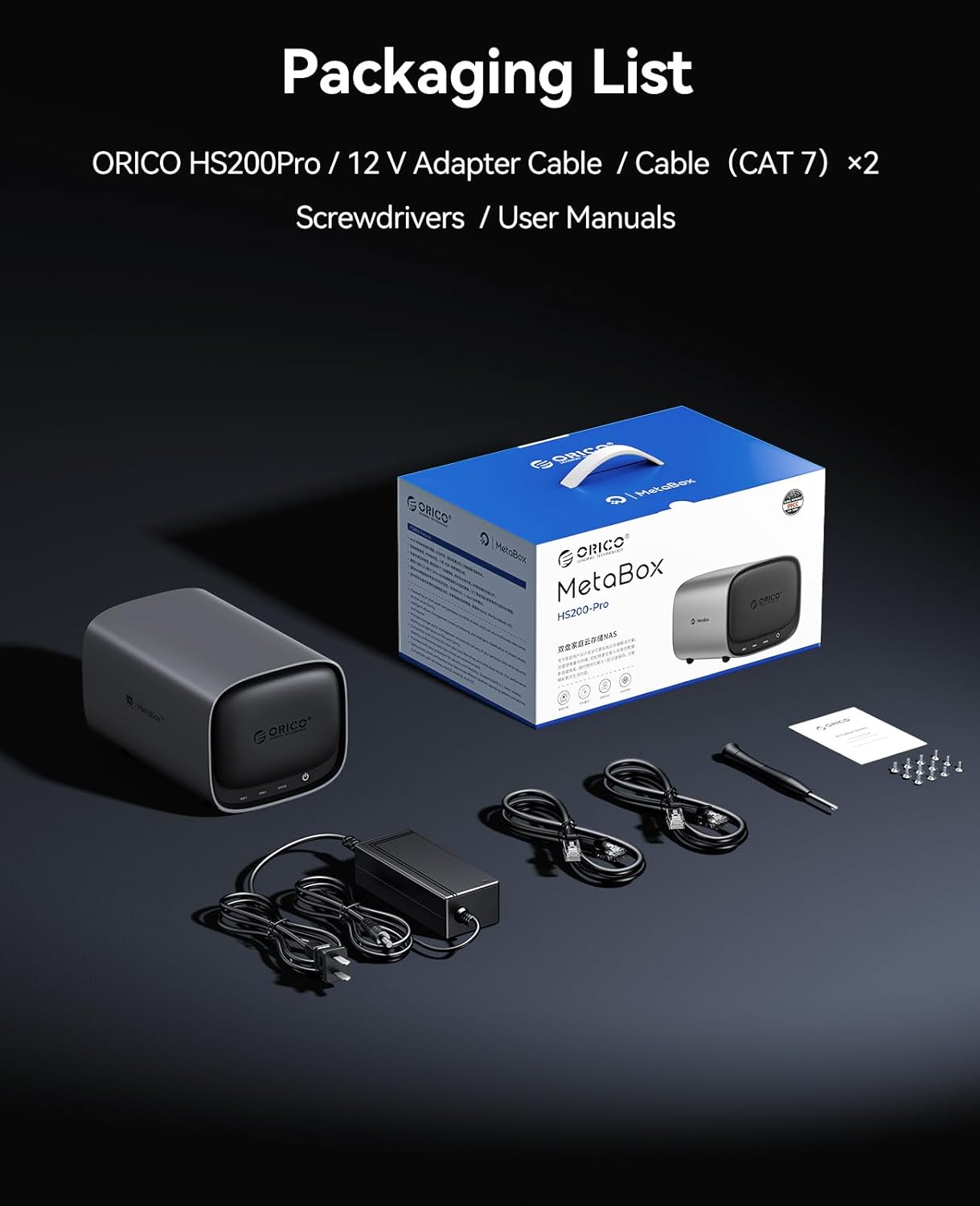
Image 2.1: Contents of the ORICO MetaBox HS200Pro package, including the NAS unit, power adapter, Ethernet cables, screwdrivers, and documentation.
3. Setup
3.1 Hardware Installation
The ORICO MetaBox HS200Pro supports up to two HDDs and two M.2 NVMe SSDs for a total storage capacity of up to 64TB (24TB*2 HDDs + 8TB*2 NVMe SSDs).
- Open the Magnetic Cover: Gently open the magnetic cover on the front of the device to access the drive bays.
- Install HDDs: Slide your 3.5-inch or 2.5-inch HDDs into the designated HDD slots. Ensure they are securely seated.
- Install M.2 NVMe SSDs: Locate the M.2 NVMe SSD slots. Insert your M.2 SSDs at an angle and secure them with the provided screws.
- Close the Cover: Replace the magnetic cover.

Image 3.1: Illustration of the ORICO MetaBox HS200Pro's internal storage capacity, highlighting support for 2 SATA HDDs and 2 M.2 NVMe SSDs, enabling up to 64TB of storage.
3.2 Initial Connection
- Connect Network Cables: Connect one or both 2.5GbE Ethernet ports to your router or network switch using the provided CAT 7 cables.
- Connect Power: Plug the 12V power adapter into the device and then into a power outlet.
- Power On: Press the power button on the front of the device. The indicator lights for Disk 1, Disk 2, and Status will illuminate.
- HDMI Connection (Optional): If you wish to use the 4K media library feature directly with a display, connect an HDMI cable from the NAS to your TV or monitor.
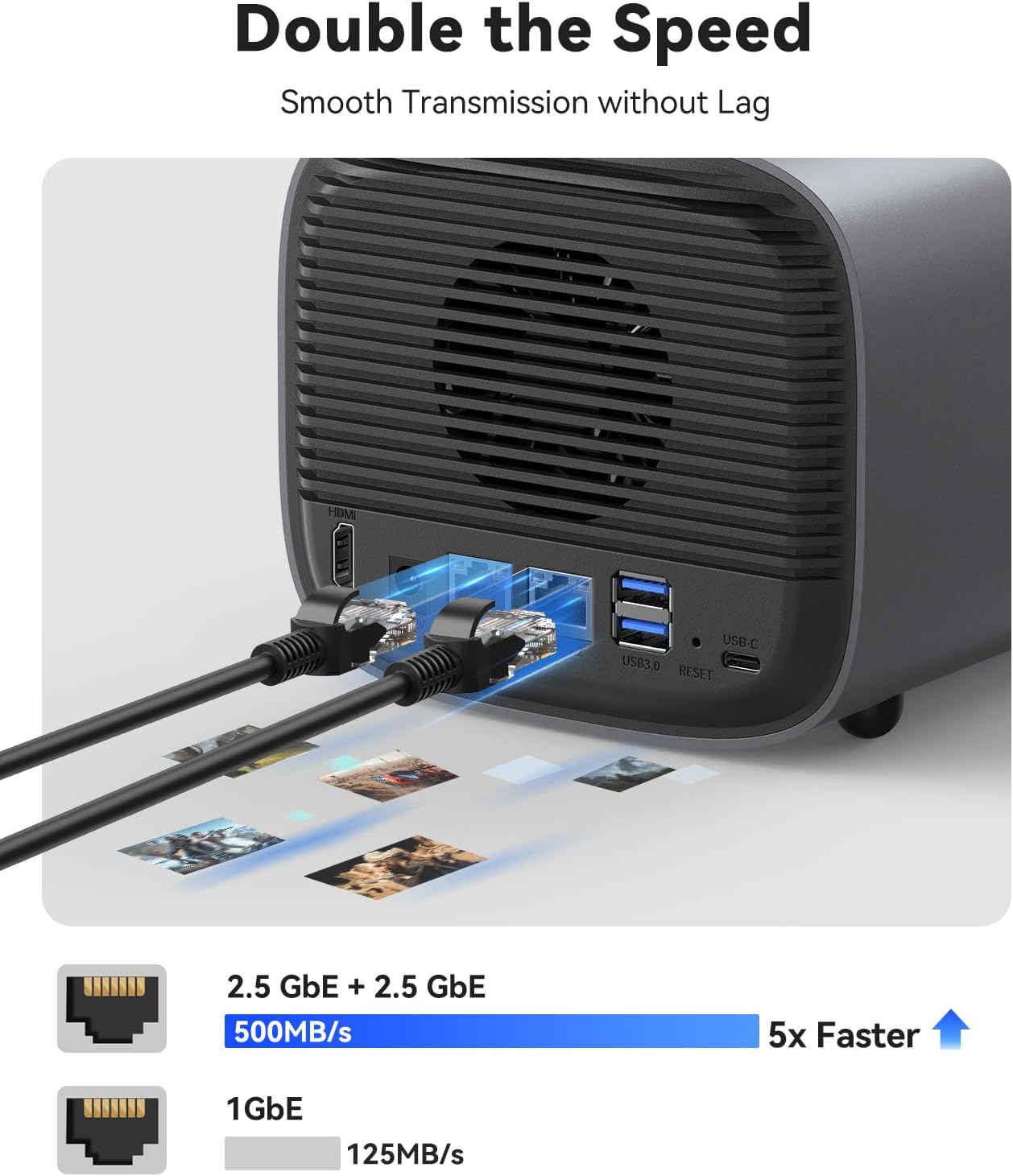
Image 3.2: Rear view of the ORICO MetaBox HS200Pro, showing the dual 2.5GbE ports, USB-A, USB-C, and HDMI ports for connectivity.
4. Operating the CyberData OS
The ORICO MetaBox HS200Pro runs on the proprietary CyberData OS with enterprise ZFS. You can access and manage your NAS via the CyberData APP on Android (Google Play), iOS (App Store), or PC (ORICO official website).

Image 4.1: Overview of the CyberData OS interface, accessible from various devices including laptops and smartphones.
4.1 Remote Access and Link Sharing
The CyberData APP allows for multi-user remote access to your data from anywhere via WAN (Wide Area Network). Family members can share photos and videos stored on the NAS. You can also create shareable links for specific files or folders.

Image 4.2: Demonstrates remote access capabilities, showing a user accessing media on a desktop and another user sharing photos from the NAS via a mobile device.
4.2 4K Media Library
Organize your movie collection with the auto-scraping feature that pulls posters, ratings, and details. Directly stream 4K@60Hz movies to your TV with frame-perfect playback via HDMI or network.

Image 4.3: The ORICO MetaBox HS200Pro connected to a television, showcasing its 4K movie library interface with various film titles and details.
4.3 AI Albums
The AI Album feature enables semantic search, image search, accurate facial recognition, and scene/location-based categorization for your photos.
- Semantic Search: Search for images using descriptive keywords (e.g., "football," "little girl on the grass").
- Facial Recognition: Automatically groups photos of the same person into collections.
- Intelligent Classification: Categorizes images by animal, people, landscape, and location.

Image 4.4: Demonstrates the AI Album features, including semantic search functionality and intelligent classification of images into categories like animals, people, and landscapes.
4.4 Virtual Machine
The CyberData OS comes preloaded with multiple OS options for virtual machines, including TrueNAS, Windows 11, Ubuntu 24, and Debian 12. You can quickly set up and try different systems or install additional operating systems as needed.

Image 4.5: Screenshot of the Virtual Machine interface within CyberData OS, displaying options to create VMs with Windows 11, TrueNAS, Ubuntu 24, and Debian 12.
4.5 Docker
The system includes a rich set of built-in application tools for quick local container deployment. This enables smooth video playback via Plex and efficient coding with IDEA and MySQL.

Image 4.6: Display of various Docker applications and extensions available on the ORICO MetaBox HS200Pro, indicating support for containerized services.
4.6 Local Private Cloud & Backup
The MetaBox allows you to create a local private cloud, offering up to 64TB of storage. It supports two-way synchronous backup, including synchronizing data from cloud services like Google Cloud to your NAS. TimeMachine backup is available for Apple users.

Image 4.7: Visual representation of the ORICO MetaBox HS200Pro's ability to save cloud data for double backups, showing integration with cloud services.
5. Connectivity
The ORICO MetaBox HS200Pro offers robust connectivity options:
- Dual 2.5GbE Ports: Provides high-speed network connectivity (500MB/s LAN, 10MB/s WAN) for fast data transfer.
- USB-A x 2 and USB-C x 1: 5Gbps USB ports for connecting external devices.
- HDMI x 1: For direct connection to displays for 4K media playback.

Image 5.1: Highlights the hardware components of the ORICO MetaBox HS200Pro, including dual 2.5GbE ports, an Intel Celeron N5105 processor, and dual memory slots.
6. Maintenance
6.1 Device Monitoring
The CyberData OS includes tools for monitoring your device's performance and health. You can:
- Monitor CPU/Memory usage.
- Control fan speeds (automatically or manually).
- Monitor real-time device temperatures and hard disk temperatures.

Image 6.1: Screenshot of the equipment monitoring dashboard within CyberData OS, showing CPU/memory usage, fan speed controls, and temperature readings.
7. Troubleshooting
If you encounter issues with your ORICO MetaBox NAS, consider the following common troubleshooting steps:
- Network Access Issues: Ensure your NAS is properly connected to your network via Ethernet cables. Verify that your router is functioning correctly and that the NAS has obtained an IP address. Check firewall settings on your computer or router that might block access to the NAS.
- CyberData APP Connectivity: Confirm that your mobile device or PC is connected to the internet and that the CyberData APP is updated to the latest version. Ensure the NAS is powered on and accessible on your local network before attempting remote access.
- Drive Recognition: If drives are not recognized, ensure they are correctly installed and seated in their respective slots. Power cycle the NAS after installing new drives.
- Slow Performance: Check your network cables and ensure you are using 2.5GbE compatible infrastructure for optimal speeds. Monitor CPU/Memory usage via the Device Monitoring section to identify potential bottlenecks.
- Software Updates: Regularly check for and install software updates for the CyberData OS and the CyberData APP to ensure optimal performance and security.
For further assistance, please refer to the official ORICO website or contact customer support.
8. Specifications
| Feature | Specification |
|---|---|
| Model | HS200Pro |
| Brand | ORICO |
| Product Dimensions | 8.74"D x 5.71"W x 5.1"H (22.2 x 14.5 x 12.95 cm) |
| Item Weight | 6.76 pounds (3.07 kg) |
| Drive Bays | 2 x HDD slots, 2 x M.2 NVMe SSD slots |
| Max. Capacity | Up to 64TB (2x 24TB HDDs + 2x 8TB NVMe SSDs) |
| Network Interface | 2 x 2.5GbE (Gigabit Ethernet) |
| USB Ports | 2 x USB-A (5Gbps), 1 x USB-C (5Gbps) |
| Video Output | 1 x HDMI |
| Operating System | CyberData OS with ZFS |
| Material | Acrylonitrile Butadiene Styrene (ABS), Aluminum |
| Color | Black |
9. Support & Warranty
For technical support, software updates, and to provide feedback, please visit the ORICO official website or use the in-app feedback portal: CyberData → Setting → Feedback.
Information regarding product warranty can typically be found on the ORICO official website or within the product packaging. Please retain your proof of purchase for warranty claims.