Introduction
This manual provides detailed instructions for the setup, operation, maintenance, and troubleshooting of your DeLUX Wireless Ergonomic Keyboard (GM901D) and Vertical Mouse (M618GDB) Combo. Please read this manual thoroughly before using the product to ensure proper functionality and to maximize your ergonomic benefits.

Image: The DeLUX Wireless Ergonomic Keyboard and Vertical Mouse Combo.
Package Contents
- DeLUX GM901D Wireless Ergonomic Keyboard
- DeLUX M618GDB Wireless Vertical Mouse
- USB Receiver (stored in the mouse or keyboard battery compartment)
- USB-C Charging Cable
- User Manual (this document)
Setup Instructions
1. Keyboard Setup (GM901D)
The keyboard supports both 2.4G wireless (via USB receiver) and Bluetooth 5.0 connections (BT1, BT2).
- 2.4G Wireless Connection:
- Locate the USB receiver. It may be stored in the mouse or keyboard.
- Plug the USB receiver into an available USB port on your computer.
- Turn on the keyboard. The keyboard should automatically connect.
- Bluetooth Connection (BT1 / BT2):
- Ensure your computer's Bluetooth is enabled.
- On the keyboard, press the Bluetooth button (usually labeled BT1 or BT2) to select a channel. The indicator light will flash.
- On your computer, go to Bluetooth settings and search for new devices. Select "DeLUX Keyboard" or similar from the list.
- Follow any on-screen prompts to complete pairing.

Image: The keyboard demonstrating multi-device connectivity with 2.4G, BT1, and BT2 channels.
2. Mouse Setup (M618GDB)
The mouse supports both 2.4G wireless (via USB receiver) and Bluetooth 4.0 connections.
- 2.4G Wireless Connection:
- If not already, plug the USB receiver into an available USB port on your computer.
- Turn on the mouse using the switch on its underside. The mouse should automatically connect.
- Bluetooth Connection:
- Ensure your computer's Bluetooth is enabled.
- Turn on the mouse. On the underside, switch the mode to Bluetooth.
- On your computer, go to Bluetooth settings and search for new devices. Select "DeLUX Mouse" or similar from the list.
- Follow any on-screen prompts to complete pairing.

Image: The underside of the DeLUX vertical mouse showing the dual mode connection switch for 2.4G and Bluetooth.
Operating Instructions
Keyboard Features (GM901D)
- Ergonomic Design: The keyboard features a curved and split structure designed to promote a natural arm and wrist posture, reducing strain during typing. The built-in pillowed wrist rest provides support for your palms.
- Multi-Device Switching: Easily switch between up to three connected devices (one 2.4G, two Bluetooth) by pressing the corresponding connection buttons (2.4G, BT1, BT2) located on the keyboard.
- FN-Lock Function: The keyboard includes a dedicated FN-Lock key, allowing you to toggle between standard function keys (F1-F12) and multimedia/shortcut functions without holding down the 'Fn' key.
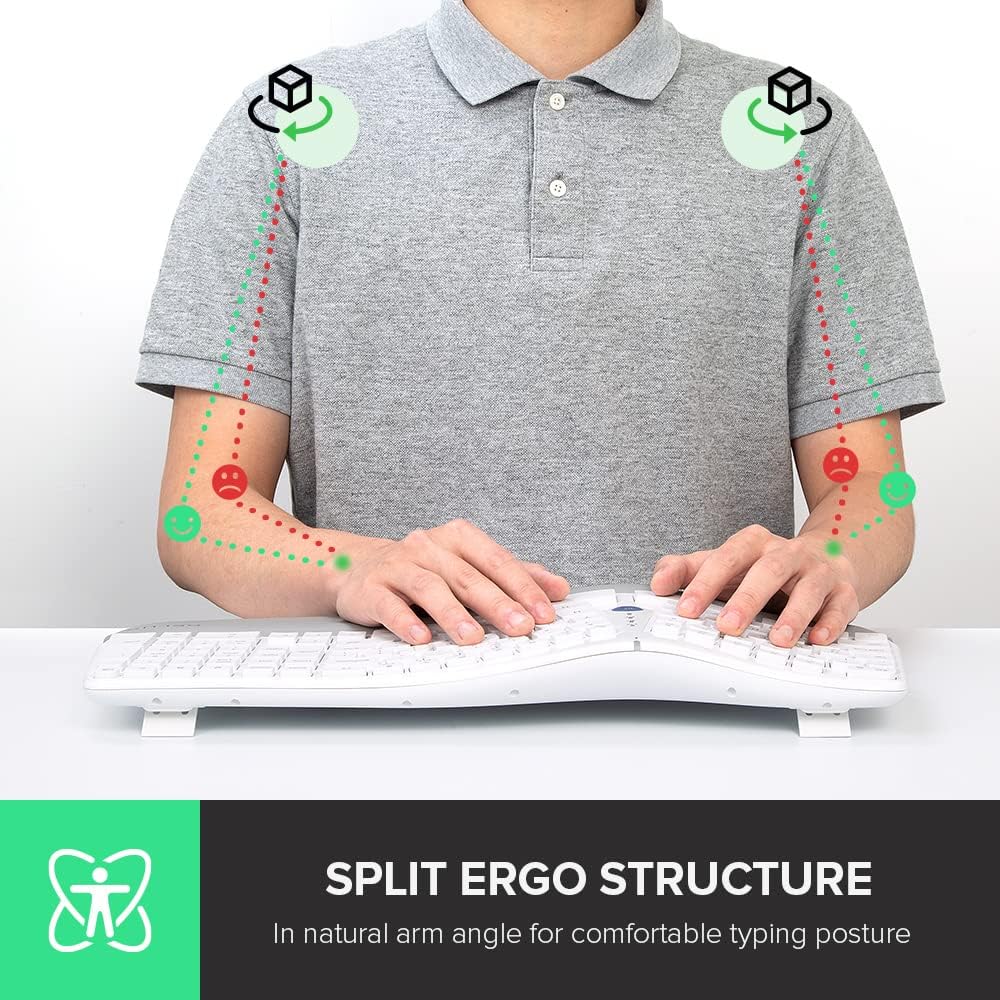
Image: A user demonstrating the natural arm angle achieved with the split ergonomic keyboard structure.

Image: Close-up of the keyboard's built-in pillowed wrist rest, designed for skin-friendly comfort.

Image: Detail of the keyboard highlighting the 'FN-Lock' key for easy access controls.
Mouse Features (M618GDB)
- Vertical Ergonomic Design: The mouse features a unique 'snail bionic' vertical design with a curved backside and thumb groove, promoting a natural handshake posture to reduce wrist and arm fatigue.
- Adjustable DPI Settings: Cycle through 3 DPI settings (800/1200/1600) using the dedicated DPI button to adjust tracking precision to your preference. The mouse features a 4000DPI tracking engine for enhanced accuracy.
- Built-in Rechargeable Battery: The mouse is equipped with a built-in rechargeable battery. Connect the included USB-C cable to charge. A full charge can last approximately one week with 8 hours of daily use.
- Removable Palm Rest: The mouse includes a removable palm rest that provides additional support and helps relieve pressure on your wrist.

Image: The DeLUX vertical mouse illustrating its 'snail bionic' design and how it reduces wrist fatigue compared to a traditional mouse.

Image: The DeLUX vertical mouse connected via USB-C cable, indicating its built-in rechargeable battery feature.

Image: The DeLUX vertical mouse with its removable palm rest detached, showing how it protects the wrist and relieves pressure.
Maintenance
- Cleaning: Use a soft, dry cloth to clean the surfaces of the keyboard and mouse. For stubborn dirt, a slightly damp cloth with mild soap can be used, ensuring no liquid enters the devices.
- Battery Charging: Recharge the mouse when the battery indicator light signals low power. Use the provided USB-C cable and connect to a standard USB power source.
- Storage: When not in use for extended periods, turn off both devices to conserve battery life. Store in a cool, dry place.
Troubleshooting
- Device Not Connecting:
- Ensure the devices are turned on and fully charged.
- For 2.4G connection, ensure the USB receiver is securely plugged in. Try a different USB port.
- For Bluetooth connection, ensure Bluetooth is enabled on your computer and the device is in pairing mode. Remove previous pairings and try pairing again.
- Try restarting your computer.
- Lag or Intermittent Connection:
- Move the devices closer to the USB receiver or your computer.
- Avoid using the devices near strong interference sources (e.g., Wi-Fi routers, other wireless devices).
- Ensure batteries are not low.
- Mouse Cursor Jumps or is Inaccurate:
- Clean the mouse sensor with a soft cloth.
- Use the mouse on a clean, non-reflective surface or a mouse pad.
- Adjust the DPI setting to a lower value if the cursor is too sensitive.
Specifications
| Feature | Description |
|---|---|
| Brand | DeLUX |
| Keyboard Model | GM901D |
| Mouse Model | M618GDB |
| Connectivity Technology | 2.4G Wireless (USB Receiver), Bluetooth 5.0 (Keyboard), Bluetooth 4.0 (Mouse) |
| Special Features | Ergonomic Design (Split Keyboard, Vertical Mouse), Multi-Device Connection, FN-Lock, Adjustable DPI, Rechargeable Battery, Removable Palm Rest |
| Compatible Devices | Gaming Console, Laptop (and other devices supporting USB/Bluetooth input) |
| Mouse DPI Settings | 800/1200/1600 (3 gears) |
Warranty and Support
DeLUX products are designed for reliability and performance. For warranty information, technical support, or service inquiries, please refer to the warranty card included with your product or visit the official DeLUX website. Keep your purchase receipt as proof of purchase.


