
Introduction
This manual provides essential instructions for setting up, operating, maintaining, and troubleshooting your C idea CM776 Tablet. Please read this manual thoroughly before using your device to ensure proper function and longevity.

Image: The C idea CM776 Tablet, featuring a vibrant display and icons representing its core specifications.
Setup
1. Charging the Tablet
Before first use, fully charge the tablet using the provided USB cable and power adapter. The battery indicator on the screen will show charging status.
2. Powering On/Off
- To Power On: Press and hold the Power button until the screen lights up.
- To Power Off: Press and hold the Power button, then select "Power off" from the options on the screen.
- To Restart: Press and hold the Power button, then select "Restart" from the options on the screen.
3. Initial Setup
Upon first power-on, follow the on-screen prompts to:
- Select your preferred language.
- Connect to a Wi-Fi network.
- Sign in with your Google account or create a new one.
- Set up screen lock and other security features.
4. Connecting Headphones
Connect standard 3.5mm headphones to the audio jack for private listening.
Operating
1. Basic Navigation
The tablet uses a touch-sensitive screen. Use the following gestures:
- Tap: To select an item or open an app.
- Swipe: To scroll through pages or lists.
- Pinch: To zoom in or out on images and web pages.
- Long Press: To access contextual menus or move app icons.
2. Wi-Fi Connection
To connect to Wi-Fi:
- Go to Settings > Network & Internet > Wi-Fi.
- Turn Wi-Fi on.
- Select your desired network from the list and enter the password if required.
3. Parental Control Mode
The tablet features a Parental Control Mode to manage content, limit screen time, and restrict app access for children. This mode helps create a safe digital environment.

Image: The tablet demonstrating its Parental Control Mode features, ensuring a safe experience for young users.
4. Media Playback
The tablet supports various media formats for videos and music. You can stream content or play files stored on the device.

Image: The tablet showcasing its ability to play videos and display a range of entertainment content.
5. Educational and Learning Features
The tablet is designed to support learning through play, offering access to educational applications and content.
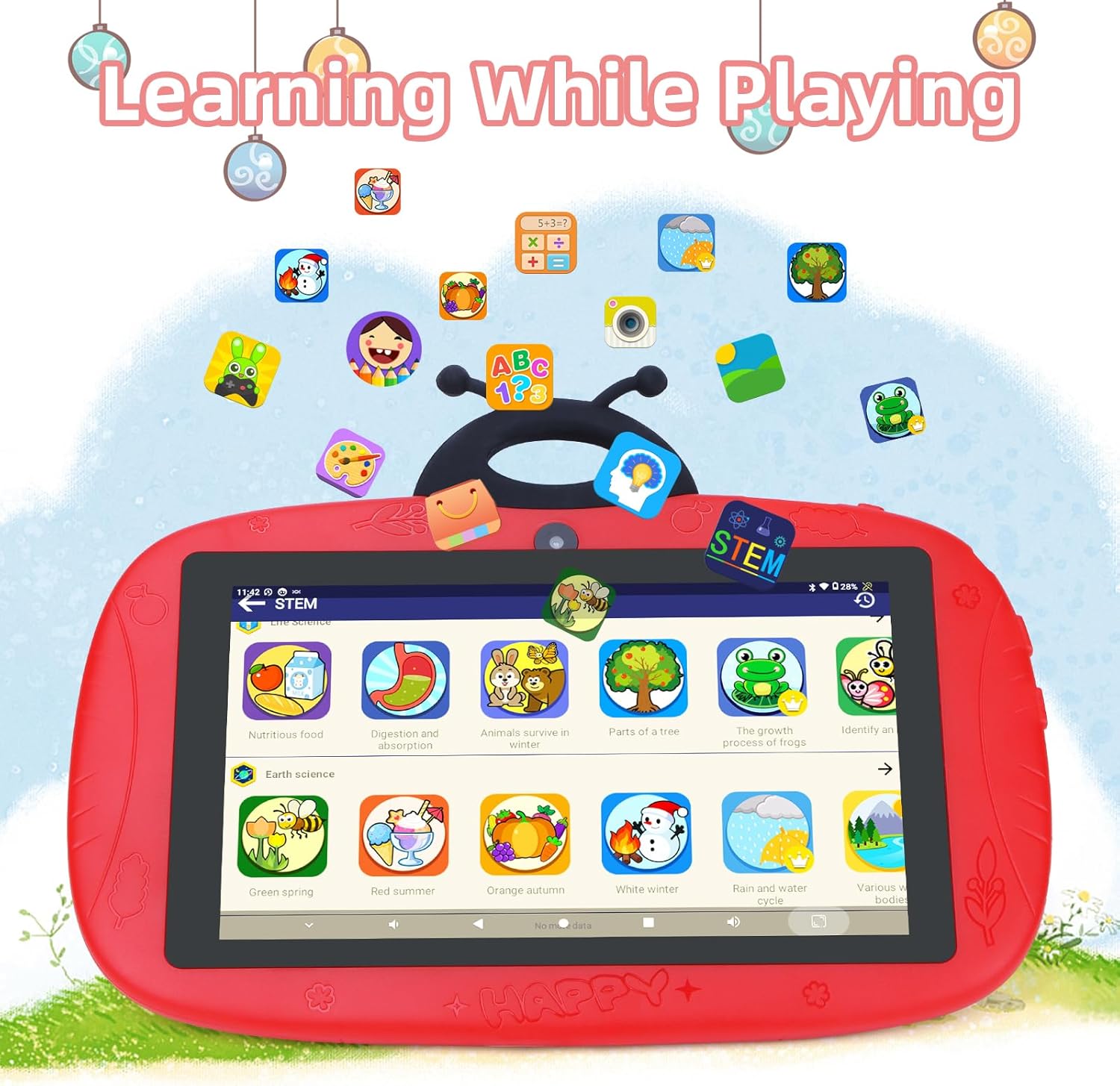
Image: The tablet interface showing educational applications, promoting learning through interactive content.
6. Using the Cameras
The tablet is equipped with dual cameras (2MP front, 5MP rear) for capturing photos and videos.
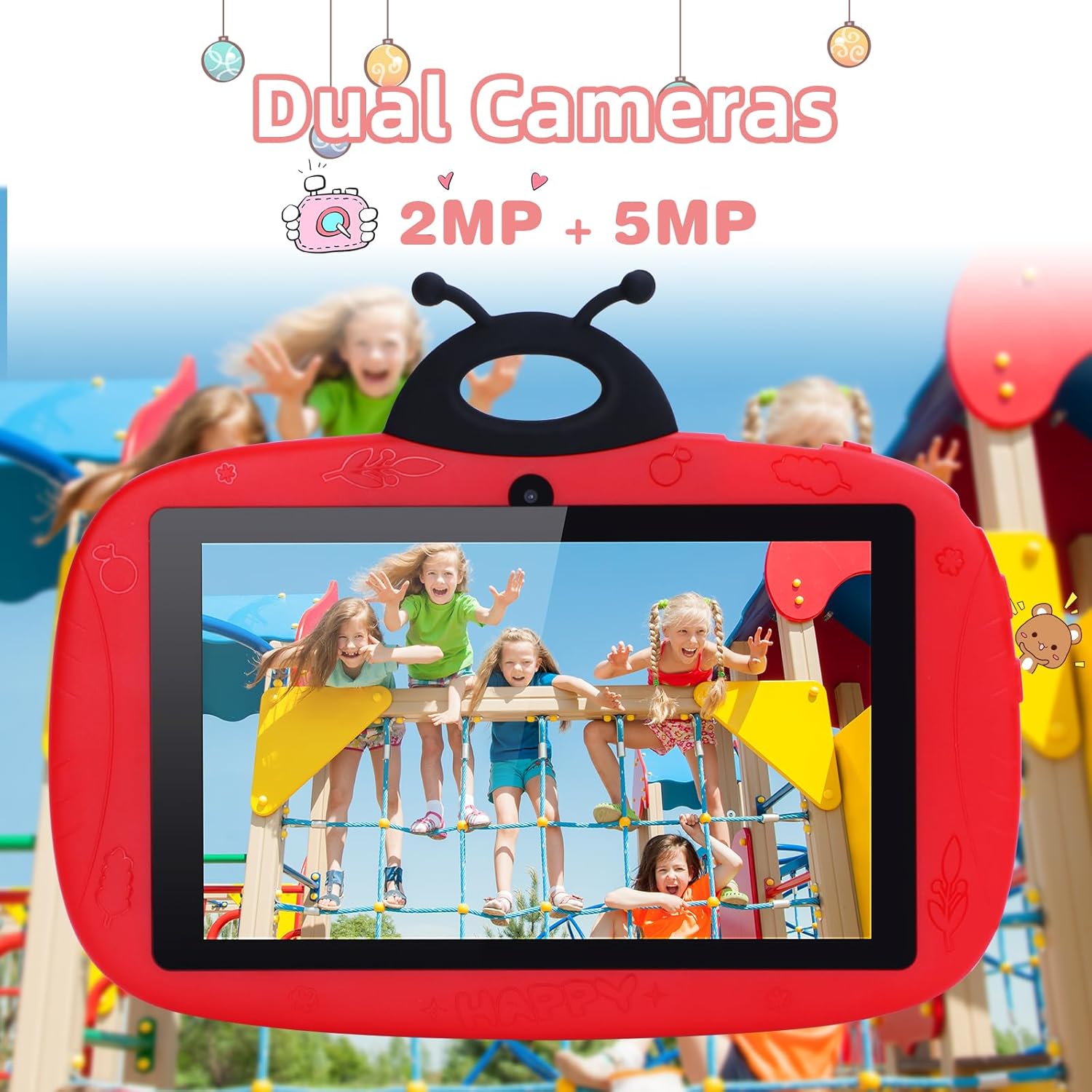
Image: The tablet's camera functionality demonstrated by a picture of children, highlighting its dual camera setup.
Maintenance
1. Cleaning the Tablet
Use a soft, lint-free cloth to clean the screen and body of the tablet. Avoid using harsh chemicals or abrasive materials.
2. Battery Care
- Avoid extreme temperatures.
- Do not allow the battery to fully discharge frequently.
- Use only the original charger or a certified compatible charger.
3. Software Updates
Regularly check for and install software updates to ensure optimal performance and security. Go to Settings > System > System update.
4. Storage Management
To free up storage space, regularly delete unnecessary files, uninstall unused apps, and clear app caches. You can check storage usage in Settings > Storage.
Troubleshooting
Tablet Not Powering On
- Ensure the battery is charged. Connect the charger and wait a few minutes before attempting to power on.
- Try holding the Power button for 10-15 seconds to force a restart.
Wi-Fi Connection Issues
- Check if Wi-Fi is enabled in Settings.
- Restart your Wi-Fi router and the tablet.
- Forget the network and reconnect by re-entering the password.
Slow Performance / Apps Crashing
- Close unused background applications.
- Clear app caches (Settings > Apps > select app > Storage & cache > Clear cache).
- Ensure sufficient free storage space.
- Restart the tablet.
Factory Reset (Last Resort)
If issues persist, a factory reset can resolve many software problems. Warning: This will erase all data on your tablet. Back up important data before proceeding.
- Go to Settings > System > Reset options.
- Select Erase all data (factory reset).
- Confirm your choice.
Specifications
| Feature | Detail |
|---|---|
| Brand | C idea |
| Model Name | CM776 |
| Operating System | Android |
| Screen Size | 7 Inches |
| Max Display Resolution | 600x1024 Pixels |
| RAM Size | 4 GB |
| Storage Capacity | 32 GB |
| Connectivity | Wi-Fi |
| Total USB Ports | 1 |
| Compatible Devices | Headphones |
| Battery Composition | Lithium-polymer |
| Hardware Interface | 3.5 mm Audio |
| Model Year | 2024 |
Warranty Information
The C idea CM776 Tablet comes with a 1-year manufacturer's warranty from the date of purchase. This warranty covers defects in materials and workmanship under normal use. It does not cover damage caused by misuse, accidents, unauthorized modifications, or external causes.
Please retain your proof of purchase for warranty claims.
Support
For further assistance, technical support, or warranty claims, please contact C idea customer service. Refer to the packaging or the official C idea website for contact details.
When contacting support, please have your tablet's model number (CM776) and proof of purchase readily available.

