
Introduction
This manual provides detailed instructions for the setup, operation, maintenance, and troubleshooting of your Keychron B6 Pro Ultra-Thin Wireless Keyboard. Please read this manual thoroughly to ensure proper usage and to maximize your keyboard's functionality.
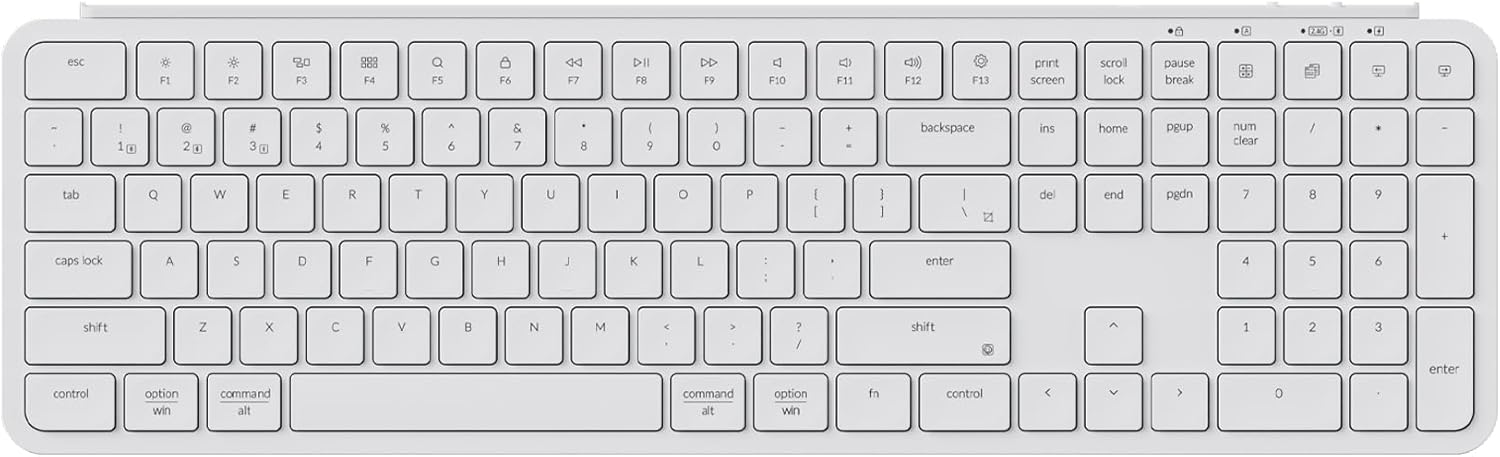
Image: The Keychron B6 Pro Ultra-Thin Wireless Keyboard in Ivory White, showcasing its full layout.
What's in the Box
Verify that all components are present in the packaging:
- 1x Keychron B6 Pro Keyboard
- 1x Type-C Cable
- 1x Type-A to Type-C Adapter
- 1x Type-A 2.4GHz Receiver
- 1x Silicone Skin

Image: Diagram illustrating the keyboard, Type-C cable, Type-A to Type-C adapter, 2.4GHz receiver, and silicone skin included in the box.
Setup
1. Initial Charging
Before first use, it is recommended to fully charge the keyboard. Connect the provided Type-C cable to the keyboard's charging port and the other end to a USB power source. The charging indicator light will show the charging status.
2. Operating System Switch
Locate the operating system switch on the side of the keyboard. Slide it to the appropriate position for your system (macOS or Windows). This ensures correct function key mapping.

Image: A close-up of the keyboard's side, showing the physical switch to select between macOS and Windows modes.
3. Connectivity Options
The Keychron B6 Pro supports three connection modes: 2.4 GHz wireless, Bluetooth 5.2, and wired (USB Type-C).

Image: The Keychron B6 Pro keyboard connected to a laptop via wired USB-C, a tablet via Bluetooth, and a smartphone via 2.4 GHz wireless, illustrating its tri-mode connectivity.
3.1. 2.4 GHz Wireless Connection
- Insert the 2.4 GHz receiver into an available USB-A port on your device. If your device only has USB-C ports, use the provided Type-A to Type-C adapter.
- Slide the keyboard's mode switch to the 2.4 GHz position.
- The keyboard should automatically connect.
3.2. Bluetooth 5.2 Connection
- Slide the keyboard's mode switch to the Bluetooth position.
- On your device (computer, tablet, phone), open Bluetooth settings.
- Press and hold the Fn + 1 (or Fn + 2, Fn + 3) key combination for 4 seconds to enter pairing mode. The indicator light will flash rapidly.
- Select "Keychron B6 Pro" from the list of available Bluetooth devices on your device.
- Once paired, the indicator light will stop flashing.
The keyboard can store up to three Bluetooth devices, allowing for quick switching between them using Fn + 1, Fn + 2, or Fn + 3.
3.3. Wired Connection
- Connect the provided Type-C cable from the keyboard to a USB port on your device.
- Slide the keyboard's mode switch to the wired position.
- The keyboard will function as a wired device and charge simultaneously.
Operating Instructions
Basic Typing and Layout
The Keychron B6 Pro features a full-size layout with a numeric keypad, designed for efficient data entry and general use. The keys utilize a scissor mechanism for quiet and comfortable typing.

Image: An overhead view of the Keychron B6 Pro keyboard, highlighting its full-size layout including the numeric keypad.

Image: A close-up view of several keys on the Keychron B6 Pro, illustrating their comfortable, slightly concave design.

Image: The Keychron B6 Pro keyboard next to a sleeping child, with an inset diagram of a scissor mechanism, emphasizing its quiet keystrokes.
Function Keys and Multimedia Controls
The top row of keys serves as both standard function keys (F1-F12) and multimedia controls. The specific function depends on your operating system switch setting and whether the Fn key is pressed.
- Fn + F1-F12: Access standard function keys.
- Direct press (or Fn + key if OS is Windows and switch is Mac mode): Control media playback, volume, screen brightness, etc.

Image: A close-up showing the 'fn' key and the 'shift' key with an emoji symbol, indicating a shortcut for emoji input.
Key Remapping and Macros (ZMK Firmware)
The Keychron B6 Pro supports ZMK firmware, allowing extensive customization of key assignments and macro creation. This can be done via the Keychron Launcher web application.
- Connect the B6 Pro to your device using the Type-C cable.
- Open the Keychron Launcher web app in a compatible browser (e.g., Chrome, Edge, Opera).
- Follow the on-screen instructions to remap keys or create macros. You can drag and drop commands to customize your layout for macOS, Windows, or Linux.

Image: A screenshot of the Keychron Launcher web application interface, showing options for key remapping, macro creation, and firmware updates, with browser logos for ZMK, Google Chrome, Microsoft Edge, and Opera.
Maintenance
Cleaning the Keyboard
To maintain optimal performance and appearance, regularly clean your keyboard:
- Disconnect the keyboard from all devices.
- Use a soft, lint-free cloth slightly dampened with water or a mild cleaning solution to wipe the keycaps and chassis.
- For debris between keys, use compressed air.
- The included silicone skin can be used to protect the keyboard from dust and spills.

Image: A transparent silicone skin placed over a section of the Keychron B6 Pro keyboard, demonstrating its protective use.
Battery Management
The Keychron B6 Pro features a long-lasting battery, providing up to 1200 hours of continuous use (approximately 8 months with 5 hours of daily use). To maximize battery life:
- Charge the keyboard fully when the battery is low.
- If not using the keyboard for an extended period, switch it off.

Image: An overhead view of the Keychron B6 Pro keyboard on a desk setup, with text indicating "8 Months Battery Life".
Troubleshooting
Connectivity Issues
- Keyboard not connecting via 2.4 GHz: Ensure the 2.4 GHz receiver is securely plugged into a USB port and the keyboard is switched to 2.4 GHz mode. Try a different USB port.
- Bluetooth pairing failure: Ensure the keyboard is in Bluetooth pairing mode (Fn + 1/2/3 held for 4 seconds). Remove any previous "Keychron B6 Pro" entries from your device's Bluetooth list and try pairing again. Ensure your device's Bluetooth is enabled.
- Wired connection not working: Verify the Type-C cable is properly connected to both the keyboard and your device. Ensure the keyboard is switched to wired mode. Try a different Type-C cable or USB port.
Key Input Problems
- Keys not registering or registering multiple times: This can sometimes be caused by dust or debris under the keycap. Try cleaning the affected key with compressed air. If the issue persists, ensure the keyboard's firmware is up to date via the Keychron Launcher.
- Incorrect key output (e.g., 'Q' types 'qwe'): Check the operating system switch on the keyboard to ensure it matches your current OS. If using custom keymaps, verify the settings in the Keychron Launcher.
- Delay in key response: In wireless modes, ensure there are no significant obstructions between the keyboard and the receiver/device. For Bluetooth, minimize interference from other wireless devices.
Physical Issues
- Keyboard not sitting flat: Due to its ultra-slim design, minor warping can occur. Ensure the keyboard is placed on a flat, stable surface. If the issue is significant, contact customer support.
Specifications
| Model | Keychron B6 Pro |
| Connectivity | 2.4 GHz Wireless, Bluetooth 5.2, Type-C Wired |
| Compatible Devices | Laptop, PC (Mac, Windows, Linux) |
| Keyboard Description | Office, Full-Size with Numeric Keypad |
| Special Features | 623g Lightweight Design, 8 Months Battery Life, Programmable Keys (ZMK), Scissor Mechanism, Ultra-Slim Body |
| Color | Ivory White |
| Material | ABS Plastic |
| Item Weight | 2.01 pounds (approx. 912g) |
| Package Dimensions | 17.48 x 5.51 x 1.61 inches |
| Batteries | 1 Lithium Polymer battery (included) |

Image: A side profile comparison illustrating the ultra-slim design of the Keychron B6 Pro keyboard, with dimensions of 5.2mm at its thinnest point and 14.5mm at its thickest, and a 3.2-degree angle.
Warranty and Support
For warranty information, product support, or technical assistance, please refer to the official Keychron website or contact Keychron customer service directly. Details regarding warranty periods and claims procedures are typically provided with your purchase documentation or on the manufacturer's website.
You can also visit the official Keychron Store on Amazon for additional resources and contact options: Keychron Amazon Store.


