1. Setup
1.1 Package Contents
Verify all components are present before beginning installation:
- Car Radio Head Unit
- Power Cable
- RCA Cable
- Antenna Cable
- GPS Module
- Can Bus Decoder
- USB Cable (x2)
- Rear Camera
- Microphone
- Crowbar Tool
- Screwdriver

Image: All components included with the Junsun car radio stereo, laid out on a table, including the head unit, various cables, GPS module, rear camera, and installation tools.
1.2 Applicable Car Models
This product is designed for the following vehicle models:
- GMC Yukon: 2007-2013
- Chevrolet Tahoe / Suburban: 2007-2013
1.3 Installation Overview
The installation process involves removing the factory radio, connecting the new head unit's wiring harness, and securing the new unit in place. Ensure the vehicle's battery is disconnected before starting any electrical work.
Step 1: Remove the Factory Radio Trim and Unit
Carefully pry off the dashboard trim surrounding the factory radio. Once the trim is removed, unscrew and detach the existing radio unit.
Step 2: Connect Wiring Harness and Accessories
Connect the provided wiring harness to the new head unit and the vehicle's existing connectors. Ensure all connections are secure. Connect the GPS antenna, external microphone, and rear camera signal wire as needed. The harness is labeled for ease of connection.
Step 3: Install the New Head Unit
Carefully place the new Junsun head unit into the dashboard opening, ensuring no wires are pinched. Secure it with screws and reattach the dashboard trim.
For detailed visual guidance, refer to the following installation videos:
Video: Installation method for Chevrolet Chevy Silverado 2007-2012. This video demonstrates the step-by-step process of removing the old radio and installing the new head unit, including wiring connections.
Video: Jingelsye Wiring Installation Video. This video provides detailed instructions on connecting the various wires and harnesses for the car radio stereo.
Video: How To Install GMC Head Unit Stereo. This video guides users through the installation process of a GMC head unit stereo.
2. Operating Instructions
2.1 Android 13 System Basics
The unit operates on an Android 13 system with 2GB RAM, ensuring smooth performance. Connect to Wi-Fi to access and download various free applications from the Application Store, similar to a smartphone.
2.2 Wireless CarPlay & Android Auto
Connect your iPhone or Android phone via USB cable to enable wireless CarPlay or Android Auto. This feature allows you to:
- Use smart voice assistants for commands.
- Access navigation apps for directions.
- Make and receive calls.
- Send and receive messages.
- Enjoy music and other entertainment apps.
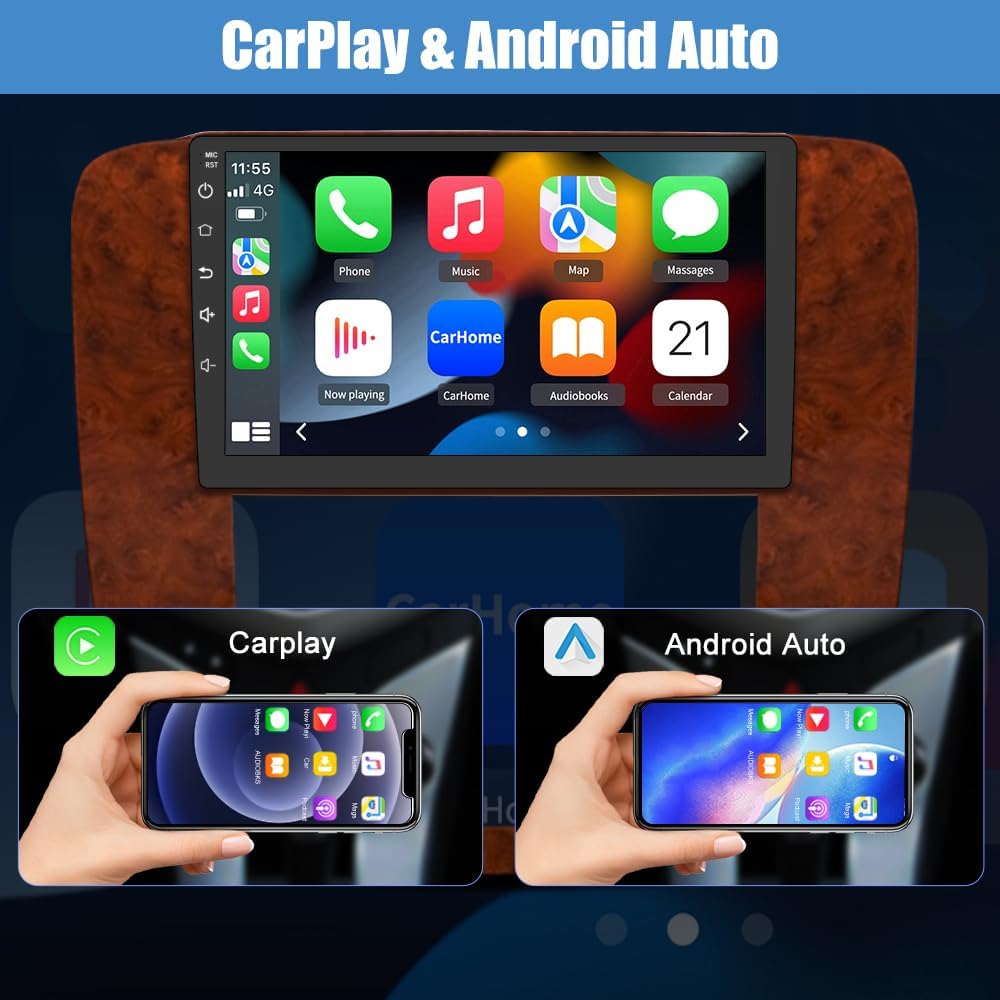
Image: The car stereo display showing both Apple CarPlay and Android Auto interfaces, highlighting seamless smartphone integration.
2.3 GPS Navigation & WiFi Connectivity
The unit supports online maps. After connecting to Wi-Fi, you can use GPS navigation anywhere. You can also install or delete Android apps from the Application Store.
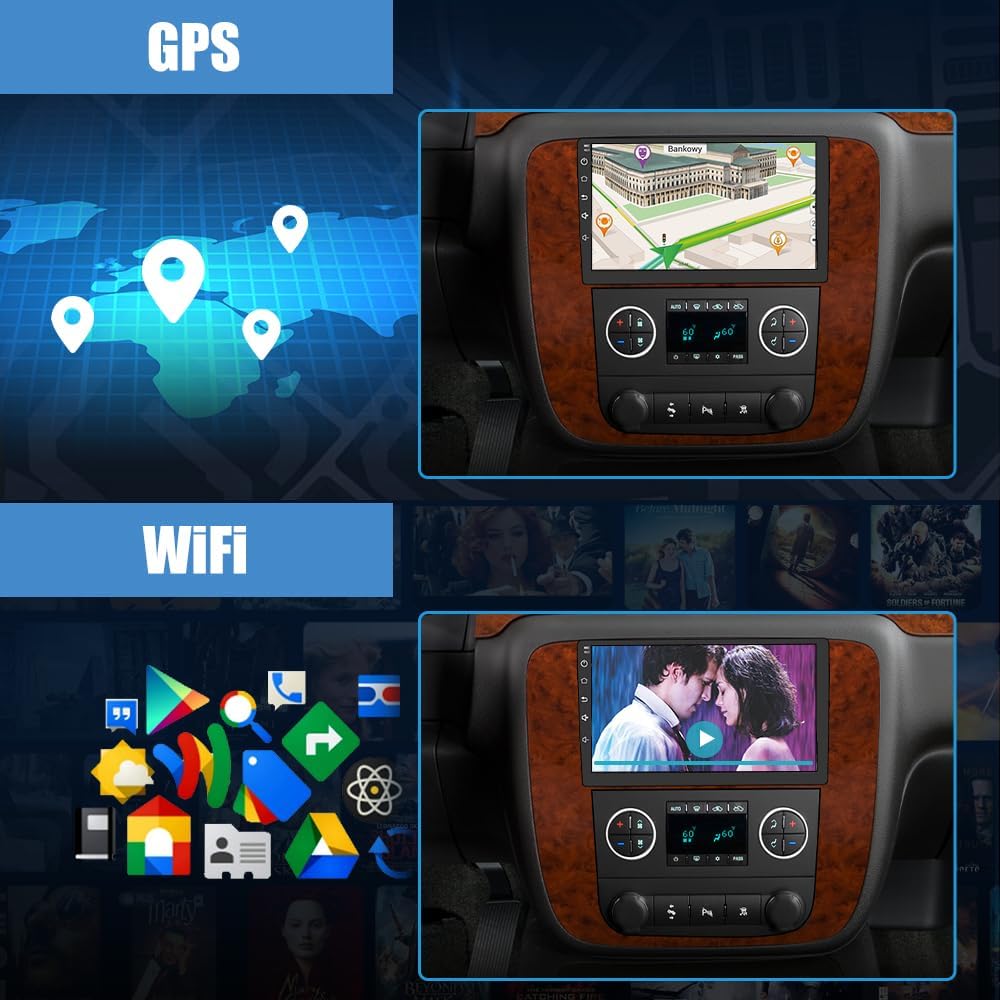
Image: The car stereo display showing GPS navigation with map data and various Wi-Fi connected applications.
2.4 Bluetooth Functionality
The built-in Bluetooth allows for hands-free calls and wireless music streaming. The built-in microphone ensures clear voice pickup during calls.

Image: The car stereo display showing Bluetooth phone dialer and Bluetooth music playback interfaces.
2.5 FM/AM Radio
The product features FM/AM radio functionality with a digital display for precise tuning. Access news, music, and live weather broadcasts.

Image: The car stereo display showing the FM radio interface with frequency selection and audio wave visualization.
2.6 Steering Wheel Control
Utilize your vehicle's steering wheel buttons to toggle between radio stations and adjust volume levels, enhancing driving safety and convenience.
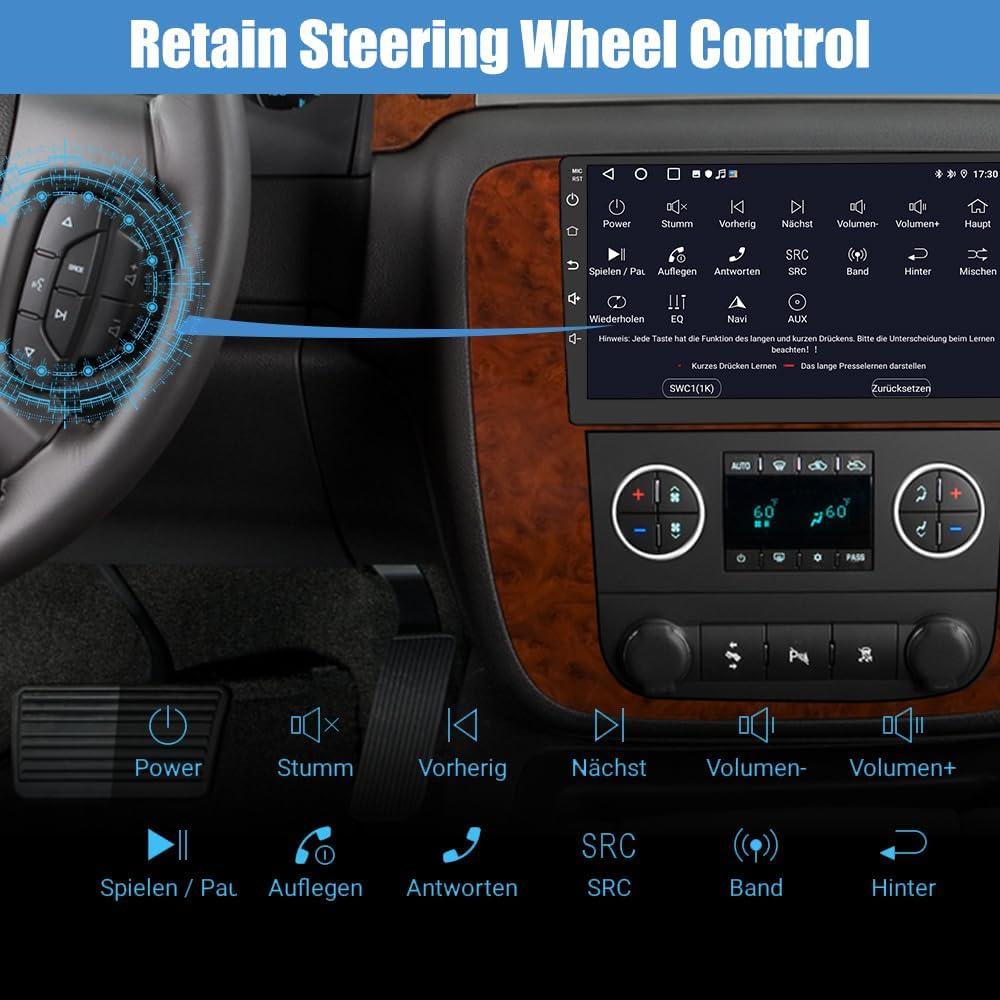
Image: The car stereo display showing the steering wheel control mapping interface, with various button functions highlighted.
2.7 High-Definition Visual Experience
The 1280*720 resolution delivers exquisite image quality with true-to-life colors, providing an immersive visual experience for navigation, entertainment, and rearview imagery.
3. Maintenance
To ensure optimal performance and longevity of your Junsun Car Radio Stereo, follow these maintenance guidelines:
- Cleaning: Use a soft, dry cloth to clean the screen and exterior. Avoid abrasive cleaners or solvents that may damage the display or finish.
- Software Updates: Periodically check for software updates via the system settings when connected to Wi-Fi. Updates can improve performance, add features, and fix bugs.
- Temperature: Avoid exposing the unit to extreme temperatures for extended periods.
4. Troubleshooting
If you encounter issues with your Junsun Car Radio Stereo, refer to the following common problems and solutions:
- No Power/Display: Ensure all power cables are securely connected. Check the vehicle's fuse box for any blown fuses related to the radio.
- No Sound: Verify speaker connections. Check the volume settings on the unit and ensure the mute function is not active. If using an external amplifier, ensure it is powered on and correctly connected.
- Bluetooth Connectivity Issues: Ensure Bluetooth is enabled on both the head unit and your mobile device. Try unpairing and re-pairing the devices. Check the Bluetooth settings for auto-connect options.
- GPS Not Working: Ensure the GPS antenna is properly installed and has a clear line of sight to the sky. Check GPS settings within the unit.
- Steering Wheel Controls Not Responding: Verify the steering wheel control wiring is correctly connected. Access the unit's settings to configure or recalibrate the steering wheel buttons. Some users have reported needing to adjust CAN-related settings for proper functionality.
- Display Issues (e.g., black screen): If the screen goes black, try restarting the unit. Check all display cable connections.
- Incorrect Time/Date: Go to the 'Date & time' settings. Turn off 'GPS sync time' and 'Use network-provided time' if you are not using a dedicated SIM card for internet. Manually set the correct time zone and time.
5. Specifications
| Feature | Detail |
|---|---|
| Operating System | Android 13 |
| RAM | 2GB |
| ROM | 64GB |
| Display Size | 9 Inches |
| Resolution | 1280*720 |
| Connectivity Technology | Bluetooth, Wi-Fi |
| Special Feature | Bluetooth, Wireless CarPlay, Android Auto, GPS Navigation, FM/AM Radio, Steering Wheel Control |
| Audio Output Mode | Speaker, Stereo |
| Mounting Type | Dashboard Mount |
| Item Weight | 4.51 pounds |
| Package Dimensions | 15.55 x 12.09 x 5.08 inches |
6. Warranty Information
This product is covered by a standard manufacturer's warranty. For specific details regarding warranty duration and coverage, please refer to the warranty card included in your package or contact customer support.
Extended protection plans are available for purchase separately, offering 2-Year or 3-Year coverage options.
7. Customer Support
For any questions, technical assistance, or support inquiries, please contact Junsun Customer Service:
- Email: Junsun-US@outlook.com
Our support team is available to assist you with installation, troubleshooting, and product usage.


