Product Overview
The Dell Wireless Audio Receiver HR024 (Model: 5397184878149) is designed to provide wireless audio connectivity for various devices. This manual provides essential information for setting up, operating, maintaining, and troubleshooting your receiver.
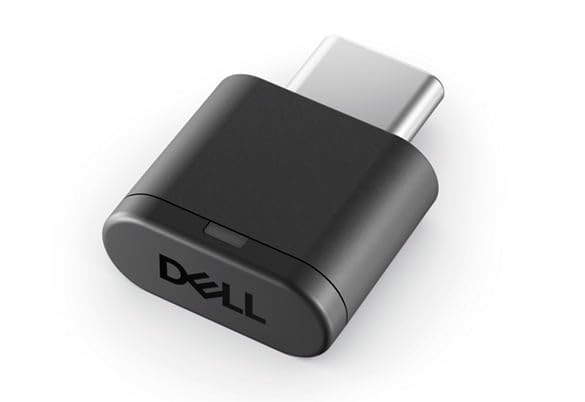
Image showing the compact design of the Dell Wireless Audio Receiver HR024. This device facilitates wireless audio transmission from compatible sources.
Setup
- Unpack the Receiver: Carefully remove the Dell Wireless Audio Receiver HR024 from its packaging. Ensure all components, including the receiver and any included cables, are present.
- Insert Batteries: The receiver requires 1 AAAA battery, which is included. Open the battery compartment and insert the battery, ensuring correct polarity.
- Connect to Audio Source: Use the appropriate cable (e.g., USB Type B) to connect the receiver to your audio source device. Compatible devices include Laptops, Personal Computers, and Tablets.
- Power On: Once connected, ensure your audio source device is powered on. The receiver should automatically power on or indicate readiness for connection.
Operating Instructions
The Dell Wireless Audio Receiver HR024 is designed for straightforward operation. Follow these general guidelines:
- Pairing: Refer to your audio source device's instructions for pairing with a new wireless audio receiver. Typically, this involves enabling Bluetooth or wireless audio output on your device and selecting the Dell HR024 from the list of available devices.
- Audio Playback: Once successfully paired, audio from your connected device will be transmitted wirelessly to the receiver. Ensure the volume on both your source device and any connected speakers/headphones is adjusted appropriately.
- Range: Maintain a reasonable distance between the audio source and the receiver for optimal performance. Obstructions can affect wireless signal quality.
Maintenance
To ensure the longevity and optimal performance of your Dell Wireless Audio Receiver HR024, follow these maintenance tips:
- Cleaning: Use a soft, dry cloth to clean the exterior of the receiver. Avoid using liquid cleaners or abrasive materials, as these can damage the device.
- Storage: When not in use for extended periods, store the receiver in a cool, dry place away from direct sunlight and extreme temperatures.
- Battery Replacement: If the receiver's performance degrades or it fails to power on, replace the AAAA battery with a new one.
Troubleshooting
If you encounter issues with your Dell Wireless Audio Receiver HR024, try the following troubleshooting steps:
- No Power:
- Check if the AAAA battery is correctly inserted and has sufficient charge. Replace if necessary.
- Ensure the receiver is properly connected to the audio source device.
- No Audio:
- Verify that the receiver is successfully paired with your audio source device.
- Check the volume levels on both your audio source and any connected speakers/headphones.
- Ensure the correct audio output is selected on your source device.
- Try re-pairing the receiver with your audio source.
- Intermittent Connection:
- Reduce the distance between the receiver and the audio source.
- Remove any potential obstructions (e.g., walls, large metal objects) between the devices.
- Ensure there are no other devices causing wireless interference.
Specifications
| Feature | Detail |
|---|---|
| Product Dimensions | 3.94 x 59.06 x 5.91 inches |
| Item Weight | 3.17 ounces |
| Manufacturer | Dell |
| ASIN | B0D529VVD4 |
| Item Model Number | 5397184878149 |
| Batteries | 1 AAAA batteries required (included) |
| Compatible Devices | Laptop, Personal Computer, Tablet |
| Connector Type | USB Type B |
| Color | Black |
| Date First Available | March 26, 2024 |
Warranty and Support
For warranty information regarding your Dell Wireless Audio Receiver HR024, please refer to the documentation included with your purchase or visit the official Dell support website. Dell provides customer support for product inquiries, technical assistance, and warranty claims.
Manufacturer: Dell
For further assistance, please contact Dell customer service.


