1. Introduction
This manual provides essential information for the safe and efficient use of your LG 32SR50F-G Smart Monitor. This 32-inch Full HD (1920x1080) IPS Display features webOS 23, HDR 10, built-in speakers, and various smart connectivity options including AirPlay 2, Screen Share, and Bluetooth. Please read this manual thoroughly before operating your device and retain it for future reference.
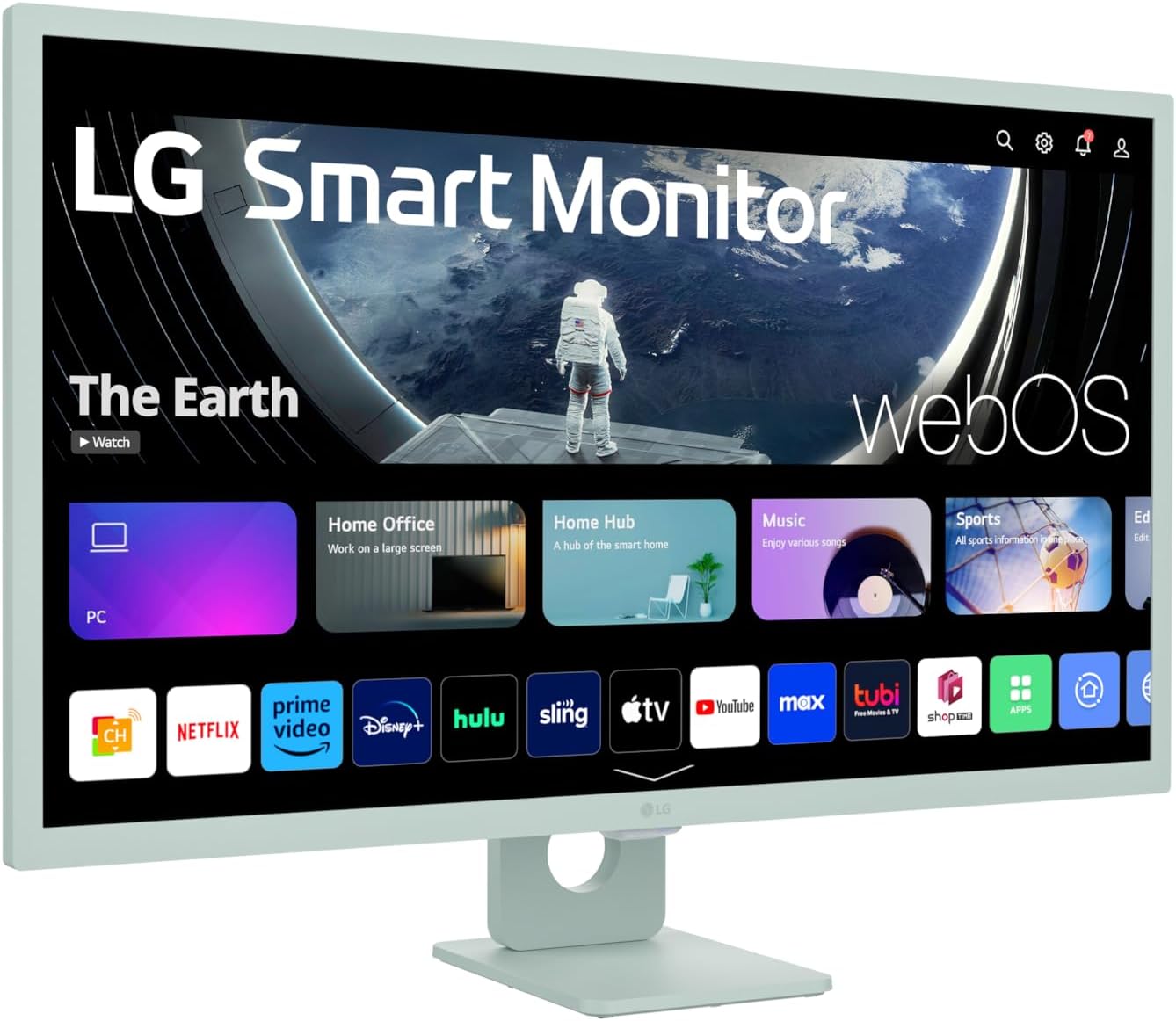
Image: Front view of the LG 32SR50F-G Smart Monitor displaying its webOS interface with various streaming and utility applications.
2. What's in the Box
Verify that all components are present upon unpacking:
- Monitor
- Slim Remote
- Power Adapter
3. Setup
3.1 Assembling the Stand
- Carefully remove the monitor and stand components from the packaging.
- Attach the stand base to the stand neck using the provided screws.
- Secure the assembled stand to the back of the monitor. Ensure all connections are firm.
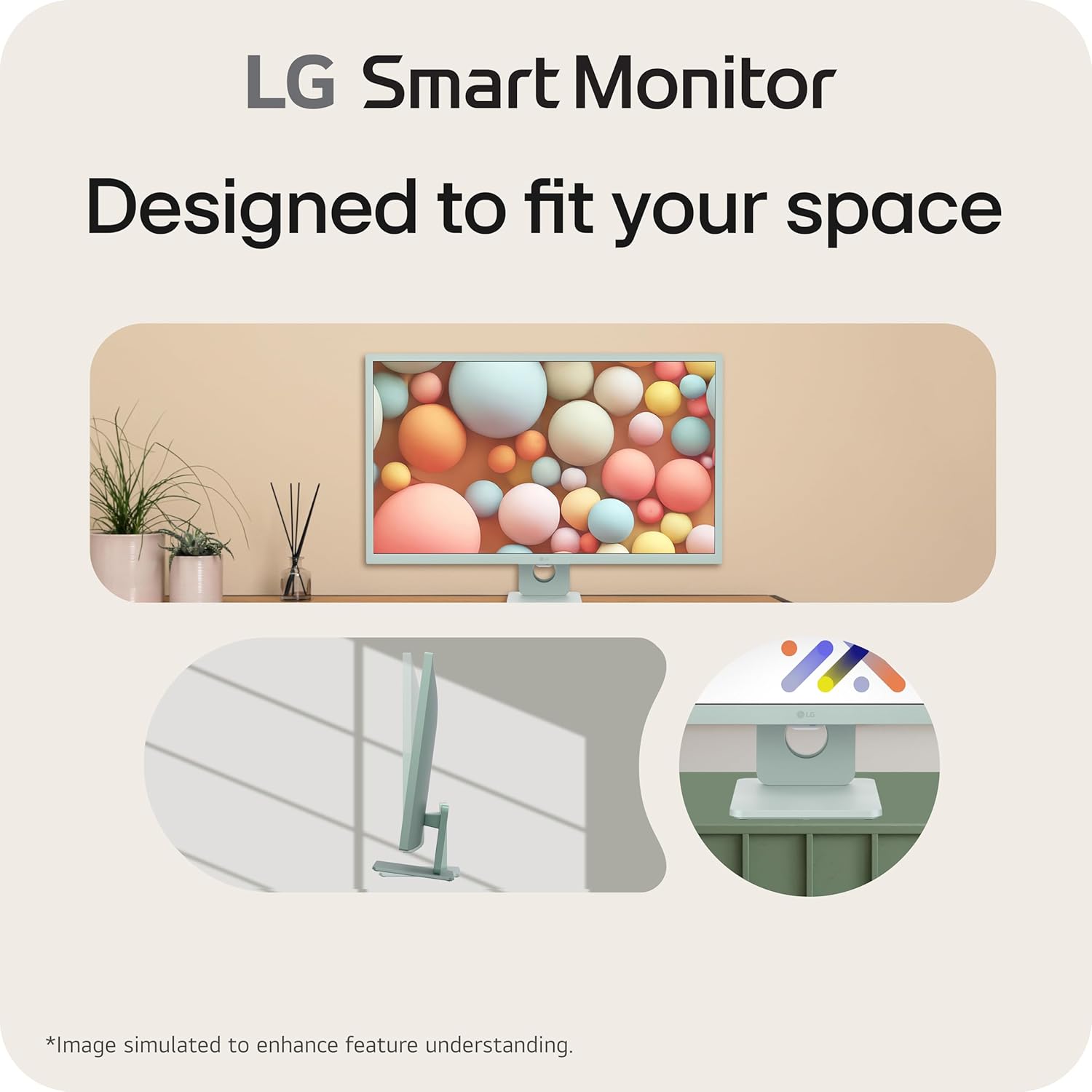
Image: Side profile of the LG 32SR50F-G Smart Monitor, highlighting its slim and simple design with a flat stand.
3.2 Power Connection
Connect the power adapter to the monitor's power input, then plug the adapter into a wall outlet.
3.3 Initial Power-On and Network Setup
- Press the power button on the monitor or the remote control to turn on the device.
- Follow the on-screen prompts to select your language, country, and connect to your Wi-Fi network. An internet connection is required for smart features and streaming services.
4. Key Features
- IPS Full HD Display: Experience vibrant color and clarity at wide viewing angles with the 1920x1080 resolution IPS display.
- webOS 23 Built-in: Access popular streaming services like Netflix, Prime Video, Apple TV app, Disney+, HBO Max, and over 300 free LG Channels directly from your monitor.
- Simple Design: The monitor features a 3-side, virtually frameless design with a sleek, flat stand. The screen's tilt adjustment allows for personalized viewing angles.
- Multi Ports: Equipped with two HDMI ports and two USB ports for versatile connectivity with various devices.
- Smart Monitor Speaker: Two built-in speakers provide audio for movies, shows, music, and video calls.
- Stream on the Screen (Apple AirPlay 2 & HomeKit): Wirelessly control your monitor and cast content from iOS or macOS devices. Your Apple device must be connected to the same Wi-Fi network as your monitor.
- Home Office Ready: Access cloud PC services such as Microsoft 365 and Google applications directly from webOS, without needing a separate PC.
- LG Magic Remote Compatible: The LG Magic Remote (available separately) allows for easy navigation and voice command control.

Image: The LG Smart Monitor showcasing its built-in streaming services, including Netflix, Prime Video, and Disney+.
5. Operating the Monitor
5.1 Using the Remote Control
The included slim remote control allows for easy navigation of the webOS interface and monitor settings. Use the directional pad to move through menus and the central button to select. Dedicated buttons for popular streaming services may also be present.

Image: The slim remote control for the LG Smart Monitor, featuring navigation buttons and quick access to streaming apps.
5.2 Accessing webOS
From the home screen, you can access various applications, settings, and input sources. Navigate using the remote control to select desired options. The webOS platform provides a centralized hub for all your smart monitor functions.
5.3 Switching Input Sources
To switch between connected devices (e.g., PC via HDMI) and the smart TV functions, use the input selection button on your remote control or navigate through the webOS home screen to the 'PC' or relevant input tile.
5.4 Screen Share (AirPlay 2)
To use AirPlay 2, ensure your Apple device (iOS 12.3+ or macOS 10.14.5+) is on the same Wi-Fi network as your monitor. Select the AirPlay option on your Apple device and choose your LG Smart Monitor from the list of available devices to mirror or extend your screen.
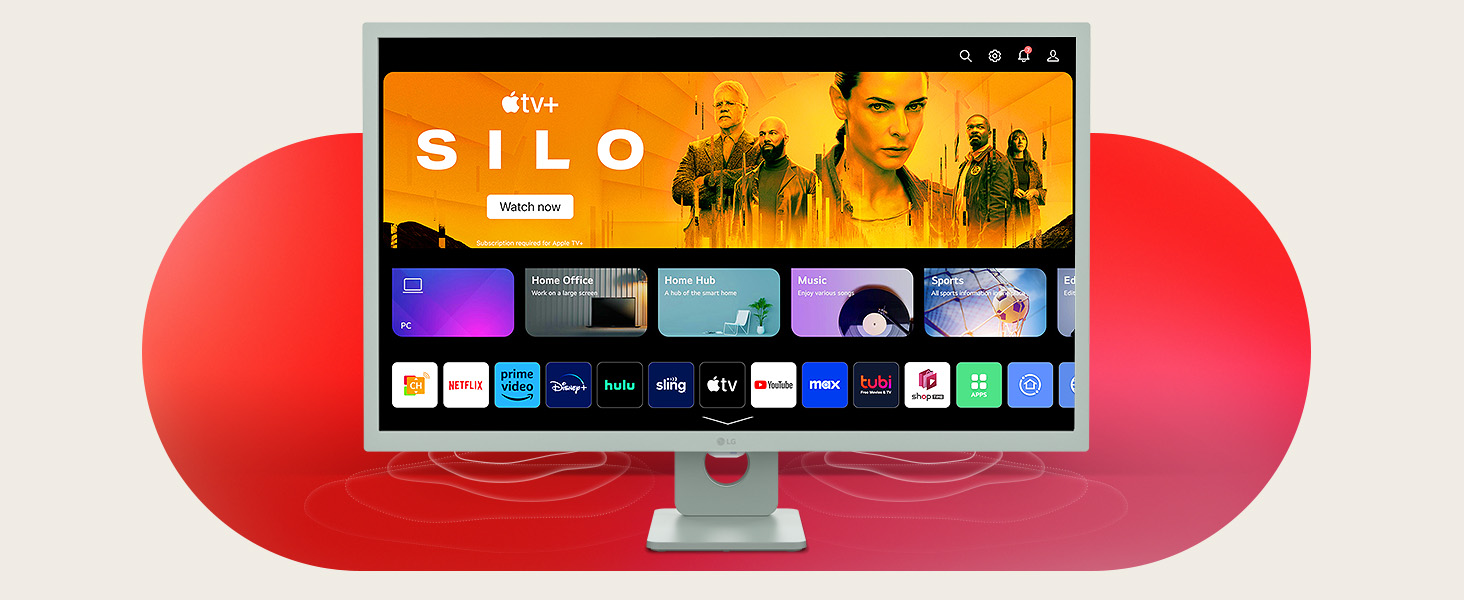
Image: The LG Smart Monitor displaying content mirrored from an Apple iPhone and iPad, illustrating AirPlay 2 functionality.
6. Connectivity
The LG 32SR50F-G Smart Monitor offers a range of connectivity options:
- HDMI Ports (x2): Connect your computer, gaming console, or other HDMI-enabled devices.
- USB Ports (x2): Connect USB devices such as external storage drives for media playback or peripherals.
- Bluetooth: Pair with compatible Bluetooth devices like keyboards, mice, or audio accessories.
- Wi-Fi: Essential for accessing webOS features, streaming services, and software updates.

Image: Rear view of the LG 32SR50F-G Smart Monitor, highlighting the HDMI and USB input ports for external device connections.
7. Maintenance
7.1 Cleaning the Monitor
To clean the screen, gently wipe it with a soft, lint-free cloth. For stubborn marks, lightly dampen the cloth with water or a screen-cleaning solution. Avoid using harsh chemicals or abrasive materials. For the exterior, use a soft, dry cloth.
7.2 Software Updates
Ensure your monitor's software is up-to-date for optimal performance and security. Connect the monitor to the internet and check for updates through the webOS settings menu. Updates are typically downloaded and installed automatically or with user confirmation.
8. Troubleshooting
If you encounter issues with your monitor, refer to the following common solutions:
| Problem | Possible Cause | Solution |
|---|---|---|
| No Signal message | Incorrect input source selected or loose cable connection. | Verify the input source matches the connected device. Check HDMI/USB cable connections. |
| No sound | Volume is muted or too low; external speakers not connected properly. | Increase volume. Check audio output settings in webOS. Ensure external speakers are correctly connected if used. |
| Remote control not responding | Low battery or obstruction between remote and monitor. | Replace remote batteries. Remove any obstructions. Ensure remote is pointed at the monitor. |
| Cannot connect to Wi-Fi | Incorrect password or router issue. | Double-check Wi-Fi password. Restart your router. Ensure monitor is within Wi-Fi range. |
9. Specifications
| Feature | Detail |
|---|---|
| Screen Size | 31.5 Inches |
| Screen Resolution | 1920x1080 (FHD 1080p) |
| Max Screen Resolution | 1920 x 1080 Pixels |
| Display Type | IPS |
| Operating System | webOS 23 |
| HDR Support | HDR 10 |
| Speakers | x2 Built-in Speakers |
| Connectivity | 2x HDMI, 2x USB 3.0, AirPlay 2, Screen Share, Bluetooth, Wi-Fi |
| Aspect Ratio | 16:9 |
| Screen Surface Description | Matte |
| Item Weight | 14.6 pounds |
| Product Dimensions | 8.3 x 28.8 x 20.5 inches |
| Color | Green |
10. Warranty and Support
For warranty information and technical support, please refer to the warranty card included with your product or visit the official LG website. You can also contact LG customer service for assistance with product registration, troubleshooting, and service requests.
Online resources and FAQs are often available on the LG support page, which can provide immediate solutions to common issues.