
1. Introduction
This manual provides detailed instructions for the setup, operation, and maintenance of your LOFREE Flow84 Low Profile Mechanical Keyboard and accompanying PBT Mouse. Please read this manual thoroughly before using the product to ensure optimal performance and longevity.
2. Package Contents
- LOFREE Flow84 Low Profile Mechanical Keyboard
- LOFREE PBT Mouse
- USB-C to USB-A Cable
- User Manual (this document)
- Keycap Puller (may be included)
- Switch Puller (may be included)
3. Product Overview
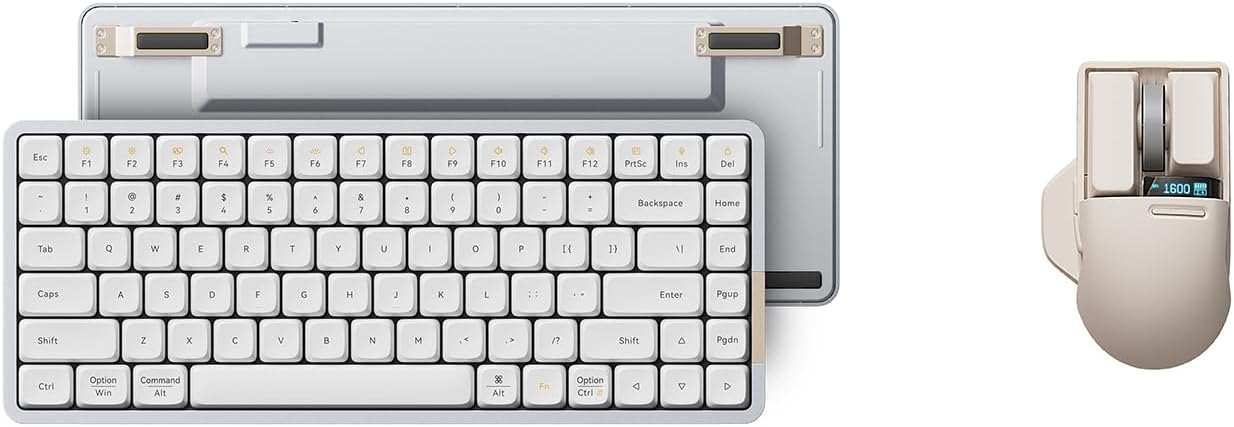
Figure 3.1: LOFREE Flow84 Keyboard and PBT Mouse. This image displays both the low-profile mechanical keyboard and the ergonomic PBT mouse, showcasing their design.

Figure 3.2: LOFREE Flow84 Keyboard, top and bottom view. The image highlights the keyboard's layout and the adjustable feet on its underside.

Figure 3.3: LOFREE PBT Mouse, top view. This image shows the mouse's ergonomic design, including a small display indicating the current DPI setting (1600) and battery level.

Figure 3.4: Close-up of the LOFREE Flow84 keyboard's all-aluminum body. This detail emphasizes the premium and durable construction of the keyboard's casing.

Figure 3.5: Exploded view of a Kailh Full POM Switch. This image illustrates the internal components of the switch, highlighting its full POM material construction for self-lubrication.

Figure 3.6: Close-up of PBT low-profile keycaps on the LOFREE Flow84 keyboard. An inset compares these keycaps to standard keycaps, showing their distinct profile and texture.

Figure 3.7: LOFREE Flow84 keyboard demonstrating RGB sidelighting and white backlighting. The image also includes a detail of the switch's top light window, indicating light emission points.

Figure 3.8: Close-up of the LOFREE PBT Mouse, emphasizing the PBT material used on its surface. This material provides a non-glossy, non-sticky, and skin-friendly texture for improved grip and ergonomics.

Figure 3.9: Hand demonstrating the removal and replacement of buttons on the LOFREE PBT Mouse. This feature allows for customization and easy maintenance of the mouse.
4. Setup
4.1. Charging the Devices
Before initial use, fully charge both the keyboard and mouse. Connect the provided USB-C cable to the charging port on each device and the other end to a USB power source (e.g., computer USB port, wall adapter). The charging indicator will show the charging status and turn off or change color when fully charged.
4.2. Connecting the Keyboard
4.2.1. Bluetooth Connection
- Ensure the keyboard is charged.
- Locate the mode switch on the keyboard and set it to the Bluetooth (BT) position.
- Press and hold the Fn key along with one of the Bluetooth channel keys (Fn+1, Fn+2, or Fn+3) for 3-5 seconds until the indicator light flashes rapidly, indicating pairing mode.
- On your device (computer, tablet, smartphone), open Bluetooth settings and search for available devices.
- Select "LOFREE Flow84" from the list to connect. The indicator light will become solid when connected.
4.2.2. Wired Connection
- Connect the USB-C end of the cable to the keyboard's port.
- Connect the USB-A end to an available USB port on your computer.
- Set the keyboard's mode switch to the Wired (USB) position. The keyboard will be recognized automatically by your operating system.
4.3. Connecting the Mouse
The LOFREE PBT Mouse typically connects wirelessly via Bluetooth. Follow similar steps as the keyboard for Bluetooth pairing:
- Ensure the mouse is charged.
- Turn on the mouse using its power switch.
- Press and hold the pairing button (usually on the bottom) until the indicator light flashes.
- On your device, open Bluetooth settings and search for available devices.
- Select "LOFREE PBT Mouse" from the list to connect. The indicator light will become solid when connected.
5. Operating Instructions
5.1. Keyboard Functions
- Function Keys (F1-F12): These keys have dual functions. Press Fn + F[number] to access multimedia controls or system functions (e.g., volume, brightness).
- Backlight Control: Use specific key combinations (refer to keyboard legends) to adjust backlight brightness or change RGB lighting effects.
- Operating System Mode: The keyboard may have a switch or key combination to toggle between Windows/Android and Mac/iOS modes for optimal key mapping.
5.2. Mouse Functions
- DPI Adjustment: The mouse features a PAW3805 sensor. Use the dedicated DPI button (often near the scroll wheel or on the bottom) to cycle through different DPI settings. The display on the mouse will show the current DPI.
- Replaceable Buttons: The mouse's main buttons are designed to be replaceable. Gently pry them off to clean or replace them if necessary (refer to Figure 3.9).
- Surface Tracking: The PAW3805 sensor allows the mouse to track on various surfaces, including clear glass.
6. Maintenance
- Cleaning: Use a soft, dry cloth to wipe the surfaces of the keyboard and mouse. For deeper cleaning, use a slightly damp cloth with mild soap, ensuring no liquid enters the device.
- Keycap Removal: If your package includes a keycap puller, use it to carefully remove keycaps for cleaning or replacement. Avoid pulling keycaps directly by hand to prevent damage.
- Switch Maintenance: The Kailh Full POM Switches are designed for self-lubrication. Avoid applying external lubricants unless specifically instructed by LOFREE support.
- Storage: Store the devices in a cool, dry place away from direct sunlight and extreme temperatures.
7. Troubleshooting
7.1. Keyboard/Mouse Not Connecting
- Ensure both devices are fully charged.
- Verify the mode switch on the keyboard is set correctly (BT for Bluetooth, USB for wired).
- Re-enter pairing mode for Bluetooth devices and re-attempt connection from your host device.
- Try connecting the keyboard via the USB cable to rule out Bluetooth issues.
- Restart your host device (computer, tablet).
7.2. Keys Not Responding / Mouse Lagging
- Check battery levels. Low battery can affect performance.
- For wireless connections, ensure there are no significant obstructions or sources of interference between the device and your host.
- Clean around the affected keys or mouse sensor to remove any debris.
- If using a wired connection, try a different USB port or cable.
7.3. Backlight Not Working
- Ensure the keyboard is charged.
- Check backlight control key combinations (e.g., Fn + Arrow Keys or specific dedicated keys) to ensure it's not turned off or set to minimum brightness.
8. Specifications
| Feature | Description |
|---|---|
| Brand | LOFREE |
| Model | Flow84 |
| Keyboard Type | Low Profile Mechanical |
| Switches | Kailh Full POM Switches |
| Keyboard Mount | Gasket Design |
| Keyboard Material | All Aluminum Body |
| Keycaps | PBT Low-profile Keycaps |
| Connectivity | Bluetooth, Wired (USB-C) |
| Mouse Sensor | PAW3805 (Traceable on all surfaces) |
| Mouse Material | PBT (MB1, MB2, upper case) |
| Special Features | Rechargeable, RGB Sidelit & White Backlit (Keyboard), Replaceable Mouse Buttons |
| Color | Gray |
9. Warranty and Support
LOFREE products are designed for quality and durability. For specific warranty information, please refer to the warranty card included with your product or visit the official LOFREE website. If you encounter any issues not covered in this manual, please contact LOFREE customer support for assistance.
LOFREE Official Website: Visit LOFREE Store on Amazon


