
1. Introduction
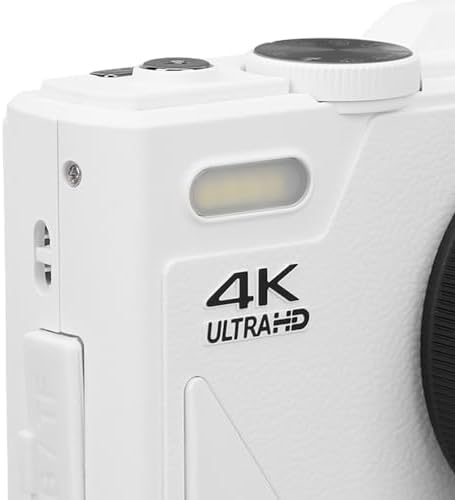
This manual provides essential information for the proper setup, operation, and maintenance of your Zunate Retro 64MP Digital Camera. Please read this manual thoroughly before using the camera to ensure optimal performance and longevity of the device. This camera is designed for capturing high-resolution photos and 4K UHD videos, featuring an 18X digital zoom, autofocus, and a convenient 3-inch flip screen.
2. What's in the Box
Upon unboxing, please verify that all the following items are included:
- Zunate Retro 64MP Digital Camera Body
- Rechargeable Battery (2 included)
- USB Charging Cable
- Wrist Strap
- Lens Cap
- Cleaning Cloth
- User Manual

Text Description: The image displays the Zunate Retro 64MP Digital Camera in white, along with its accessories. These include two black rechargeable batteries, a black USB charging cable, a black wrist strap, a black lens cap, and a light blue cleaning cloth. All items are neatly arranged, indicating the complete package contents.
3. Setup
3.1 Inserting Battery and Memory Card
- Locate the battery and memory card compartment on the bottom of the camera.
- Slide the compartment latch to open the cover.
- Insert the rechargeable battery into the battery slot, ensuring the correct orientation as indicated inside the compartment.
- Insert a compatible microSD card (up to 256GB, Class 10/U1 recommended) into the memory card slot until it clicks into place.
- Close the compartment cover securely until the latch clicks.

Text Description: The image shows a hand inserting a black rectangular battery into the open battery compartment located on the underside of the white Zunate Retro 64MP Digital Camera. The compartment also features a slot for a memory card.

Text Description: The image provides a close-up view of the side of the Zunate Retro 64MP Digital Camera, highlighting the open compartment for the memory card. A small, black microSD card is being inserted into the designated slot.
3.2 Charging the Battery
Connect the camera to a power source using the provided USB charging cable. The charging indicator light will illuminate during charging and turn off when the battery is fully charged.
4. Operating the Camera
4.1 Power On/Off
Press and hold the power button located on the top of the camera to turn it on or off. The 3-inch flip screen will display the startup sequence.
4.2 Basic Photography (Stills)
- Turn on the camera.
- Select the desired shooting mode using the mode dial (e.g., Auto, Manual, Scene).
- Frame your shot using the 3-inch flip screen. The camera features autofocus to ensure clear images.
- Press the shutter button halfway to focus, then press fully to capture the 64MP image.
- To use the built-in flash, slide the flash cover open.

Text Description: The image shows the white Zunate Retro 64MP Digital Camera from the front, with its 3-inch flip screen extended upwards. The screen displays a vibrant image of a dog wearing sunglasses, sitting in a beach chair. The camera's lens and flash are visible on the front body.

Text Description: This image presents the rear view of the white Zunate Retro 64MP Digital Camera. The 3-inch screen is visible on the left, and a set of control buttons are arranged vertically on the right side of the camera body. These buttons include zoom controls, navigation buttons (OK, up, down, left, right), and menu/display buttons.
4.3 Video Recording
- Switch the mode dial to video recording mode.
- Press the dedicated record button to start and stop 4K UHD video capture.
- Utilize features like video pause, time-lapse, and slow motion as desired through the menu settings.

Text Description: The image shows the white Zunate Retro 64MP Digital Camera from the rear, with its 3-inch flip screen displaying a video feed of a young child sitting in a grassy field. A hand is holding the camera, and control buttons are visible on the right side of the screen.
4.4 Zoom Function
The camera features an 18X digital zoom. Use the 'W' (Wide) and 'T' (Telephoto) buttons on the camera body to zoom out or in, respectively, while taking photos or recording videos.
Text Description: A close-up shot of the black lens on the white Zunate Retro 64MP Digital Camera. The text "DIGITAL ZOOM LENS 18X" is clearly visible around the lens, indicating its zoom capability.
4.5 Flip Screen Usage
The 3-inch flip screen can be rotated 180 degrees, making it ideal for self-portraits, vlogging, and reviewing your shots from various angles.

Text Description: A hand holds the white Zunate Retro 64MP Digital Camera, with its 3-inch flip screen rotated to face forward, allowing the user to see themselves. The screen displays a live view, suitable for vlogging or taking selfies.
4.6 Webcam Functionality
To use the camera as a webcam, connect it to your computer via the USB cable. Select 'PC Camera' mode on the camera's screen when prompted. This enables live streaming and video calls.
Text Description: This video demonstrates the Zunate Retro 64MP Digital Camera being used as a webcam. It shows the camera connected to a laptop via USB, with the camera's screen displaying a 'Mode Switch' option to select 'PC Camera'. The laptop screen then shows the camera's live feed, confirming its functionality as a webcam for online communication.
4.7 Connectivity (Wi-Fi/USB)
The camera supports USB connectivity for transferring files to a computer. Refer to your computer's operating system instructions for importing media from a connected device.
5. Multifunctional Modes
The camera offers various modes to enhance your photography and videography experience:
- White Balance: Adjusts color temperature for accurate color reproduction.
- Continuous Shooting: Captures a rapid sequence of photos.
- Stabilization: Digital image stabilization helps reduce blur from camera shake.
- Face Detection: Automatically detects and focuses on faces in the frame.
- Video Pause: Allows pausing and resuming video recording without creating multiple files.
- Time-Lapse Photography: Captures images at set intervals to create a time-lapse video.
- Slow Motion: Records video at a higher frame rate for slow-motion playback.
6. Specifications
| Feature | Description |
|---|---|
| Brand | Zunate |
| Model Name | Zunateyk6vg30wnx-11 |
| Effective Still Resolution | 64 MP |
| Video Resolution | 2160p (4K UHD) |
| Digital Zoom | 18 x |
| Screen Size | 3 Inches |
| Display Type | LCD, Articulating |
| Autofocus Technology | Contrast Detection |
| Image Stabilization | Digital |
| Supported File Format | JPEG, MP4 |
| Flash Memory Type | SD (up to 256 GB) |
| Connectivity Technology | USB |
| Item Weight | 0.41 Kilograms |
| Color | White |
7. Troubleshooting
If you encounter any issues with your camera, please refer to the following common troubleshooting steps:
- Camera not turning on: Ensure the battery is correctly inserted and fully charged.
- Cannot take photos/videos: Check if a memory card is inserted and has sufficient free space. Ensure the battery has enough charge.
- Blurry images: Verify that autofocus is enabled and the lens is clean. Ensure adequate lighting.
- Webcam not recognized: Ensure the USB cable is securely connected and 'PC Camera' mode is selected on the camera.
- Poor video quality: Check lighting conditions and ensure the camera is set to 4K UHD resolution in the settings.
If problems persist, please contact Zunate customer support for further assistance.
8. Maintenance
Proper care and maintenance will extend the life of your camera:
- Cleaning the Lens: Use the provided cleaning cloth or a soft, lint-free cloth specifically designed for camera lenses. Avoid using harsh chemicals.
- Cleaning the Screen: Gently wipe the screen with a soft, dry microfiber cloth.
- Cleaning the Camera Body: Use a soft, dry cloth to wipe the camera body. Avoid moisture.
- Storage: Store the camera in a cool, dry place away from direct sunlight and extreme temperatures. Remove the battery if the camera will not be used for an extended period.
9. Warranty and Support
Your Zunate Retro 64MP Digital Camera is covered by a manufacturer's warranty. Please refer to the warranty card included in your package for specific terms and conditions. For technical support, service, or any inquiries, please visit the official Zunate website or contact their customer service department.