
MUQI MQ-67
MUQI Wireless Lavalier Microphone User Manual
Model: MQ-67
1. Introduction
This manual provides detailed instructions for the operation and maintenance of your MUQI Wireless Lavalier Microphone system. This system is designed for high-quality audio capture in various scenarios, including video recording, streaming, and presentations, offering a wide range and long battery life with noise cancellation capabilities.

Image: The MUQI Wireless Lavalier Microphone system, including two transmitters and one receiver, neatly stored within its charging case.
2. What's in the Box
Upon unboxing, please verify that all components listed below are present:
- Wireless Lavalier Microphone Transmitters (2 units)
- Wireless Lavalier Microphone Receiver (1 unit)
- Charging Case
- Battery (pre-installed or included)
- USB Charging Cables
- 3.5mm Cellphone Cable
- Type-C to Lightning Adapter
- Type-C to Type-C Adapter
- Wind Muffs (for transmitters)
- Earbuds (for monitoring)
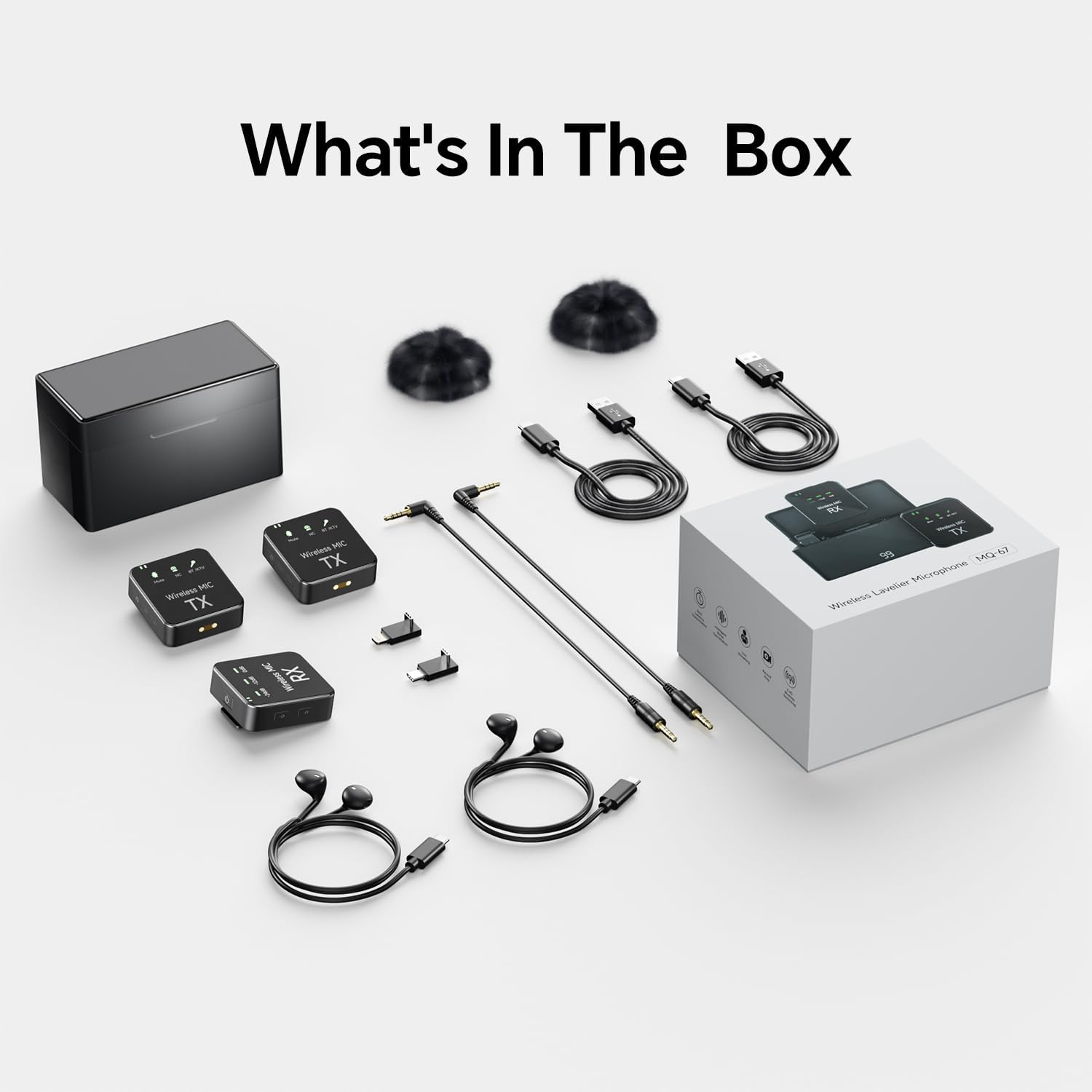
Image: An overhead view displaying all items included in the MUQI Wireless Lavalier Microphone package, including the charging case, transmitters, receiver, cables, adapters, wind muffs, and earbuds.
3. Key Features
- Extended Wireless Transmission: Achieves stable transmission up to 150 meters (492 feet) in open areas.
- Smart Noise Cancellation: Double-click to activate or deactivate the noise reduction function, effectively minimizing ambient noise for clearer audio.
- Integrated Recording Function: Transmitters can serve as standalone recorders, capturing pristine audio directly.
- Extended Battery Life: Provides 8-10 hours of continuous use per charge, with the charging case extending total usage time to 32 hours. A full charge typically takes 2 hours.
- Wide Compatibility: Connects seamlessly with iPhone, Android devices, cameras, PCs, and laptops using appropriate adapters (Lightning, USB Type-C, 3.5mm).

Image: A woman wearing the MUQI lavalier microphone, illustrating the product's capability for long-range wireless transmission up to 150 meters (492 feet) in open environments.

Image: A visual representation of the noise cancellation feature, showing a microphone transmitter with indicators for noise cancellation activation and a waveform comparison of audio before and after noise reduction.
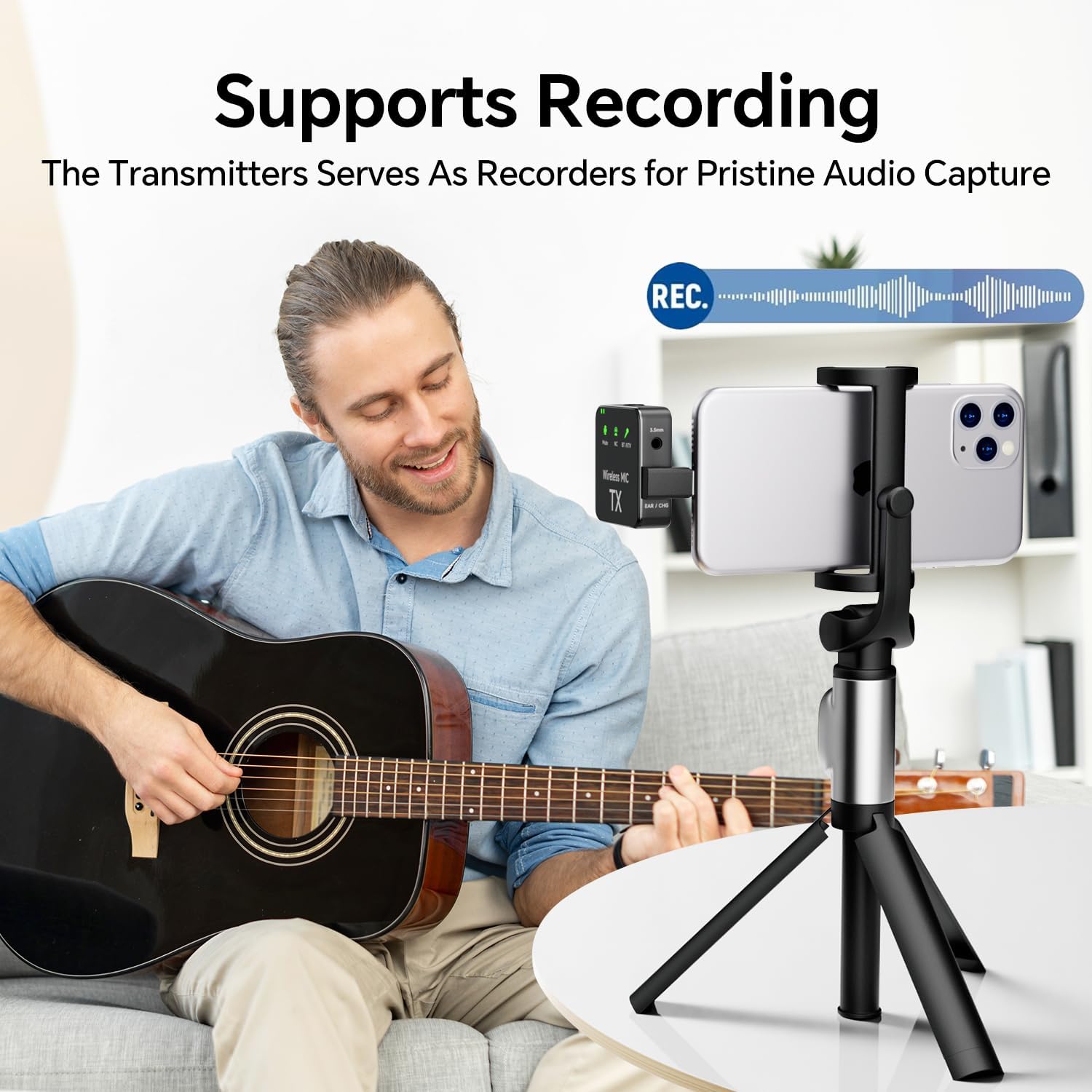
Image: A man playing an acoustic guitar, with the MUQI microphone transmitter clipped to his shirt, connected to a smartphone on a tripod, demonstrating its use for recording audio.

Image: Graphic illustrating the extended battery life of the system, showing icons for continuous usage (8-10 hours), charging time (2 hours), and total usage time with the charging case (32 hours).

Image: A visual guide demonstrating the wide compatibility of the MUQI microphone, showing connections to an iPhone (via Lightning adapter), an Android phone (via Type-C adapter), and a camera/computer (via 3.5mm cable).
4. Setup Guide
4.1 Charging the Devices
- Place the transmitters (TX) and receiver (RX) into the charging case.
- Connect the charging case to a power source using the provided USB cable.
- Indicator lights on the devices will show charging status. A full charge typically takes 2 hours.
4.2 Pairing the Devices
The transmitters and receiver are pre-paired from the factory. If re-pairing is needed:
- Turn on both the transmitter(s) and the receiver.
- They should automatically connect. Look for stable indicator lights on both units, typically a solid blue or green light, indicating a successful connection.
4.3 Connecting to Your Device
- For iPhone/iPad: Connect the receiver to your iPhone/iPad's Lightning port using the provided Type-C to Lightning adapter.
- For Android/Tablet: Connect the receiver to your Android device's USB Type-C port using the provided Type-C to Type-C adapter.
- For Camera/PC/Laptop: Connect the receiver to your camera's microphone input or PC/laptop's audio input using the provided 3.5mm cellphone cable. Ensure your device's audio input settings are configured to recognize the external microphone.
5. Operating Instructions
5.1 Power On/Off
- Power On: Press and hold the power button on the transmitter (TX) and receiver (RX) for a few seconds until the indicator light illuminates.
- Power Off: Press and hold the power button again until the indicator light turns off.
5.2 Noise Cancellation
- To activate Noise Cancellation (NC) mode, double-click the designated button on the transmitter. The NC indicator light will illuminate.
- To deactivate NC mode, double-click the button again. The NC indicator light will turn off.
5.3 Recording Function (Transmitter)
The transmitter can record audio internally. Refer to the transmitter's specific controls for initiating and stopping recordings, and for transferring recorded files to a computer.
5.4 Volume Control
Adjust the output volume on the receiver or directly on your connected recording device (camera, smartphone, PC) to achieve optimal audio levels.
5.5 Monitoring Audio
Connect the provided earbuds or your own headphones to the 3.5mm monitoring port on the receiver to listen to the audio in real-time during recording or streaming.
6. Maintenance
- Cleaning: Use a soft, dry cloth to clean the devices. Do not use liquid cleaners or solvents.
- Storage: Store the microphone system in its charging case in a cool, dry place when not in use.
- Battery Care: To prolong battery life, avoid fully discharging the batteries frequently. Charge the devices regularly, even if not in constant use.
- Environmental Conditions: Avoid exposing the devices to extreme temperatures, humidity, dust, or direct sunlight.
7. Troubleshooting
| Problem | Possible Cause | Solution |
|---|---|---|
| No sound output |
|
|
| Poor audio quality / Static |
|
|
| Devices not charging |
|
|
8. Specifications
| Feature | Detail |
|---|---|
| Model Name | Wireless Lavalier Microphone (MQ-67) |
| Brand | MUQI |
| Microphone Form Factor | Lavalier |
| Connectivity Technology | Bluetooth, USB (Wireless) |
| Connector Type | Lightning, USB Type-C, 3.5mm |
| Compatible Devices | iPhone, Android, Camera, PC, Laptop |
| Wireless Range | Up to 150m (492 ft.) in open areas |
| Battery Life (Continuous) | 8-10 Hours |
| Total Usage Time (with Charging Case) | Up to 32 Hours |
| Charging Time | Approx. 2 Hours |
| Special Features | Clip, Noise Reduction, Volume Control, Recording Function |
| Power Source | Battery Powered (Lithium Ion) |
| Material | Plastic |
| Color | Black |
| Item Weight | 14.4 ounces |
| Date First Available | June 4, 2024 |
9. Warranty and Support
Specific warranty details for the MUQI Wireless Lavalier Microphone are not provided in this manual. Please refer to the product packaging or the retailer's website for warranty information.
For technical support or customer service inquiries, please contact MUQI customer support through their official website or the platform where the product was purchased.
You can visit the MUQI Store on Amazon for more information.
Ask a question about this manual
Ask about setup, troubleshooting, compatibility, parts, safety, or missing instructions. Manuals+ will review the question and use this page’s manual context to help answer it.