
Introduction
This manual provides instructions for the installation and operation of your Bewinner PCIe to USB 3.2 Gen 2 Expansion Card. This card is designed to expand the USB connectivity of your desktop computer, offering high-speed data transfer capabilities through its multiple ports.
The card features 5 external USB 3.2 Gen 2 ports, including two USB Type-C ports and three USB Type-A ports, along with a 19-pin internal header. It supports a total bandwidth of up to 20 Gbit/s, with individual ports capable of 10 Gbit/s. This internal PCI Express solution ensures stable and efficient data transfer, making it ideal for connecting various peripherals such as keyboards, mice, external hard drives, and printers.

Image: Bewinner PCIe USB 3.2 Gen 2 Expansion Card shown in a desktop setup, illustrating its use with a monitor and various peripherals.
Specifications
| Brand | Bewinner |
| Model Number | Bewinnerg1wpg5dmro |
| Bus Type | PCI Express |
| Interface | 2 x USB Type-C, 3 x USB Type-A, 19-pin internal header |
| Bandwidth | Up to 20 Gbit/s total (10 Gbit/s per individual port) |
| System Compatibility | Windows 7, 8, 10, 11, OS X 10.8.2 and above (Drivers required for Windows XP, 7, Server) |
| Material | PCB |
| Color | Black |
| Weight | 83 Grams |
Package Contents
Verify that all items are present in the package:
- 1 x Bewinner PCIe to USB 3.2 Gen 2 Expansion Card
- (Additional accessories, if any, would be listed here)
Installation Instructions
Follow these steps to install the PCIe USB 3.2 Gen 2 Expansion Card into your computer:
- Power Off and Disconnect: Before beginning, ensure your computer is completely powered off and disconnected from the main power supply.
- Open Computer Case: Carefully open your computer's case to access the motherboard and PCIe slots.
- Locate an Available PCIe Slot: Identify an available PCI Express slot on your motherboard. The card is compatible with standard PCIe x4, x8, or x16 slots.
- Remove Slot Cover: Remove the metal slot cover from the back of your computer case corresponding to the chosen PCIe slot.
- Insert the Card: Align the gold contacts of the expansion card with the PCIe slot. Gently but firmly press the card straight down into the slot until it is securely seated. Ensure the retention clip (if present) locks the card in place.
- Secure the Card: Secure the card to the computer case with a screw, if your case design requires it.
- Connect Power (Optional): If your system requires additional power for the USB ports, connect a SATA power connector from your power supply to the SATA power port on the expansion card. Refer to your power supply and motherboard manuals for details.
- Close Computer Case: Carefully close your computer's case and reconnect all cables.
- Power On and Install Drivers: Power on your computer. For Windows XP, 7, and Server operating systems, you may need to install specific drivers. For Windows 8, 10, 11, and OS X 10.8.2 and above, drivers are typically installed automatically. If prompted, follow the on-screen instructions for driver installation.

Image: Top-down view of the expansion card, highlighting the various USB ports and the PCIe interface.
Operating Instructions
Once the Bewinner PCIe to USB 3.2 Gen 2 Expansion Card is successfully installed and recognized by your operating system, it functions as a standard USB hub, providing additional high-speed USB ports.
- Connecting Devices: Simply plug your USB devices (e.g., external hard drives, flash drives, keyboards, mice, printers) into the available USB Type-A or Type-C ports on the expansion card.
- High-Speed Data Transfer: The USB 3.2 Gen 2 ports support data transfer speeds of up to 10 Gbit/s per port, enabling rapid file transfers and efficient operation of high-bandwidth devices. The card's total bandwidth is 20 Gbit/s.
- Internal 19-pin Header: The 19-pin internal header can be used to connect front panel USB 3.0 ports or other internal USB 3.0 devices, providing additional connectivity options within your PC case.
- Data Transfer Only: Please note that this expansion card is designed exclusively for data transfer. It does not support Power Delivery (PD) fast charging, nor does it support video signal transfer protocols such as DisplayPort, HDMI, or VGA.
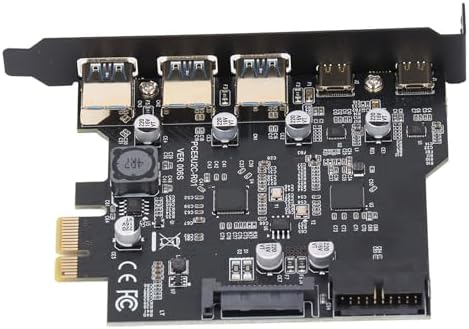
Image: Detailed view of the expansion card's ports and circuitry.
Maintenance
The Bewinner PCIe to USB 3.2 Gen 2 Expansion Card requires minimal maintenance. To ensure optimal performance and longevity:
- Keep Clean: Periodically clean the interior of your computer case to prevent dust buildup on the card, which can affect cooling and performance. Use compressed air to gently remove dust.
- Ensure Proper Airflow: Make sure your computer case has adequate airflow to prevent overheating of internal components, including the expansion card.
- Avoid Physical Damage: Handle the card carefully during installation and avoid bending or stressing the PCB or connectors.
- Software Updates: Keep your operating system and drivers updated to ensure compatibility and optimal performance.
Troubleshooting
If you encounter issues with your Bewinner PCIe to USB 3.2 Gen 2 Expansion Card, refer to the following troubleshooting steps:
- Card Not Detected:
- Ensure the card is fully seated in the PCIe slot.
- Try a different PCIe slot if available.
- Verify that the computer's power supply is sufficient and properly connected, especially if the card requires additional SATA power.
- Check your computer's BIOS/UEFI settings to ensure the PCIe slot is enabled.
- Devices Not Recognized or Working:
- Ensure the device is properly connected to the USB port on the expansion card.
- Test the device on a different USB port or a different computer to rule out device issues.
- For Windows XP, 7, or Server, ensure the correct drivers are installed. Check Device Manager for any yellow exclamation marks.
- Restart your computer.
- Slow Data Transfer Speeds:
- Ensure you are using USB 3.2 Gen 2 compatible cables and devices. Older USB 2.0 or 3.0 devices will operate at their respective maximum speeds.
- Verify that the drivers are correctly installed and up to date.
- Avoid connecting multiple high-bandwidth devices simultaneously to the same card if you experience slowdowns, as the total bandwidth is shared.
- No Power to USB Ports:
- Ensure the SATA power connector from your power supply is securely connected to the expansion card (if applicable).
- Check your power supply for sufficient wattage.
Warranty and Support
Manufacturer Warranty: This product comes with a 2-year manufacturer's warranty. Please retain your proof of purchase for warranty claims.
Technical Support: For technical assistance or further inquiries, please contact Bewinner customer support through the retailer where the product was purchased or refer to the official Bewinner website for contact information.
Disclaimer: The expansion card supports data transfer only. It does not support PD fast charging or video signal transfer (DisplayPort, HDMI, VGA, or USB C protocol for video).