
Keychron Keychron 4895248871286
Keychron Q1 HE Wireless Custom Mechanical Keyboard User Manual
Model: Keychron 4895248871286 | Brand: Keychron
Introduction
The Keychron Q1 HE is a 75% layout (82-key) wireless QMK custom keyboard featuring Hall Effect Gateron 2.0 magnetic switches. It offers versatile connectivity options including 2.4 GHz wireless, Bluetooth, and wired USB-C, boasting a rapid 1000 Hz polling rate for optimal performance. This manual provides essential information for setting up, operating, and maintaining your keyboard, ensuring a seamless and customized experience.

Figure 1: Overview of the Keychron Q1 HE keyboard, highlighting its compact 75% layout and sleek design.
What's in the Box
- USB Cable x1 / Type-A to Type-C Adapter x1
- Extension Adapter for Receiver x1
- Type-A 2.4 GHz Receiver x1
- Keycap & Switch Puller x1
- Screwdriver & Hex Key x1

Figure 2: Detailed view of all items included in the Keychron Q1 HE package, including the keyboard, cables, adapters, and tools.
Setup
Initial Charging and Connection
Before first use, connect the keyboard to a USB-C port on your computer using the provided USB-C to USB-C cable or the Type-A to Type-C adapter for charging. The keyboard can be used in wired mode while charging.
Connecting via 2.4 GHz Wireless
- Locate the 2.4 GHz receiver (USB Type-A dongle) in the package.
- Plug the 2.4 GHz receiver into an available USB-A port on your computer. For optimal signal, use the provided extension adapter.
- On the back of the keyboard, slide the connectivity switch to the 'G' (2.4 GHz) position.
- The keyboard will automatically connect to the receiver.
Connecting via Bluetooth
- On the back of the keyboard, slide the connectivity switch to the 'BT' (Bluetooth) position.
- Press and hold 'Fn' + '1' (or '2' or '3') for 4 seconds to enter pairing mode. The key will flash rapidly.
- On your device (computer, phone, tablet), search for Bluetooth devices and select 'Keychron Q1 HE'.
- Once connected, the key will stop flashing. You can pair up to three Bluetooth devices and switch between them using 'Fn' + '1', 'Fn' + '2', or 'Fn' + '3'.
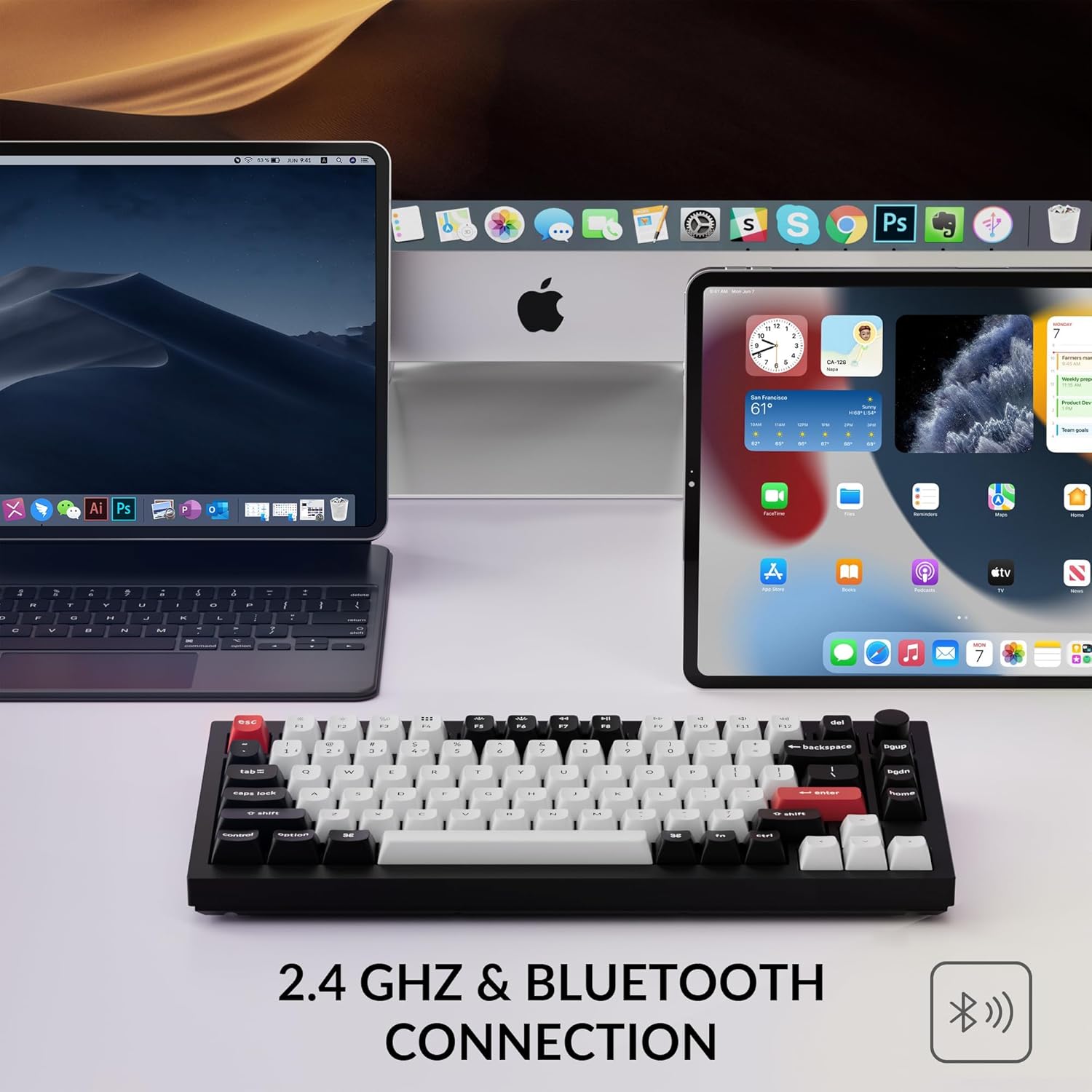
Figure 3: The Keychron Q1 HE keyboard connected wirelessly to a laptop, tablet, and smartphone, demonstrating its 2.4 GHz and Bluetooth capabilities.
Switching between Windows and Mac Layouts
The keyboard features a dedicated switch on the back to toggle between Windows and Mac operating system layouts. Ensure the switch is set to the correct operating system for optimal key mapping. Additional keycaps for Windows layout are included in the box for replacement.
Operating Your Keyboard
Hall Effect Gateron Magnetic Switches
The Q1 HE is equipped with Hall Effect Gateron 2.0 magnetic switches, offering a sensitivity of 0.1 mm. These switches allow for customizable actuation points ranging from 0.5 mm to 3.8 mm. This feature enables advanced functionalities like Rapid Trigger, where key presses register and reset based on travel depth, providing a competitive edge in gaming.

Figure 4: A visual comparison showing the adjustable actuation point of the Q1 HE's magnetic switches, allowing for precise customization of key sensitivity.
Customization with Keychron Launcher Web App
Utilize the Keychron Launcher web app to personalize your keyboard settings. This web-based tool allows you to:
- Remap keys to different functions.
- Adjust actuation points for individual keys.
- Set up Rapid Trigger for gaming.
- Create personalized macro commands, shortcuts, and key combinations.
- Assign up to four actions to a single key based on press depth (e.g., light press to walk, deep press to run in games).

Figure 5: The Keychron Launcher web app provides a comprehensive interface for customizing key functions, actuation points, and advanced gaming features.
Programmable Knob
The integrated programmable knob offers intuitive control over various functions, such as volume adjustment, media playback, or custom macros, all configurable through the Keychron Launcher web app.

Figure 6: The multi-functional programmable knob allows for quick adjustments and custom controls, enhancing user convenience.
RGB Backlighting
The keyboard features vibrant RGB backlighting with south-facing LEDs, providing excellent illumination from a typist's perspective. You can customize light effects, brightness, and speed using the Keychron Launcher web app.

Figure 7: The south-facing RGB backlighting illuminates the keycaps, providing a visually appealing and functional typing experience.
Typing Experience and Build Quality
The Q1 HE features unique OSA profile double-shot PBT keycaps, known for their oil resistance and enhanced typing feel. The keyboard's full aluminum body and double-gasket design contribute to its premium feel, durability, and satisfying typing sound.
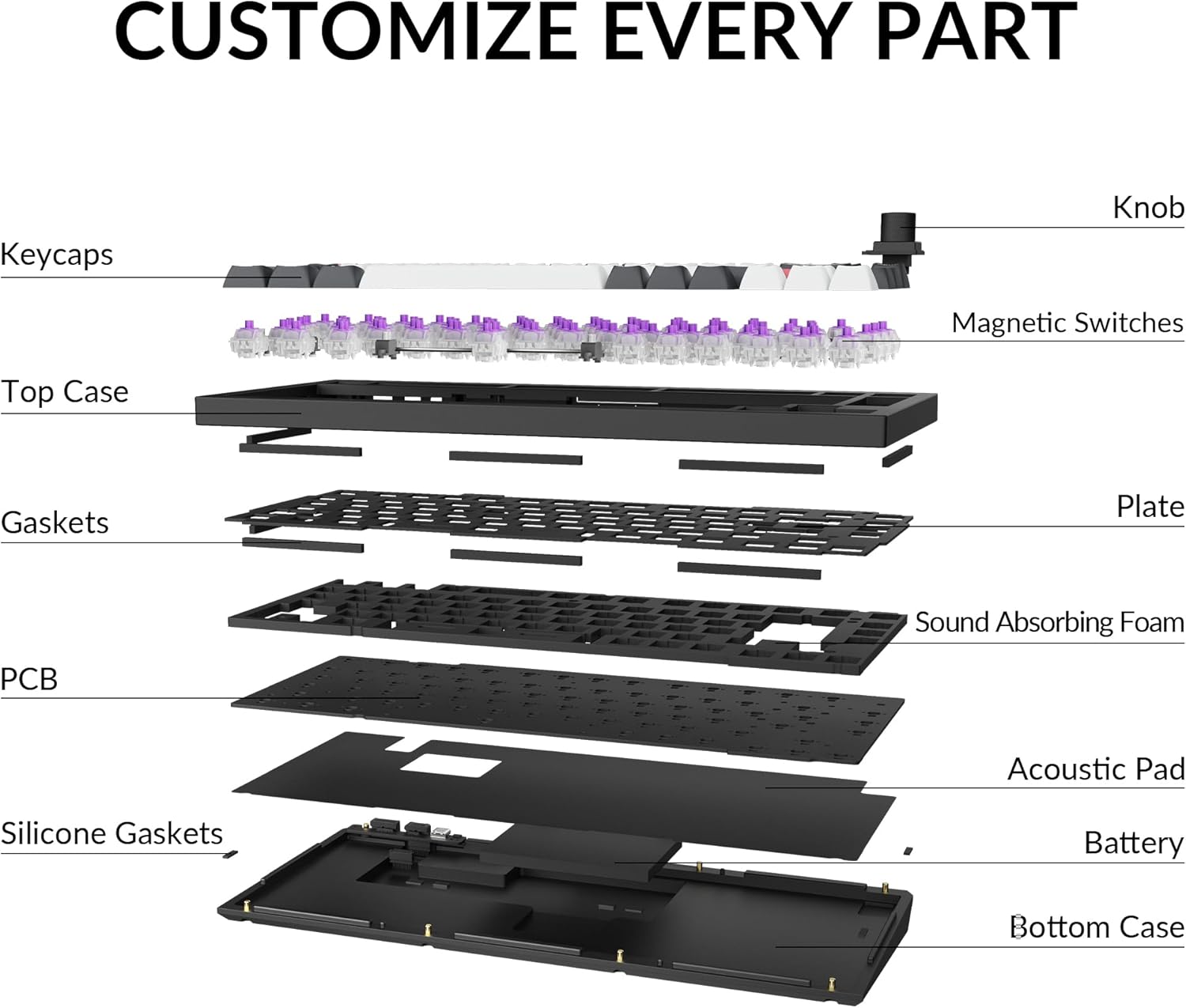
Figure 8: An exploded view illustrating the internal components and double-gasket structure that contribute to the keyboard's robust build and acoustic properties.
Maintenance
Cleaning
Regularly clean your keyboard to ensure optimal performance and longevity. Use a soft, dry cloth to wipe down the keycaps and case. For deeper cleaning, you can use the provided keycap puller to remove keycaps and clean underneath with compressed air or a small brush. Avoid using harsh chemicals or abrasive materials.
Switch and Keycap Replacement
The Q1 HE is hot-swappable, allowing you to easily replace magnetic switches without soldering. Use the provided switch puller to carefully remove switches. Ensure any replacement switches are compatible Gateron Double-Rail Magnetic Switches. Keycaps can also be replaced using the keycap puller.
Troubleshooting
- Keyboard not connecting: Ensure the connectivity switch on the back is set to the correct mode (2.4 GHz, BT, or Cable). For Bluetooth, ensure the keyboard is in pairing mode (Fn + 1/2/3 for 4 seconds) and your device's Bluetooth is enabled. For 2.4 GHz, try plugging the receiver into a different USB port or using the extension adapter.
- Keys not responding: Check if the keyboard battery is charged. If in wired mode, ensure the USB-C cable is securely connected. If specific keys are not responding, they might need to be re-seated or replaced.
- Backlighting issues: Use the Keychron Launcher web app to adjust brightness and effects. Ensure the keyboard is not in a low-power mode that might disable backlighting.
- Software issues: If the Keychron Launcher web app is not functioning correctly, try using a different web browser or clearing your browser's cache. Ensure your keyboard's firmware is up to date.
Specifications
| Brand | Keychron |
| Model Number | Keychron 4895248871286 |
| Product Dimensions | 12.89 x 5.71 x 1.41 inches |
| Item Weight | 5.5 pounds |
| Material | Aluminum |
| Number of Keys | 82 |
| Connectivity Technology | 2.4 GHz Wireless, Bluetooth, USB-C |
| Compatible Devices | Laptop, PC, Tablet, Smartphone |
| Special Features | 2.4 GHz & Bluetooth, Magnetic Switch, QMK, Programmable Keys, Hot-Swappable, Full Metal |
| Keyboard Backlighting | RGB |
| Batteries | 1 Lithium Ion batteries required (included) |
Warranty and Support
For warranty information and technical support, please refer to the official Keychron website or contact Keychron customer service directly. Keep your proof of purchase for warranty claims.
Related documentsKeychron 4895248871286


Ask a question about this manual
Ask about setup, troubleshooting, compatibility, parts, safety, or missing instructions. Manuals+ will review the question and use this page’s manual context to help answer it.