Introduction
This manual provides essential instructions for setting up, operating, and maintaining your Microsoft Surface Pro 10. The Surface Pro 10 is a versatile 13-inch 2-in-1 tablet and laptop designed for peak performance and adaptability, featuring an Intel Core Ultra 7 processor, 32GB RAM, and a 1TB SSD. It integrates AI capabilities to enhance productivity and user experience.

Image: The Microsoft Surface Pro 10 displayed in tablet mode, supported by its integrated kickstand, showcasing its sleek design and vibrant display.
Setup
1. Unboxing and Initial Inspection
Carefully remove all components from the packaging. Verify that the following items are included:
- Microsoft Surface Pro 10 device
- Power Supply
- Microsoft Surface Pro Keyboard (if bundled)
- Microsoft Surface Pro Slim Pen (if bundled)
- Quick Start Guide
2. Charging the Device
Connect the power supply to the Surface Connect port on your device and then to a power outlet. Allow the device to charge fully before first use for optimal battery calibration.
3. Initial Power On and Windows Setup
Press the power button located on the top edge of the device. Follow the on-screen instructions to complete the Windows 11 Pro setup, including language selection, network connection, and user account creation.
4. Attaching the Keyboard and Pen
Align the magnetic connector of the Microsoft Surface Pro Keyboard with the bottom edge of the Surface Pro 10 until it snaps into place. The Microsoft Surface Pro Slim Pen can be magnetically attached to the side of the device for storage and charging.
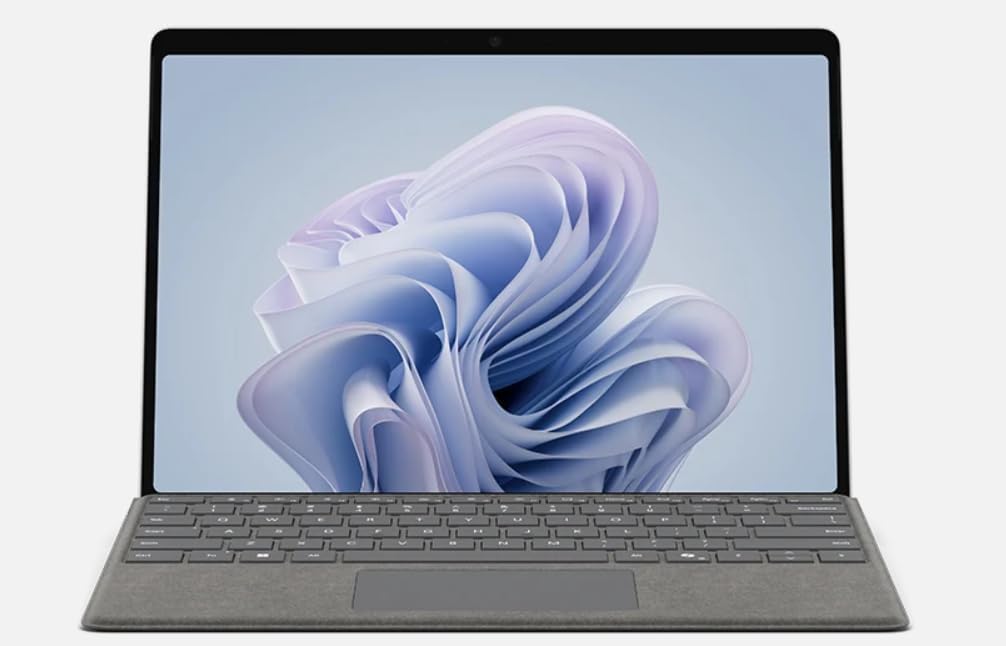
Image: The Microsoft Surface Pro 10 with its detachable keyboard attached, illustrating its laptop configuration.
Operating Instructions
1. Navigating Windows 11 Pro
Utilize the 10-point multi-touch screen for intuitive gestures, the attached keyboard and touchpad for traditional input, or the Surface Slim Pen for precise writing and drawing. Windows 11 Pro offers a streamlined interface for productivity and creativity.
2. Switching Between Modes
The Surface Pro 10 seamlessly transitions between a tablet and a laptop. Simply attach or detach the keyboard to switch modes. The integrated kickstand allows for various viewing angles in both configurations, adapting to your work style.

Image: The rear view of the Microsoft Surface Pro 10, demonstrating its integrated kickstand extended for stable positioning.
3. Connecting to Networks and Peripherals
Connect to Wi-Fi networks via the Settings menu. The device features USB-C ports for connecting external displays, storage, and other peripherals. The Surface Connect port is primarily for power but can also support docking solutions.

Image: A side profile of the Microsoft Surface Pro 10, highlighting its slim design and available ports for connectivity.
4. Utilizing AI Features
The Intel Core Ultra 7 processor enables enhanced AI experiences, including accelerated Microsoft Copilot features. Access Copilot through the dedicated button on the taskbar or by voice command to assist with tasks, generate content, and streamline workflows.
Maintenance
1. Cleaning Your Device
Use a soft, lint-free cloth dampened with water or an approved screen cleaner to gently wipe the screen and chassis. Avoid harsh chemicals or abrasive materials. Ensure the device is powered off and unplugged before cleaning.
2. Software Updates
Regularly check for and install Windows updates to ensure optimal performance, security, and access to the latest features. Navigate to Settings > Windows Update to manage updates.
3. Battery Care
To prolong battery life, avoid extreme temperatures and allow the battery to discharge partially before recharging. For long-term storage, charge the device to approximately 50% and store it in a cool, dry place.
4. Storage Management
Periodically review and manage your 1TB SSD storage. Delete unnecessary files, uninstall unused applications, and consider cloud storage solutions to free up local space and maintain performance.
Troubleshooting
Common Issues and Solutions
- Device Not Turning On: Ensure the device is charged. Press and hold the power button for 10-15 seconds to perform a force restart.
- Wi-Fi Connectivity Issues: Check if Wi-Fi is enabled in Settings. Restart your router and the Surface Pro 10. Forget and reconnect to the network.
- Slow Performance: Close unnecessary applications. Check for and install Windows updates. Run a disk cleanup.
- Touchscreen Unresponsive: Restart the device. Ensure the screen is clean and free of debris.
- Accessory Not Detected: Ensure the accessory (keyboard, pen) is properly attached or paired. Check battery levels for wireless accessories.
For more detailed troubleshooting or persistent issues, refer to the official Microsoft Surface support website.
Specifications
| Model Name | ZEA-00001 |
| Screen Size | 13 Inches |
| Screen Resolution | 2880 x 1920 pixels (267 ppi) |
| Refresh Rate | 120 Hz (60 Hz Default) |
| Processor | 1.4 GHz Intel Core Ultra 7 165U (16-Core) |
| RAM | 32GB DDR5 RAM |
| Storage | 1 TB SSD |
| Operating System | Windows 11 Pro |
| Graphics Card | Integrated Intel Graphics |
| Wireless Type | 802.11ac |
| Rear Webcam Resolution | 13 MP |
| Product Dimensions | 11.3 x 8.2 x 0.4 inches |
| Color | Platinum |
| Batteries | 1 Lithium Ion battery (included) |
Warranty and Support
Manufacturer's Warranty
Your Microsoft Surface Pro 10 is covered by a limited manufacturer's warranty. Details regarding the warranty period and coverage can be found on the official Microsoft Surface support website or within the warranty documentation included with your device.
Customer Support
For technical assistance, warranty claims, or additional support, please visit the official Microsoft Surface support website:
Please have your device's serial number ready when contacting support.


