
1. Product Overview
This ALLIMITY Voice Remote Control is designed for seamless compatibility with Strong HDR 4K Smart Box models, including LEAP-S3, SRT41, LEAP-S3 Ultimate, LEAPS3, and SRT 41. It offers intuitive control over your media box with the added convenience of voice search functionality.
The remote is engineered for ease of use, requiring no complex programming or installation. Its ergonomic design ensures comfortable handling and stable remote control performance over a long transmission distance.
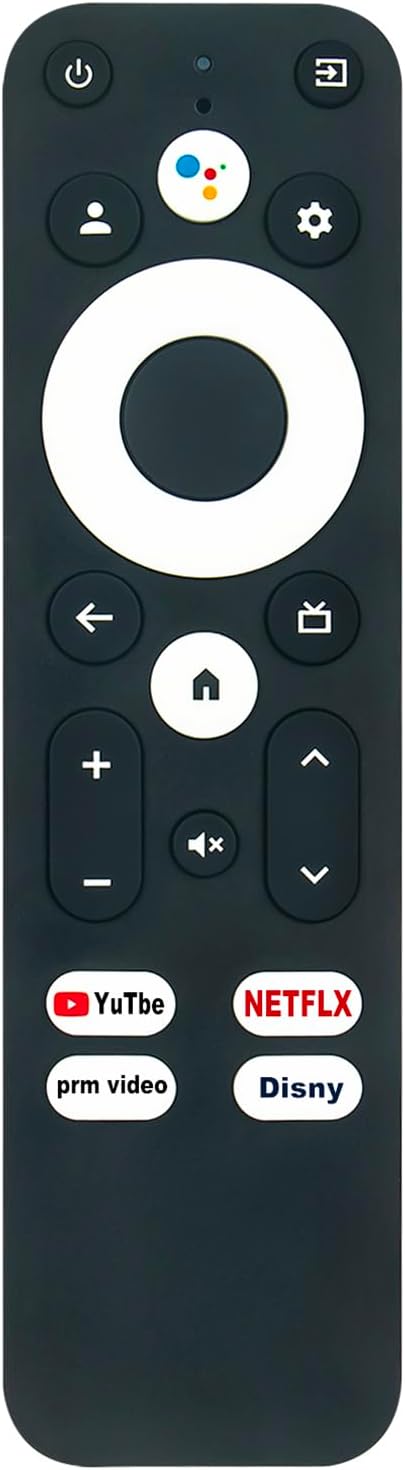
Image 1: Front view of the ALLIMITY Voice Remote Control, showcasing its buttons and sleek black design.
2. Setup
2.1 Battery Installation
The ALLIMITY Voice Remote Control operates on standard alkaline batteries (or equivalent). To install or replace batteries:
- Locate the battery compartment cover on the back of the remote control.
- Slide the cover downwards or press the latch (if present) to open the compartment.
- Insert two AAA batteries (not included), ensuring the positive (+) and negative (-) terminals align correctly with the markings inside the compartment.
- Close the battery compartment cover by sliding it back into place until it clicks securely.

Image 2: Rear view of the remote control, illustrating the location of the battery compartment.
2.2 Initial Connection
This remote control is designed to be ready for use with compatible Strong HDR 4K Smart Box models (LEAP-S3, SRT41, LEAP-S3 Ultimate, LEAPS3, SRT 41) without requiring complex programming. Simply insert the batteries, and the remote should function immediately with your device via infrared connection.
3. Operating Instructions
The remote control features a comprehensive set of buttons for navigating your Strong Smart Box. Below is a guide to the main functions:

Image 3: Front view of the remote, emphasizing the voice control button.
- Power Button (⏻): Turns your Strong Smart Box on or off.
- Voice Search Button (🎤): Activates the voice search function. Press and hold this button, then speak your command or search query into the remote's microphone.
- Navigation Pad (Circular): Use the directional arrows (Up, Down, Left, Right) to navigate menus and select items. The central button acts as the "OK" or "Enter" button.
- Back Button (←): Returns to the previous screen or menu.
- Home Button (⌂): Takes you directly to the main home screen of your Smart Box.
- Volume Up/Down (+/-): Adjusts the volume level.
- Mute Button (🔇): Mutes or un-mutes the audio.
- Quick Access Buttons (YouTube, Netflix, Prime Video, Disney): Dedicated buttons for direct access to these popular streaming applications.
The remote operates using infrared technology, providing a stable control range of up to 10 meters (approximately 33 feet).
4. Maintenance
4.1 Cleaning the Remote
To maintain the remote control's appearance and functionality:
- Wipe the surface with a soft, dry cloth.
- For stubborn dirt, slightly dampen the cloth with water or a mild, non-abrasive cleaner. Do not spray cleaner directly onto the remote.
- Avoid using harsh chemicals, solvents, or abrasive cleaning pads, as these can damage the remote's finish or internal components.
4.2 Battery Care
- Replace batteries when the remote's response becomes sluggish or inconsistent.
- If the remote will not be used for an extended period, remove the batteries to prevent leakage and potential damage.
- Dispose of used batteries responsibly according to local regulations.
5. Troubleshooting
| Problem | Possible Cause | Solution |
|---|---|---|
| Remote not responding. | Dead or incorrectly installed batteries. Obstruction between remote and device. Remote out of range. | Replace batteries, ensuring correct polarity. Remove any obstructions. Move closer to the Strong Smart Box (within 10 meters). |
| Voice control not working. | Microphone blocked. Not holding the voice button. Device settings. | Ensure nothing is covering the microphone. Press and hold the voice button while speaking. Check your Strong Smart Box's settings for voice control activation. |
| Buttons are sticky or unresponsive. | Dirt or debris under buttons. | Clean the remote surface and around the buttons with a soft, slightly damp cloth. |
6. Specifications
| Feature | Detail |
|---|---|
| Brand | ALLIMITY |
| Model Number | MME-LEAP-S3-NP |
| Color | Black |
| Connectivity Technology | Infrared |
| Special Feature | Voice Search |
| Compatible Devices | LEAP-S3, SRT41, LEAP-S3 Ultimate, LEAPS3, SRT 41 |
| Controller Type | Voice Control |
| Maximum Range | 10 Meters |
| Battery Type | Alkaline battery or equivalent (AAA recommended) |
| Max. Number of Supported Devices | 18 (This refers to the remote's capability, not necessarily how many it controls simultaneously) |

Image 4: Dimensions of the remote control, showing a width of 4 cm (1.57 inches) and a length of 14 cm (5.51 inches).
7. Warranty and Support
For information regarding product warranty, please refer to the documentation provided with your purchase or visit the official ALLIMITY website. Warranty terms and conditions may vary.
If you encounter any issues not covered in this manual or require further assistance, please contact ALLIMITY customer support through their official channels or the retailer from whom you purchased the product.