
1. Introduction
This manual provides detailed instructions for the setup, operation, and maintenance of your ZUMIMALL P1 2K Wireless Doorbell Camera with Chime. Please read this guide thoroughly before use to ensure proper functionality and safety.
2. What's in the Box
Verify that all components are present in your package:
- Doorbell Camera x1
- Chime x1
- Charging Cable x1
- Screws Set & Screwdriver x1
- 3M Tape x2
- Quick User Guide x1

Image: Contents of the ZUMIMALL P1 package, including the doorbell camera, chime, charging cable, screwdrivers, screws, 3M tape, and quick start guide.
3. Product Overview
Familiarize yourself with the main parts of your ZUMIMALL P1 Doorbell Camera and Chime:

Image: A detailed diagram illustrating the components of the ZUMIMALL P1 Doorbell Camera (FHD Optical Lens, Speaker, Reset Key, Charge Port, Memory Card Slot, Charging Indicator, Microphone, PIR Motion Sensor, LED Indicator, Doorbell Button) and the Chime.
- Doorbell Camera: Features a 2K FHD optical lens, microphone, speaker, PIR motion sensor, LED indicator, doorbell button, reset key, charge port, and memory card slot.
- Chime: The indoor unit that sounds when the doorbell is pressed.
4. Setup
4.1. Initial Charging
Before first use, fully charge the doorbell camera using the provided USB cable. The charging indicator will show the charging status.
4.2. App Download and Device Setup
To set up your ZUMIMALL P1 Doorbell Camera, follow these steps:
- Download the ZUMIMALL App from your smartphone's app store.
- Register for an account and log in.
- Hold the doorbell button for 5 seconds until you hear a ringtone, indicating the doorbell is on.
- Before starting the connection, ensure the camera is reset. Wait for the indicator light to turn red and flash slowly.
- In the ZUMIMALL App, tap 'Add Device'.
- Follow the on-screen network setting tips and click 'Next'.
- Connect to a 2.4 GHz Wi-Fi network and enter the correct Wi-Fi password.
- Scan the QR code displayed in the App with the doorbell camera. A 'beep' sound indicates successful scanning.
- Wait for the doorbell to connect. The doorbell light will turn blue upon successful connection.
- Tap 'Next' to continue with installation suggestions and begin using the doorbell.
Video: This official ZUMIMALL video demonstrates the step-by-step process of connecting the doorbell camera to the ZUMIMALL app.

Image: Visual guide showing the four steps to connect and install the ZUMIMALL doorbell camera: Register, Scan QR Code, Connect Network, and Connection Succeeded.
5. Installation
The ZUMIMALL P1 Doorbell Camera offers flexible installation options:
5.1. Mounting Options
- Screw-In Installation: For a secure and permanent mount, use the provided screws and anchors.
- Adhesive Tape Installation: For a quick and easy setup on smooth surfaces, use the included 3M adhesive tape.

Image: Illustrates the two installation methods: Screw In for a permanent fixture and Adhesive Tape for temporary or less invasive mounting.
6. Operating Instructions and Features
6.1. 2K Video and Night Vision
The doorbell camera provides clear 2K resolution video, ensuring detailed monitoring both day and night. Superior night vision capabilities deliver sharp images even in low-light conditions.

Image: Shows a split view comparing the clear 2K day vision and detailed night vision of the ZUMIMALL P1 doorbell camera.
6.2. Two-Way Audio and Voice Changer
Communicate with visitors in real-time using the two-way talk feature. You can also select from pre-recorded voice messages (up to 3) via the ZUMIMALL app for quick replies or use the voice changer function for added privacy.

Image: Demonstrates the 2-way audio feature, showing a person interacting with a delivery driver through the doorbell, and highlights the optional voice changer with 'Original', 'Clown', and 'Uncle' voice options.
6.3. AI Detection and Instant Notifications
The doorbell camera features advanced AI detection to identify human movements, reducing false alarms. Receive instant alerts on your smartphone when activity is detected.

Image: Illustrates the PIR Motion Detection and Instant Notification features, showing detection ranges for humans, cars, and pets, along with options for human detection, push notifications, and sensitivity adjustment.
6.4. Flexible Storage Options
Choose between local storage using a Micro SD card (up to 128GB, sold separately) or a 6-second cloud storage option. No monthly subscription fee is required for basic functionalities.
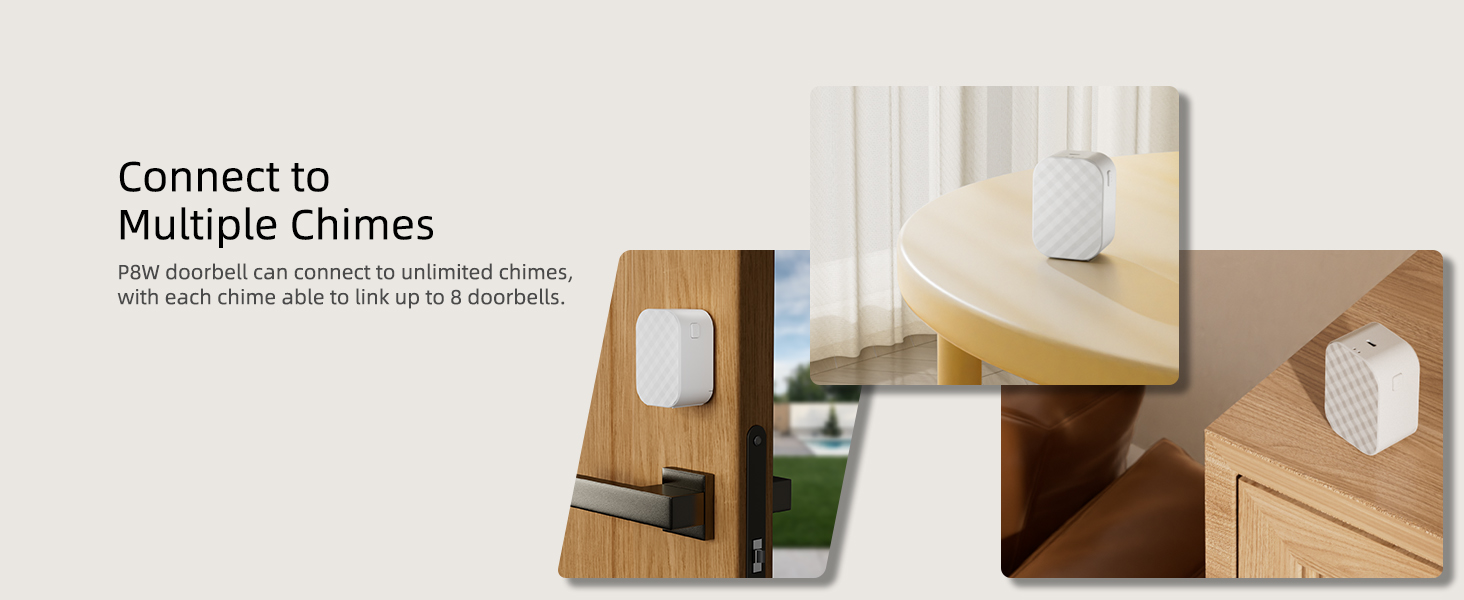
Image: Depicts the two storage methods available for the ZUMIMALL P1 doorbell camera: ZUMIMALL Cloud (with 7-day loop recording) and local storage via a 128GB Micro SD card (not included).
6.5. Anti-Theft Alarm
The doorbell camera includes advanced anti-theft measures to deter potential theft. An alert message is sent if tampering is detected.

Image: Shows the anti-theft alert feature, with a visual representation of the doorbell being removed from its mounting plate and an 'Alert Message' notification appearing on a smartphone.
6.6. Weatherproof Design
With an IP66 rating, the ZUMIMALL P1 is designed to withstand various weather conditions, ensuring reliable operation year-round.

Image: Illustrates the IP66 waterproof feature of the ZUMIMALL P1 doorbell camera, showing it exposed to rain and indicating its resilience to snow, rain, and sun.
6.7. Smart Home Integration
The ZUMIMALL P1 is compatible with Amazon Alexa, allowing for voice control and integration into your smart home ecosystem.

Image: Shows the ZUMIMALL P1 doorbell camera's compatibility with Amazon Alexa, featuring an Echo Show displaying the doorbell's live feed.
6.8. Multi-User Sharing
Share access to your doorbell camera with family members or trusted individuals. The system supports unlimited sharing and up to 4 users watching live video simultaneously.
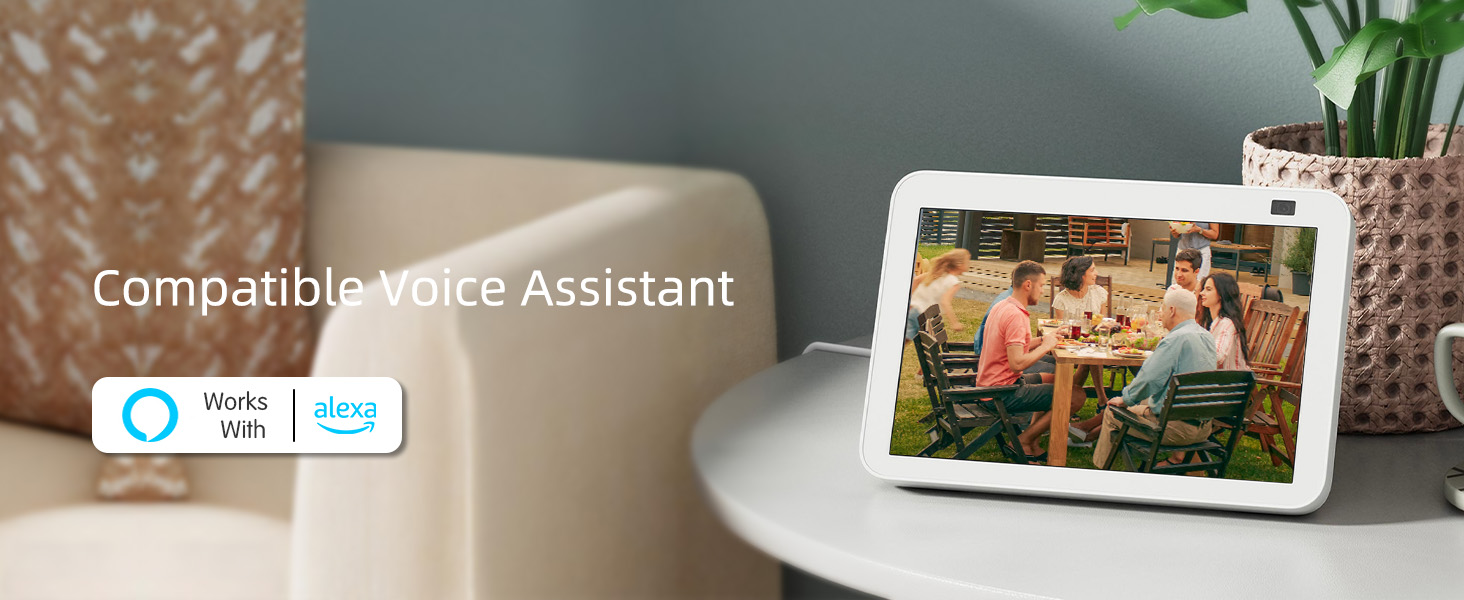
Image: Illustrates the multi-people sharing feature, showing a house on a globe with multiple users connected via their smartphones, indicating global access and sharing capabilities.
6.9. Connect to Multiple Chimes
The P1 doorbell can connect to an unlimited number of chimes, and each chime can link up to 8 doorbells, providing extensive coverage for larger homes or properties.
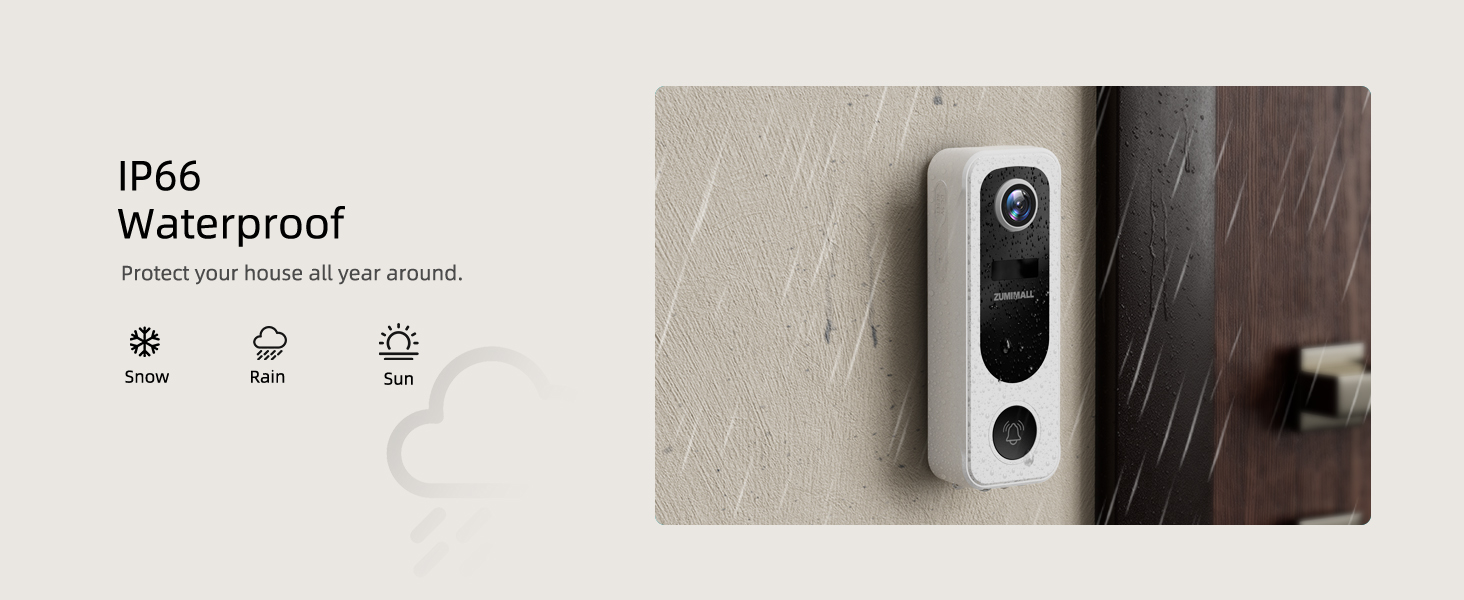
Image: Shows the ZUMIMALL P1 doorbell camera connected to multiple chimes placed in different rooms, demonstrating the ability to extend the chime's reach throughout a home.
7. Maintenance
- Battery Life: The rechargeable battery offers extended usage. Monitor battery levels via the app and recharge as needed.
- Cleaning: Regularly wipe the camera lens and body with a soft, damp cloth to ensure clear video quality and prevent dust buildup.
- Firmware Updates: Check the ZUMIMALL app periodically for firmware updates to ensure optimal performance and access to new features.
8. Troubleshooting
If you encounter issues, refer to the following common solutions:
- Connection Issues: Ensure your Wi-Fi network is 2.4GHz and the password is correct. Try resetting the doorbell and re-pairing it with the app.
- Poor Video Quality: Check your Wi-Fi signal strength. Ensure the camera lens is clean and free from obstructions.
- False Motion Alerts: Adjust the AI detection sensitivity and customize detection zones within the app to minimize unwanted notifications.
- Chime Not Ringing: Ensure the chime is powered on and properly paired with the doorbell. Check the chime's battery if applicable.
9. Specifications
| Feature | Specification |
|---|---|
| Model Name | P1 |
| Video Capture Resolution | 2K (3MP Effective Still Resolution) |
| Connectivity Technology | 2.4GHz Wi-Fi, Wireless |
| Power Source | Battery Powered |
| Indoor/Outdoor Usage | Indoor, Outdoor |
| Special Features | 2-Way Audio, Local Recording, Motion Sensor, Night Vision, Weather Proof |
| Water Resistance Level | IP66 Waterproof |
| Viewing Angle | 120 Degrees |
| Flash Memory Supported Size Maximum | 128 GB (memory card) |
| Compatible Devices | Smartphone, ZUMIMALL APP, Amazon Alexa |
| Item Dimensions L x W x H | 2.04 x 1.18 x 5.62 inches |
| Item Weight | 1.1 pounds |
10. Warranty and Support
For warranty information, technical support, or any inquiries regarding your ZUMIMALL P1 Doorbell Camera, please refer to the official ZUMIMALL website or contact their customer service directly. Details can typically be found in the Quick User Guide included with your product or on the ZUMIMALL brand store page.
