
Introduction
This manual provides detailed instructions for setting up, operating, and maintaining your JOYACCESS Wireless Ergonomic Keyboard and Mouse Combo. Please read this manual thoroughly before using the product to ensure proper function and longevity.
Package Contents
- Wireless Ergonomic Keyboard with Wrist Rest
- Wireless Mouse
- 2.4GHz USB Nano Receiver
- User Manual
Setup
1. Battery Installation
The keyboard requires 2 AAA batteries, and the mouse requires 1 AA battery (batteries are not included). Ensure correct polarity when inserting batteries.
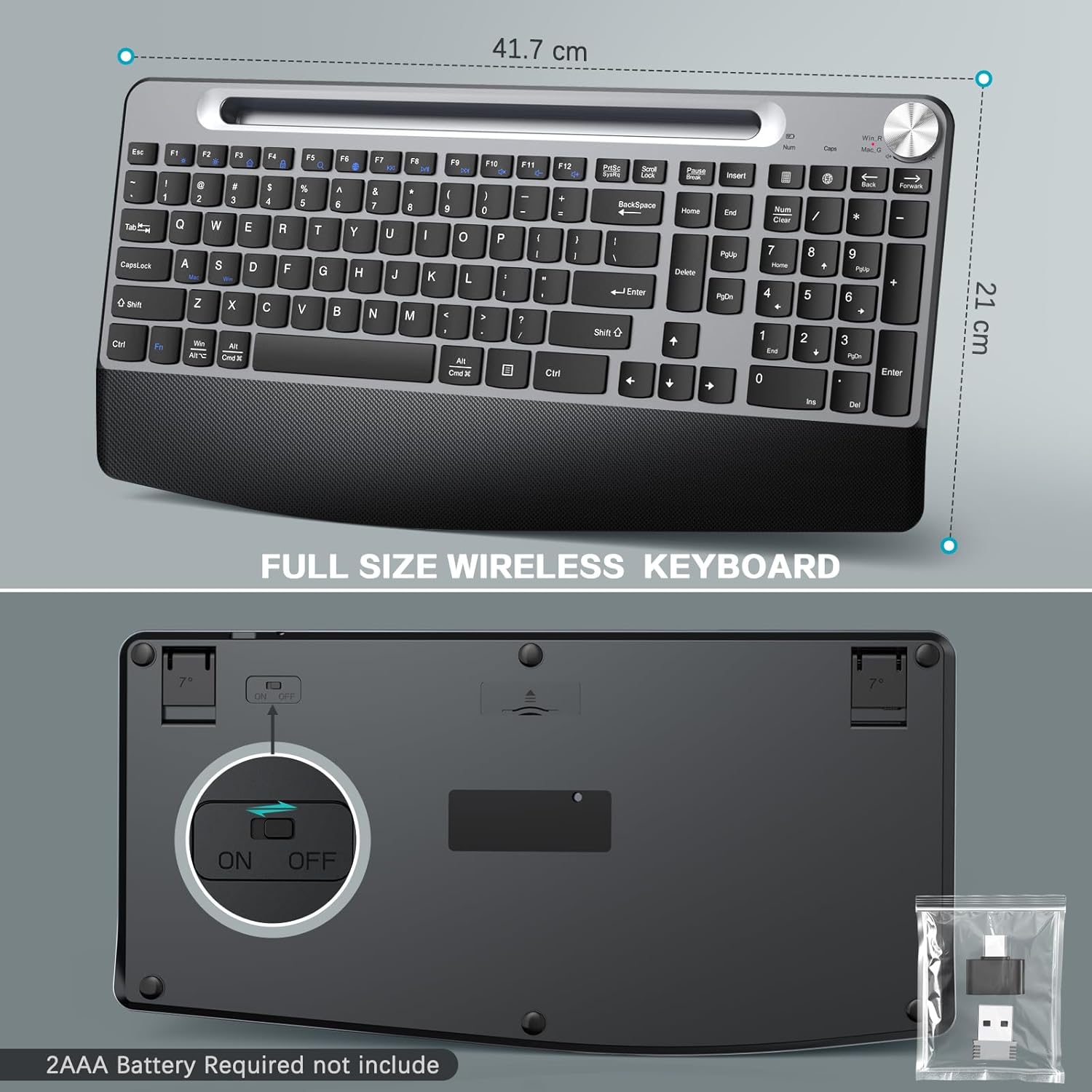
Image: Rear view of the keyboard, highlighting the battery compartment and power switch. The USB receiver is often stored in the mouse's battery compartment.
2. Connecting the USB Receiver
Locate the 2.4GHz USB Nano Receiver, typically stored within the mouse's battery compartment. Plug the receiver into an available USB port on your computer (PC, Mac, or laptop).

Image: The USB receiver being connected to a laptop, demonstrating the plug-and-play setup for the wireless keyboard and mouse.
3. Powering On
Turn on both the keyboard and the mouse using their respective ON/OFF switches. The devices should automatically connect to your computer.
4. Pairing (If Necessary)
If the keyboard does not respond after connecting the receiver, follow these steps to re-pair:
- Turn off the keyboard power and unplug the USB receiver from your computer.
- Turn on the keyboard power. Press and hold the ESC and =+ keys simultaneously. The power LED will flash, indicating the keyboard is searching for the USB receiver.
- Quickly plug the USB receiver back into a USB port on your computer. Ensure the distance between the keyboard and the USB receiver does not exceed 20 cm during this process.
Operating Instructions
1. Ergonomic Design and Wrist Rest
The keyboard features an ergonomic design with a built-in wrist rest and adjustable tilt legs to promote a natural and relaxed posture for your wrists and forearms during extended use.

Image: The ergonomic design of the keyboard with a 7-degree tilt, illustrating how it supports a comfortable typing posture.
2. Integrated Phone/Tablet Holder
A dedicated slot on the keyboard allows you to securely hold your smartphone or tablet, providing convenient access to notifications or media while working.
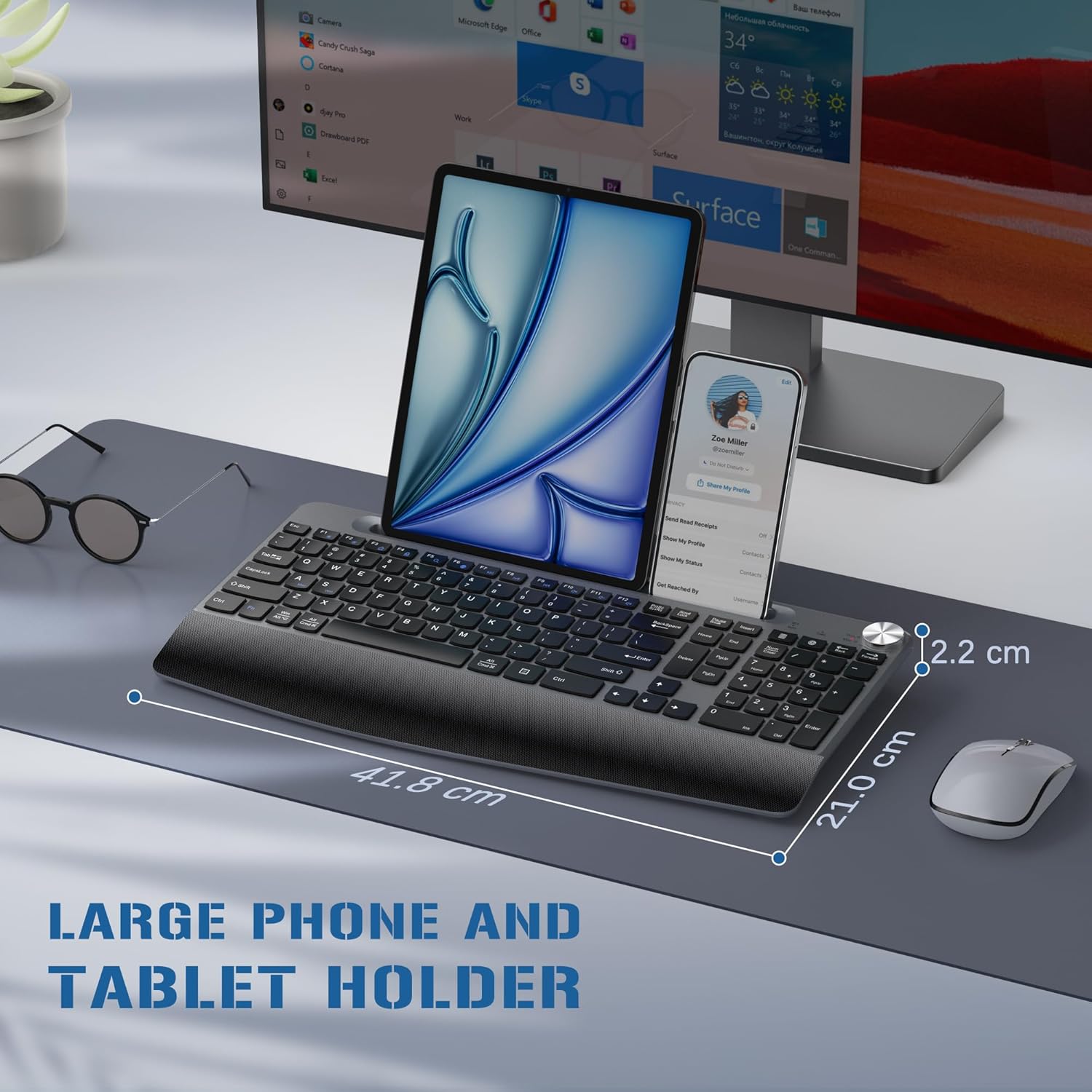
Image: A tablet and smartphone are shown resting in the integrated holder slot of the keyboard, demonstrating its utility.
3. Quiet Typing and Mouse Clicks
The keyboard features low-profile keys with a scissor mechanism designed for quiet and smooth typing. The mouse also provides whisper-quiet clicks, minimizing disturbance in quiet environments.

Image: A visual comparison highlighting the quiet scissor mechanism of the keyboard keys for reduced noise.
4. Volume Knob and Shortcut Keys
A dedicated volume knob and various shortcut keys are integrated for quick and convenient control over media playback and system functions.

Image: The keyboard layout with callouts for the volume knob, combined function keys, and dedicated shortcut keys.
5. Windows and Mac Layout Switching
To switch between Windows and Mac keyboard layouts, press the Fn + S keys. This allows for seamless compatibility with different operating systems.
Maintenance
1. Cleaning
To clean the keyboard and mouse, use a soft, dry cloth. For stubborn dirt, a slightly damp cloth with mild soap can be used, ensuring no liquid enters the device. Avoid abrasive cleaners or solvents.
2. Battery Life and Power Saving
Both the mouse and keyboard feature ON/OFF switches. Turn them off when not in use to conserve battery life. They also have a smart auto-sleep mode that activates after a period of inactivity to save power. Tap or click any key to wake them up.

Image: Illustration of the auto-sleep function for both the keyboard and mouse, detailing battery requirements and sleep duration.
Troubleshooting
1. Connection Issues
If the keyboard or mouse loses connection or fails to connect, try the re-pairing steps outlined in the Setup section. Ensure the USB receiver is securely plugged into a working USB port.
2. Unresponsive Keys or Mouse
Check if the batteries in both devices are correctly installed and have sufficient charge. Replace batteries if necessary. Ensure the devices are powered on. If the issue persists, try connecting the USB receiver to a different USB port on your computer.
Specifications
| Brand | JOYACCESS |
| Color | Grey |
| Connectivity Technology | Radio Frequency, USB (2.4GHz Wireless) |
| Special Features | Ergonomic, Portable, Wrist Rest, Phone Holder |
| Compatible Devices | Laptop, Personal Computer, Tablet |
| Operating System | Windows, macOS |
| Power Source | Battery Powered (Keyboard: 2 AAA, Mouse: 1 AA - not included) |
| Keyboard Layout | QWERTY |
| Wireless Range | Up to 10m (33ft) |
Warranty
This JOYACCESS product comes with a 1-year limited warranty from the date of purchase. This warranty covers manufacturing defects under normal use. For warranty claims, please retain your proof of purchase.
Support
For further assistance, technical support, or to inquire about warranty services, please refer to the contact information provided with your product packaging or visit the official JOYACCESS website.
