
Alfred ZW2-PRO
Alfred ZW2-PRO Z-Wave Plus Module User Manual
For ML2 and DB2 Smart Locks
Product Overview
The Alfred ZW2-PRO Z-Wave Plus Module is designed to integrate Z-Wave functionality into your existing Alfred ML2 or DB2S smart locks. This module allows for seamless control and monitoring of your smart lock within a Z-Wave smart home network.
Key features include:
- Adds Z-Wave functionality to Alfred ML2 or DB2S smart locks.
- Installs easily in the back of the ML2 or DB2S unit, below the batteries.
- Z-Wave connection works with various smart systems such as Vera/Ezlo, SmartThings, Hubitat, and others.
- Requires an ML2, DB2, or DB2-B lock (sold separately).
- Not compatible with DB1 series locks.
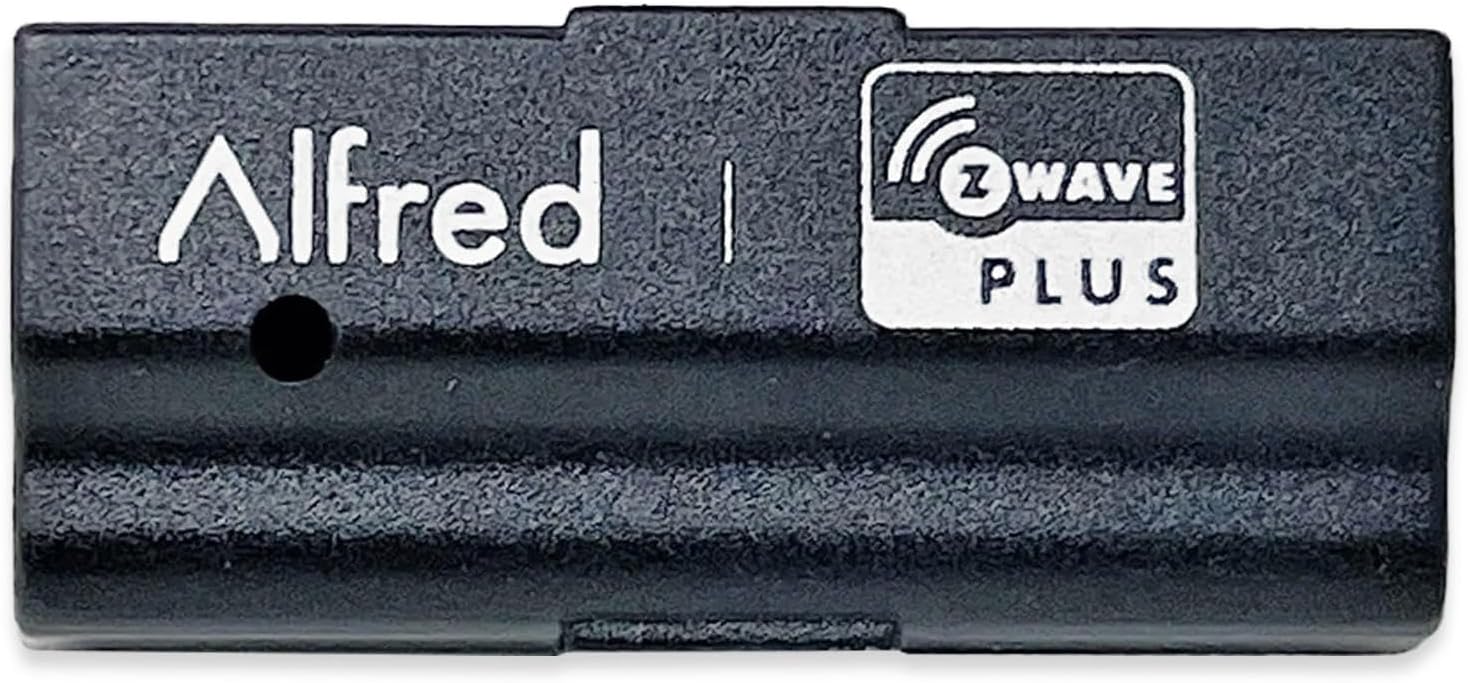
Image: The Alfred ZW2-PRO Z-Wave Plus Module, a compact black device with "Alfred" and "Z-Wave Plus" branding.
Installation and Setup
This section provides step-by-step instructions for installing the ZW2-PRO module into your compatible Alfred smart lock and integrating it with your Z-Wave network.
Required Items:
- Alfred ML2 or DB2S Smart Lock (sold separately)
- Alfred ZW2-PRO Z-Wave Plus Module
- Small Phillips head screwdriver (for battery cover, if applicable)
- Existing Z-Wave smart home hub/controller
Installation Steps:
Prepare the Lock:
Ensure your Alfred ML2 or DB2S smart lock is powered off or remove the batteries to prevent accidental operation during installation. Locate the battery compartment on the interior side of the lock.
Locate Module Slot:
Below the battery compartment, you will find a dedicated slot for the Z-Wave module. This slot is specifically designed to fit the ZW2-PRO module.

Image: Diagram illustrating the insertion of the ZW2-PRO Z-Wave Plus Module into the designated slot within the Alfred smart lock's interior unit, below the battery compartment.
Insert the Module:
Carefully align the ZW2-PRO module with the slot and gently push it in until it is fully seated. Ensure it clicks into place or feels securely connected. Do not force the module.
Reinstall Batteries:
Once the module is installed, reinsert the batteries into your smart lock. The lock should power on as usual.
Z-Wave Network Pairing:
After physical installation, the module needs to be paired with your Z-Wave smart home hub.
Initiate Inclusion Mode on Hub:
Refer to your Z-Wave hub's instruction manual to put it into "inclusion" or "add device" mode. This process varies by hub (e.g., Vera/Ezlo, SmartThings, Hubitat).
Activate Pairing on Lock:
On your Alfred smart lock, follow the specific instructions for initiating Z-Wave pairing. This typically involves entering a programming code and pressing a specific button or sequence on the lock's keypad. Consult your ML2 or DB2S lock's manual for exact steps.
Confirm Pairing:
Your Z-Wave hub should detect the new module and add it to your network. The lock may provide an audible or visual confirmation of successful pairing. Name the device within your hub's interface for easy identification.
Test Functionality:
Once paired, test the lock's functionality through your Z-Wave hub. You should be able to lock and unlock the door remotely and receive status updates.
Operating the Z-Wave Module
The ZW2-PRO module enables remote control and monitoring of your Alfred smart lock via your Z-Wave network. All operations are performed through your Z-Wave smart home hub's interface or associated mobile application.
Remote Lock/Unlock:
- Access your Z-Wave hub's application or web interface.
- Navigate to the device list and select your Alfred smart lock.
- Use the provided controls to remotely lock or unlock the door.
Status Monitoring:
- The module provides real-time status updates to your Z-Wave hub, including lock/unlock status.
- Depending on your hub's capabilities, you may also receive notifications for access events (e.g., door locked/unlocked by keypad, manual turn).
Automation and Scenes:
- Integrate your Alfred smart lock into Z-Wave scenes and automations.
- Example: Automatically lock the door when you leave home, or unlock it when a specific user code is entered.
Maintenance
The ZW2-PRO Z-Wave Plus Module requires minimal maintenance. Its operation is primarily dependent on the proper functioning of your Alfred smart lock and Z-Wave network.
- Battery Replacement: The module draws power from the smart lock. Ensure the batteries in your Alfred ML2 or DB2S lock are replaced regularly as per the lock's instructions to maintain module functionality.
- Firmware Updates: Any firmware updates for the ZW2-PRO module would typically be delivered through your Z-Wave hub, if supported. Consult your hub's documentation for information on device firmware updates.
- Cleaning: If the module needs cleaning, gently wipe it with a dry, soft cloth. Do not use liquid cleaners or abrasive materials.
Troubleshooting
If you encounter issues with your Alfred ZW2-PRO Z-Wave Plus Module, refer to the following common troubleshooting steps.
| Problem | Possible Cause | Solution |
|---|---|---|
| Module not detected by Z-Wave hub. |
|
|
| Remote control not working. |
|
|
| Lock functions normally, but Z-Wave features are absent. |
|
|
For further assistance, consult your Z-Wave hub's documentation or the Alfred smart lock's user manual.
Specifications
| Attribute | Detail |
|---|---|
| Model Number | ZW2-PRO (Manufacturer Part #: ZW2-ML2) |
| Compatibility | Alfred ML2, DB2, DB2-B Smart Locks (Not compatible with DB1 series) |
| Wireless Technology | Z-Wave 700 Series |
| Power Source | Powered by host smart lock |
| Item Weight | ~6.1 ounces (Module only) |
| UPC | 628341330299 |
Warranty Information
The Alfred ZW2-PRO Z-Wave Plus Module comes with a 2-year Limited Warranty from the date of purchase. This warranty covers defects in materials and workmanship under normal use.
For full warranty terms and conditions, please refer to the official Alfred website or contact Alfred customer support.
Support and Contact
If you require further assistance or have questions regarding your Alfred ZW2-PRO Z-Wave Plus Module, please contact Alfred customer support.
- Alfred Official Website: Visit the Alfred Store on Amazon
- Customer Service: Refer to the Alfred website for contact methods (phone, email, support tickets).
Related documentsZW2-PRO


Ask a question about this manual
Ask about setup, troubleshooting, compatibility, parts, safety, or missing instructions. Manuals+ will review the question and use this page’s manual context to help answer it.