
Buoan YL-98JA-Silver
Buoan Fingerprint Door Lock Instruction Manual
Model: YL-98JA-Silver | Brand: Buoan
1. Introduction
Thank you for choosing the Buoan Fingerprint Door Lock. This smart door knob offers convenient and secure access to your home or office with its advanced biometric fingerprint recognition and traditional key unlocking methods. This manual provides detailed instructions for installation, operation, maintenance, and troubleshooting to ensure optimal performance and security.

Image: The Buoan Fingerprint Door Lock in silver finish, showcasing its sleek design and fingerprint sensor.
2. Product Overview
2.1 Components
The package includes the following components:
- Door Knobs (Exterior and Interior)
- Door Latch Kit
- Screws
- Backup Keys (2)
- User Manual
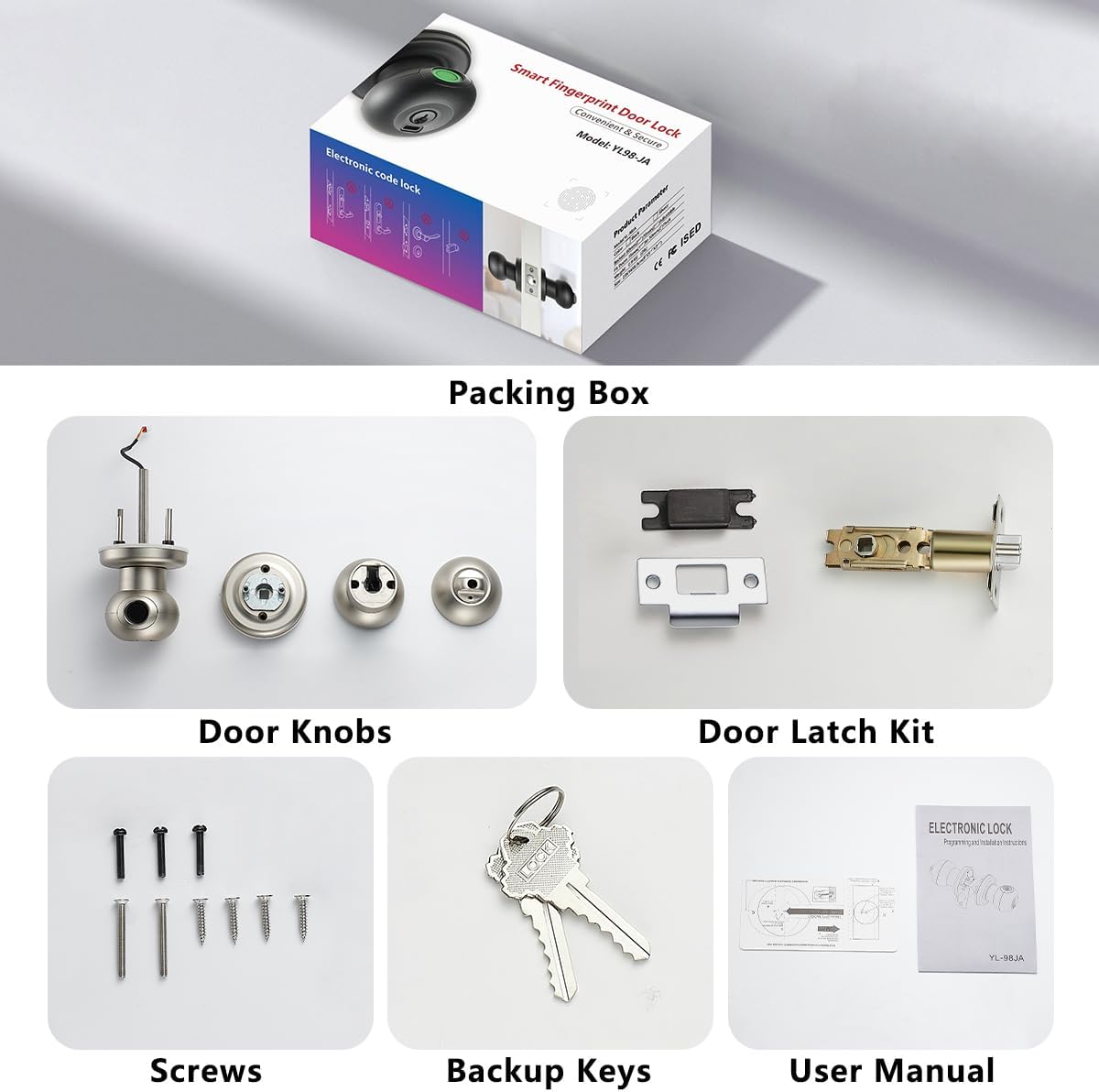
Image: A detailed view of all components included in the product packaging, such as the door knobs, latch kit, screws, backup keys, and user manual.
2.2 Key Features
- 2 Unlocking Ways: Supports fingerprint unlocking and mechanical backup key unlocking for convenient and secure entry.
- 0.3s Biometric Fingerprint Recognition: Advanced 360° fingerprint sensor with 99% recognition rate and 0.3-second reading speed. Stores up to 50 fingerprint users.
- Automatic Lock: The door handle locks automatically 5 seconds after closing, enhancing security.
- Multi-function Smart Lock: Features silent mode and passage mode for different scenarios.
- Emergency Charging: Equipped with a USB-C port for emergency power in case batteries are depleted.
3. Setup and Installation
The Buoan Fingerprint Door Lock is designed for easy installation with a screwdriver. Please ensure your door dimensions are compatible before proceeding.
3.1 Door Compatibility
- Door Holes: Only suitable for 2-1/8" (54mm) diameter.
- Door Thickness: 1-3/8" to 2" (35mm to 50mm).
- Backset: Adjustable from 2-3/8" or 2-3/4" (60mm or 70mm).

Image: A visual guide illustrating the required door hole diameter, thickness, and adjustable backset for proper installation.
3.2 Installation Steps
Follow these steps to install your new fingerprint door lock:
- Prepare the Latch: Adjust the latch to fit your door hole (60mm or 70mm backset).
- Install the Latch: Insert the latch into the door edge and secure it with screws.
- Install Exterior Door Knob: Pass the spindle and wires through the latch and door hole.
- Install Interior Chassis: Connect the wires and secure the interior chassis to the exterior knob.
- Install Interior Knob: Connect the interior knob to the chassis and secure it.
- Install Batteries: Insert 4 AAA alkaline batteries (not included) into the interior knob. Pay attention to polarity.
For a visual guide on installation, please watch the official seller video below:
Video: YL-98JA How to install. This video demonstrates the step-by-step process of installing the Buoan Fingerprint Door Lock.

Image: Detailed measurements and adjustment points for the door latch to ensure proper fit with varying door thicknesses and backsets.
4. Operating Instructions
4.1 Unlocking Methods
- Fingerprint Unlock: Place your registered fingerprint on the sensor. The lock will unlock in 0.3 seconds.
- Mechanical Key Unlock: Use the provided backup keys to unlock the door manually.
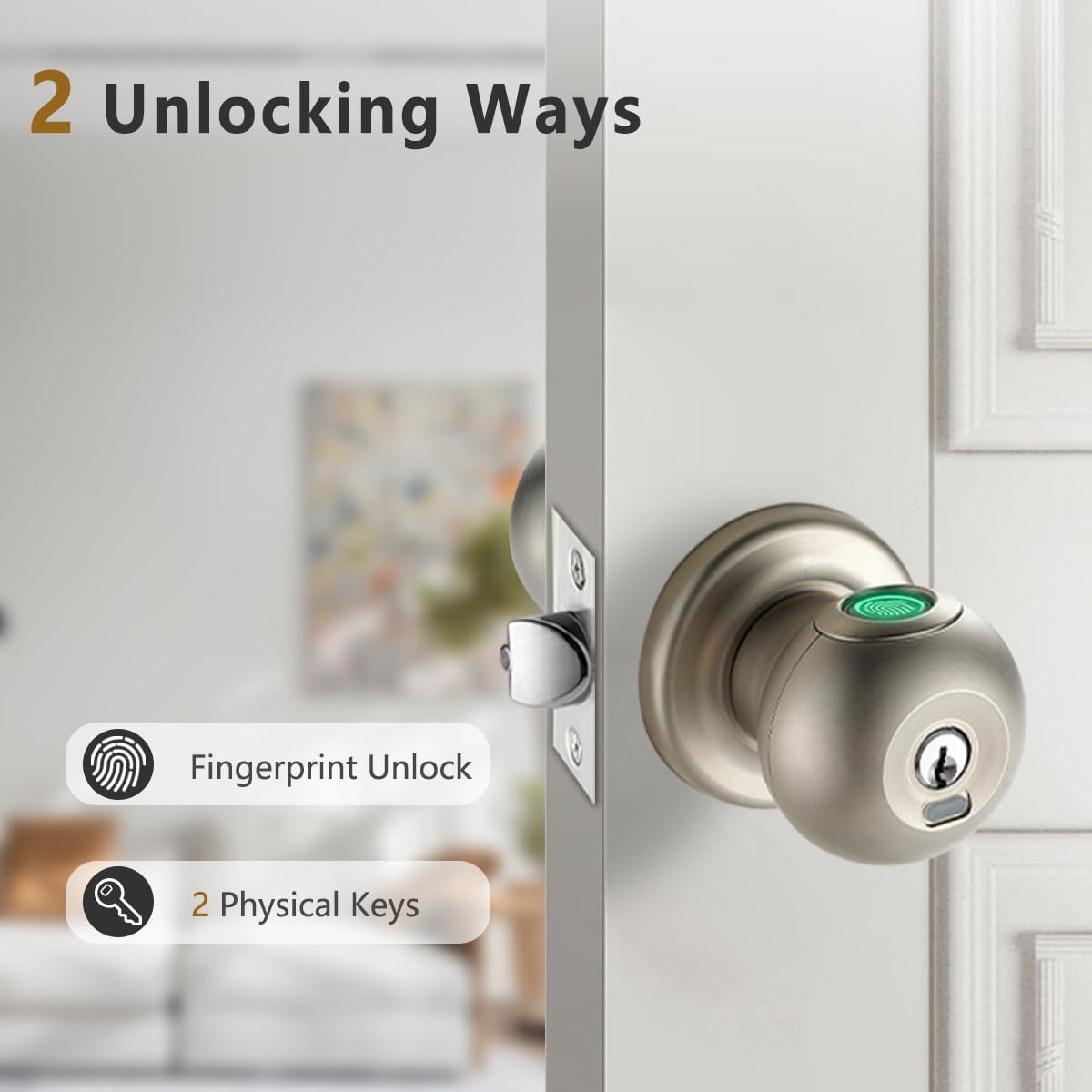
Image: Illustration of the two primary unlocking methods: fingerprint recognition and traditional physical keys.

Image: A hand placing a finger on the sensor for fingerprint unlocking.

Image: A hand using a physical key to unlock the door.
4.2 Adding Fingerprints (Administrators & Users)
The lock supports up to 50 fingerprints. The first two fingerprints registered will be administrators, and subsequent fingerprints will be regular users.
- Rotate the knob to the OFF position.
- Press the setting button once: Insert a toothpick into the small circular hole and press the setting button once. The indicator light will turn blue.
- Register Administrator Fingerprints: Place your finger on the sensor 6 times. The indicator will turn green upon successful registration. Repeat for the second administrator.
- Register User Fingerprints: While the blue indicator is on, continue to place new fingers on the sensor 6 times each. The indicator will beep twice for user fingerprints.
- Exit Setting Mode: Wait until the blue light is off to automatically exit the setting mode.
Watch these official seller videos for detailed instructions on adding fingerprints:
Video: Add Fingerprints for Administrators and Users (YL98JA). This video guides you through adding both administrator and regular user fingerprints.
Video: How to Add Multiple Fingerprints. A concise video demonstrating the process of adding multiple fingerprints to the lock.

Image: A step-by-step diagram illustrating how to set up administrator fingerprints for the door lock.
4.3 Silent Mode
To activate silent mode, rotate the knob 5 times continuously. In silent mode, the locking and unlocking operations will not produce any sound.
See the official seller video for a demonstration of silent mode:
Video: Multifunc lock: Back Lock, Silent, Passage Mode (YL98JA). This video demonstrates the silent mode feature of the lock.

Image: An illustration of the silent mode, showing the lock operating without sound, ideal for quiet environments.
4.4 Passage Mode
To activate passage mode, an administrator's fingerprint presses down on the collector for 5 seconds without moving. The fingerprint button will turn pink. In this mode, anyone can turn the handle to open the door, and the lock will not lock automatically. To close passage mode, administrators or users can press the collector with their fingerprints and hear 10 beeps. The door lock will then return to its normal state.
See the official seller video for a demonstration of passage mode:
Video: Multifunc lock: Back Lock, Silent, Passage Mode (YL98JA). This video demonstrates the passage mode feature of the lock.

Image: An illustration of the passage mode, where the lock remains unlocked for continuous access.
4.5 Automatic Lock Function
This door handle locks automatically 5 seconds after you close the door. This feature enhances security, especially if you sometimes forget to lock the door.

Image: A visual representation of the automatic lock function, showing the lock engaging after 5 seconds of the door closing.

Image: An illustration highlighting the automatic locking mechanism of the door lock.
4.6 Back Locking Function (Privacy Mode)
After back locking, rotate the knob to the OFF position. Only administrators can unlock the lock, and ordinary users cannot. This provides enhanced privacy and security.
See the official seller video for a demonstration of back locking:
Video: Multifunc lock: Back Lock, Silent, Passage Mode (YL98JA). This video demonstrates the back locking feature of the lock.

Image: A visual guide on how to engage the privacy mode, restricting access to administrators only.
4.7 Indicator Lights
The lock features various indicator lights to communicate its status:
- Pink Indicator Light: Indicates passage mode is active.
- White Indicator Light: Indicates back locking function is enabled when unlocked by fingerprint.
- Blue Indicator Light: Used during setting mode (e.g., adding fingerprints, factory reset).
- Green Indicator Light: Indicates successful fingerprint recognition or successful setting.
- Red Indicator Light: Indicates low battery or unsuccessful fingerprint recognition.

Image: The door lock displaying a pink indicator light, signifying passage mode is active.

Image: The door lock displaying a white indicator light, indicating the back locking function is enabled.

Image: The door lock displaying a blue indicator light, typically seen during setting or programming modes.

Image: The door lock displaying a green indicator light, signifying successful operation or recognition.

Image: The door lock displaying a red indicator light, typically indicating an error or low battery.
5. Maintenance
5.1 Battery Replacement
The biometric doorknob is powered by 4 AAA alkaline batteries (not included). If you hear 7 beeps and the indicator blinks red, the batteries are exhausted. Please replace them in time. Do not mix old and new batteries.
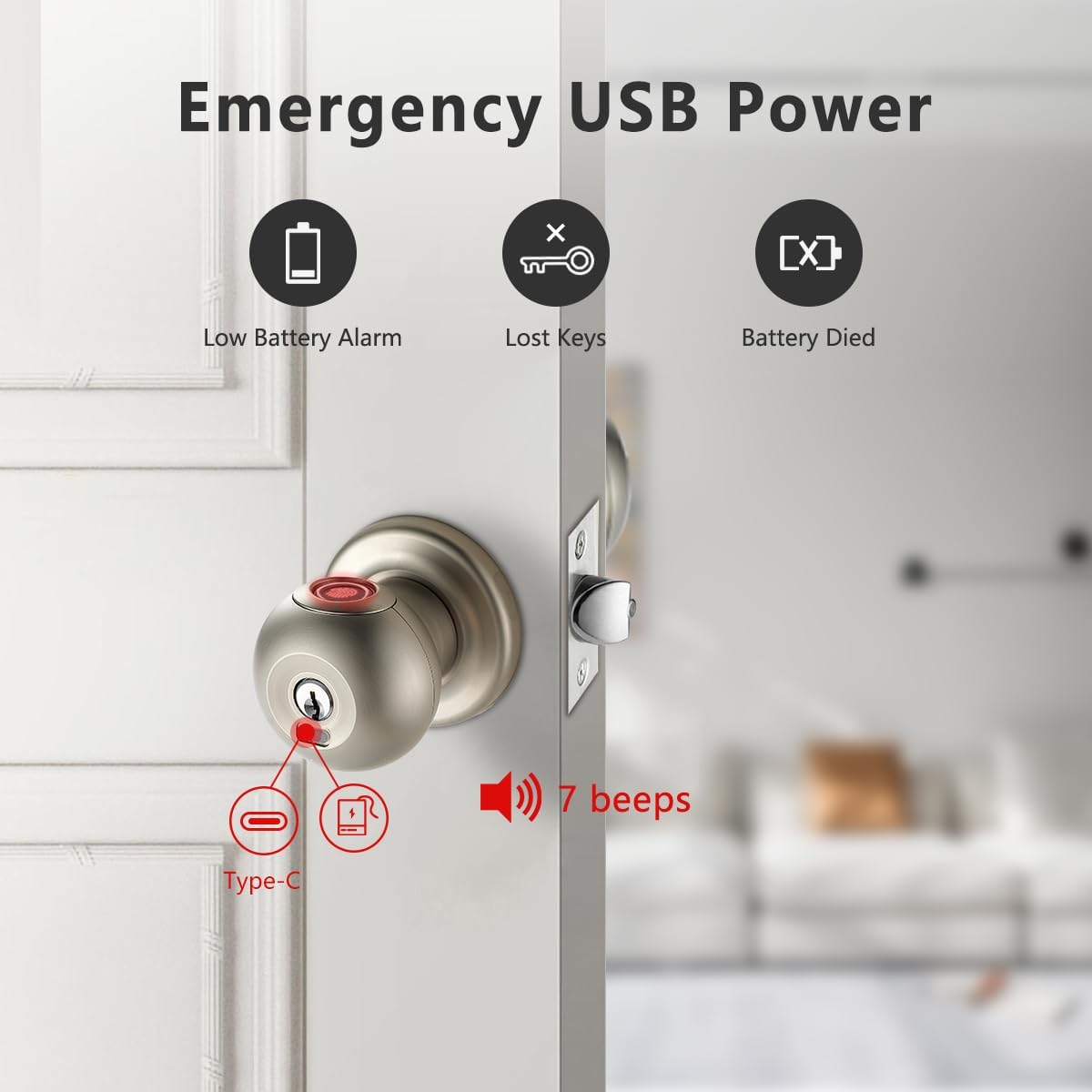
Image: A close-up of the emergency USB-C port on the door lock, used for temporary power when batteries are dead.

Image: An illustration showing the low battery alarm, indicating when the 4 AAA alkaline batteries need replacement.
5.2 Emergency Power
In an emergency, if the batteries are completely dead, the smart doorknob comes with a USB-C port for temporary power. Connect a power bank to this port to unlock the door. Note that this port is for emergency unlocking only and does not charge the batteries.
5.3 Cleaning
Wipe the lock surface and fingerprint sensor with a soft, dry cloth. Avoid using abrasive cleaners or solvents that could damage the finish or electronic components.
6. Troubleshooting
6.1 Common Issues
- Fingerprint Not Recognized: Ensure your finger is clean and dry. Try repositioning your finger on the sensor. Re-register your fingerprint if the issue persists.
- Lock Not Responding: Check battery levels. If batteries are low, replace them or use emergency USB power.
- Automatic Lock Not Working: Verify the lock is not in passage mode.
6.2 Factory Reset
To restore factory settings and delete all registered users, follow these steps:
- Rotate the knob to the OFF position.
- Press and hold the setting button: Insert a toothpick into the small circular hole and press the setting button for 10 seconds.
- Confirm Reset: The door lock will sound 10 beeps to indicate that the factory settings are restored successfully. The indicator light will turn blue, indicating the factory reset mode has been successfully completed and all passwords have been deleted. Any fingerprint can now unlock the lock until new administrators are set.
For a visual guide on factory reset, please watch the official seller video below:
Video: How to Reset Factory Settings or Delete Users YL98JA. This video provides a clear demonstration of how to perform a factory reset on your lock.
7. Specifications
| Feature | Detail |
|---|---|
| Brand | Buoan |
| Model Number | YL-98JA-Silver |
| Material | Aluminum |
| Color | Silver without APP |
| Product Dimensions | 7.4"L x 2.95"W |
| Exterior Finish | Aluminum with Silver Finish |
| Special Feature | Keyless, Biometric Fingerprint, Adjustable |
| Lock Type | Key Lock |
| Power Source | 4 AAA Alkaline Batteries (not included) |
| Fingerprint Capacity | Up to 50 users |
| Recognition Speed | 0.3 seconds |
| Recognition Rate | 99% |
| Item Weight | 1.85 pounds |
| UPC | 781108243642 |
8. Warranty and Support
Buoan Fingerprint Door Lock provides a 30-day return policy and replacement within 12 months for quality problems. For technical support, please contact customer service via email or phone, available 24 hours.
For further assistance, please refer to the contact information provided with your product packaging or visit the official Buoan website.
Ask a question about this manual
Ask about setup, troubleshooting, compatibility, parts, safety, or missing instructions. Manuals+ will review the question and use this page’s manual context to help answer it.