
Bewinner Bewinner2zwxvof3gi
Bewinner 3D VR Glasses with Wireless WiFi 4K Screen User Manual
Model: Bewinner2zwxvof3gi
1. Introduction
This manual provides detailed instructions for the setup, operation, and maintenance of your Bewinner 3D VR Glasses, model Bewinner2zwxvof3gi. Please read this manual thoroughly before using the device to ensure proper functionality and a safe user experience.
The Bewinner 3D VR Glasses offer an immersive visual experience with a 4K 60Hz output resolution. They feature wireless screen mirroring capabilities via WiFi, allowing seamless content synchronization from compatible devices. The glasses are designed for comfort with adjustable interpupillary distance and focus, accommodating users with myopia up to 700 degrees. A built-in 8000 mAh battery provides approximately 4 to 5 hours of continuous use.

Image 1.1: Front-side view of the Bewinner 3D VR Glasses.
2. Product Overview and Components
The Bewinner 3D VR Glasses system includes the main VR glasses unit and a wireless display adapter, along with essential accessories for operation.
2.1 Included Components
The product package contains the following items:
- 1 x Bewinner 3D VR Glasses
- 1 x Face Mask (magnetic attachment)
- 1 x Wireless Display Adapter
- 1 x HD Multimedia Interface Cable
- 1 x USB Cable
- 1 x Headset
- 1 x Wiping Cloth
- 1 x Instruction Manual (this document)
- 1 x Blue Light Anti-Film Kit
- 1 x Storage Bag
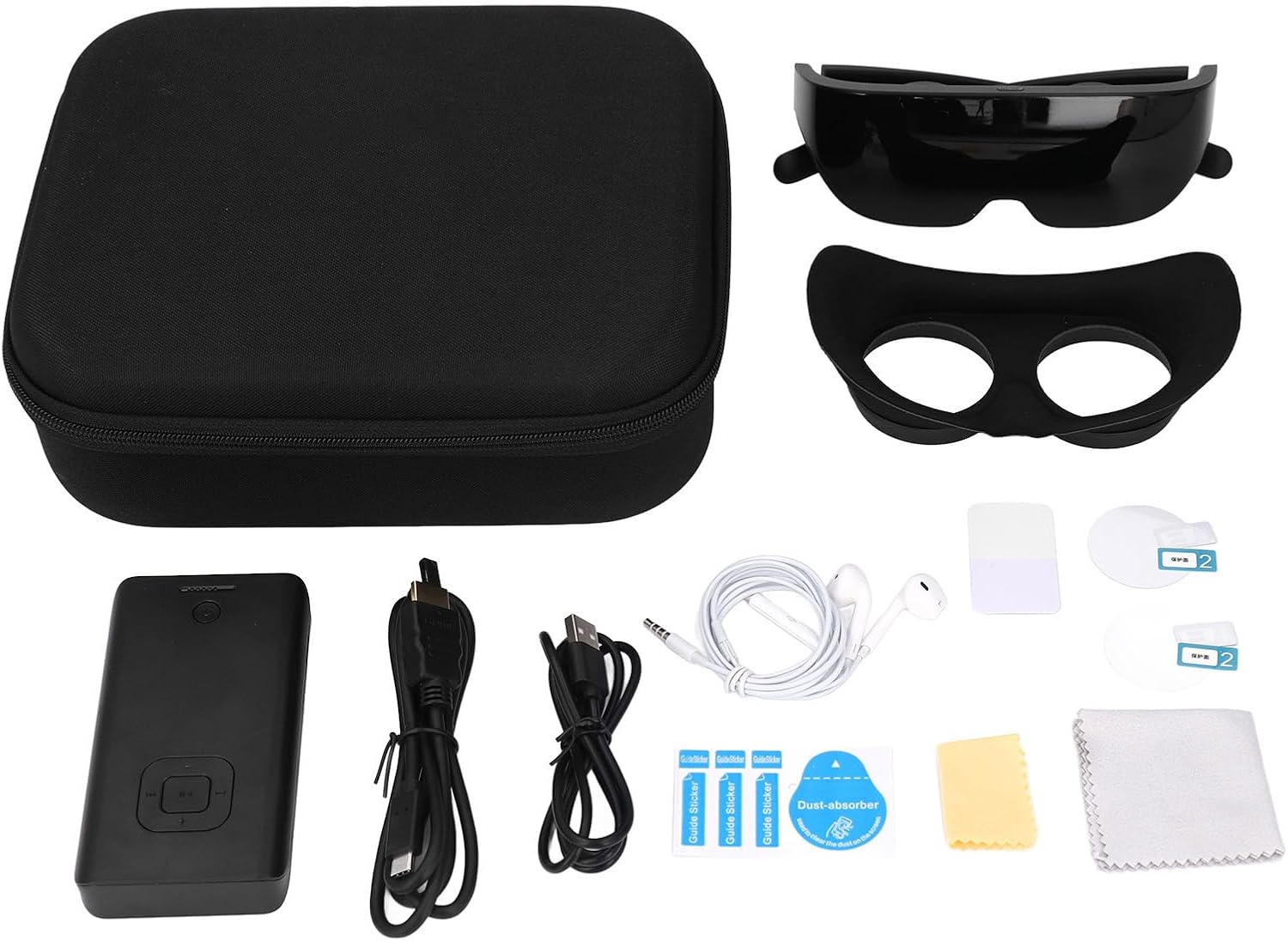
Image 2.1: All components included in the Bewinner 3D VR Glasses package.
2.2 Key Features
- High Resolution Display: Dual 1600x1200 screens (1058 PPI) with a 60Hz refresh rate for clear visuals.
- Wireless Connectivity: Supports WiFi (2.4G/5G dual band) for screen mirroring and Bluetooth 4.2.
- Adjustable Optics: Focus adjustment for 0-700° myopia and adaptive pupillary distance (58-68mm).
- Immersive Viewing: 68° diagonal Field of View (FOV) and a virtual image distance of 7 meters.
- Long Battery Life: Integrated 8000 mAh lithium-ion battery for extended use.
- Lightweight Design: The glasses weigh approximately 125 grams.
3. Specifications
| Feature | Specification |
|---|---|
| Model Number | Bewinner2zwxvof3gi |
| Screen Resolution | 2 x 1600 x 1200 pixels |
| Screen PPI | 1058 PPI |
| Screen Refresh Rate | 60 Hz |
| Screen Size | 2.1 inches (per screen) |
| Field of View (FOV) | 68° diagonal |
| Virtual Image Distance | 7 meters |
| Focus Adjustment | 0 to 700° myopia support |
| Pupillary Distance | 58 to 68 mm (adaptive) |
| Wireless Output Resolution | 4K 60 Hz, 1080P 60 Hz, 720P 60 Hz |
| Video Output Interface | HD Multimedia Interface |
| Audio Output Interface | 3.5 mm |
| Wireless Protocols | DLNA, Miracast, AirPlay |
| WiFi | 2.4G / 5G dual band |
| Bluetooth | 4.2 |
| Battery Type | 8000 mAh Lithium-ion (integrated) |
| Usage Duration | 4 to 5 hours (continuous) |
| Internal Storage | 32 GB memory card (included) |
| Weight (Glasses) | Approximately 125 grams |
| Manufacturer | Bewinner |
| Country of Origin | China |
4. Setup
Follow these steps to set up your Bewinner 3D VR Glasses for first use:
4.1 Charging the Device
- Connect the provided USB cable to the Type-C charging port on the VR glasses.
- Connect the other end of the USB cable to a compatible USB power adapter (not included) or a computer's USB port.
- Allow the device to charge fully before initial use. The charging indicator light will change to indicate a full charge.
4.2 Connecting the Wireless Display Adapter
The wireless display adapter facilitates screen mirroring from your source device.
- Connect the wireless display adapter to a power source using its USB port.
- Connect the HD Multimedia Interface cable from the wireless display adapter to the VR glasses.

Image 4.1: The VR glasses with the wireless display adapter, ready for screen casting.
4.3 Initial Pairing and Adjustments
- Power on the VR glasses and the wireless display adapter.
- On your source device (smartphone, tablet, or computer), enable WiFi and search for available networks. Connect to the WiFi network broadcast by the wireless display adapter.
- Use the screen mirroring function on your source device (e.g., DLNA, Miracast, AirPlay) to cast content to the VR glasses.
- Once content is displayed, adjust the focus dials on the VR glasses to achieve a clear image. These dials support myopia correction from 0 to 700 degrees.
- Adjust the pupillary distance by gently moving the lenses until the image appears comfortable and aligned. The adaptive range is 58 to 68 mm.

Image 4.2: Detail of the adjustable lenses and focus dials for personalized viewing.
5. Operating Instructions
This section details the operation of your Bewinner 3D VR Glasses.
5.1 Power On/Off
- To power on, press and hold the power button located on the VR glasses until the display activates.
- To power off, press and hold the power button again until the display shuts down.
5.2 2D/3D Mode Switching
The VR glasses support both 2D and 3D content viewing.
- Locate the 2D/3D switch button on the VR glasses.
- Press the button to toggle between 2D and 3D display modes, depending on the content you are viewing.
5.3 Volume Control and Navigation
The wireless display adapter features buttons for controlling media playback.
- Use the volume up and volume down buttons to adjust the audio level.
- Use the fast forward and rewind buttons for media navigation.
5.4 Screen Mirroring
The device supports various wireless screen mirroring protocols.
- Ensure your source device and the wireless display adapter are connected to the same WiFi network.
- Activate the screen mirroring feature (DLNA, Miracast, or AirPlay) on your source device and select the Bewinner VR Glasses as the output display.

Image 5.1: The high pixel density (1058 PPI) of the display ensures clear and detailed visuals.

Image 5.2: The glasses provide an immersive 3D viewing experience without the need for additional 3D glasses.
6. Maintenance
Proper care and maintenance will extend the lifespan of your VR glasses.
6.1 Cleaning
- Use the provided wiping cloth or a soft, dry, lint-free cloth to clean the lenses and exterior surfaces of the glasses.
- Do not use liquid cleaners, solvents, or abrasive materials, as these can damage the lenses and finish.
- For the face mask, gently wipe with a damp cloth and allow to air dry completely before reattaching.
6.2 Storage
- When not in use, store the VR glasses in the provided storage bag to protect them from dust and scratches.
- Avoid exposing the device to extreme temperatures, direct sunlight, or high humidity.
7. Troubleshooting
If you encounter issues with your Bewinner 3D VR Glasses, refer to the following common problems and solutions:
7.1 No Power
- Check Battery: Ensure the VR glasses are sufficiently charged. Connect to a power source and allow time for charging.
- Power Button: Confirm the power button is pressed and held correctly to turn the device on.
7.2 No Display / Blurred Image
- Focus Adjustment: Rotate the focus dials on the glasses to achieve a clear image.
- Pupillary Distance: Adjust the interpupillary distance for optimal viewing comfort and clarity.
- Source Connection: Verify that the wireless display adapter is correctly connected and receiving a signal from your source device.
- Cable Connection: Ensure the HD Multimedia Interface cable between the adapter and glasses is securely connected.

Image 7.1: The design aims to minimize discomfort and provide a clear viewing experience.
7.3 Wireless Connection Issues
- WiFi Network: Ensure both the wireless display adapter and your source device are connected to the same WiFi network.
- Signal Strength: Move closer to your WiFi router or the wireless display adapter to improve signal strength.
- Restart Devices: Try restarting the VR glasses, wireless display adapter, and your source device.
- Protocol Compatibility: Confirm that your source device's screen mirroring protocol (DLNA, Miracast, AirPlay) is compatible and correctly configured.
8. Warranty and Support
8.1 Manufacturer Warranty
The Bewinner 3D VR Glasses come with a 2-year manufacturer's warranty. This warranty covers defects in materials and workmanship under normal use. Please retain your proof of purchase for warranty claims.
8.2 Customer Support
For technical assistance, warranty claims, or further inquiries, please contact Bewinner customer support through the retailer where you purchased the product or refer to the official Bewinner website for contact information.
Ask a question about this manual
Ask about setup, troubleshooting, compatibility, parts, safety, or missing instructions. Manuals+ will review the question and use this page’s manual context to help answer it.