
1. Introduction
Thank you for purchasing the Peakeep Projection Alarm Clock. This device combines a digital alarm clock with a unique projection feature, a colorful nightlight, and a convenient USB charging port. Designed for ease of use and optimal visibility, it offers multiple brightness settings for both the main display and the projection, along with adjustable alarm volume to suit various preferences. Please read this manual carefully to ensure proper setup and operation.
2. Safety Information
- Do not expose the device to extreme temperatures, direct sunlight, or high humidity.
- Keep the device away from water or other liquids.
- Use only the provided AC/DC adapter.
- Do not attempt to disassemble or repair the device yourself. Refer all servicing to qualified personnel.
- Ensure proper ventilation around the clock.
- Dispose of batteries responsibly according to local regulations.
3. Package Contents
- Peakeep Projection Alarm Clock (Model MHP6050)
- AC/DC Power Adapter (60-inch cord)
- User Manual
4. Product Overview

Figure 4.1: Front view of the Peakeep Projection Alarm Clock, showing the main display, projection, and USB charging capability.

Figure 4.2: Rear view of the Peakeep Projection Alarm Clock, highlighting the control buttons, USB IN/OUT ports, and focus wheel for the projector.
Control Buttons and Ports:
- DIMMER: Adjusts the brightness of the main LED display.
- TIME SET: Enters time setting mode.
- 12/24HR: Toggles between 12-hour and 24-hour time formats.
- VOLUME: Adjusts the alarm volume.
- ALARM SET ON/OFF: Sets and activates/deactivates the alarm.
- NIGHTLIGHT ON/OFF: Turns the RGB nightlight on or off.
- PROJECTION DIMMER: Adjusts the brightness of the projected time.
- PROJECTION ON/FLIP/OFF: Controls the projection (on, flip orientation, off).
- FOCUS Wheel: Adjusts the clarity of the projected image.
- 5V IN: Power input port for the AC/DC adapter.
- USB OUT: USB charging port for external devices.
- Battery Compartment: For 2 AAA backup batteries (not included).
5. Setup
5.1 Power Connection
Connect the provided AC/DC power adapter to the 5V IN port on the back of the clock and plug the adapter into a standard wall outlet. The clock display will illuminate.

Figure 5.1: Power connection and battery backup illustration.
5.2 Battery Backup Installation
For battery backup, open the battery compartment on the back of the clock and insert 2 AAA batteries (not included), observing the correct polarity (+/-). These batteries will preserve your time and alarm settings during a power outage and trigger the alarm if power is lost.
5.3 Initial Time Setting
- Press and hold the TIME SET button. The hour digits will begin to flash.
- Use the VOLUME or ALARM SET buttons to adjust the hour.
- Press TIME SET again to confirm the hour and move to minute setting. The minute digits will flash.
- Use the VOLUME or ALARM SET buttons to adjust the minutes.
- Press TIME SET one more time to save the time and exit time setting mode.
- To switch between 12-hour and 24-hour format, press the 12/24HR button. In 12-hour format, 'AM' or 'PM' indicators will be displayed.
6. Operating Instructions
6.1 Setting the Alarm
- Press and hold the ALARM SET button. The alarm hour digits will flash.
- Use the VOLUME or ALARM SET buttons to adjust the alarm hour.
- Press ALARM SET again to confirm the alarm hour and move to alarm minute setting. The alarm minute digits will flash.
- Use the VOLUME or ALARM SET buttons to adjust the alarm minutes.
- Press ALARM SET one more time to save the alarm time.
- To activate or deactivate the alarm, short press the ALARM SET button. An alarm icon will appear on the display when activated.
6.2 Adjusting Alarm Volume
The alarm volume can be set to 5 levels, ranging from 60dB to 108dB. While the alarm is sounding or in standby mode, press the VOLUME button repeatedly to cycle through the 5 volume levels (U01 to U05). Select the desired volume.

Figure 6.1: Alarm volume levels.
6.3 Snooze Function
When the alarm sounds, press the large SNOOZE button on top of the clock to temporarily silence the alarm for 9 minutes. The alarm will sound again after 9 minutes. To turn off the alarm completely, press any other button.
6.4 Projection Features
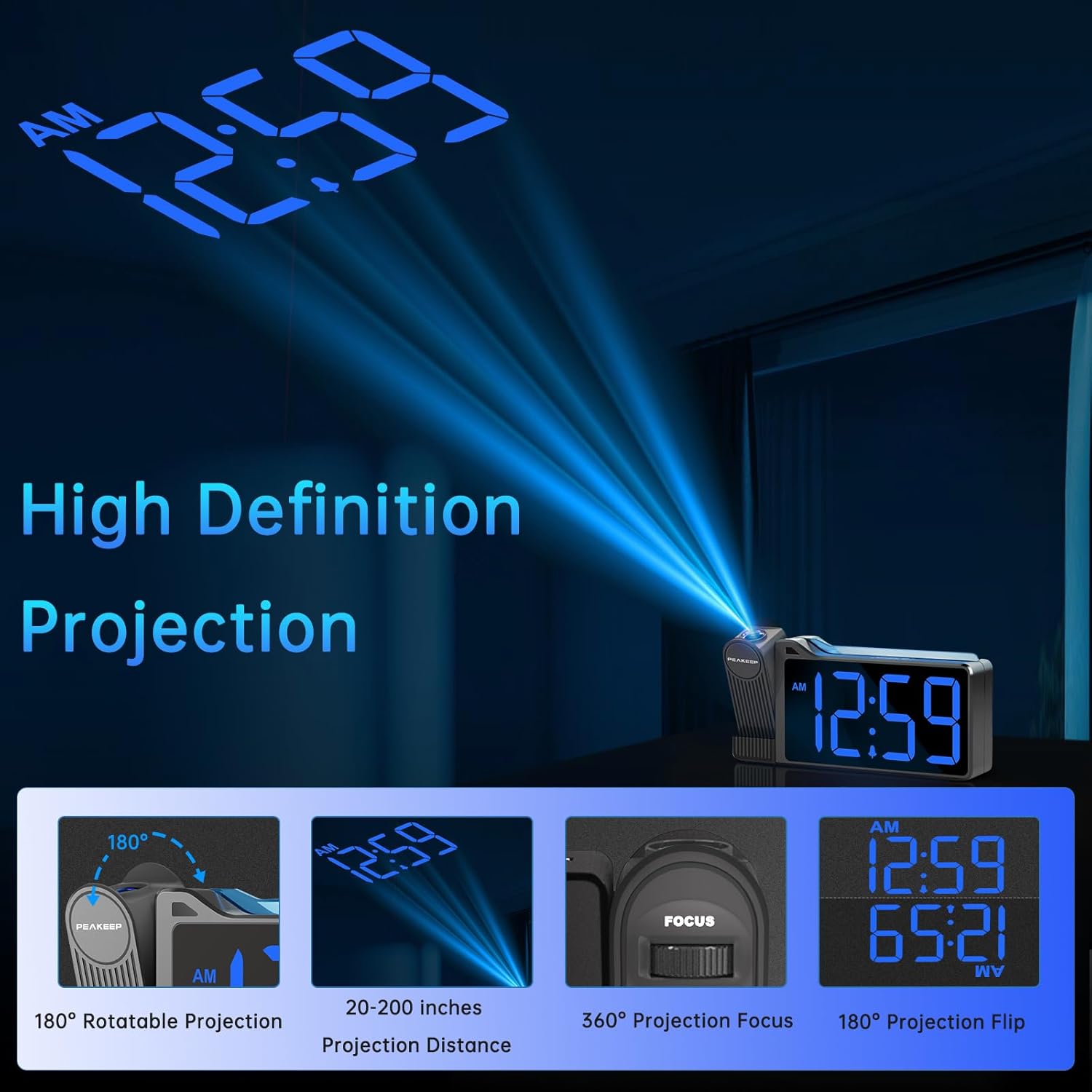
Figure 6.2: High Definition Projection capabilities.
- 180° Rotatable Projection: The projector arm can be rotated 180 degrees to project the time onto a ceiling or wall.
- Projection Distance: The optimal projection distance ranges from 20 inches to 200 inches.
- Adjusting Projection Brightness: Press the PROJECTION DIMMER button repeatedly to cycle through 5 brightness levels (L01 to L05) for the projected time.
- Projection ON/FLIP/OFF: Press the PROJECTION ON/FLIP/OFF button to turn the projection on, flip its orientation (180 degrees), or turn it off.
- Focus Adjustment: Use the FOCUS wheel on the side of the projector to sharpen the clarity of the projected time.

Figure 6.3: Adjustable Projection Brightness levels.
6.5 Colorful Nightlight
The clock features an RGB color-changing nightlight on its top surface. Press the NIGHTLIGHT ON/OFF button to turn the nightlight on or off. When on, it will cycle through various colors, providing a soothing ambiance.

Figure 6.4: RGB Color-changing Nightlight.
6.6 Adjusting Display Brightness
The main LED display has 6 levels of adjustable brightness (L1 to L5, plus OFF). Press the DIMMER button repeatedly to cycle through these brightness levels to suit your preference and environment.

Figure 6.5: Main display brightness levels.
6.7 USB Charging Port
The clock is equipped with a USB OUT port (5V) on its back, allowing you to charge your smartphone or other USB-powered devices conveniently at your bedside. Simply connect your device's USB charging cable to this port.
7. Maintenance
- Clean the clock's surface with a soft, dry cloth. Do not use abrasive cleaners or solvents.
- Keep the projection lens clean to ensure clear time projection. Use a soft, lint-free cloth.
- If the clock will not be used for an extended period, remove the backup batteries to prevent leakage.
8. Troubleshooting
| Problem | Possible Cause | Solution |
|---|---|---|
| Clock display is off / Clock not working. | Power adapter not connected or faulty; Power outage. | Ensure the power adapter is securely plugged into the clock and a working outlet. Check power supply. |
| Time/Alarm settings are lost after power disconnection. | No backup batteries installed or batteries are dead. | Install 2 new AAA batteries in the battery compartment. |
| Projected time is blurry or unclear. | Focus not adjusted; Incorrect projection distance. | Adjust the FOCUS wheel on the projector. Ensure the clock is within the 20-200 inch projection range. |
| Projected time is not visible. | Projection is off or too dim. | Press PROJECTION ON/FLIP/OFF to turn on. Adjust PROJECTION DIMMER to increase brightness. |
| Alarm is not loud enough. | Alarm volume set too low. | Press the VOLUME button to increase the alarm volume level (U01-U05). |
| USB charging is slow or not working. | Device requires higher charging current; Cable issue. | Ensure your device is compatible with 5V USB charging. Try a different USB cable. Note: This port is for charging, not data transfer. |
9. Specifications
| Feature | Detail |
|---|---|
| Model Number | MHP6050 |
| Display Type | Digital LED |
| Display Color | Blue Digits |
| Product Dimensions | 6.9"W x 3.5"H |
| Item Weight | 8.8 ounces |
| Power Source | Corded Electric (AC/DC Adapter included) |
| Battery Backup | 2 x AAA batteries (not included) |
| Projection Rotation | 180° |
| Projection Brightness | 5 levels |
| Display Brightness | 6 levels (including OFF) |
| Nightlight | RGB Color-changing |
| Alarm Volume Range | 60-108 dB (5 levels) |
| USB Output | 5V (for charging devices) |
| Material | Plastic |
10. Warranty and Support
Peakeep products are manufactured with high-quality materials and craftsmanship. For any questions, technical support, or warranty claims, please contact Peakeep customer service through the retailer's platform or the official Peakeep website. Please retain your proof of purchase for warranty purposes.