
Wielio Wielio 1080P WiFi Bluetooth Projector (Model B0D4TJLSFJ)
Contents
Wielio Native 1080P Projector User Manual
Model: B0D4TJLSFJ
Introduction
Thank you for purchasing the Wielio Native 1080P Projector. This portable mini projector is designed to provide a high-quality cinematic experience with its native 1080P resolution, 4K support via HDMI, and advanced connectivity options including Wi-Fi and Bluetooth. It is suitable for various applications such as home theater, outdoor entertainment, presentations, and gaming. This manual provides detailed instructions for setup, operation, maintenance, and troubleshooting to ensure optimal performance and longevity of your device.

Figure 1: Wielio Native 1080P Projector Overview. This image shows the projector unit, its remote control, and a smartphone mirroring content to the projector, highlighting its compact design and connectivity features.
Package Contents
Upon unpacking, please verify that all items listed below are present and in good condition:
- Wielio Native 1080P Projector
- Remote Control
- Power Cable
- HDMI Cable
- User Manual (this document)
- (Other accessories may vary based on package)
Setup Guide
1. Placement
Choose a suitable location for your projector. The projector can be placed on a table, mounted on a tripod, or installed on the ceiling. Ensure a clear path between the projector lens and the projection surface (screen or wall).

Figure 2: Projector Placement Options. This diagram illustrates flexible placement methods including table-top, tripod, and ceiling mounting, along with the adjustable projection screen size ranging from 35 to 200 inches.
- Table Placement: Place the projector on a stable, flat surface.
- Tripod Installation: Secure the projector to a compatible tripod using the mounting screw hole on the bottom.
- Ceiling Mount: For ceiling installation, use a compatible projector mount (not included) and ensure proper ventilation.
2. Power Connection
- Connect the power cable to the projector's power input port.
- Plug the other end of the power cable into a standard electrical outlet.
3. Initial Power On
- Press the power button on the projector or the remote control to turn on the device.
- Allow a few moments for the projector to boot up and display the main interface.
Operating Instructions
1. Adjusting Projection
- Focus Adjustment: Rotate the focus ring near the lens until the projected image is clear and sharp.
- Keystone Correction: If the image appears trapezoidal, use the keystone correction feature (manual or digital, refer to on-screen menu) to adjust the image shape to a perfect rectangle.
- Projection Size: The projection size can be adjusted from 25 to 300 inches by moving the projector closer to or further from the screen.
2. Connectivity Options
The Wielio projector offers multiple ways to connect your devices:
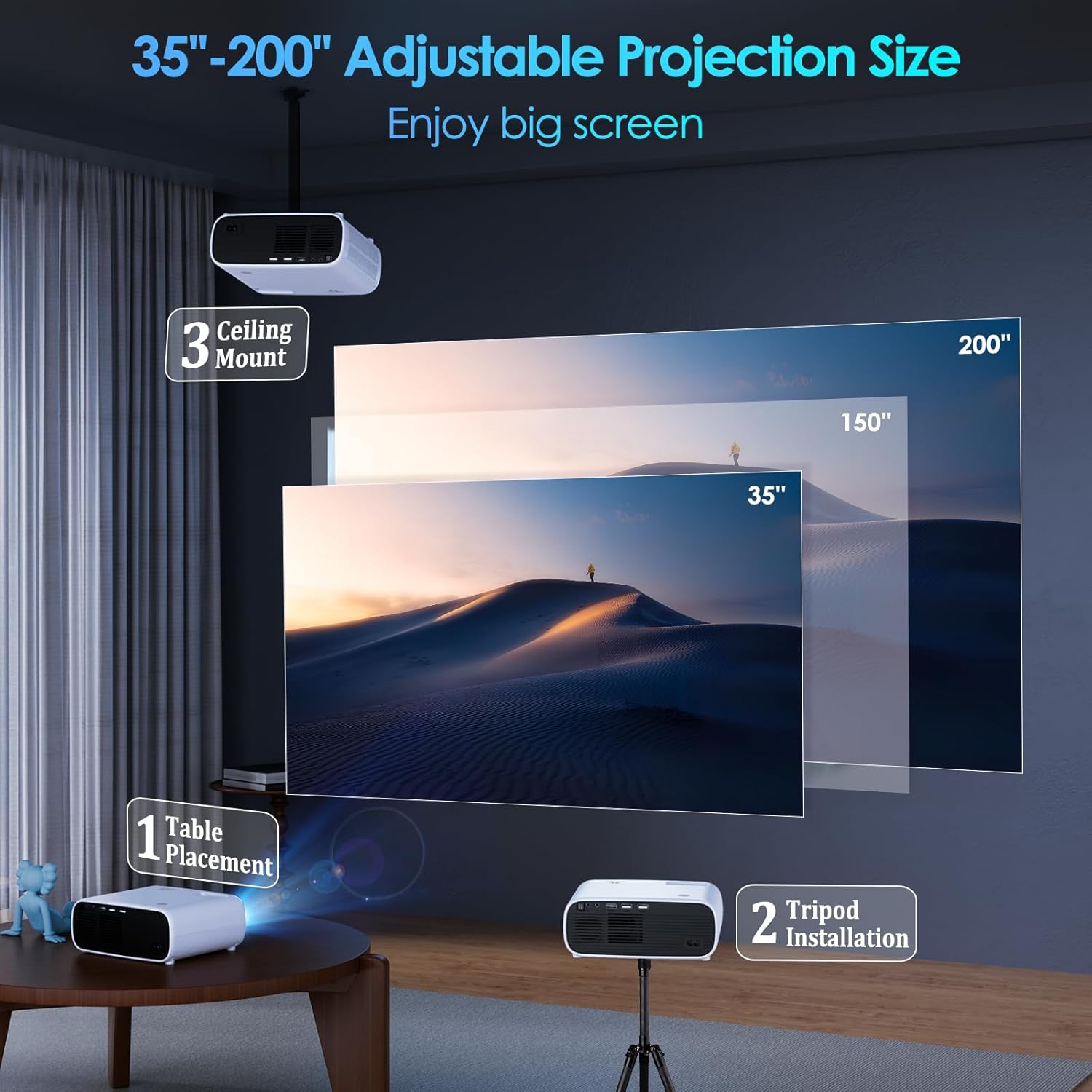
Figure 3: Projector Connectivity Ports. This image highlights the available input ports such as HDMI, USB, and AV, demonstrating the projector's compatibility with a wide range of devices including laptops, smartphones, and gaming consoles.
Wireless Connection (Wi-Fi)
The projector supports both 2.4G and 5G Wi-Fi for fast and stable wireless screen mirroring.

Figure 4: 5G+2.4G Ultra Fast Wi-Fi. This image illustrates the performance difference between 2.4G and 5G Wi-Fi, emphasizing that the combined 5G+2.4G offers superior speed and reduced lag for wireless screen mirroring from Android, iOS, and Windows devices.
- Navigate to the Wi-Fi settings on the projector's main menu.
- Select your desired Wi-Fi network (2.4G or 5G).
- Enter the password and connect.
- Once connected, you can use screen mirroring features for iOS (AirPlay) or Android (Miracast) devices.
- Note: Due to copyright restrictions, streaming services like Netflix, Hulu, and Amazon Prime may require an HDMI cable connection for screen mirroring from laptops.
Bluetooth Connection
Connect external audio devices like Bluetooth speakers or headphones for enhanced sound quality using Bluetooth 5.3.

Figure 5: Bluetooth 5.3 Function. This diagram compares Bluetooth 5.0 with Bluetooth 5.3, showing that Bluetooth 5.3 offers significant improvements in communication distance (127% increase), communication speed (15% increase), and power efficiency (18% reduction in power consumption).
- Go to the Bluetooth settings on the projector.
- Enable Bluetooth and search for available devices.
- Select your Bluetooth speaker or headphone from the list to pair.
Wired Connections
- HDMI: Connect laptops, TV sticks, gaming consoles (PS4), or other HDMI-enabled devices. The projector supports 4K resolution via HDMI.
- USB: Plug in USB flash drives to play local media files (videos, photos).
- AV: Connect older devices using an AV cable (not included).
- PC: Connect your computer via HDMI.
3. Media Playback
Once connected, navigate the projector's interface using the remote control to select the input source or media type you wish to play. The projector supports various media formats for local playback.

Figure 6: Diverse Usage Scenarios. This image demonstrates the versatility of the projector across various settings, including a home theater setup, an outdoor gathering, a fitness class, and a business meeting, highlighting its adaptability for entertainment and professional use.
Maintenance
Proper maintenance ensures the longevity and optimal performance of your projector.
- Lens Cleaning: Gently wipe the projector lens with a soft, lint-free cloth specifically designed for optical surfaces. Do not use abrasive cleaners or excessive force.
- Ventilation: Ensure the projector's ventilation ports are clear and unobstructed to prevent overheating. Do not place the projector on soft surfaces that may block airflow.
- Dust Removal: Periodically clean the projector's exterior with a soft, dry cloth to remove dust.
- Storage: When not in use for extended periods, store the projector in a cool, dry place, away from direct sunlight and extreme temperatures.
Troubleshooting
If you encounter issues with your projector, please refer to the following common problems and solutions:
| Problem | Possible Cause | Solution |
|---|---|---|
| No Image Displayed |
|
|
| Blurred Image |
|
|
| No Sound |
|
|
| Wi-Fi/Bluetooth Connection Issues |
|
|
If the problem persists after trying these solutions, please contact Wielio customer support.
Specifications
| Feature | Detail |
|---|---|
| Brand | Wielio |
| Model | B0D4TJLSFJ |
| Display Resolution | Native 1920 x 1080 (Supports 4K via HDMI) |
| Brightness | 15000 Lumens |
| Contrast Ratio | 10000:1 |
| Connectivity Technology | Wi-Fi (2.4G/5G), Bluetooth 5.3, HDMI, USB, AV |
| Projection Size | 25-300 inches (adjustable) |
| Lamp Life | 50000 hours |
| Product Dimensions | 7.7 x 6.1 x 3.1 inches |
| Weight | 1.8 pounds |
| Special Features | Built-in Speakers, Portable |
| Recommended Uses | Indoor/Outdoor |
Warranty and Support
Wielio offers a 2-year warranty for this projector, ensuring your satisfaction and peace of mind. If you encounter any issues or have questions regarding your product, please do not hesitate to contact our customer support team.
Customer Support:
- For assistance, please contact Wielio customer service.
- Our team aims to reply within 12 hours to all inquiries.
- Please have your product model (B0D4TJLSFJ) and purchase details ready when contacting support.
Ask a question about this manual
Ask about setup, troubleshooting, compatibility, parts, safety, or missing instructions. Manuals+ will review the question and use this page’s manual context to help answer it.