
Geeni GN-SW009-101
Geeni Smart Plug Power Strip User Manual
Model: GN-SW009-101
1. Introduction
Thank you for choosing the Geeni Smart Plug Power Strip. This device allows you to control multiple electronics and charge USB devices with smart features, including individual outlet control, scheduling, and voice command compatibility. This manual provides essential information for safe operation, setup, and maintenance.
2. Important Safety Information
WARNING: To reduce the risk of electric shock, fire, or injury, please read and follow all instructions carefully.
- Do not exceed the electrical ratings of this device (15A, 125V, 1875W).
- Use indoors only. Do not expose to moisture or wet conditions.
- Do not disassemble or modify the device.
- Keep away from children and pets.
- Ensure the power strip is fully plugged into a grounded outlet.
- Do not use with aquariums or other water-related products.
- Unplug the device from the wall outlet before cleaning.
3. Package Contents
- Geeni Smart Plug Power Strip (Model GN-SW009-101)
- User Manual
4. Product Features
- 6 Individually Controlled Smart AC Outlets: Manage each outlet independently via the Geeni app.
- 2 USB Charging Ports: One USB-A and one USB-C port for convenient device charging.
- 1200 Joules Surge Protection: Safeguards connected devices from power surges and spikes.
- Wi-Fi Connectivity: Connects directly to your home 2.4GHz Wi-Fi network (no hub required).
- Voice Control: Compatible with Amazon Alexa and Google Assistant.
- Scheduling & Timers: Set custom schedules for automated control.
- 6-Foot Power Cord: Provides extended reach.
- Compact Design: Space-saving form factor.

Image 1: Overview of Geeni Smart Plug Power Strip highlighting surge protection, scheduling, app control, voice control, fast charge, individual control, USB-C & USB-A ports, and share access.
5. Product Diagram

Image 2: Detailed diagram of the Geeni Smart Plug Power Strip showing 2 USB Ports (USB-A & USB-C), Wi-Fi Button, LED Indicators, Cable Length 6ft (2m), Angled Plug, ON/OFF Switch, Surge Protection, and 6 Individually Controlled Outlets. Dimensions are also shown.
- Smart AC Outlets (x6): Individually controllable power outlets.
- USB-A Port: Standard USB charging port.
- USB-C Port: Modern USB charging port.
- Wi-Fi Button: Used for pairing and resetting Wi-Fi connection.
- LED Indicators: Show power status and Wi-Fi connectivity.
- ON/OFF Switch: Master power switch for the entire strip and circuit breaker reset.
- Power Cord: 6-foot cord with an angled plug.
- Mounting Holes: Two holes on the back for wall mounting.
6. Setup Instructions
6.1. Download the Geeni App
The Geeni app is required to control your smart power strip. Search for "Geeni" in the Apple App Store or Google Play Store, or scan the QR code below (if provided by manufacturer) to download.
- Register for a new account or log in to an existing one.
6.2. Prepare for Connection
- Plug the Geeni Smart Plug Power Strip into a wall outlet.
- Ensure your mobile device is connected to a 2.4GHz Wi-Fi network. The Geeni power strip does not support 5GHz Wi-Fi networks.
- The Wi-Fi indicator light on the power strip should be blinking rapidly (EZ Mode) or slowly (AP Mode). If not, press and hold the Wi-Fi button for 5 seconds to reset.
6.3. Add Device in Geeni App
- Open the Geeni app.
- From the Devices screen, tap the "+" icon in the top right corner.
- Select "Power Strip" from the list of device types.
- Follow the on-screen instructions in the app to complete the connection process.
- If the indicator light is blinking rapidly (EZ Mode), the app will attempt to connect automatically.
- If EZ Mode fails, you can switch to AP Mode by pressing and holding the Wi-Fi button again until the light blinks slowly. Then, select "AP Mode" in the app and follow the instructions to connect to the device's Wi-Fi hotspot.
- Once connected, you can rename your power strip and individual outlets for easier identification.
Video 1: Official Geeni Smart Power Strip overview and setup guide. This video demonstrates the features and initial connection process of the smart power strip.
7. Operating Instructions
7.1. Controlling Outlets via Geeni App
Once connected, you can control your power strip from anywhere using the Geeni app.
- On the main device screen, tap on your power strip.
- You will see individual toggles for each of the 6 AC outlets. Tap to turn them ON or OFF.
- The USB ports are typically controlled as a single unit or are always on when the power strip is active. Check the app for specific USB control options.
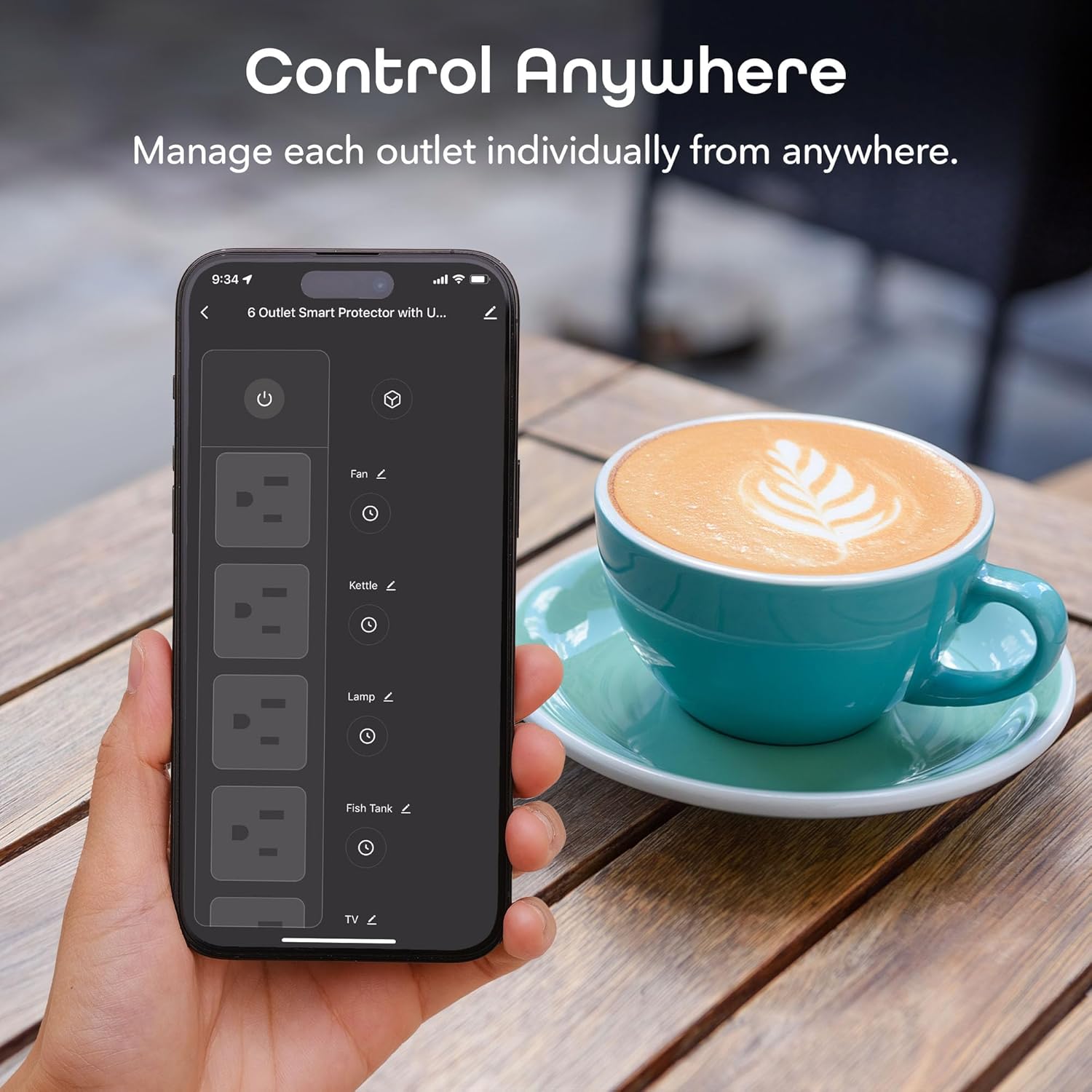
Image 3: Screenshot of the Geeni app interface demonstrating how to control each outlet individually from a smartphone, showing toggles for Fan, Kettle, Lamp, Fish Tank, and TV.
7.2. Setting Schedules and Timers
Automate your devices by setting schedules or countdown timers.
- In the Geeni app, select your power strip.
- Tap on the "Schedule" or "Timer" icon (usually a clock icon).
- Follow the prompts to set specific ON/OFF times for individual outlets or create countdown timers.

Image 4: Screenshot of the Geeni app showing the "Add Schedule" interface, allowing users to set personalized schedules for their devices, including selecting days of the week.
7.3. Voice Control (Amazon Alexa / Google Assistant)
Integrate your Geeni Smart Plug Power Strip with voice assistants for hands-free control.
- Link Geeni Account: In your Alexa or Google Home app, search for the "Geeni" skill/service and link your Geeni account.
- Discover Devices: Once linked, ask your voice assistant to "Discover devices" or manually add them through the app.
- Voice Commands: Use commands like:
- "Alexa, turn on [Outlet Name]"
- "Hey Google, turn off [Outlet Name]"
- "Alexa, set [Outlet Name] to turn off in 30 minutes"

Image 5: A family interacting with an Amazon Echo device, demonstrating hands-free voice control. A child and parents are shown, with a speech bubble indicating "Alexa, turn on the lamp." and a response "Okay!".
7.4. USB Charging Ports
The USB-A and USB-C ports provide convenient charging for your mobile devices, tablets, and other USB-powered gadgets.
- Simply plug your device's USB cable into the appropriate port.
- The USB ports typically provide power whenever the main power strip is on.

Image 6: The Geeni Smart Power Strip connected to a laptop, a smartphone, and other devices, illustrating its capability to power and charge multiple devices simultaneously using both AC outlets and USB ports. A callout highlights the Quick Charge USB-A port and 20W USB-C port.
7.5. Surge Protection
The Geeni Smart Plug Power Strip includes 1200 Joules of surge protection to shield your connected electronics from damaging power surges and spikes.
- The surge protection indicator light (if present) will illuminate to show that the protection is active.
- In the event of an extreme surge, the power strip may sacrifice itself to protect your devices. If the surge protection light goes out, the surge protection feature is no longer active, and the unit should be replaced.
- The ON/OFF switch also functions as a circuit breaker. If overloaded, it will trip to protect connected devices. Press it back to the "ON" position to reset.
8. Maintenance
- Cleaning: Unplug the power strip from the wall outlet before cleaning. Use a soft, dry cloth to wipe the exterior. Do not use liquid cleaners or abrasive materials.
- Storage: When not in use, store the power strip in a cool, dry place away from direct sunlight and moisture.
- Inspection: Periodically inspect the power cord and the power strip for any signs of damage. If damaged, discontinue use immediately.
9. Troubleshooting
9.1. Device Not Connecting to Wi-Fi
- 2.4GHz Network: Ensure your phone is connected to a 2.4GHz Wi-Fi network. The power strip does not support 5GHz Wi-Fi.
- Wi-Fi Signal: Make sure the power strip is within range of your Wi-Fi router.
- Password: Double-check that you are entering the correct Wi-Fi password.
- Reset: Try resetting the power strip's Wi-Fi by pressing and holding the Wi-Fi button for 5 seconds until the indicator light blinks rapidly (EZ Mode) or slowly (AP Mode).
- Router Settings: Some routers may have advanced settings (e.g., MAC filtering) that could prevent connection. Consult your router's manual or ISP.
9.2. Outlets Not Responding
- App Status: Check the Geeni app to ensure the power strip is online and the individual outlets are toggled correctly.
- Master Switch: Ensure the main ON/OFF switch on the power strip is in the "ON" position.
- Circuit Breaker: If the switch is tripped (protruding), reset it by pressing it back in.
- Power Supply: Verify the power strip is securely plugged into a working wall outlet.
- Wi-Fi Connection: If the power strip is offline in the app, re-establish the Wi-Fi connection.
9.3. Voice Control Not Working
- Account Linking: Confirm that your Geeni account is correctly linked to your Amazon Alexa or Google Assistant account.
- Device Discovery: Ensure your voice assistant has discovered the power strip and its individual outlets. Try "Discover devices" again.
- Device Names: Use the exact names you assigned to the power strip and its outlets in the Geeni app.
- Internet Connection: Verify that both your voice assistant device and the power strip have an active internet connection.
10. Specifications
| Model | GN-SW009-101 |
| Input Voltage | 125V AC, 60Hz |
| Max Current | 15A |
| Max Power | 1875W |
| Surge Protection | 1200 Joules |
| AC Outlets | 6 (Individually Controlled) |
| USB-A Output | 5V/2.4A (Max) |
| USB-C Output | 5V/3A, 9V/2.22A, 12V/1.67A (PD 20W Max) |
| Wi-Fi Frequency | 2.4GHz only |
| Cable Length | 6 ft (1.8m) |
| Dimensions (L x W) | 10"L x 7.15"W (approx.) |
| Weight | 1.7 pounds (approx.) |
| Operating Temperature | 0°C to 40°C (32°F to 104°F) |
11. Warranty Information
This Geeni product is covered by a 1-Year Limited Warranty from the date of purchase. This warranty covers defects in materials and workmanship under normal use. It does not cover damage caused by misuse, abuse, accidents, unauthorized modifications, or acts of nature.
For warranty service, please retain your proof of purchase and contact Geeni customer support.
12. Customer Support
If you encounter any issues or have questions regarding your Geeni Smart Plug Power Strip, please contact our customer support team:
- Website: Visit the official Geeni support page (e.g., www.mygeeni.com/support) for FAQs, troubleshooting guides, and contact options.
- Email: Check the Geeni website for the most current support email address.
- Phone: Refer to the Geeni website for available phone support numbers and hours.
Please have your product model number (GN-SW009-101) and proof of purchase ready when contacting support.
Ask a question about this manual
Ask about setup, troubleshooting, compatibility, parts, safety, or missing instructions. Manuals+ will review the question and use this page’s manual context to help answer it.