
PEIOUS KB7001+MS2237
PEIOUS Ergonomic Wireless Keyboard and Mouse Combo
Model: KB7001+MS2237
Introduction
This manual provides essential instructions for setting up, operating, and maintaining your PEIOUS Ergonomic Wireless Keyboard and Mouse Combo. Designed for comfort and efficiency, this combo offers a seamless wireless experience for Windows computers and laptops.

Image: The PEIOUS Ergonomic Wireless Keyboard and Mouse Combo, showcasing its full-size layout and ergonomic design.
Package Contents
- 1 x PEIOUS Ergonomic Wireless Keyboard
- 1 x PEIOUS Ergonomic Wireless Mouse
- 1 x USB Receiver (located in the battery compartment of the keyboard)
- User Manual
Note: AAA batteries for both the keyboard and mouse are not included and must be purchased separately.
Setup
- Install Batteries:
- For the keyboard: Open the battery compartment on the underside of the keyboard. Insert two AAA batteries, ensuring correct polarity.
- For the mouse: Open the battery compartment on the underside of the mouse. Insert two AAA batteries, ensuring correct polarity.
- Locate USB Receiver: The single USB receiver for both the keyboard and mouse is stored in the battery compartment on the back of the keyboard. Carefully remove it.
- Connect USB Receiver: Plug the USB receiver into an available USB port on your Windows computer or laptop.
- Power On Devices:
- Keyboard: Locate the ON/OFF switch on the right side of the keyboard and slide it to the 'ON' position.
- Mouse: Locate the ON/OFF switch on the underside of the mouse and slide it to the 'ON' position.
- Automatic Connection: The keyboard and mouse should automatically connect to your computer via the 2.4G wireless frequency. No additional drivers are typically required.

Image: Illustration showing the location of the USB receiver within the keyboard's battery compartment and the battery slots for both devices.

Image: A visual representation of the plug-and-play setup, demonstrating the single USB receiver connecting to a laptop for both keyboard and mouse functionality.
Operating Instructions
Keyboard Features
- Ergonomic Design: The keyboard features an integrated palm rest and an adjustable angle to promote a comfortable typing posture and reduce wrist strain during extended use.
- Quiet, Low-Profile Keys: Experience smooth and quiet keystrokes, ideal for environments where noise reduction is desired.
- Full-Size Layout: Includes a numeric keypad and isolated keys for efficient data entry and a complete typing experience.
- Multimedia Keys: Dedicated function keys (F1-F12) allow for quick access to multimedia controls such as volume adjustment, search functions, and email applications.
Mouse Features
- Ergonomic Shape: The mouse is contoured to fit comfortably in your hand, providing a natural grip and support for your fingers.
- Adjustable DPI: A dedicated DPI button allows you to adjust the cursor speed (800-1200-1600 DPI) to suit your preference and task requirements.
- Programmable Buttons: The mouse includes additional buttons that can be programmed for various functions, enhancing productivity.
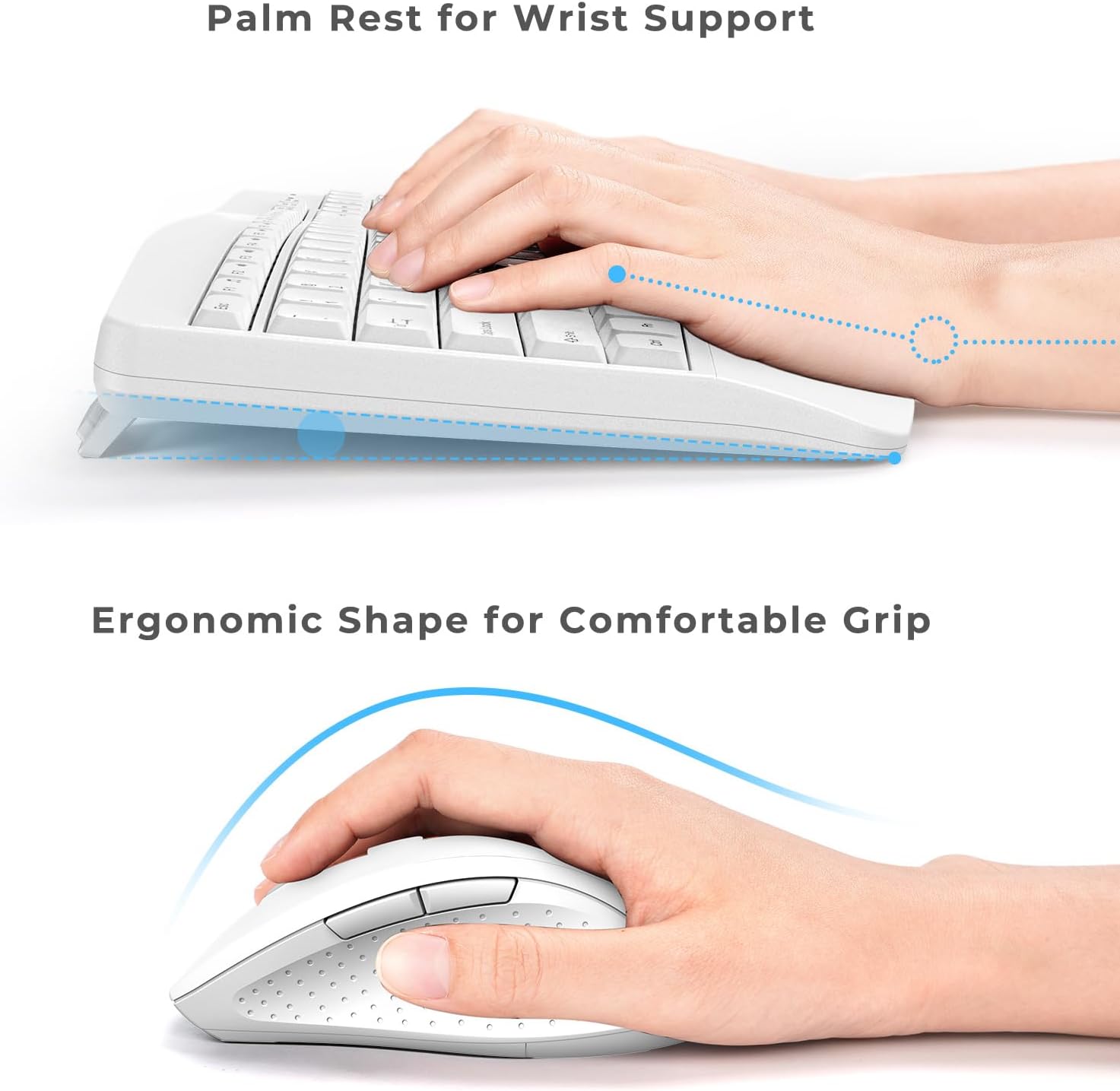
Image: Close-up view highlighting the integrated palm rest of the keyboard and the ergonomic shape of the mouse, designed for comfortable use.

Image: An annotated image detailing key features of the keyboard (perfect for fingertips, increased comfort, full size with number pad) and mouse (800-1200-1600 DPI settings).

Image: The keyboard and mouse combo set up on a desk, demonstrating a typical usage scenario with a monitor and other office items.
Maintenance
- Cleaning: Use a soft, dry cloth to clean the surfaces of the keyboard and mouse. For stubborn dirt, a slightly damp cloth can be used, ensuring no liquid enters the devices.
- Battery Replacement: Replace AAA batteries in both devices when performance degrades or they stop responding. Always use fresh batteries and dispose of old ones responsibly.
- USB Receiver Storage: When not in use, the USB receiver can be stored in the dedicated slot within the keyboard's battery compartment to prevent loss.
Troubleshooting
- No Response from Keyboard/Mouse:
- Ensure both devices are switched ON.
- Check if the batteries are correctly installed and have sufficient charge. Replace if necessary.
- Verify the USB receiver is securely plugged into a working USB port on your computer. Try a different USB port.
- Restart your computer.
- Erratic Mouse Movement:
- Ensure the mouse sensor is clean and free from obstructions.
- Try using the mouse on a different surface.
- Adjust the DPI settings using the dedicated button on the mouse.
- In Windows settings, navigate to Mouse settings and check for options like "Enhance pointer precision." Disabling this may improve stability for some users.
- Connection Lag:
- Ensure the keyboard and mouse are within the 10-meter operating range of the USB receiver.
- Minimize interference from other wireless devices operating on the 2.4GHz frequency.
Specifications
| Feature | Detail |
|---|---|
| Brand | PEIOUS |
| Model | KB7001+MS2237 |
| Connectivity Technology | 2.4G Wireless (USB Receiver) |
| Compatible Devices | Windows Computers, Laptops |
| Special Features | Ergonomic Design, Full-Size Keyboard, Numeric Keypad, Adjustable DPI Mouse |
| Color | White |
| Item Weight | 2.31 pounds |
| Package Dimensions | 17.28 x 11.85 x 2.2 inches |

Image: Diagram illustrating the dimensions of both the ergonomic keyboard and mouse.
Warranty and Support
For warranty information and technical support, please refer to the contact details provided on the product packaging or visit the official PEIOUS website. Keep your purchase receipt for warranty claims.
Ask a question about this manual
Ask about setup, troubleshooting, compatibility, parts, safety, or missing instructions. Manuals+ will review the question and use this page’s manual context to help answer it.