
Black Shark BS-K2-Red-US
Contents
Black Shark Sixgill K2 RGB Mechanical Gaming Keyboard User Manual
Model: BS-K2-Red-US
Introduction
Thank you for choosing the Black Shark Sixgill K2 RGB Mechanical Gaming Keyboard. This manual provides essential information for setting up, operating, and maintaining your new keyboard. Designed for both gaming and productivity, this full-size 104-key keyboard features responsive red mechanical switches, customizable RGB backlighting, and an ergonomic design for comfortable use.
Safety Information
- Keep the keyboard away from liquids and excessive moisture to prevent damage.
- Avoid extreme temperatures. Operate and store the keyboard in a dry, temperate environment.
- Do not attempt to disassemble or modify the keyboard. This will void the warranty and may cause damage.
- Use only the provided USB cable for connection.
- Keep out of reach of small children.
Package Contents
Please check the package for the following items:
- Black Shark Sixgill K2 RGB Mechanical Gaming Keyboard
- USB Connection Cable (attached)
- User Manual (this document)
Setup
Follow these simple steps to set up your Black Shark Sixgill K2 keyboard:
- Unpack the keyboard and place it on a stable, flat surface.
- Locate an available USB port on your computer (PC or laptop).
- Plug the USB connector of the keyboard cable into the USB port on your computer.
- The keyboard is plug-and-play, meaning no additional drivers are required. Your operating system (Windows 7 / Windows 8 / Windows 10 / Windows XP) will automatically recognize the device.
- The RGB backlighting will illuminate, indicating the keyboard is powered on and ready for use.

Image: The Black Shark Sixgill K2 keyboard, fully illuminated with RGB lighting, connected via its USB cable to a desktop computer setup, ready for use.
Operating Instructions
Basic Keyboard Functions
The Black Shark Sixgill K2 is a full-size 104-key keyboard, providing all standard alphanumeric keys, function keys (F1-F12), a numeric keypad, and navigation keys. The linear red switches offer a sensitive and light keystroke with low resistance, designed for quick clicks and reduced finger fatigue during extended use.
Multimedia Key Combinations
The keyboard features 12 multimedia key combinations accessible via the 'Fn' key. Press and hold the 'Fn' key, then press the corresponding function key (F1-F12) to activate the desired multimedia function.
| Key Combination | Function |
|---|---|
| Fn + F1 | Media Player |
| Fn + F2 | Volume Down |
| Fn + F3 | Volume Up |
| Fn + F4 | Mute |
| Fn + F5 | Stop |
| Fn + F6 | Previous Track |
| Fn + F7 | Play/Pause |
| Fn + F8 | Next Track |
| Fn + F9 | |
| Fn + F10 | Web Browser |
| Fn + F11 | My Computer |
| Fn + F12 | Calculator |
RGB Lighting Control
The keyboard features dynamic RGB LED backlighting with a surrounding light bar. You can customize the lighting effects directly from the keyboard:
- 12 Different Backlighting Modes: Cycle through various lighting patterns and animations.
- 5 Preset Gaming Light Modes: Optimized lighting for specific game genres.
- 3 Side Light Effects: Adjust the illumination of the surrounding light bar.
Refer to the keyboard's specific key combinations (often involving the 'Fn' key and arrow keys or dedicated lighting keys) for detailed control over modes, brightness, and speed. Advanced customization can be achieved through the dedicated software.
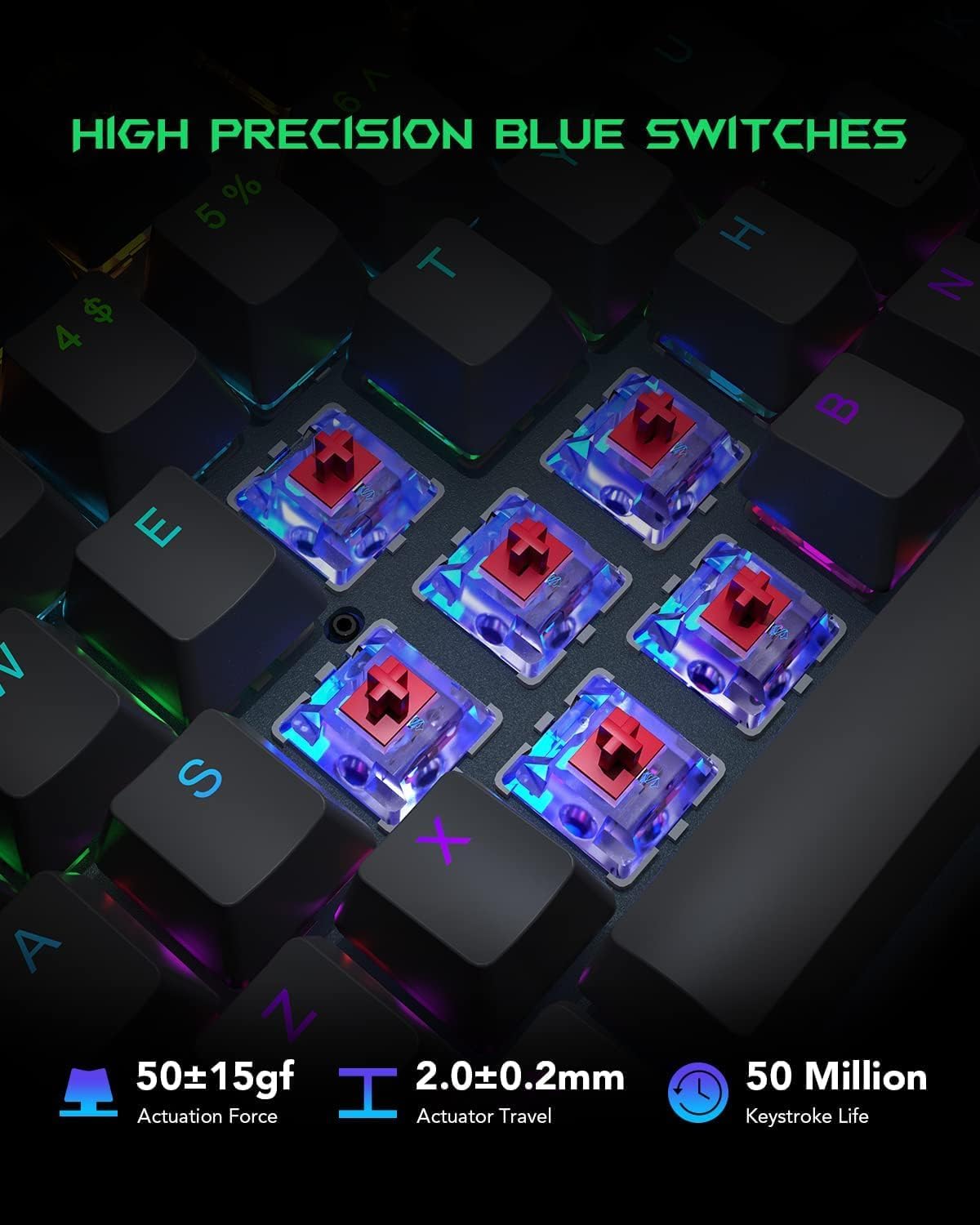
Image: The Black Shark Sixgill K2 keyboard showcasing its vibrant RGB backlighting with various color patterns and side lighting effects.
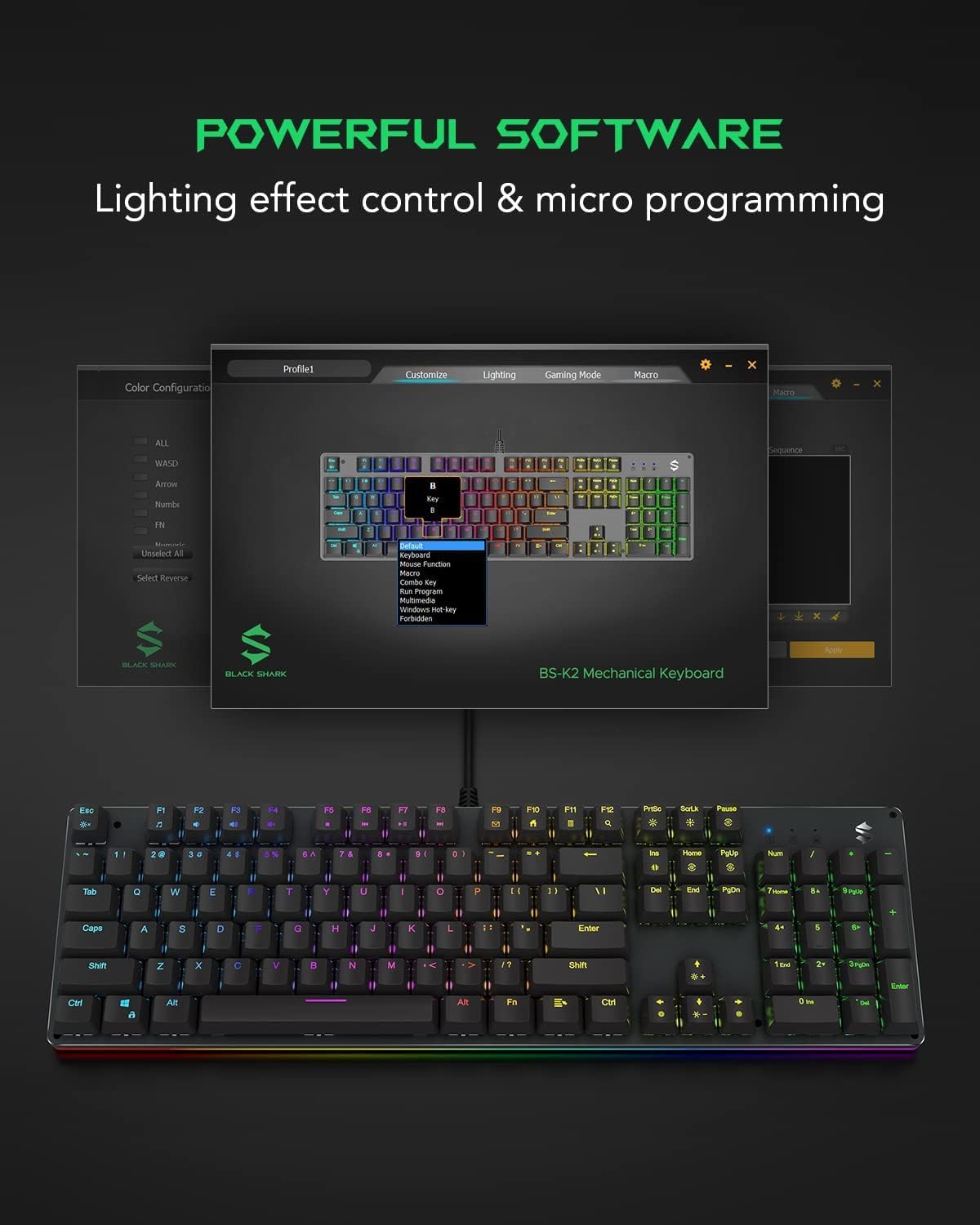
Image: A visual representation of the powerful software interface used for controlling lighting effects and micro-programming the Black Shark keyboard.
Full Anti-Ghosting 104 Keys
The keyboard supports full anti-ghosting on all 104 keys. This feature ensures that every keypress is registered accurately, even when multiple keys are pressed simultaneously, preventing input errors during intense gaming sessions or fast typing.
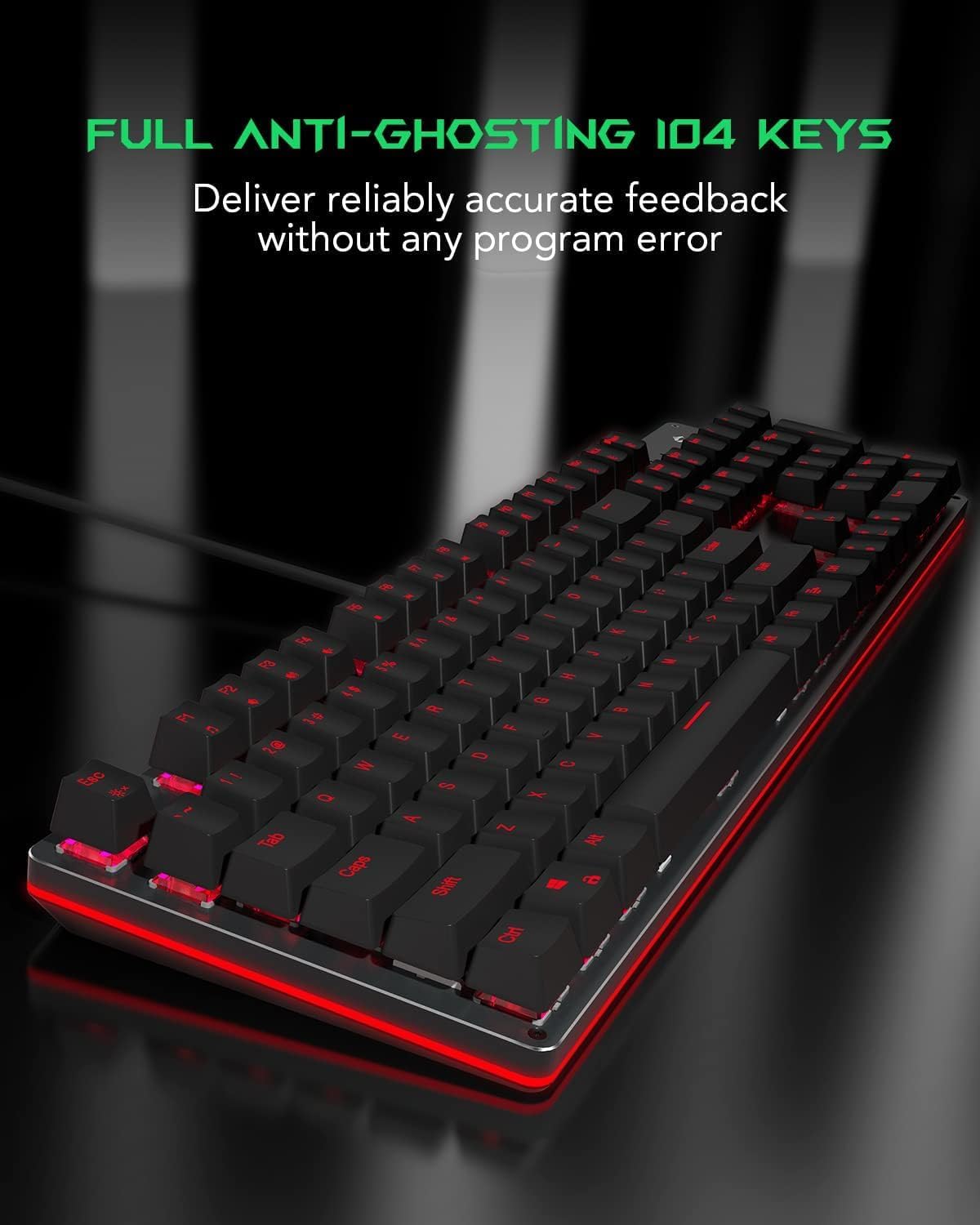
Image: A close-up view of the Black Shark Sixgill K2 keyboard, emphasizing its full anti-ghosting capability across all 104 keys for reliable and accurate feedback.
Win-Lock Function
The keyboard includes a Win-Lock function, which disables the Windows key during gameplay. This prevents accidental presses of the Windows key that could minimize your game and disrupt your experience.
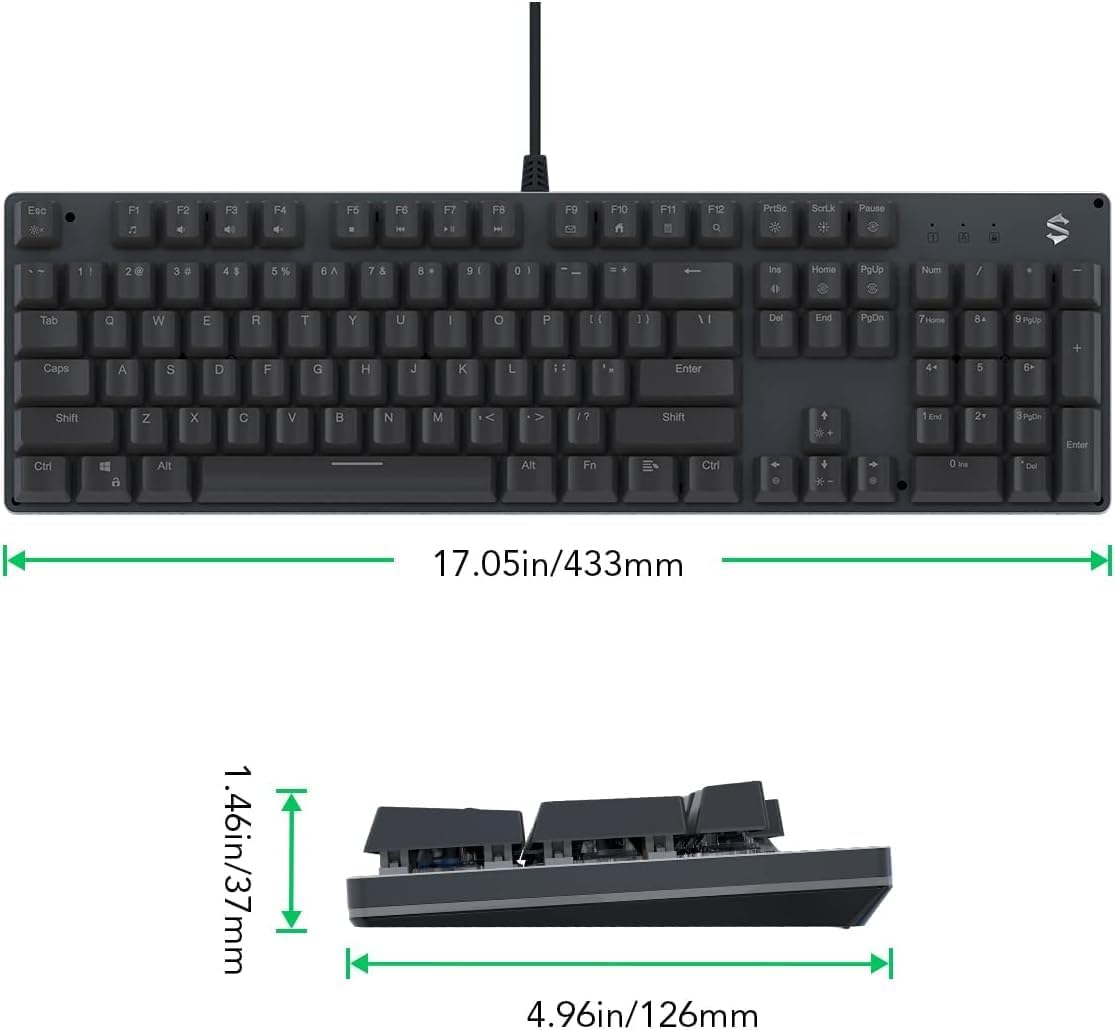
Image: A close-up of the Windows key on the Black Shark keyboard, indicating its Win-Lock function for gaming.
Maintenance and Care
Proper maintenance will extend the life and performance of your keyboard:
- Cleaning: Use a soft, dry cloth to wipe down the keyboard surface. For deeper cleaning, you can use a can of compressed air to remove dust and debris from between the keycaps.
- Removable Keycaps: The keycaps are easily removable, allowing for thorough cleaning of the keyboard interior to prevent dust and dirt buildup. Use a keycap puller (not included) or gently pry them off. Ensure the keyboard is unplugged before removing keycaps.
- Avoid Liquids: Do not spray cleaning solutions directly onto the keyboard. If necessary, dampen a cloth slightly with a mild cleaning solution and wipe.
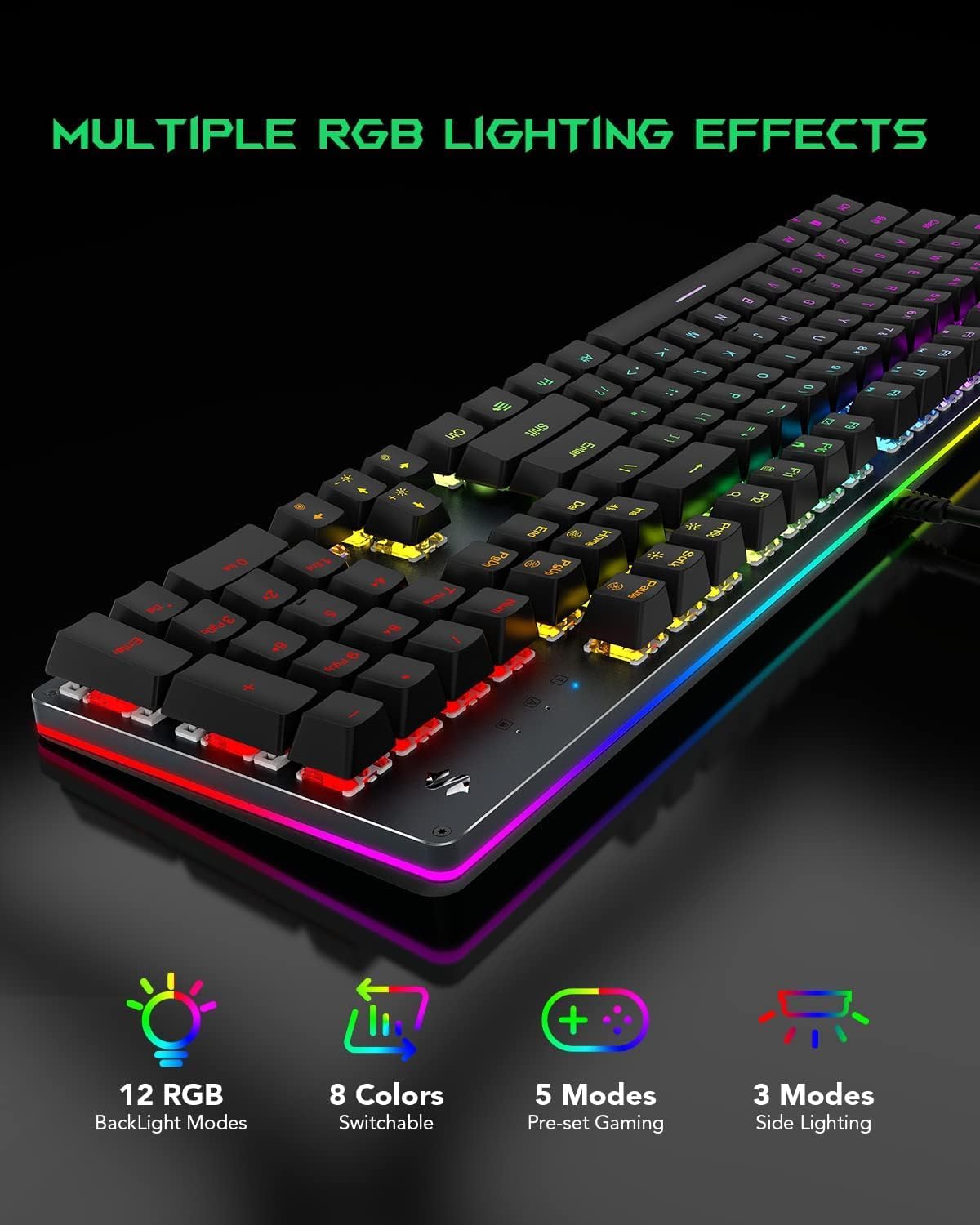
Image: A close-up view of the Black Shark Sixgill K2 keyboard, demonstrating its easily removable keycaps for convenient cleaning and maintenance.
Troubleshooting
If you encounter issues with your Black Shark Sixgill K2 keyboard, please refer to the following common solutions:
- Keyboard not responding:
- Ensure the USB cable is securely plugged into both the keyboard and the computer.
- Try plugging the keyboard into a different USB port on your computer.
- Restart your computer.
- Backlighting not working or inconsistent:
- Check the lighting control key combinations (refer to the Operating Instructions section).
- Ensure the keyboard is properly connected and receiving power.
- If using the software, ensure it is running correctly and settings are applied.
- Keys not registering or double-typing:
- Ensure the keycap is properly seated on the switch.
- Clean any debris or dust from under the affected keycap.
- Test the keyboard on another computer to rule out a system-specific issue.
- Win-Lock function not working:
- Ensure you are using the correct key combination to activate/deactivate the Win-Lock function.
Product Specifications
| Feature | Detail |
|---|---|
| Model Number | BS-K2-Red-US |
| Keyboard Type | Mechanical Gaming Keyboard |
| Switch Type | Red Switches (Linear) |
| Number of Keys | 104 |
| Anti-Ghosting | Full 104-key Anti-Ghosting |
| Backlighting | RGB LED Backlit (12 modes, 5 gaming modes, 3 side effects) |
| Connectivity | Wired (Micro USB) |
| Compatible Devices | Desktop PC, Gaming Console |
| Operating System Compatibility | Windows 7 / Windows 8 / Windows 10 / Windows XP |
| Keycap Life | Up to 50 million keystrokes |
| Actuation Force | 50 ± 15gf |
| Actuator Travel | 2.0 ± 0.2mm |
| Material | Durable Aluminium Alloy Panel |
| Item Weight | 2.35 pounds (1.06 kg) |
| Package Dimensions | 17.63 x 6.93 x 2.52 inches (44.78 x 17.60 x 6.40 cm) |
Warranty and Support
The Black Shark Sixgill K2 RGB Mechanical Gaming Keyboard is covered by a standard manufacturer's warranty. Please refer to the warranty card included in your package or visit the official Black Shark website for detailed warranty terms and conditions.
For technical support, troubleshooting assistance, or warranty claims, please contact Black Shark customer service through their official website or the contact information provided with your purchase. When contacting support, please have your product model number (BS-K2-Red-US) and purchase details ready.
Documents and downloads
Ask a question about this manual
Ask about setup, troubleshooting, compatibility, parts, safety, or missing instructions. Manuals+ will review the question and use this page’s manual context to help answer it.